

Basic Fixes:
- Restart the computer: Sometimes, a restart is all you need because it is strong enough to force problematic processes that trigger the problem to shut down.
- Scan the computer for malware: Malware alters the typical behavior of elements on your computer; you should scan with a strong antivirus.
- Use System Restore: In some cases, the System Restore tool can restore your computer to a state before the problem started.
Fix 1: Verify and Update the Shortcut Target
Shortcuts on your desktop are linked to the app files they are supposed to open. So, while the shortcut may seem perfect, if the take path for the app is inaccurate, the shortcut will not work. The simple fix is to update the path, as shown below.
Step 1: Right-click on the problematic shortcut and click Open file location.

Step 2: Take note of the file’s path; it is usually found on the address bar of the open File Explorer.
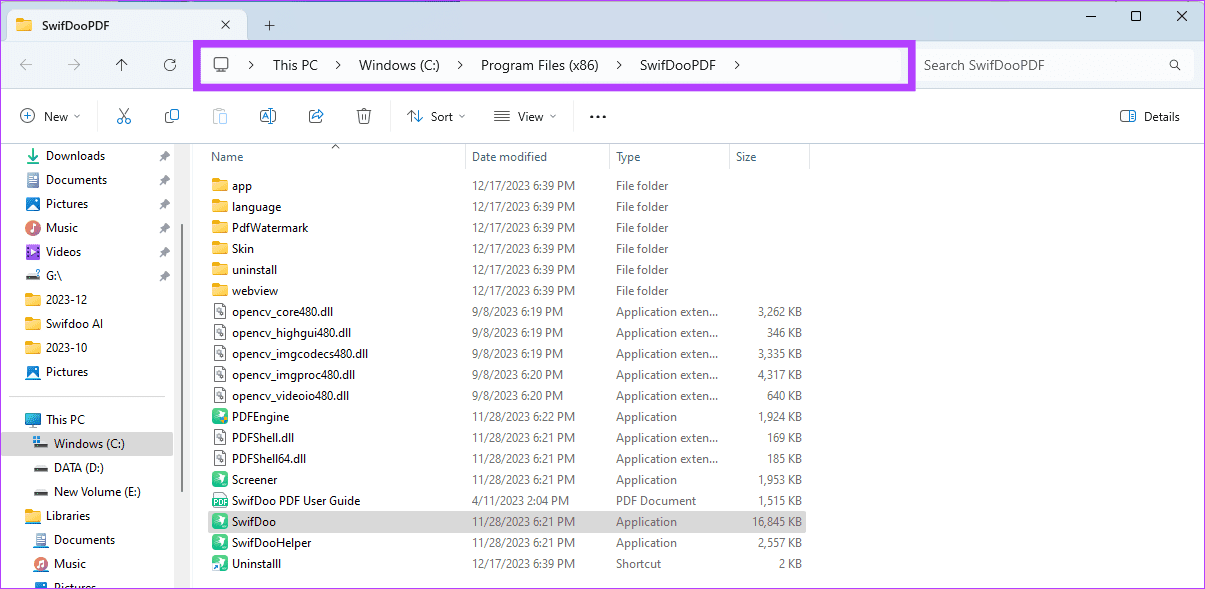
Step 3: Right-click the desktop shortcut again and click Properties.

Step 4: Update the Target field and ensure it tallies with the file path noted earlier, then click Apply and OK.

Fix 2: Recreate the Problematic Shortcut(s)
When the desktop shortcuts are not opening, you may face file corruption. By recreating the shortcut, you will discard the old, corrupt shortcut and create a new one. You may follow the steps below.
Step 1: Right-click on the problematic shortcut and click Open file location.
Step 2: Right-click on the executable file and click Show more options.

Step 3: Select Create shortcut from the context menu.

Fix 3: Re-Register Apps
If desktop shortcuts are not working or showing on Windows, re-registering apps is effective, especially when the problem is with Microsoft Store apps. Installing an app will create registry entries that link it to essential functions like opening it from a shortcut. When re-registering the apps, you remove any corruption that may cause the error.
Step 1: Click the Search icon on the Taskbar, type PowerShell, and click the Run as administrator option.

Step 2: Copy and paste the command below into PowerShell and hit Enter:
Get-AppXPackage -AllUsers |Where-Object {$_.InstallLocation -like "SystemApps"} | Foreach {Add-AppxPackage -DisableDevelopmentMode -Register "$($_.InstallLocation)AppXManifest.xml"}

Fix 4: Repair Windows With the DISM Tool
If icons on the desktop are blank or not loading correctly, you may have some major corruption in the system image. On Windows 11, you can use the native DISM scan to find and fix this corruption. Follow the steps below.
Step 1: Press Windows + R keyboard shortcut to launch the Windows Run dialog.
Step 2: Type cmd, and hit Ctrl + Shift + Enter keyboard shortcut to launch an elevated Command Prompt.

Step 3: Type the command below and hit Enter to scan for image corruption:
DISM /Online /Cleanup-Image /ScanHealth

Step 4: Type the command below and hit Enter to fix image corruption:
DISM /Online /Cleanup-Image /RestoreHealth

Step 5: Lastly, run the command below to initiate the SFC scan and restart your computer when the scan completes:
sfc /scannow

Was this helpful?
Last updated on 03 September, 2024
Read Next
 5 Fixes for Keyboard Shortcuts Not Working in Microsoft Excel for Windows
Fix 1: Use the On-Screen Keyboard First, you must perform a few keyboard shortcuts using the On-Screen Keyboard (OSK) on Windows.
5 Fixes for Keyboard Shortcuts Not Working in Microsoft Excel for Windows
Fix 1: Use the On-Screen Keyboard First, you must perform a few keyboard shortcuts using the On-Screen Keyboard (OSK) on Windows.
 Top 5 Ways to Create Desktop Shortcuts on Windows 11
Adding your frequently-used apps and folders on the desktop can bring a lot of comfort to the table.
Top 5 Ways to Create Desktop Shortcuts on Windows 11
Adding your frequently-used apps and folders on the desktop can bring a lot of comfort to the table.
 4 Ways to Create Desktop Shortcuts for Google Docs or Sheets
Note: Ensure that the Google Docs or Sheets website is open in the browser if you want to add shortcuts to any particular file.
4 Ways to Create Desktop Shortcuts for Google Docs or Sheets
Note: Ensure that the Google Docs or Sheets website is open in the browser if you want to add shortcuts to any particular file.
 18 WhatsApp Web and Desktop Shortcuts for Windows and Mac users
WhatsApp Shortcuts for Web and Desktop ShortcutDescriptionTab Change focusShift + TabChange focus: + Emoji nameDisplays emojis with the alphabet combinationSpecial Characters:-) = 🙂, :-( = 🙁, :-| = 😐, :-\
18 WhatsApp Web and Desktop Shortcuts for Windows and Mac users
WhatsApp Shortcuts for Web and Desktop ShortcutDescriptionTab Change focusShift + TabChange focus: + Emoji nameDisplays emojis with the alphabet combinationSpecial Characters:-) = 🙂, :-( = 🙁, :-| = 😐, :-\
 A Guide to Fixing Keyboard Shortcuts Not Working on Windows 10
When you get used to keyboard shortcuts, there's no going back.
A Guide to Fixing Keyboard Shortcuts Not Working on Windows 10
When you get used to keyboard shortcuts, there's no going back.
 4 Ways to Fix Keyboard Shortcuts Not Working on Windows 11
Preliminary Fixes Disable Game Mode: Gaming keyboards often have special modes that disable keyboard shortcuts.
4 Ways to Fix Keyboard Shortcuts Not Working on Windows 11
Preliminary Fixes Disable Game Mode: Gaming keyboards often have special modes that disable keyboard shortcuts.
 4 Fixes if Chrome Remote Desktop Is Not Working on Windows 11
Fix 1: Disable PIN-Less Authentication Chrome Remote Desktop lets you pair your trusted devices with your computer.
4 Fixes if Chrome Remote Desktop Is Not Working on Windows 11
Fix 1: Disable PIN-Less Authentication Chrome Remote Desktop lets you pair your trusted devices with your computer.
 5 Fixes for Remote Desktop Copy-Paste Not Working on Windows
Fix 1: Configure Remote Desktop Connection Settings A common reason you may be unable to copy and paste data during a Remote Desktop session is if you have previously disabled
5 Fixes for Remote Desktop Copy-Paste Not Working on Windows
Fix 1: Configure Remote Desktop Connection Settings A common reason you may be unable to copy and paste data during a Remote Desktop session is if you have previously disabled
The article above may contain affiliate links which help support Guiding Tech. The content remains unbiased and authentic and will never affect our editorial integrity.

