Which iPhone Models Support the Depth Effect Feature
The depth effect feature is only available on iPhones with an A12 Bionic chip or later. In other words, you can only use this feature on the following iPhone models:
- iPhone XR, XS, and XS Max
- iPhone SE (2nd and 3rd Gen)
- iPhone 11, 11 Pro, 11 Pro Max
- iPhone 12, 12 mini, 12 Pro, 12 Pro Max
- iPhone 13, 13 mini, 13 Pro, 13 Pro Max
- iPhone 14, 14 Plus, 14 Pro, 14 Pro Max
Try Basic Fixes
- Force reboot iPhone: Sometimes, temporary glitches with your iPhone can cause the depth effect feature to stop working. To fix this, press and release the Volume Up button, then press and release the Volume Down button. Then, press and hold the Power button until the Apple logo appears.
- Install iOS updates: If the depth effect not working issue is limited to the iOS build your iPhone is running, installing newer updates should help. Open the Settings app and head to General > Software Update to download and install pending updates.
1. Check If Depth Effect Is Enabled
Although the depth effect feature kicks in automatically when you use a supported wallpaper, you can double-check and ensure that you haven’t disabled the feature by mistake. Here’s how.
Step 1: Unlock your iPhone with Face ID and then long-press on your lock screen to edit it.
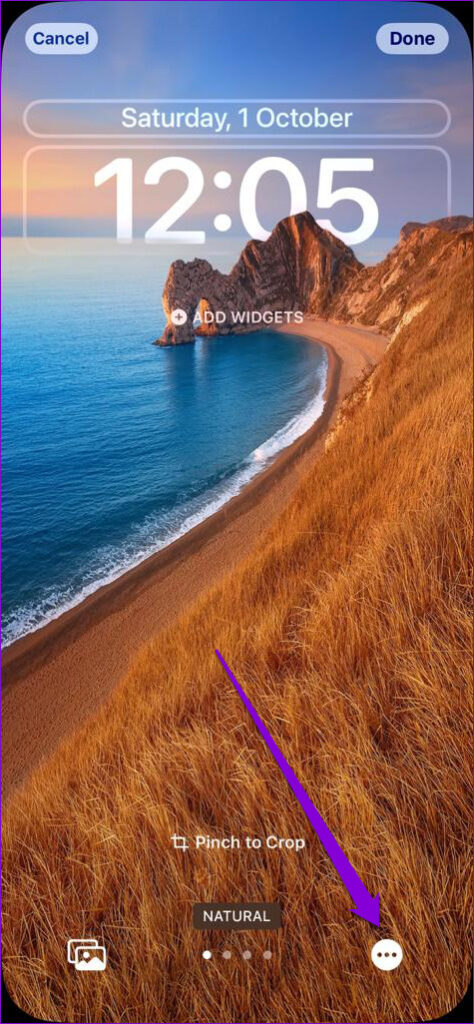
Step 2: Tap the Customize button at the bottom.
Step 3: Tap the three-dot menu icon in the bottom-right corner and enable the Depth Effect option if it isn’t already selected.


Fix 2: Remove Lock Screen Widgets
On the iPhone, you cannot use those lock screen widgets and the depth effect feature at the same time. So, to enjoy the depth effect on the lock screen wallpaper, you must remove any widgets from your lock screen.
To remove lock screen widgets, unlock your device and stay on the lock screen. Tap and hold the lock screen and then tap on the Customize button at the bottom. Tap the widget panel and use the minus sign next to a widget to remove it.

Fix 3: Check the Image File Format
The depth effect may not work if your lock screen wallpaper is not in the JPEG format. To check your wallpaper’s format, open it in the Photos app and tap the info icon at the bottom. In the overlay pane, you’ll see the image file format.
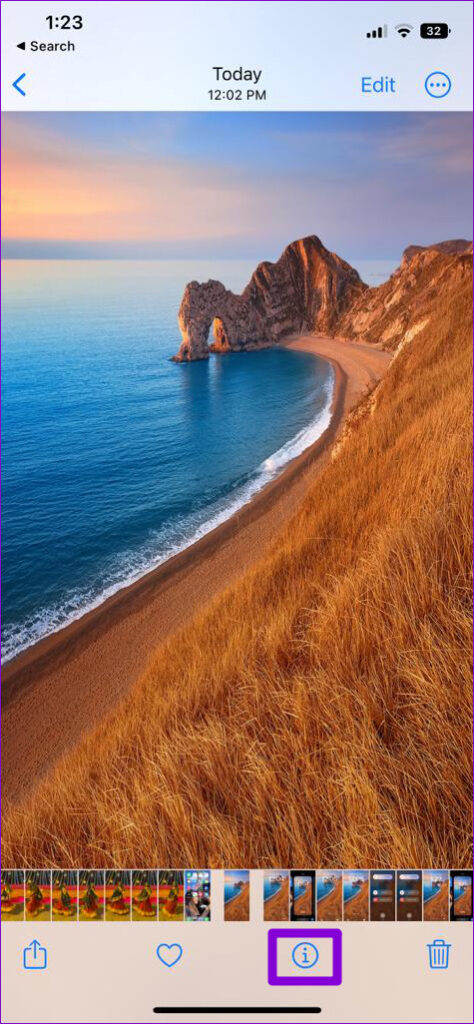

If your image is in an unsupported format, you’ll have to convert it to JPEG or use another wallpaper to enjoy the depth screen effect. Note that the depth effect might not work if your iPhone fails to recognize the subject in your photo. Ideally, you should use an image in which the subject is distinguishable from the background.
Fix 4: Reposition or Crop the Wallpaper
If the depth effect is not working despite using a supported wallpaper, you may have to reposition or crop your image. If the subject of your wallpaper happens to cover the majority of your clock area, the depth effect will not work as expected.
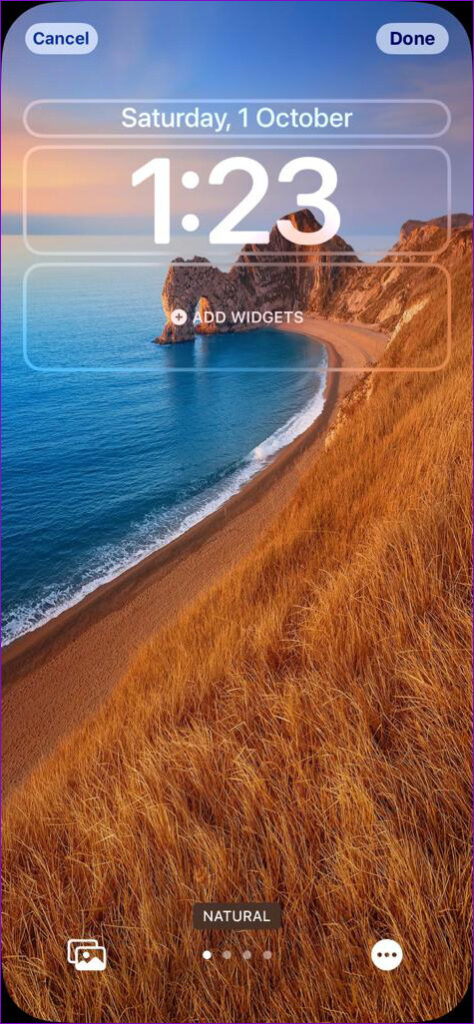
Step 1: Unlock your iPhone and stay on the lock screen. Then, long-press on your lock screen and tap the Customize button at the bottom.
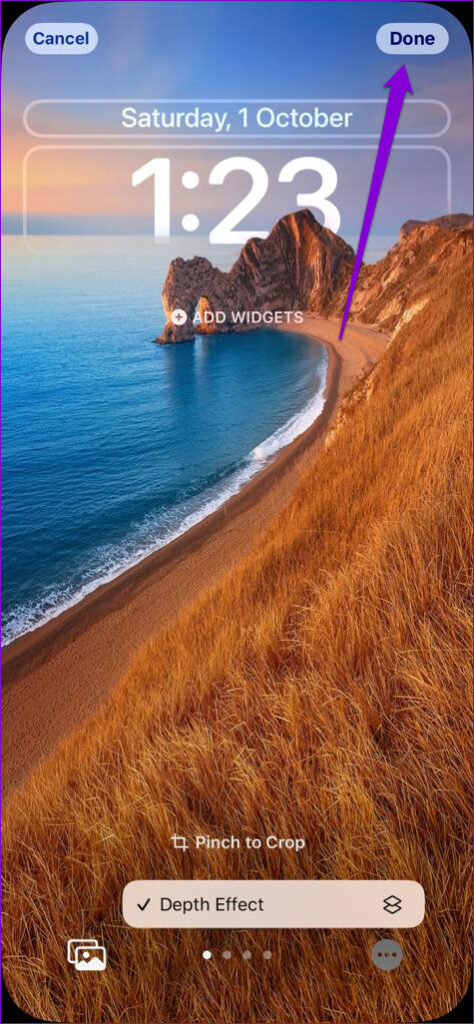
Step 2: Use the pinch gesture to zoom in and zoom out. Adjust the wallpaper in a way that the depth effect works. You can preview the depth effect as you reposition the image.
Step 3: Tap on Done in the top right corner to save changes.
Was this helpful?
Last updated on 30 August, 2024
Read Next
 45 Best Depth Effect Wallpapers (4K) for iPhone Lock Screen
How to Enable Depth Effect on iPhone Lock Screen Step 1: Open the photo you want to set as the lock screen wallpaper.
45 Best Depth Effect Wallpapers (4K) for iPhone Lock Screen
How to Enable Depth Effect on iPhone Lock Screen Step 1: Open the photo you want to set as the lock screen wallpaper.
 Speedtest vs Fast: In-Depth Comparison of Two Internet Speed Test Providers
The present decade has seen data rates going down, with increased penetration of the internet.
Speedtest vs Fast: In-Depth Comparison of Two Internet Speed Test Providers
The present decade has seen data rates going down, with increased penetration of the internet.
 WhatsApp Calls: An In-depth Guide To All You Should Know
How to Make a WhatsApp Call Calling people on WhatsApp is a cakewalk.
WhatsApp Calls: An In-depth Guide To All You Should Know
How to Make a WhatsApp Call Calling people on WhatsApp is a cakewalk.
 How to Apply Parchment Background Effect in Word
Applying the Parchment Background Effect in Microsoft Word Step 1.
How to Apply Parchment Background Effect in Word
Applying the Parchment Background Effect in Microsoft Word Step 1.
 3 Ways to Fix Wallpaper Disappeared on iPhone
Basic Fixes: Restart iPhone: Force your iOS device to shut down.
3 Ways to Fix Wallpaper Disappeared on iPhone
Basic Fixes: Restart iPhone: Force your iOS device to shut down.
 5 Ways to Fix Blurry Home or Lock Screen Wallpaper on iPhone
Fix 1: Check if the Wallpaper Resolution Fits Your iPhone's Screen If you have downloaded a wallpaper, check its resolution and ensure that it matches the screen resolution of your
5 Ways to Fix Blurry Home or Lock Screen Wallpaper on iPhone
Fix 1: Check if the Wallpaper Resolution Fits Your iPhone's Screen If you have downloaded a wallpaper, check its resolution and ensure that it matches the screen resolution of your
 3 Ways to Make a Picture Fit Wallpaper on iPhone
Method 1: By Using the Wallpaper Resizer App You can use third-party wallpaper resizing apps to do the job.
3 Ways to Make a Picture Fit Wallpaper on iPhone
Method 1: By Using the Wallpaper Resizer App You can use third-party wallpaper resizing apps to do the job.
 How to Set Different Lock Screen and Home Screen Wallpaper on iPhone
How to Add Different Wallpapers on iPhone Home Screen and Lock Screen Step 1: Open the Settings app > select Wallpaper.
How to Set Different Lock Screen and Home Screen Wallpaper on iPhone
How to Add Different Wallpapers on iPhone Home Screen and Lock Screen Step 1: Open the Settings app > select Wallpaper.
The article above may contain affiliate links which help support Guiding Tech. The content remains unbiased and authentic and will never affect our editorial integrity.