Note: While the article concentrates on solutions for the Chrome browser, you can use them to fix the issue in any other browser, such as Safari, Firefox, and Edge.
Basic Fixes
- Restart browser: Force quitting and restarting the browser might do the trick.
- Check if the website blocked copy-paste: Before we dive into browser settings, ensure that the website you are copying from or pasting to does not have copy-paste restrictions. If that’s the issue, you’ll mostly encounter messages like ‘Copying is not allowed on this webpage,’ or ‘Chrome does not support image pasting here’.
Note: Thankfully, there are some workarounds for the situations where copying is not allowed. However, be mindful of copyright-protected content. - Restart computer: Isn’t this the universal hack to troubleshoot any problem? In addition to Chrome, you can use this trick to fix copy-paste not working on Windows or Mac.
- Is there a problem with the keyboard: Are you using keyboard shortcuts to copy and paste? Sometimes, issues with the keyboard can prevent copy-paste functionality. Try using the mouse or trackpad and the trusty right-click method.
Tip: If it works, then it’s time to shift your focus and fix the keyboard not working on Mac or Windows problem first. - Uninstall and reinstall the browser: The problem might be deeply routed into the app. When you uninstall the app, it also erases the root cause. Hopefully, the freshly installed app will allow you to copy/paste.
Fix 1. Disable Browser Extensions
While we use extensions to make our lives easier, sometimes they can bite us back. Maybe the copy-paste functionality is not working on Chrome because one of the installed extensions hinders it. So, disable all existing extensions and see if it fixes the problem.
Step 1: Click the Extensions icon from the top bar → Manage Extensions. Or click the three-line icon → Extensions → Manage extensions.
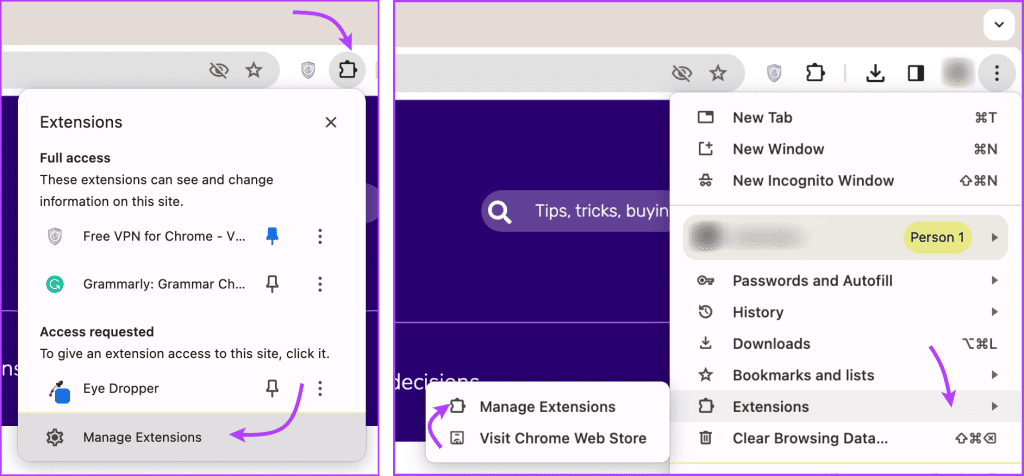
Step 2: Here, toggle off all extensions.

Now, try to copy and paste something. If Chrome can copy-paste now, it’s obvious that an extension was creating some tension (pun intended).
Next, repeat the steps above and toggle on extensions one by one. Try copying and pasting after each extension is enabled to find the culprit.
Fix 2. Clear the Browser Cache
Maybe the Caches stored or refreshed during your last session went faulty. And now, they are stopping you from copying or pasting in the current session. Clearing Google Chrome’s cache and cookies would help you erase the bug and hopefully fix the issue.
To do so, click the three-dot icon at the top right → select Clear Browsing data → check the box for Cookes and other site data and Cached image and files → click Clear data.

Fix 3. Clear the Clipboard Cache and History on Windows
Although rare, a jam-packed clipboard could disable copying and pasting on Chrome or other apps. So, if you’ve turned on clipboard history in your Windows device, clear it out for a fresh start.
The simplest way to check and click clipboard history is to use the keyboard shortcut. Press the Windows icon + V on your keyboard → click Clear all. Now, try to copy and paste.

Use Alternative Methods to Copy and Paste Text
If none of the above solutions work and you don’t have time to troubleshoot or uninstall/reinstall Chrome, try these alternative methods to copy and paste text.
1. Copy From the Source Code
One quick way to bypass the error that prevents you from copying is to go to the webpage’s source code.
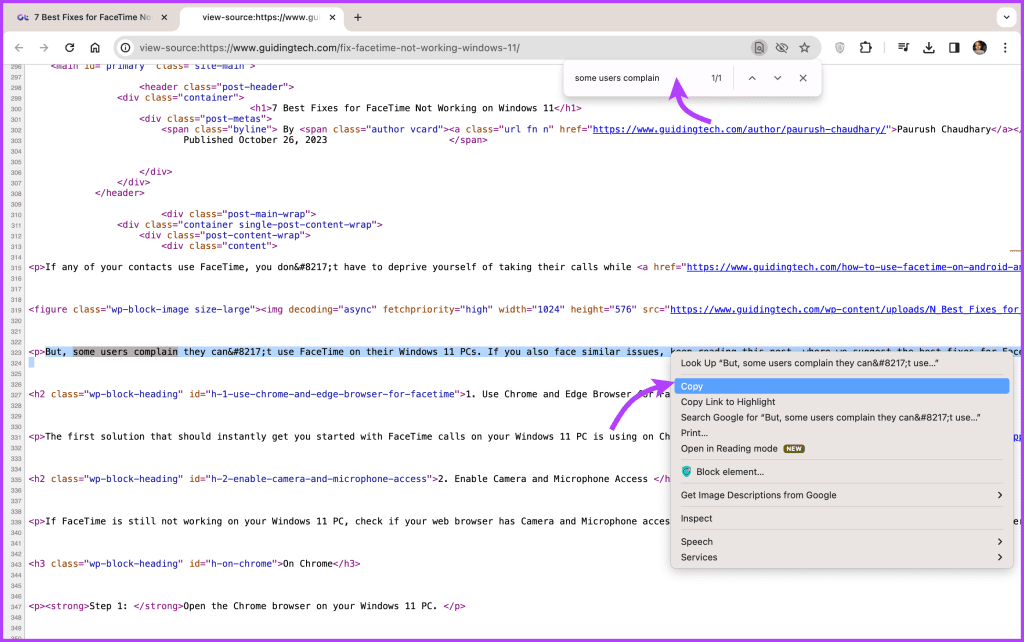
Step 1: Open the webpage, observe, and memorize one or more words from the text you want to copy. Click Cmd + Option + U (Mac) or Ctrl + U (Windows).
Step 2: Here, click Cmd + F (Mac) or Ctrl + F (Windows). Type the memorized words.
Step 3: Find the section you want to copy, select the text, and copy and paste (using the keyboard shortcut, mouse, or trackpad).
2. Copy Text From Chrome via Print to PDF
So you’re facing trouble copying text on Chrome browser, but you can do so in other apps. So, why not use the handy Print to PDF function to quickly copy content from the webpage?
Step 1: Open the website and select the text you need. Right-click and select Print.

Step 2: In the print support window, select the text again and use the keyboard shortcut or mouse to copy the content.

If you still can’t copy it, save it as a PDF. Then, open the PDF and copy the text from it.

Note: You can even save the complete webpage and select the text to copy and paste.
What’s more? If nothing else works, you can take a screenshot of the webpage and use Live Text on Mac to copy-paste text from the image.
Was this helpful?
Last updated on 07 August, 2024
Read Next
 4 Ways to Fix Copy and Paste Not Working on Mac
Fix 1: Force Quit the Pasteboard Server Pboard is the short form for Pasteboard Server.
4 Ways to Fix Copy and Paste Not Working on Mac
Fix 1: Force Quit the Pasteboard Server Pboard is the short form for Pasteboard Server.
 Top 9 Ways to Fix Copy-Paste Not Working on Windows 10 Issue
The copy-paste function in Windows 10 is often taken for granted.
Top 9 Ways to Fix Copy-Paste Not Working on Windows 10 Issue
The copy-paste function in Windows 10 is often taken for granted.
 4 Ways to Fix Copy and Paste Not Working in Windows 11
Try Basic Fixes Restart Windows Explorer: Problems with the Windows Explorer process can also prevent you from copying and pasting files in File Explorer.
4 Ways to Fix Copy and Paste Not Working in Windows 11
Try Basic Fixes Restart Windows Explorer: Problems with the Windows Explorer process can also prevent you from copying and pasting files in File Explorer.
 7 Ways to Fix Copy and Paste Not Working in Microsoft Word
Basic Fixes Restart PC: Restart your PC to eliminate any temporary bugs and glitches.
7 Ways to Fix Copy and Paste Not Working in Microsoft Word
Basic Fixes Restart PC: Restart your PC to eliminate any temporary bugs and glitches.
 5 Fixes for Remote Desktop Copy-Paste Not Working on Windows
Fix 1: Configure Remote Desktop Connection Settings A common reason you may be unable to copy and paste data during a Remote Desktop session is if you have previously disabled
5 Fixes for Remote Desktop Copy-Paste Not Working on Windows
Fix 1: Configure Remote Desktop Connection Settings A common reason you may be unable to copy and paste data during a Remote Desktop session is if you have previously disabled
 5 Ways to Copy and Paste Text on Android
Method 1: Copy and Paste General Text To copy and paste text on your Android device, follow these steps: Step 1: Long-press the text you want to copy.
5 Ways to Copy and Paste Text on Android
Method 1: Copy and Paste General Text To copy and paste text on your Android device, follow these steps: Step 1: Long-press the text you want to copy.
 How to Copy and Paste Pictures on Android
Copying pictures on iPhones and PCs is easy.
How to Copy and Paste Pictures on Android
Copying pictures on iPhones and PCs is easy.
 How to Copy or Share Twitter Profile and Tweet Link Using Any Device
Share X (Twitter) Profile Link on Android and iPhone Step 1: Tap on the profile icon at the top left, and select Profile.
How to Copy or Share Twitter Profile and Tweet Link Using Any Device
Share X (Twitter) Profile Link on Android and iPhone Step 1: Tap on the profile icon at the top left, and select Profile.
The article above may contain affiliate links which help support Guiding Tech. The content remains unbiased and authentic and will never affect our editorial integrity.