Basic Fixes
- Update or reinstall Google Chrome: If Chrome Password Manager isn’t working, update it to the latest version. Go to the Chrome menu > Settings > About Chrome. If the problem persists, reinstall the browser.
- Clear cache and cookies: Corrupt or old browsing data can conflict with Chrome Password Manager. To fix this, open the browser and clear its cache and cookies.
- Disable Windows Hello for Chrome: Windows Hello interferes with Chrome Password Manager due to its biometric authentication feature. To fix this, disable Windows Hello for Chrome and use a PIN or password instead.
- Remove other password manager apps or extensions: If you have another password manager app or extension installed, remove it and see if it works.
Fix 1: Enable/Re-Enable Password Manager
Step 1: In the Chrome address bar, paste the following command and press Enter.
chrome://password-manager/settings

Step 2: Ensure to turn on the toggle for Offer to save passwords if not already.
Step 3: If it was already enabled, disable it and enable it again.
Fix 2: Enable Password Sync in Chrome
Sync everything if you have multiple devices linked to your Google account.
Step 1: Open Chrome > click on the three dots.
Step 2: Navigate to Settings > You and Google > Sync and Google services.
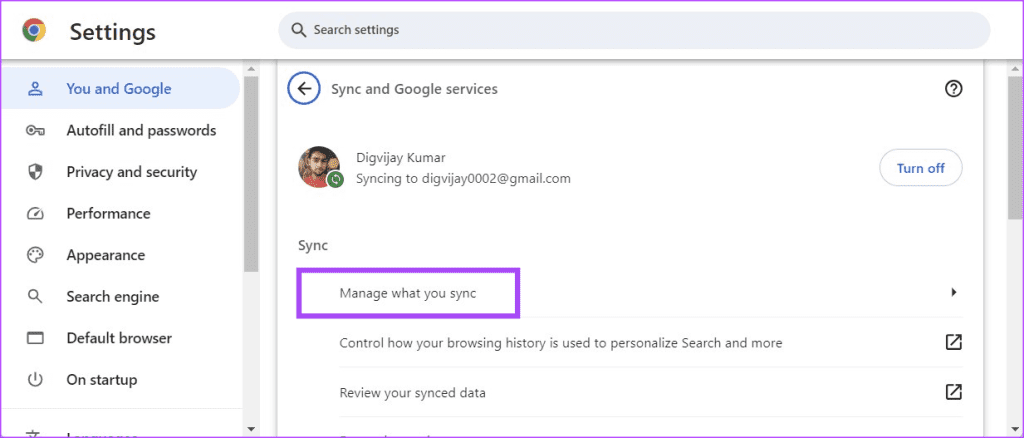
Step 3: Under Sync, click Manager what you sync.
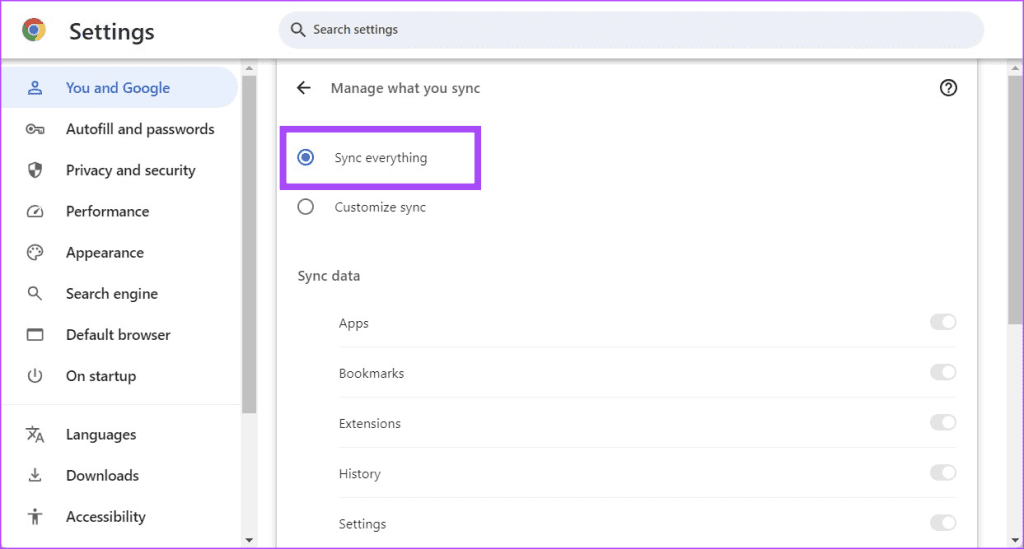
Step 4: Ensure that Sync everything is checked. If not, check it.
Also read: How to Fix Chrome Autofill Not Working Issue
Fix 3: Reset Google Chrome Settings to Default
If none of these fixes worked, reset Chrome settings to default. This restores your settings and clears out any conflicting data.
Step 1: Navigate to Chrome Settings > Reset settings > Reset and clean up.
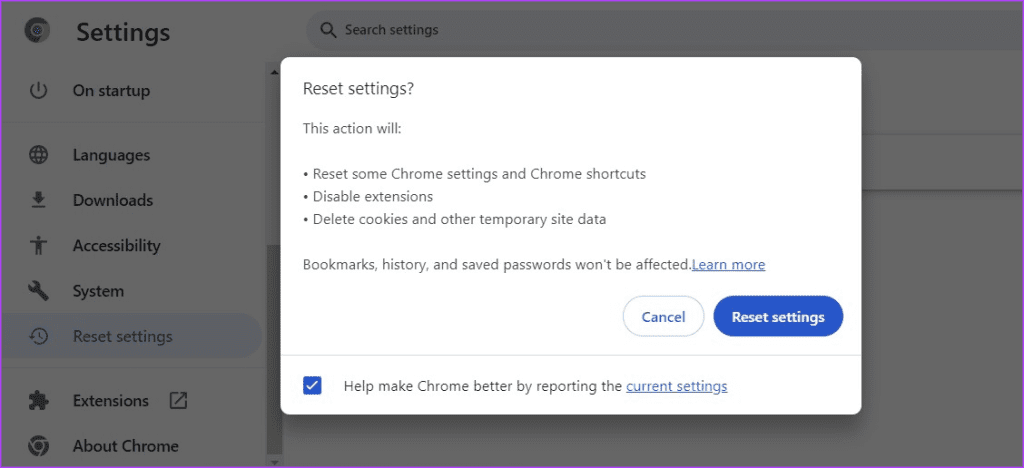
Step 2: Click on Restore settings to their original defaults > Reset settings.
If none of the above fixes work, there might be a bug in Chrome Password Manager. You can report the issue to Google, and they should hopefully fix it in the next update.
Was this helpful?
Last updated on 01 August, 2024
Read Next
 3 Ways to Manually Add New Passwords to Google Password Manager
Method 1: Using the Google App The Google Password Manager is nested in the Google app on your device.
3 Ways to Manually Add New Passwords to Google Password Manager
Method 1: Using the Google App The Google Password Manager is nested in the Google app on your device.
 6 Best Session Manager Extensions for Chrome
1.
6 Best Session Manager Extensions for Chrome
1.
 6 Ways to Fix Task Manager Not Working on Windows 11
Basic Fixes Install Windows updates: Such issues with Task Manager can also arise due to faulty Windows builds.
6 Ways to Fix Task Manager Not Working on Windows 11
Basic Fixes Install Windows updates: Such issues with Task Manager can also arise due to faulty Windows builds.
 4 Ways to Fix Password Autofill Not Working on Android
Basic Fixes App developers have disabled autofill: While most Android apps support password auto-filling, some developers skip the function due to privacy reasons.
4 Ways to Fix Password Autofill Not Working on Android
Basic Fixes App developers have disabled autofill: While most Android apps support password auto-filling, some developers skip the function due to privacy reasons.
 Forgot Your Discord Password: 4 Ways to Change or Reset It
How to Change Discord Password For Mobile Note: The steps to change your Discord password are the same for Android phones and iPhones.
Forgot Your Discord Password: 4 Ways to Change or Reset It
How to Change Discord Password For Mobile Note: The steps to change your Discord password are the same for Android phones and iPhones.
 6 Ways to Fix Realtek HD Audio Manager Missing in Windows 11/10
Fix 1: Check for Realtek HD Audio Manager in Apps Step 1: Open Windows Settings (Win + I) and navigate to Apps > Installed Apps.
6 Ways to Fix Realtek HD Audio Manager Missing in Windows 11/10
Fix 1: Check for Realtek HD Audio Manager in Apps Step 1: Open Windows Settings (Win + I) and navigate to Apps > Installed Apps.
 4 Ways to Fix Device Manager Not Opening on Windows
Fix 1: Open Device Manager With Admin Rights To start, you can try opening Device Manager with admin rights on Windows and see if it works.
4 Ways to Fix Device Manager Not Opening on Windows
Fix 1: Open Device Manager With Admin Rights To start, you can try opening Device Manager with admin rights on Windows and see if it works.
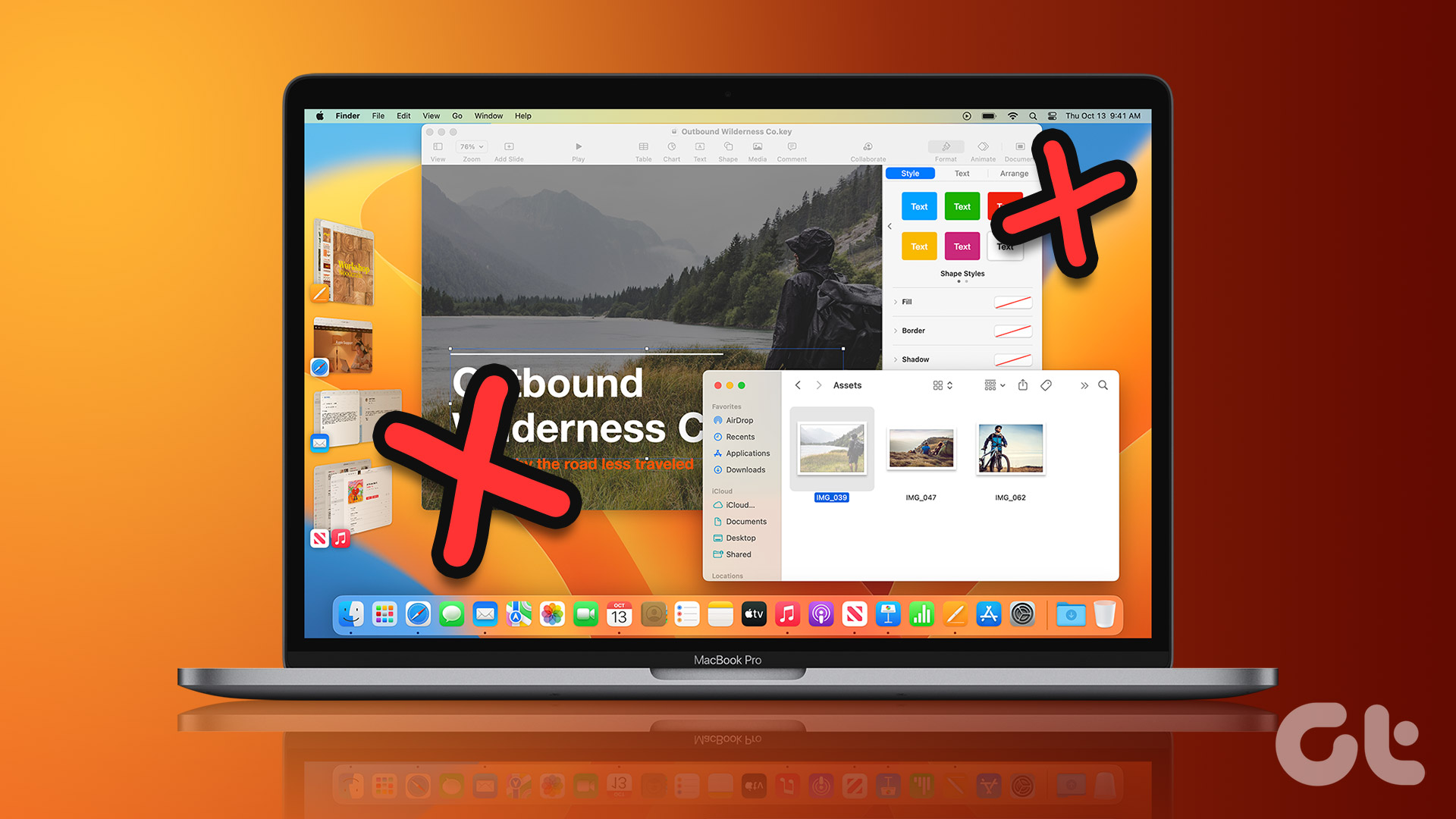 5 Best Fixes for Stage Manager Not Working on Mac
With macOS Ventura, Apple released the Stage Manager feature to improve multitasking for Mac users.
5 Best Fixes for Stage Manager Not Working on Mac
With macOS Ventura, Apple released the Stage Manager feature to improve multitasking for Mac users.
The article above may contain affiliate links which help support Guiding Tech. The content remains unbiased and authentic and will never affect our editorial integrity.