Basic Fixes:
- Check for software updates: Software glitches can cause Chrome bookmarks to show up even after being deleted. To fix this, check and install the latest browser updates. Then, try again.
- Try deleting the Bookmark again: Sometimes, the bookmark that isn’t properly deleted might pop back up again in the bookmark menu. In this case, try deleting the bookmark again to check if this helps you get rid of it.
Fix 1: Delete the Relevant Extension
Certain bookmarks might be tied to the extensions currently installed on Chrome. This means you won’t be able to delete them until you remove those extensions from Chrome. This should automatically delete the related bookmark. Follow the below steps to do it.
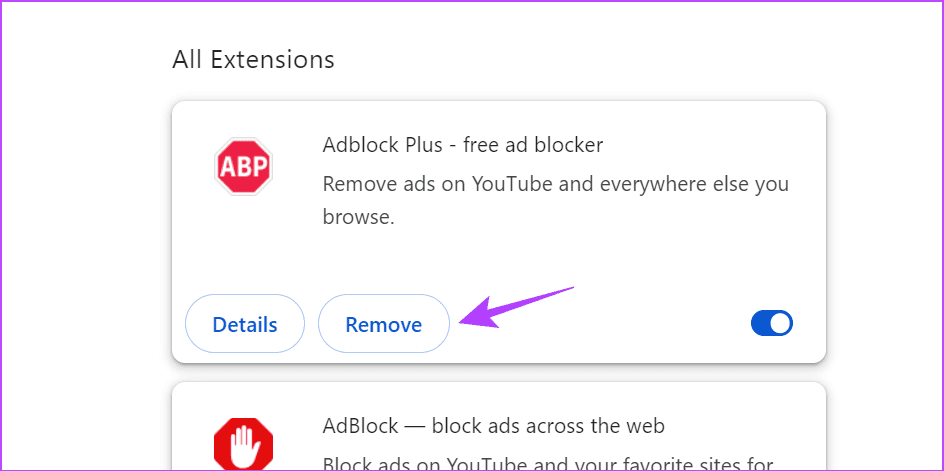
Step 1: Open Chrome and click the three-dot icon. Go to Extensions and click on Manage Extensions.

Step 2: Click on Remove for the relevant extensions. Confirm when prompted.
Also Read: What to do if you’re unable to remove extensions from Chrome
Fix 2: Turn Sync off and On
To make things easier, Chrome allows you to sync data across all devices running the same Google account. This can, however, cause certain bookmarks to reappear if this data is not synced properly. To ensure this is not the case, you can turn Chrome sync off and on using the below steps.
Step 1: Open Chrome and click the three-dot icon. Go to your profile information and click on Sync is on.

Step 2: Here, click on Turn off.

Step 3: Click on Turn off to confirm. Ensure the below box is selected.

Now, restart Chrome and use the abovementioned steps to enable sync again. Then, open the bookmarks menu to check.
Fix 3: Clear Chrome Cache
Browser cache and cookies can help improve browser functions. However, if this cache gets too big or corrupted, it might cause certain browser functions to not work properly. This can also be one of the reasons why your deleted bookmarks keep showing again. Here’s how to clear the cache for Chrome.
Step 1: Open Chrome and click the three-dot icon. Click on Delete browsing data.

Step 2: Select the relevant options and click on Delete data. Confirm the same when prompted.

Fix 4: Reset Google Chrome
If nothing else works, you can always reset all Google Chrome settings. This will ensure any errant setting will also be deleted. Then, proceed to remove the relevant bookmarks again. Here’s how to do it.
Step 1: Open Chrome and click on the three-dot icon. Click on Settings.

Step 2: Go to Reset settings and click on Restore settings to their original defaults.

Step 3: Click on Reset settings.

Wait for Google Chrome to reset. Once done, go to the bookmarks menu and try deleting the relevant bookmark again to check.
Was this helpful?
Last updated on 28 July, 2024
Read Next
 How to Fix Chrome Sync Bookmarks Not Working Issue
Preliminary Fixes Restart device: Restarting your device refreshes your system, closes background processes that might be interfering, and clears temporary files.
How to Fix Chrome Sync Bookmarks Not Working Issue
Preliminary Fixes Restart device: Restarting your device refreshes your system, closes background processes that might be interfering, and clears temporary files.
 Top 4 Ways to Export Chrome Bookmarks and Passwords
1.
Top 4 Ways to Export Chrome Bookmarks and Passwords
1.
 Top 3 Ways to Fix Windows Temporary Files Not Deleting
Fix 1: Use Disk Cleanup Disk Cleanup is a disk maintenance utility built into the Windows operating system to help users clear unwanted system files from their PC's hard drive.
Top 3 Ways to Fix Windows Temporary Files Not Deleting
Fix 1: Use Disk Cleanup Disk Cleanup is a disk maintenance utility built into the Windows operating system to help users clear unwanted system files from their PC's hard drive.
 How to Import Chrome Bookmarks to Samsung Internet Browser
Samsung Internet Browser is one of the finest alternatives to Chrome on Android, answering many of the persistent usability issues in Google’s flagship browser.
How to Import Chrome Bookmarks to Samsung Internet Browser
Samsung Internet Browser is one of the finest alternatives to Chrome on Android, answering many of the persistent usability issues in Google’s flagship browser.
 How to Rearrange Instagram Posts Without Deleting
How to Rearrange Instagram Photos While Publishing 1.
How to Rearrange Instagram Posts Without Deleting
How to Rearrange Instagram Photos While Publishing 1.
 How Does Deleting Messages on WhatsApp Work
What Happens When You Use Delete for Me WhatsApp offers four ways to delete messages and chats: Delete for me, Delete for everyone, Delete chat, and Clear chat.
How Does Deleting Messages on WhatsApp Work
What Happens When You Use Delete for Me WhatsApp offers four ways to delete messages and chats: Delete for me, Delete for everyone, Delete chat, and Clear chat.
 4 Ways to Free Up Space on Android Without Deleting Apps
Basic Fixes: Find and remove large files: You can use Google's Files app to auto-detect and remove large files from your phone.
4 Ways to Free Up Space on Android Without Deleting Apps
Basic Fixes: Find and remove large files: You can use Google's Files app to auto-detect and remove large files from your phone.
 6 Ways to Free Up Space on Windows 11 Without Deleting Apps
Method 1.
6 Ways to Free Up Space on Windows 11 Without Deleting Apps
Method 1.
The article above may contain affiliate links which help support Guiding Tech. The content remains unbiased and authentic and will never affect our editorial integrity.