Fix 1: Check Chrome’s Autofill Settings
Usually, Google Chrome automatically saves your passwords, addresses, or payment methods. However, if you turn it off or the feature isn’t enabled, the Chrome autofill feature might not work. To fix this, follow these steps:
Step 1: Type the following in the browser’s address bar chrome://password-manager/settings and enable Offer to save passwords.

Step 2: For other options, go to chrome://settings/autofill
Step 3: Click on Payment Methods and enable the toggle for Save and fill payment methods.
Step 4: Now, go back and click on Addresses and more. Ensure to enable the toggle for Save and fill addresses.

Fix 2: Check Sync Status in Chrome
Ensure you have enabled sync for the Chrome browser to access your passwords, payment details, or addresses across your devices using the same Google Account. You can’t use your saved passwords if the sync is not on.
Step 1: For this, go to the following URL using Chrome browser chrome://settings/syncSetup.
Step 2: Check if you can spot the Turn off button, which confirms that sync is on. If you don’t see the button, click on Turn on sync.
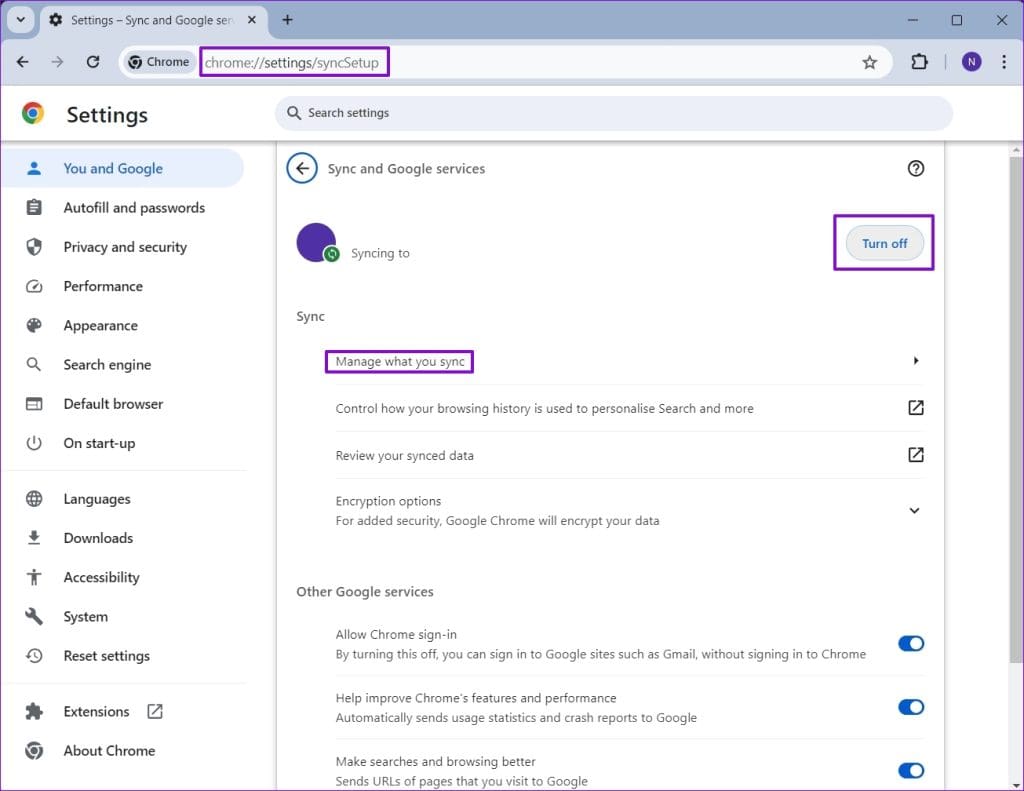
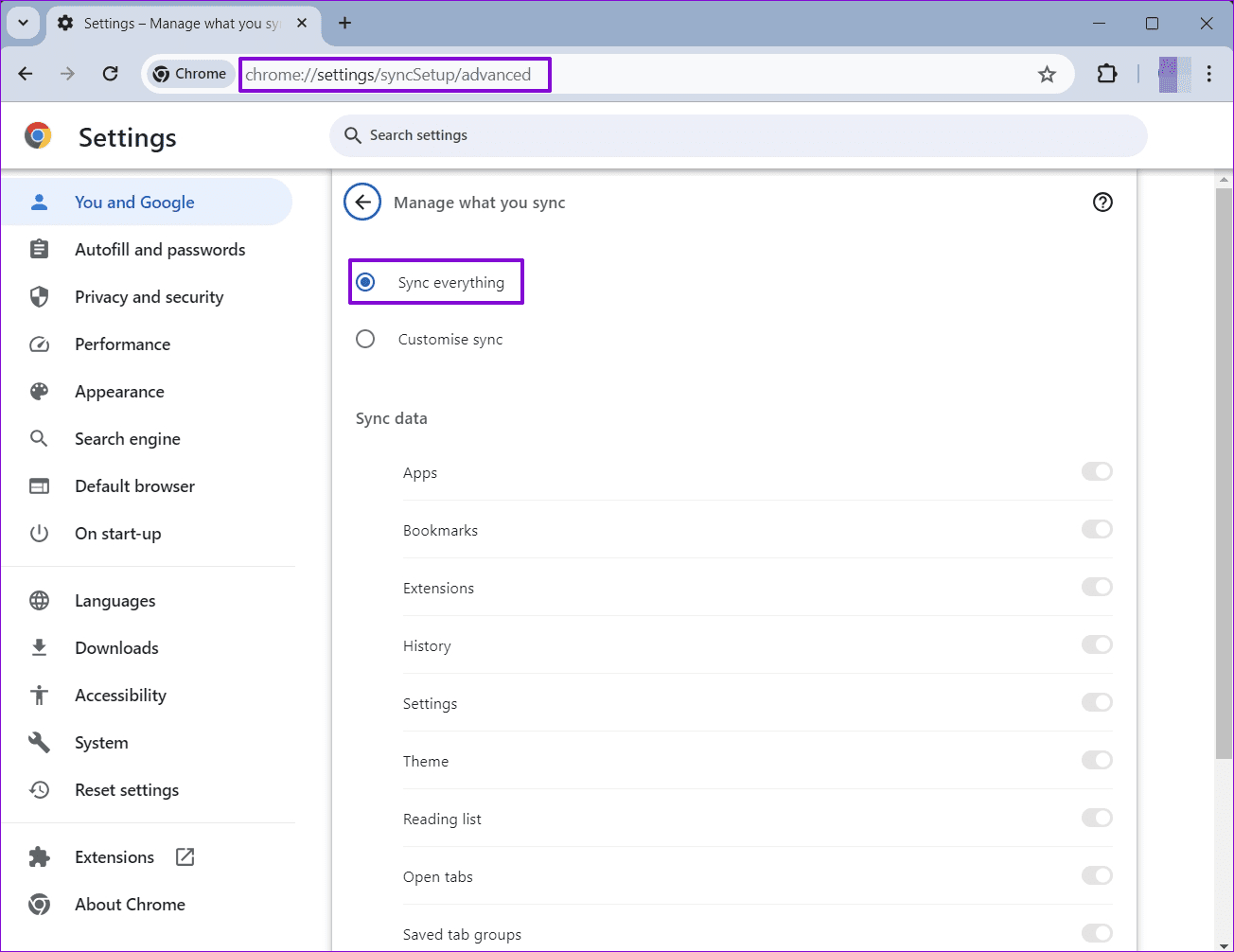
Step 3: Also, click on Manage what you sync and select Sync everything. You can also select Customize sync and select the data that you would like to share across your devices.
Fix 3: Create a New User Profile in Chrome
Another way to avoid the Chrome autofill not working issue is to create a new user profile. While this is handy when you need to maintain two different profiles, it is also excellent to check if the issue only exists with the current profile.
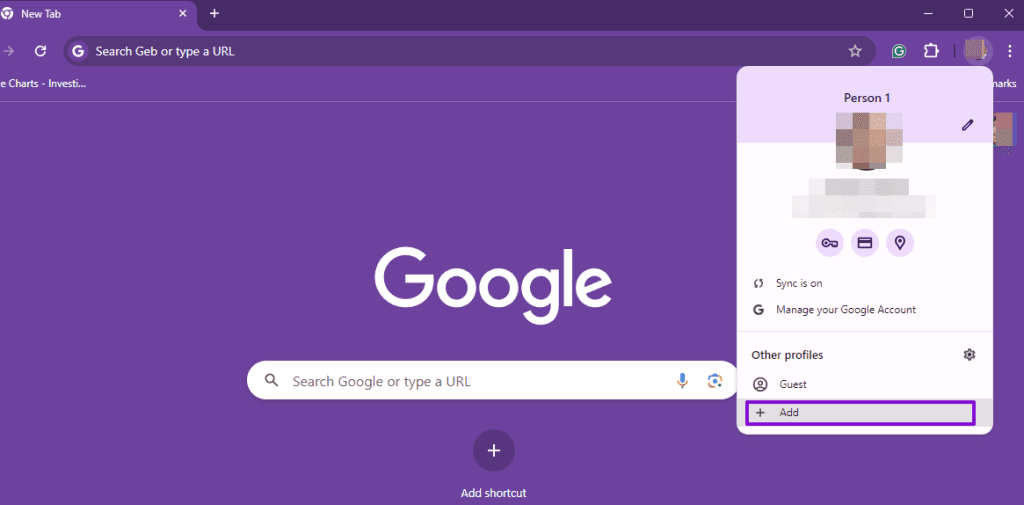
Step 1: Launch Chrome, click on your Profile, and click on the Add button.
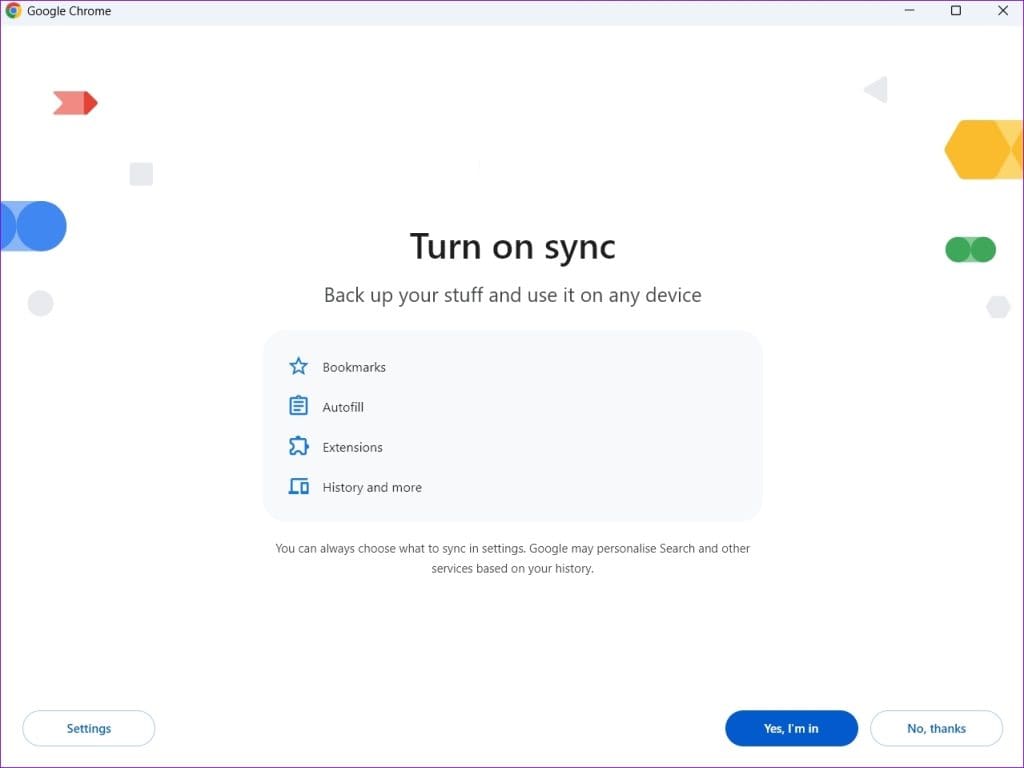
Step 2: Next, sign in using your Google Account. On the next screen, you will be asked to Turn on sync. Click Yes, I’m in, and your new Chrome profile will be created.
FAQs
How Do I Reset Autofill Form Data in Chrome?
Launch Chrome and go to chrome://settings/clearBrowserData. Then, switch to the Advanced tab. Here, check the Autofill Form Data and click on Clear data.
How Do You Get Chrome to Remember Passwords Again?
Open Chrome and go to chrome://password-manager/settings. Here, ensure that you have the option to save passwords enabled. So, the next time you enter a password on a website, it will ask you to save it. If you click Save password, it will save it in your Google Password Manager.
Was this helpful?
Last updated on 08 July, 2024
Read Next
 How to Enable or Disable Autofill in Google Chrome for PC and Mobile
Are you tired of entering your personal information every time you fill out a form or make an online purchase?
How to Enable or Disable Autofill in Google Chrome for PC and Mobile
Are you tired of entering your personal information every time you fill out a form or make an online purchase?
 How to Add or Change Autofill Data on Google Chrome
While using Google Chrome on your mobile or computer, you will surely come across websites on which you would want to sign up.
How to Add or Change Autofill Data on Google Chrome
While using Google Chrome on your mobile or computer, you will surely come across websites on which you would want to sign up.
 3 Ways to Fix AutoFill Passwords Not Working on iPhone and iPad
Basic Fixes Turn off private browsing mode: The autofill feature does not work when you browse in private mode on your iPhone or iPad.
3 Ways to Fix AutoFill Passwords Not Working on iPhone and iPad
Basic Fixes Turn off private browsing mode: The autofill feature does not work when you browse in private mode on your iPhone or iPad.
 4 Ways to Fix iPhone OTP Autofill Not Working
https://youtu.be/cemyOQvHUK8 Fix 1: Use the Default Apple Keyboard If you're using a third-party keyboard, switch to the default Apple keyboard when an OTP arrives and see if you can view
4 Ways to Fix iPhone OTP Autofill Not Working
https://youtu.be/cemyOQvHUK8 Fix 1: Use the Default Apple Keyboard If you're using a third-party keyboard, switch to the default Apple keyboard when an OTP arrives and see if you can view
 5 Ways to Fix AutoFill Not Working in Microsoft Excel for Windows
Basic Fixes Try a different workbook: Testing the AutoFill feature in a different workbook will help determine if the issue is limited to a specific Excel file.
5 Ways to Fix AutoFill Not Working in Microsoft Excel for Windows
Basic Fixes Try a different workbook: Testing the AutoFill feature in a different workbook will help determine if the issue is limited to a specific Excel file.
 4 Ways to Fix Password Autofill Not Working on Android
Basic Fixes App developers have disabled autofill: While most Android apps support password auto-filling, some developers skip the function due to privacy reasons.
4 Ways to Fix Password Autofill Not Working on Android
Basic Fixes App developers have disabled autofill: While most Android apps support password auto-filling, some developers skip the function due to privacy reasons.
 How to Remove an Email Address From Gmail Autofill List
Method 1: Remove Saved Email Address From Gmail on Desktop You can’t view or modify saved Gmail contacts from the Gmail web.
How to Remove an Email Address From Gmail Autofill List
Method 1: Remove Saved Email Address From Gmail on Desktop You can’t view or modify saved Gmail contacts from the Gmail web.
 3 Ways to Fix Chrome Create Shortcut Not Working Issue
Fix 1: Create Shortcut Option Grayed Out Issue Sometimes, the Create Shortcut option will be grayed out if you use an Incognito or Guest window in Chrome.
3 Ways to Fix Chrome Create Shortcut Not Working Issue
Fix 1: Create Shortcut Option Grayed Out Issue Sometimes, the Create Shortcut option will be grayed out if you use an Incognito or Guest window in Chrome.
The article above may contain affiliate links which help support Guiding Tech. The content remains unbiased and authentic and will never affect our editorial integrity.