


Basic Fixes:
- Restart Samsung Galaxy phone: Rebooting your Samsung Galaxy phone is one of the effective ways to troubleshoot common problems. This will help fix any temporary glitches that might be causing issues with call recording.
- Turn off Wi-Fi: When you place calls over Wi-Fi, the Phone app might be unable to record such voice calls. The Phone app displays a greyed-out Record call option. You need to swipe down from the top to turn off Wi-Fi on your phone.
- Check the laws in your region: Samsung disables the call recording option in selected regions to comply with laws. If the Record call option isn’t showing up on your phone, it might be due to strict privacy laws in your region. If so, you won’t be able to record calls.
- Update One UI: Samsung updates the default apps via system software. You need to install the latest One UI to update the Phone app to the latest version and start recording calls as usual.
Fix 1: Enable Auto-Record Calls
If you record multiple calls, it is better to set your Samsung Galaxy phone to auto-record all calls instead of manually recording them every time. This will ensure all calls are recorded. Later on, delete any unwanted call recordings as required. Here’s how to do it.
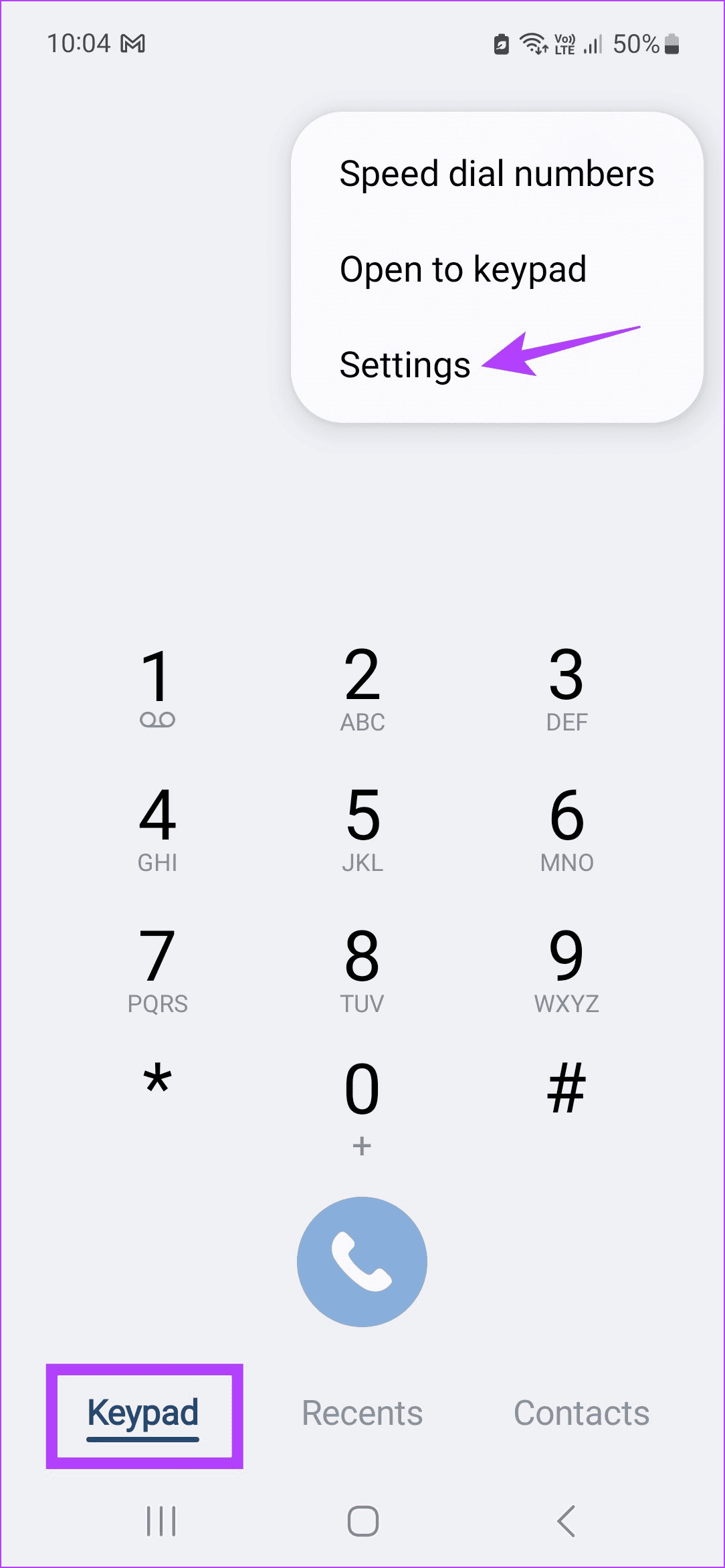
Step 1: Open the Phone app and tap on Keypad. Tap the three-dot icon and tap on Settings.
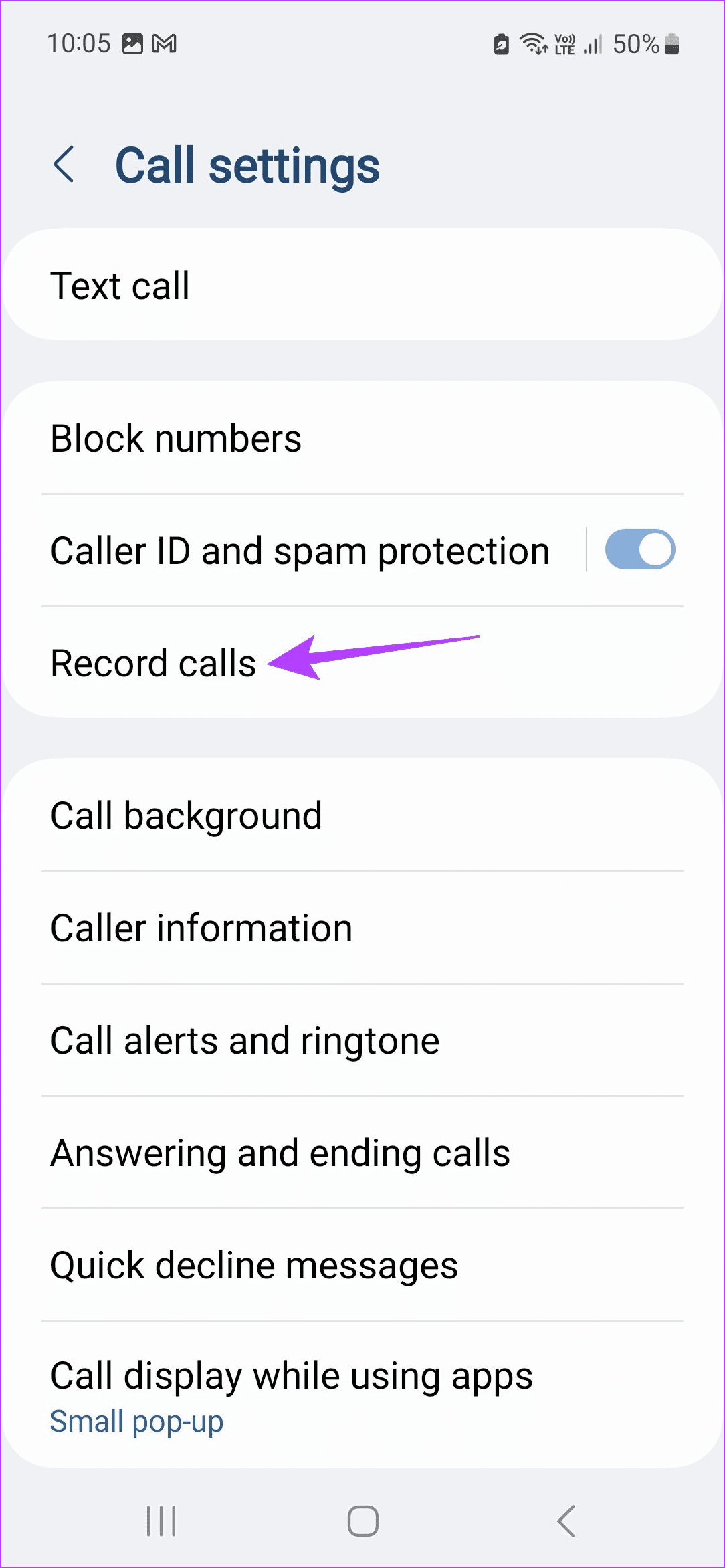
Step 2: Tap on Record calls and turn on the Auto record calls toggle.

Fix 2: Manually Record the Call
If you want to record a call mid-way or if call recording initially failed, you can manually record the call even when the call is currently ongoing. Follow the below steps to do it.
Step 1: In the call window, tap the three-dot icon. Tap on Record call.


Also Read: How to fix call recorder not recording incoming voice on Android
Fix 3: Disable Wi-Fi Calling
The default Phone app prefers to place calls over a Wi-Fi network. You can’t record such calls unless you disable Wi-Fi on your Samsung phone. You can disable Wi-Fi calling to stop the behavior.
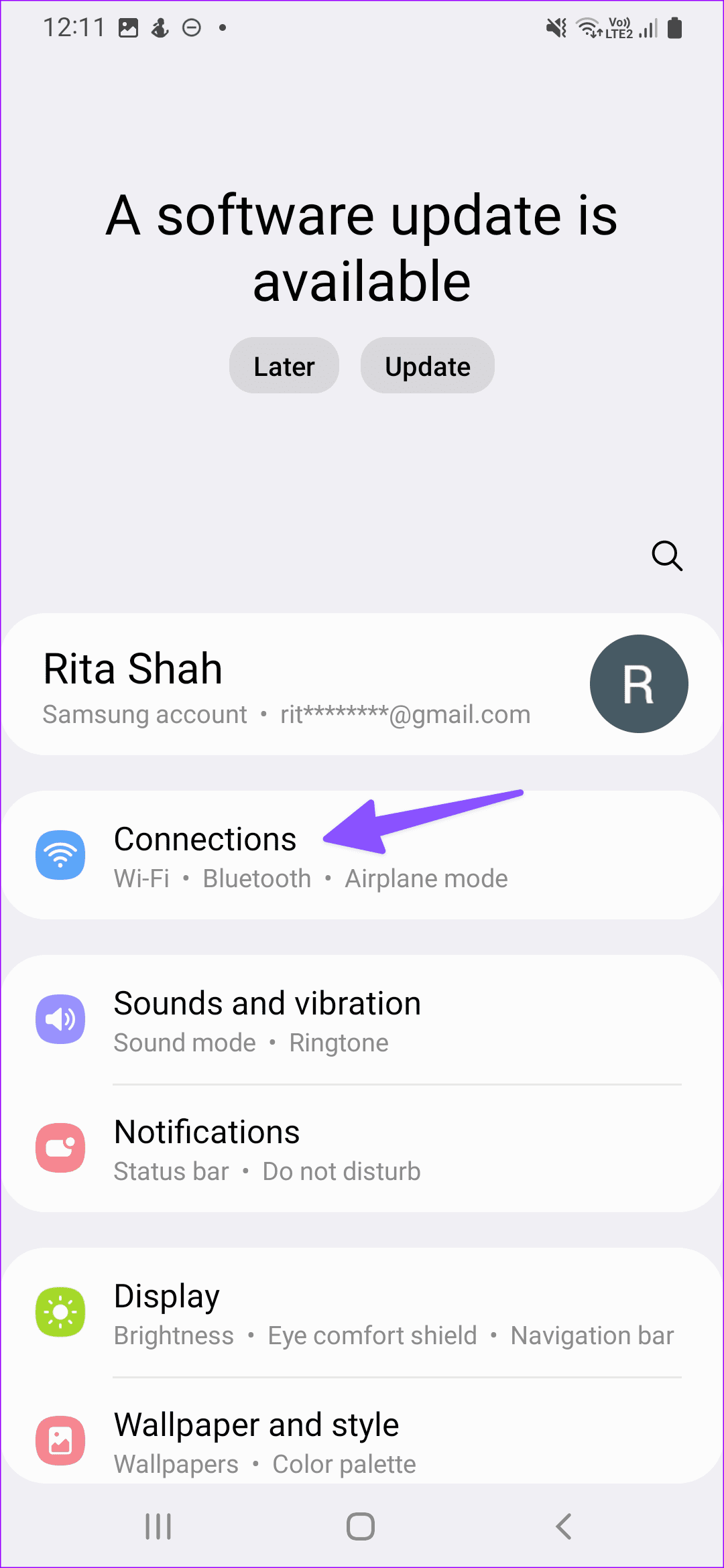
Step 1: Open Settings and tap on Connections. Disable the Wi-Fi Calling toggle.

Fix 4: Use the Official Phone App
The call recording option is available on the default Phone app on Samsung Galaxy phones. So, if you use Truecaller or another third-party call app on your Samsung phone, the call recording option might not work properly. In this case, switch back to the default Phone app using the below steps.
Step 1: Open Settings and scroll to Apps. Tap Choose default apps.

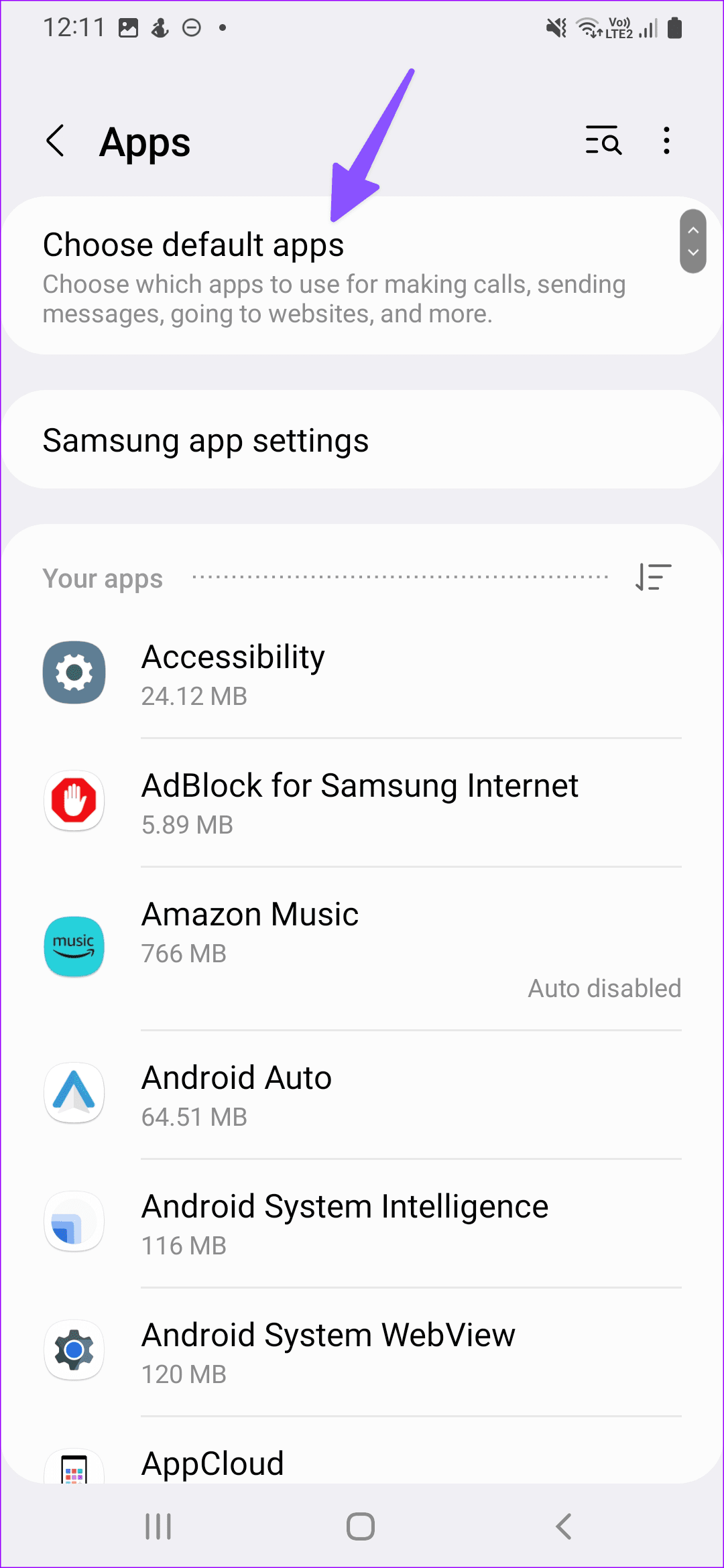
Step 2: Tap the Phone app and select the default Phone app.


Also Read: How to fix call drop issue on Samsung Galaxy phones
Fix 5: Clear Phone App Cache
A corrupt app cache may be the reason behind the Record call option greyed-out problem on your Samsung phone. You need to clear the app cache and try again.
Step 1: Long-press the Phone app and tap the info menu. Select Storage. Tap Clear cache and Clear data.


Confirm if prompted. Then, restart the Phone app and try recording the relevant call to check if the issue has been fixed on your Samsung Galaxy phone.
Was this helpful?
Last updated on 22 August, 2024
1 Comment
Leave a Reply
Read Next
 10 Ways to Fix Call Drop Issue on Samsung Galaxy Phones
With the latest advancements in calling technology, users can enjoy crystal-clear calls over their mobile network.
10 Ways to Fix Call Drop Issue on Samsung Galaxy Phones
With the latest advancements in calling technology, users can enjoy crystal-clear calls over their mobile network.
 4 Ways to Fix Call Recorder Not Recording Incoming Voice on Android
Basic Fixes: Check the Android version: To use call recording features, your Android phone must run Android version 9 and above.
4 Ways to Fix Call Recorder Not Recording Incoming Voice on Android
Basic Fixes: Check the Android version: To use call recording features, your Android phone must run Android version 9 and above.
 How to Disable Call Recording Announcements on Google Dialer
Call Recording Laws and Regulations Across the World Before you record a phone call, it’s important to obtain consent from the opposite party since it can be a breach of
How to Disable Call Recording Announcements on Google Dialer
Call Recording Laws and Regulations Across the World Before you record a phone call, it’s important to obtain consent from the opposite party since it can be a breach of
 Top 7 Ways to Fix Samsung Galaxy Watch Not Recording Sleep
Samsung’s Galaxy Watch lineup is feature-packed with useful health-tracking functions.
Top 7 Ways to Fix Samsung Galaxy Watch Not Recording Sleep
Samsung’s Galaxy Watch lineup is feature-packed with useful health-tracking functions.
 Top 9 Ways to Fix Mobile Hotspot Not Working on Samsung Galaxy Phones
Mobile hotspot comes in handy when your office or home Wi-Fi is facing an outage.
Top 9 Ways to Fix Mobile Hotspot Not Working on Samsung Galaxy Phones
Mobile hotspot comes in handy when your office or home Wi-Fi is facing an outage.
 6 Ways to Fix Notifications Not Working on Samsung Galaxy Phones
https://youtu.be/B5e3TKYKdzk Try Basic Fixes Disable power saver mode: When you enable power saver mode, apps may not work efficiently in the background and fail to show any notifications.
6 Ways to Fix Notifications Not Working on Samsung Galaxy Phones
https://youtu.be/B5e3TKYKdzk Try Basic Fixes Disable power saver mode: When you enable power saver mode, apps may not work efficiently in the background and fail to show any notifications.
 Top 9 Ways to Fix Google Assistant Not Working in Samsung Galaxy Phones
Bixby, Samsung's digital assistant, comes pre-loaded for Galaxy phones despite the popularity of Google Assistant.
Top 9 Ways to Fix Google Assistant Not Working in Samsung Galaxy Phones
Bixby, Samsung's digital assistant, comes pre-loaded for Galaxy phones despite the popularity of Google Assistant.
 6 Best Ways to Fix Wireless Power Sharing Not Working on Samsung Galaxy Phones
Wireless charging is quite common on premium smartphones, you’d be surprised to find a phone without one.
6 Best Ways to Fix Wireless Power Sharing Not Working on Samsung Galaxy Phones
Wireless charging is quite common on premium smartphones, you’d be surprised to find a phone without one.
The article above may contain affiliate links which help support Guiding Tech. The content remains unbiased and authentic and will never affect our editorial integrity.

I read your guide on fixing black screen on Windows 10/11. A superbly written piece of technical writing. Your step-by-step approach, along with impressive graphics, and clarity of thought is outstanding.
Your articles have hints & tips that I haven’t come across before.
You really should be working for Microsoft or Google.
I write technical articles in the automobile engineering field. My co-workers all agree with my thoughts.