


Basic Fixes
- Restart PC: Restart your PC to eliminate any temporary bugs and glitches.
- Run SFC scan: To fix corrupted system files, you can run an SFC scan on your PC.
- Check malware on PC: Scan your PC using Windows Defender and check if there’s any malware on your PC.
- Ensure you’re copying supported content: If you are trying to paste content that isn’t supported by Word, or is encoded in a corrupted format – you will encounter issues. Check if there’s a problem with the source content.
Fix 1: Clear the Clipboard Using
While working with Microsoft Office apps, you get to use the specific Office clipboard to save the copied text. Of course, it’s not an endless storage and has some limitations. So to workaround those limits, clear the system clipboard and try again.
Step 1: Type cmd in the Windows Search bar, right-click on the Command Prompt and select Run as administrator.

Step 2: Enter and type cmd /c “echo off|clip” command.
Make sure to replace the ‘c’ with the drive letter where you’ve installed Windows and Office.

Alternatively, you can go to Settings > System > Clipboard and clear the clipboard history.
Fix 2: Reset Customizations
If you have re-assigned the copy-paste shortcut to another function, or if Word is not responding when copying and pasting, use the steps below to reset it.
Step 1: Open Microsoft Word on your Windows PC and click File at the top-left corner.

Step 2: Select Options from the left sidebar and click Customize Ribbon.

Step 3: Use the drop-down next to Customizations in the bottom-right corner and select Reset all customization.

If you use a Bluetooth keyboard and frequently switch between Windows and Mac, make sure you are in Windows mode. Only then the Ctrl + C / Ctrl + V keyboard shortcuts will work.
Fix 3: Run Word in Safe Mode
You can try running Microsoft Word in Safe mode and check if copy-paste works:
Step 1: Press the Windows and R keyboard shortcut to open a new Run dialog window.
Step 2: Type in winword/safe and hit Enter.

When Word opens in the Safe Mode, check if the copy-paste functionality works. If it does, disable your add-ins and re-enable them one by one to identify the culprit.
Fix 4: Disable Add-Ins and Third-Party Apps
Microsoft Word may cause issues with pasting content due to installed add-ins. A problematic add-in can cause issues with the program.
Step 1: At the top-left of the Word window, click on File.
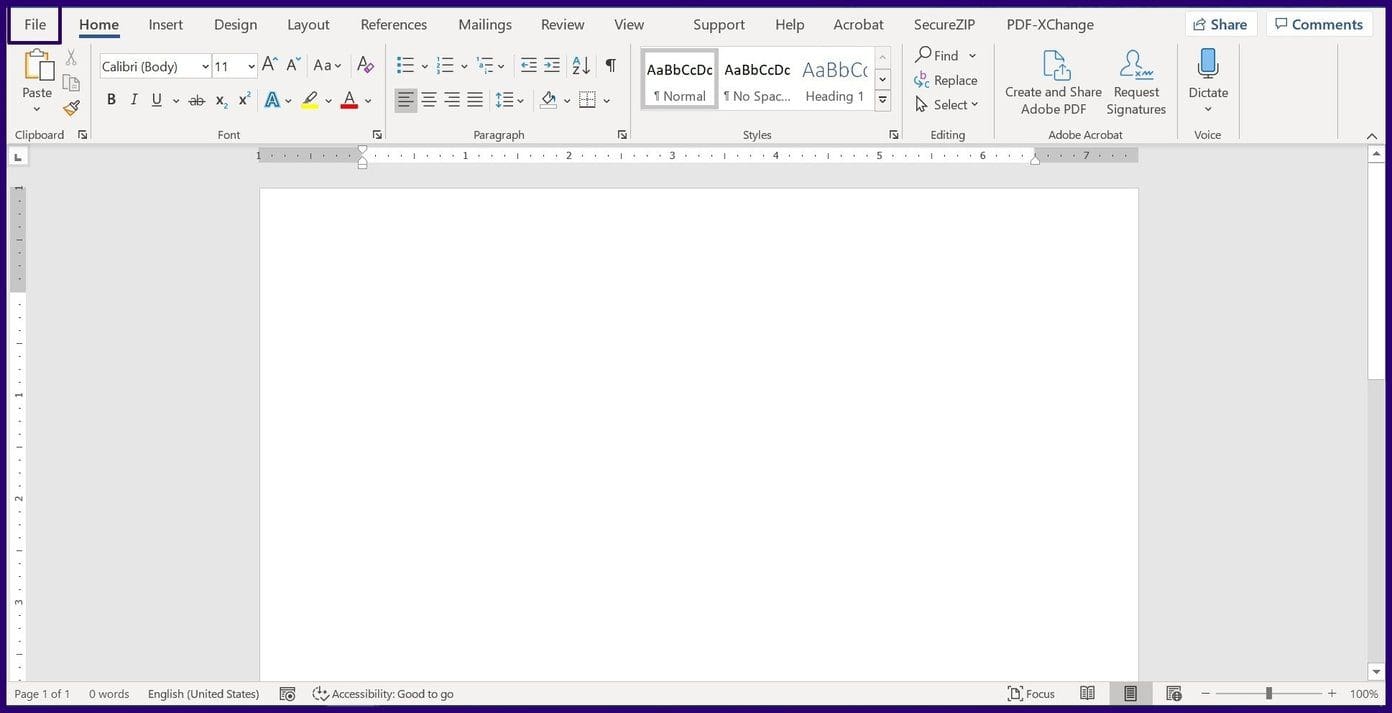
Step 2: Select Options from the new menu.

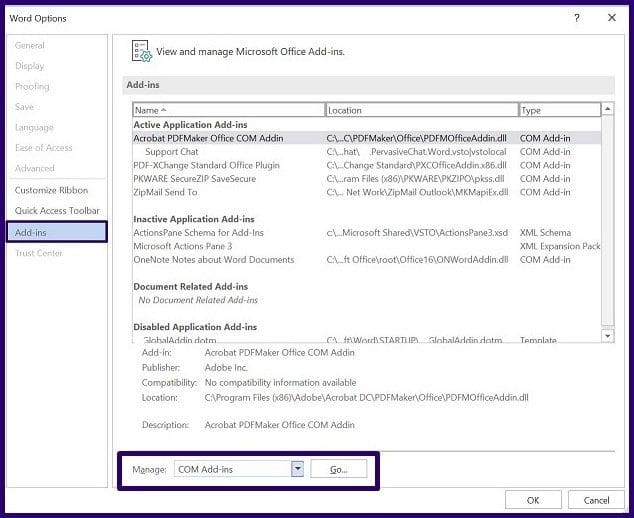
Step 3: Click on Add-ins.
Step 4: On the drop-down menu beside the Manage tab, select COM Add-Ins and click on Go.
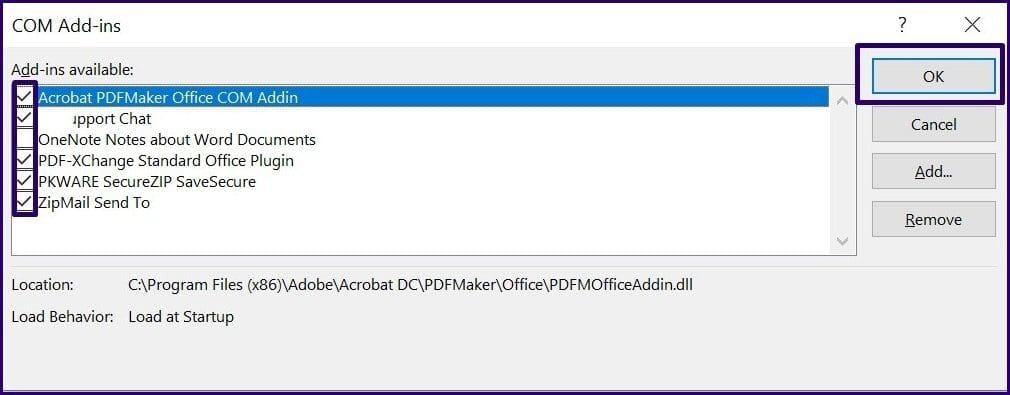
Step 5: On the new dialog box, uncheck all the boxes beside the add-ins in Word and click on OK.
Step 6: Close Word and restart your PC.
Fix 5: Repair Office
If you still can’t copy-paste in Word or you can’t start the app in Safe Mode, try repairing Office.
Step 1: Search and open the Settings app from the start menu.
Step 2: Click on Apps in the sidebar. Select Apps & features.

Step 3: Scroll down to find Microsoft Office and click on the three dots next to it. Click on Modify.

Step 4: Use either of the options to repair Microsoft Office and click on Repair. You will be able to repair and fix the issues affecting it.

Also Read: How to repair Microsoft Office installation errors in Windows.
Fix 6: Update Office
By keeping Microsoft Word up to date, you ensure that you have the latest improvements and optimizations, reducing the likelihood of problems.
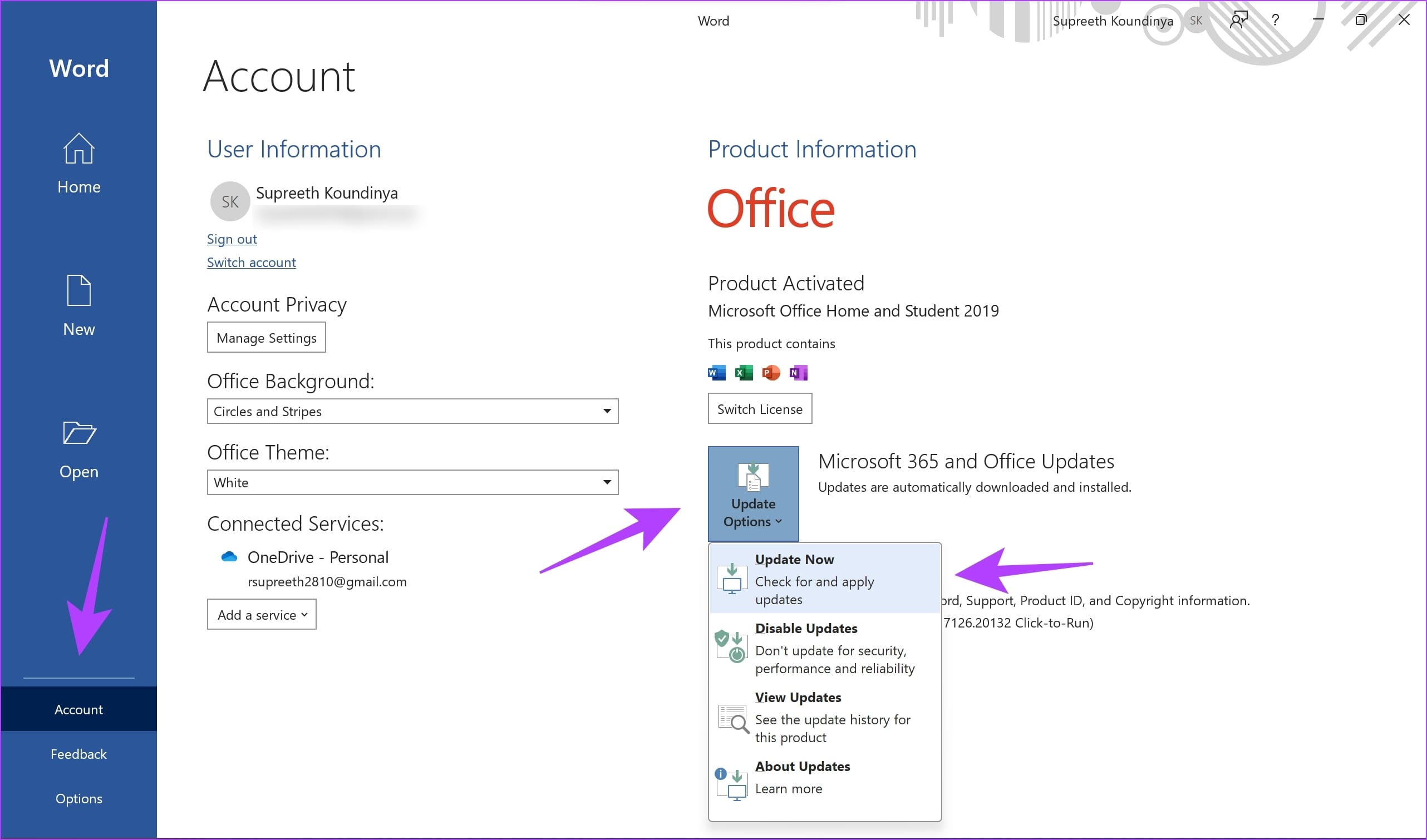
Step 1: Click on File in Microsoft Word.
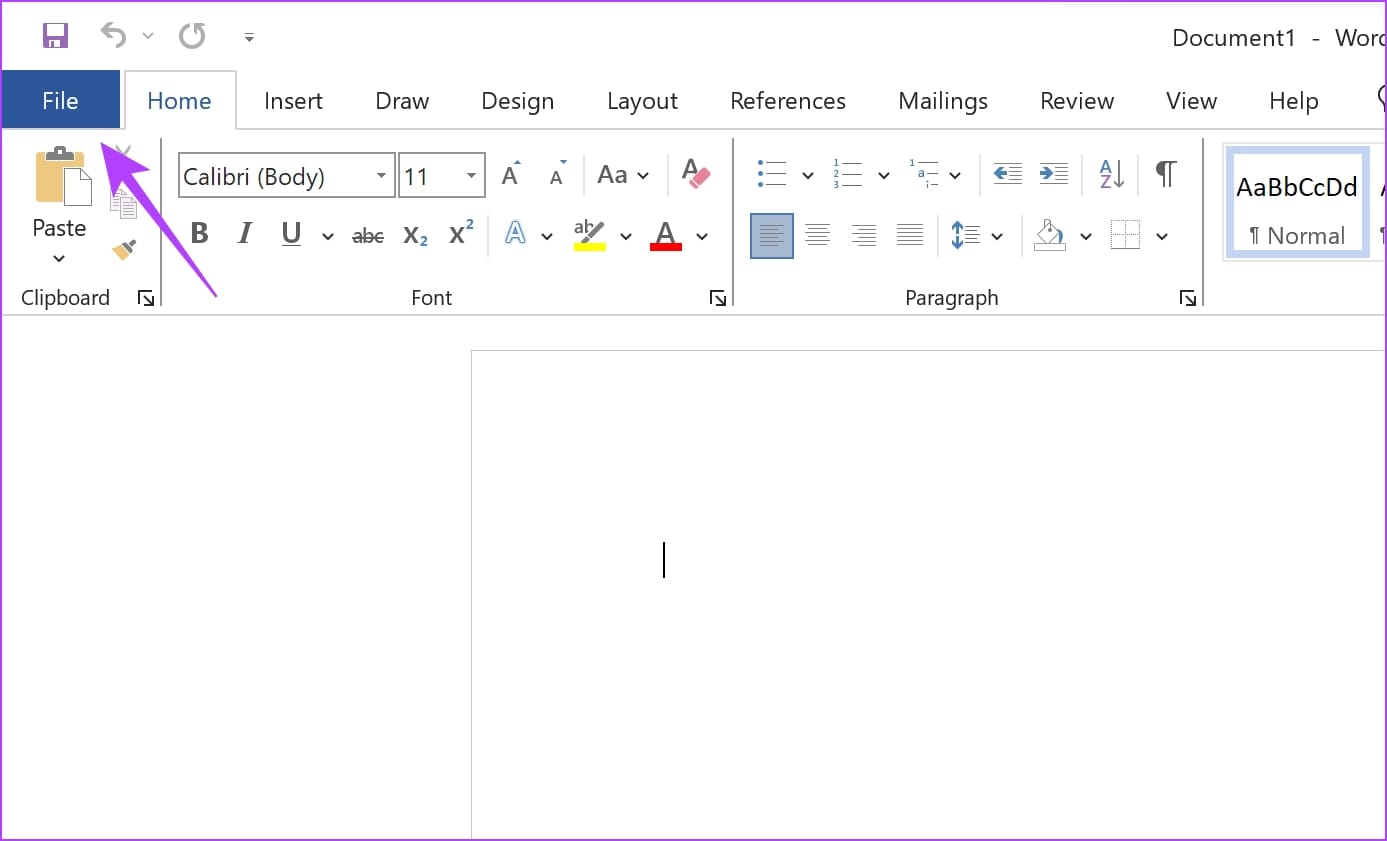
Step 2: Click on Account.
Step 3: Click on Update Options. Then, click on Update Now.
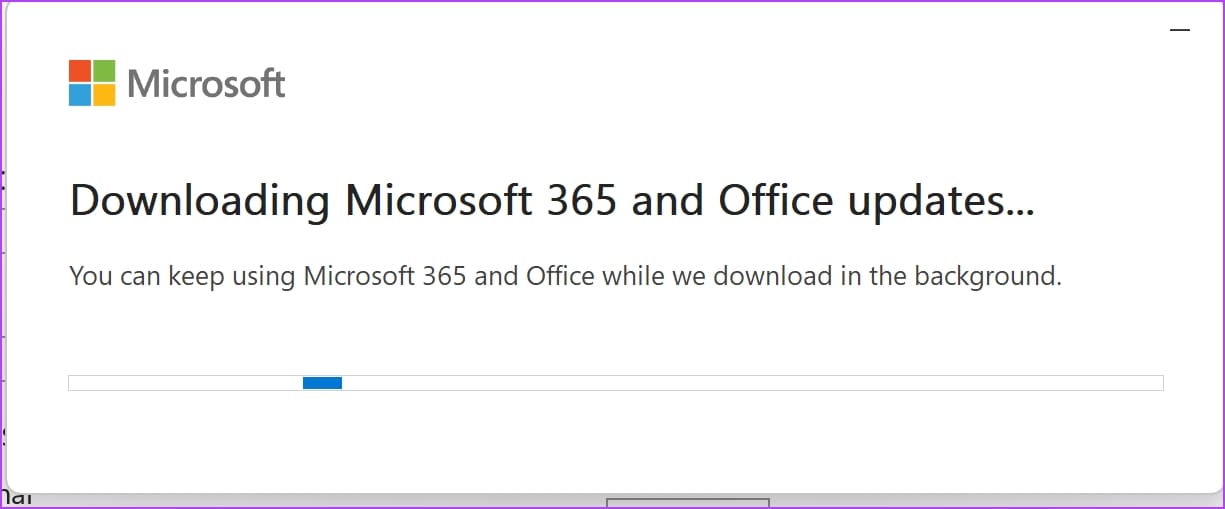
Wait for the update to download in the background.
Once the updates are installed, you will receive a confirmation for the same.
Fix 7: Uninstall Microsoft Office Updates
Sometimes, you may experience issues in Microsoft Word after a recent Microsoft Office update. If you notice this, you can try to uninstall the update and check if it solves the problem.
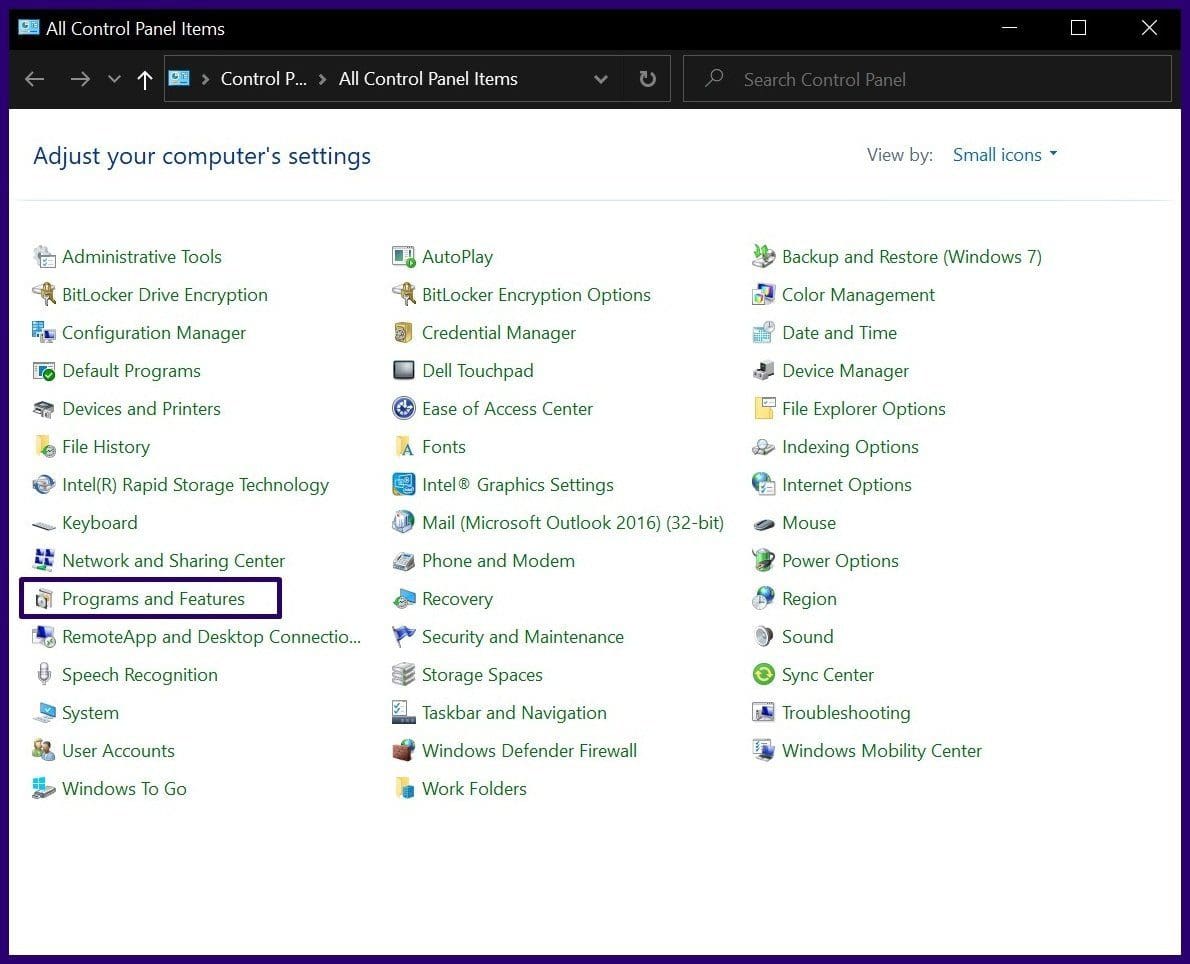
Step 1: Open the Control Panel and select Programs and Features.
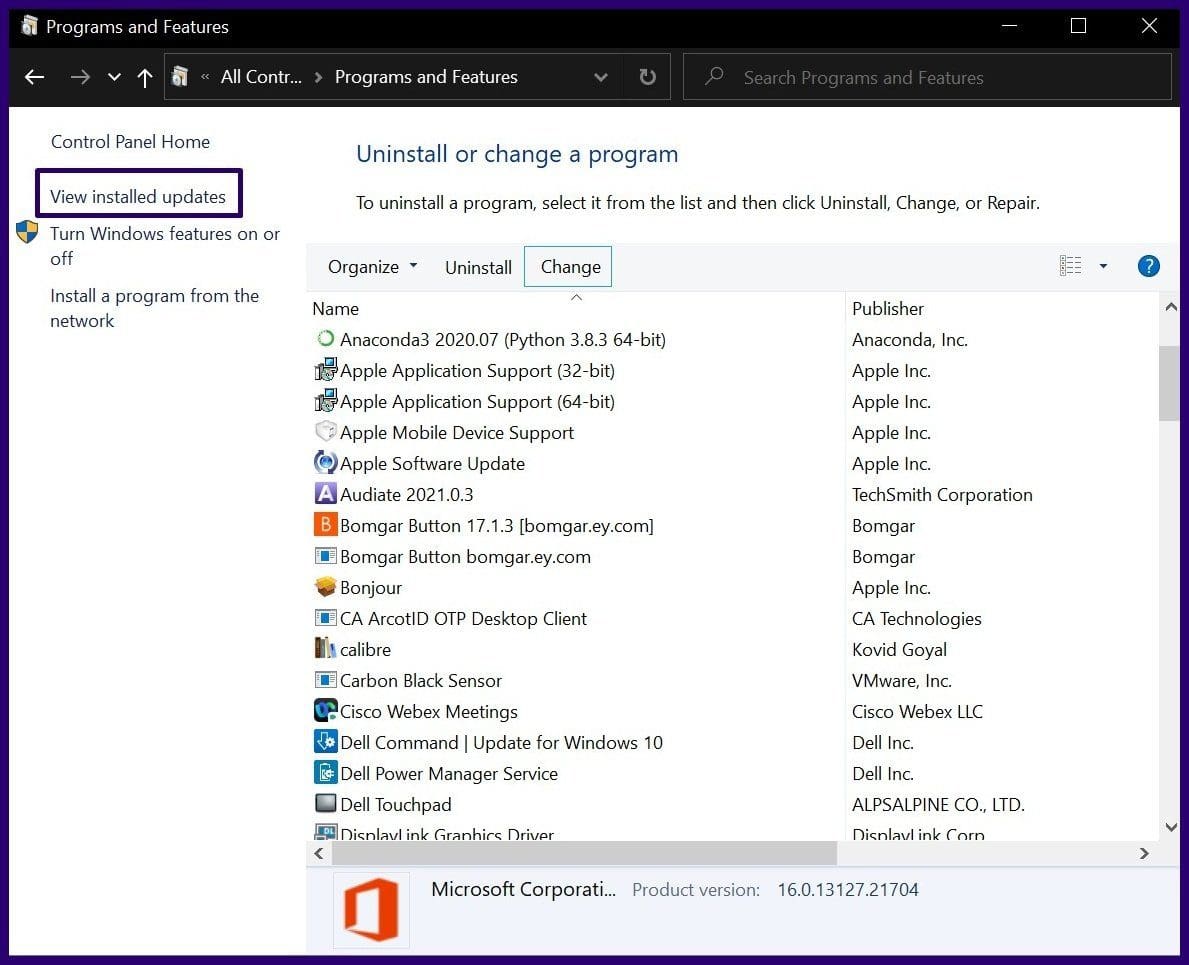
Step 2: On the left pane of the new window, select View Installed Updates.
Step 4: On the column titled Installed On, scroll through the new updates to identify the most recent installation.
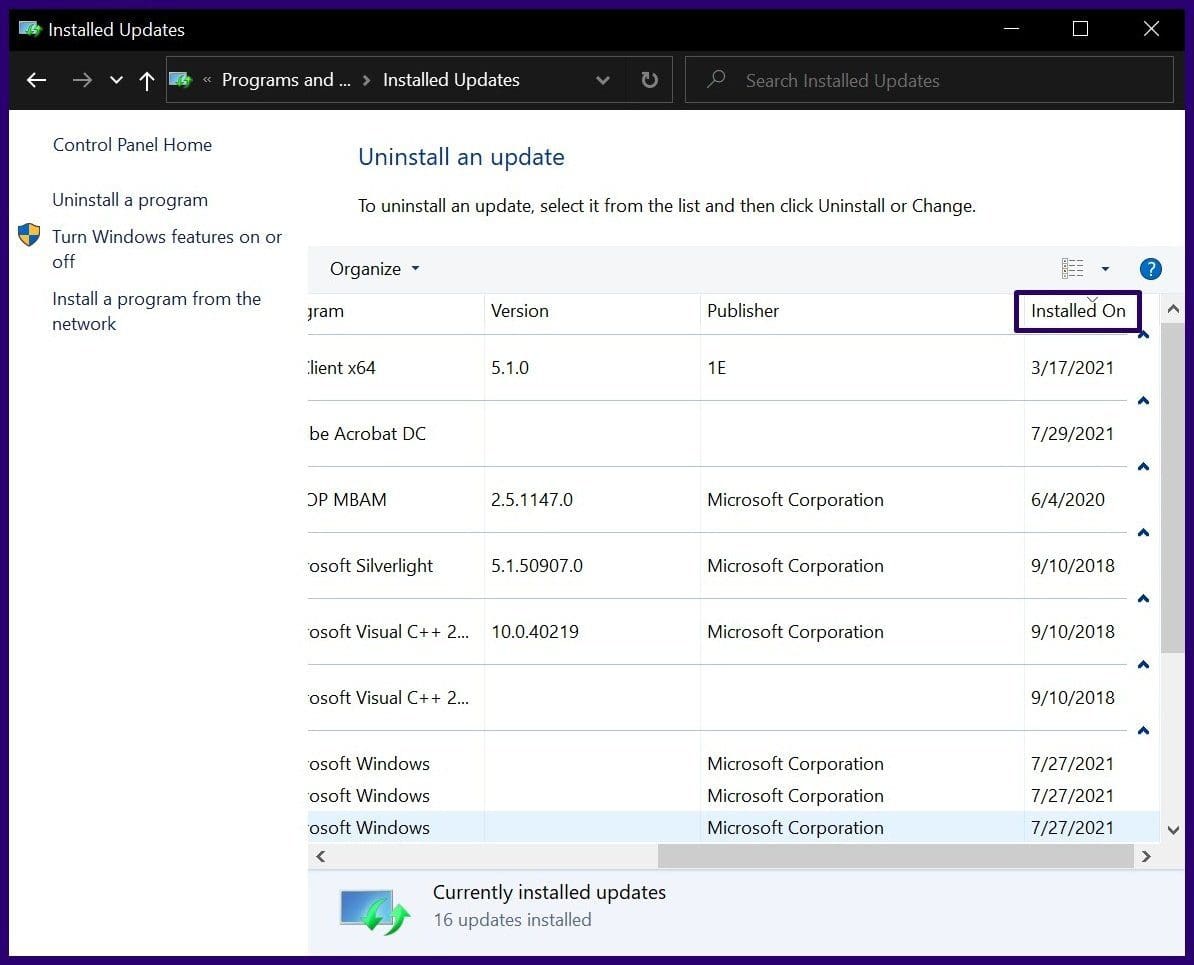
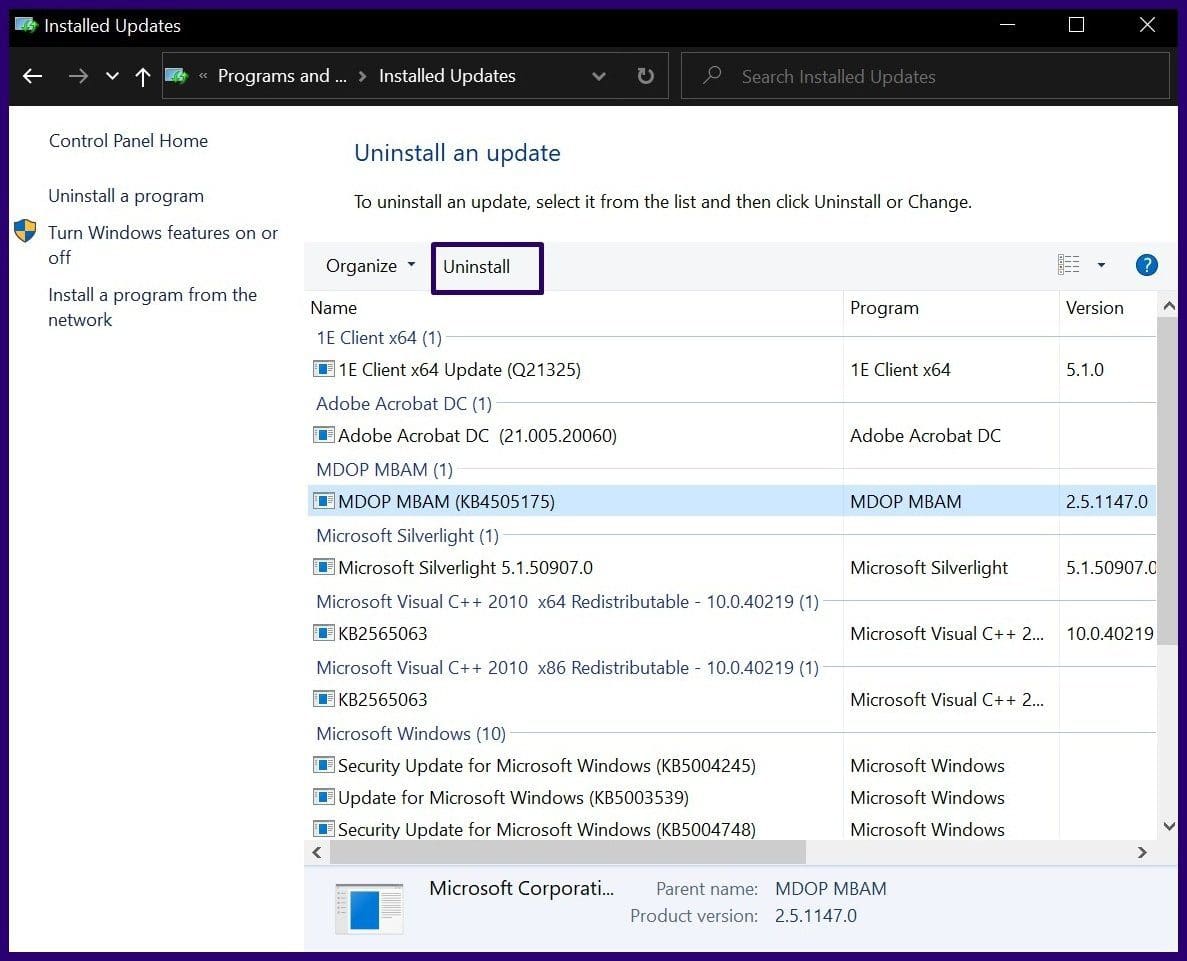
Step 5: After identifying the latest update, click on the program/app to select the update. Click on Uninstall.
Step 6: You will receive a prompt asking you to confirm the uninstallation of the update, click on Yes.
Pro Tip: Check Copy-Paste Options in Word
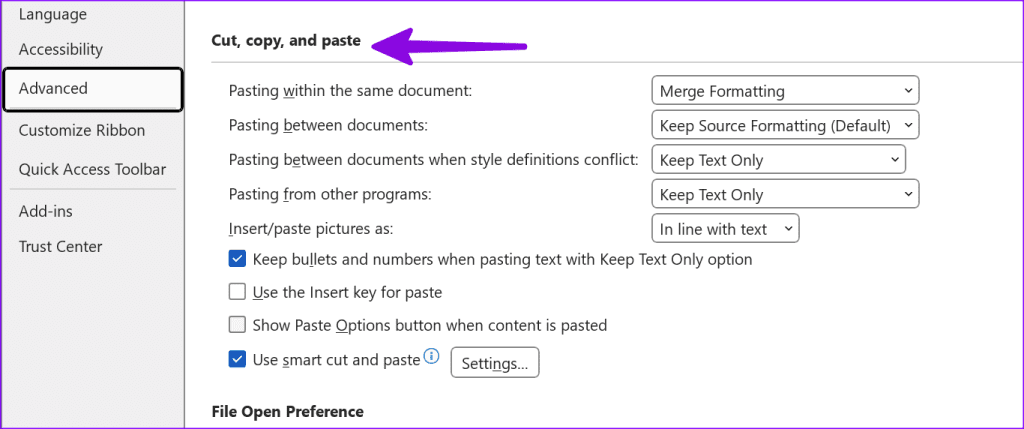
After you resolve the copy-paste problem, use the steps below to tweak the default paste behavior in Word.
Step 1: Open the Microsoft Word on your PC and click File at the top-left corner.
Step 2: Select Options from the left sidebar.

Step 3: Click Advanced. Scroll to Cut, copy, and paste and make the required changes as per your preference.
Was this helpful?
Last updated on 16 July, 2024
Read Next
 Top 9 Ways to Fix Copy-Paste Not Working on Windows 10 Issue
The copy-paste function in Windows 10 is often taken for granted.
Top 9 Ways to Fix Copy-Paste Not Working on Windows 10 Issue
The copy-paste function in Windows 10 is often taken for granted.
 4 Ways to Fix Copy and Paste Not Working in Windows 11
Try Basic Fixes Restart Windows Explorer: Problems with the Windows Explorer process can also prevent you from copying and pasting files in File Explorer.
4 Ways to Fix Copy and Paste Not Working in Windows 11
Try Basic Fixes Restart Windows Explorer: Problems with the Windows Explorer process can also prevent you from copying and pasting files in File Explorer.
 4 Ways to Fix Copy and Paste Not Working on Mac
Fix 1: Force Quit the Pasteboard Server Pboard is the short form for Pasteboard Server.
4 Ways to Fix Copy and Paste Not Working on Mac
Fix 1: Force Quit the Pasteboard Server Pboard is the short form for Pasteboard Server.
 5 Fixes for Remote Desktop Copy-Paste Not Working on Windows
Fix 1: Configure Remote Desktop Connection Settings A common reason you may be unable to copy and paste data during a Remote Desktop session is if you have previously disabled
5 Fixes for Remote Desktop Copy-Paste Not Working on Windows
Fix 1: Configure Remote Desktop Connection Settings A common reason you may be unable to copy and paste data during a Remote Desktop session is if you have previously disabled
 How to Fix Copy and Paste Not Working in Chrome
Note: While the article concentrates on solutions for the Chrome browser, you can use them to fix the issue in any other browser, such as Safari, Firefox, and Edge.
How to Fix Copy and Paste Not Working in Chrome
Note: While the article concentrates on solutions for the Chrome browser, you can use them to fix the issue in any other browser, such as Safari, Firefox, and Edge.
 5 Ways to Copy and Paste Text on Android
Method 1: Copy and Paste General Text To copy and paste text on your Android device, follow these steps: Step 1: Long-press the text you want to copy.
5 Ways to Copy and Paste Text on Android
Method 1: Copy and Paste General Text To copy and paste text on your Android device, follow these steps: Step 1: Long-press the text you want to copy.
 How to Copy and Paste Pictures on Android
Copying pictures on iPhones and PCs is easy.
How to Copy and Paste Pictures on Android
Copying pictures on iPhones and PCs is easy.
 6 Ways to Fix Hyperlinks Not Working in Microsoft Word for Windows
Fix 1: Check the Link for Typos Your first course of action is to check the hyperlink for any typos.
6 Ways to Fix Hyperlinks Not Working in Microsoft Word for Windows
Fix 1: Check the Link for Typos Your first course of action is to check the hyperlink for any typos.
The article above may contain affiliate links which help support Guiding Tech. The content remains unbiased and authentic and will never affect our editorial integrity.

