

Try Basic Fixes
- The post owner has moderated comments: If the post owner has turned off comments from friends and followers, you won’t be able to comment. Facebook may also disable comments for certain posts at times, causing the error message “Commenting for this post was turned off automatically” to appear.
- Avoid posting too many comments within a short period: Facebook may temporarily disable your ability to comment if you have posted too many comments within a short duration. This can also happen if you have violated Facebook’s community guidelines or terms of service.
- Temporarily disable VPN: Issues with your VPN can also cause apps like Facebook to malfunction. When this happens, you may encounter the “Failed to post” error while posting comments on Facebook. You can temporarily disable your VPN connection to see if that solves the problem.
- Update the app: Running an outdated version of the Facebook app could cause certain features to stop working. Hence, it’s best to update the Facebook app from the Play Store (Android) or App Store (iPhone).
- Try another browser: Switching to a different browser will allow you to determine whether the issue is limited to your current browser. If you don’t encounter any issues with other browsers, disabling extensions or clearing the browsing data on your previous browser should solve the problem.
Fix 1: Sign Out and Sign Back In
Another thing you can do is sign out of Facebook and then sign back in. This should help re-establish Facebook’s connection with its servers and resolve any issues blocking you from commenting.
On Mobile
Step 1: In the Facebook app, tap the menu icon (three horizontal lines) in the top-right corner.
Step 2: Scroll down to tap on Log out. Select Log Out again to confirm.


On Desktop
If you use Facebook in your computer’s browser, click your profile picture in the top right corner and select Log out.
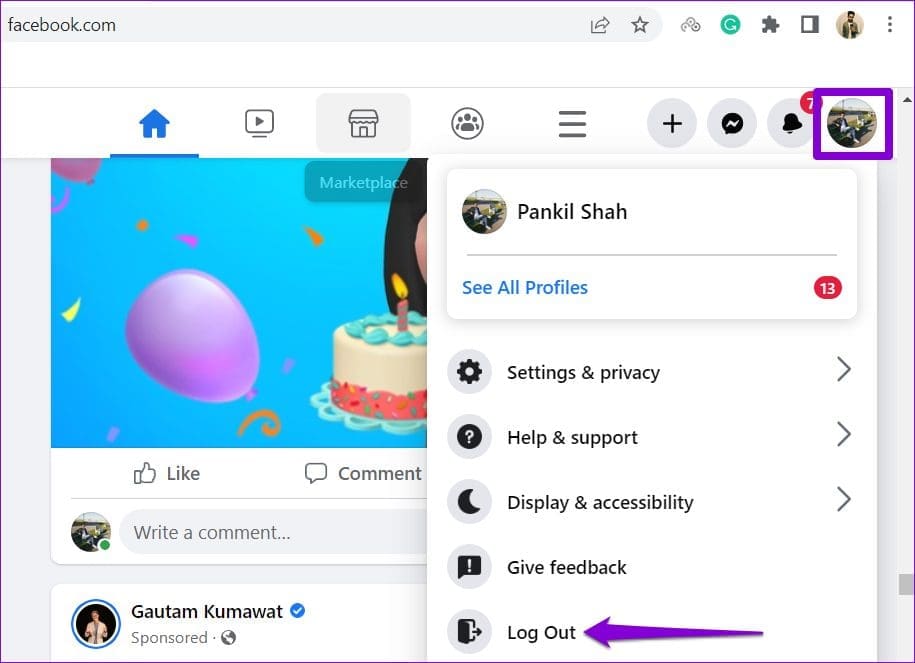
Sign back into your Facebook account and check if the issue persists.
Fix 2: Clear App Cache (Android)
The Facebook app on your Android could misbehave if the existing cache data is corrupt. If that’s the case, clearing the Facebook app cache should restore normalcy.
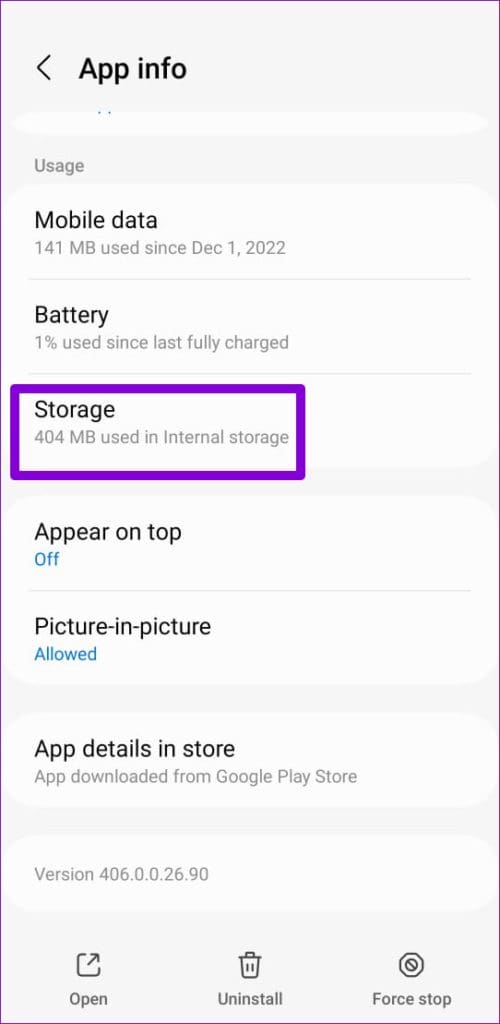
Step 1: Long-press on the Facebook app icon and tap the info icon from the resulting menu.
Step 2: Go to Storage and tap the Clear cache option at the bottom.


Was this helpful?
Last updated on 30 August, 2024
1 Comment
Leave a Reply
Read Next
 3 Fixes for Can’t Post Comments on YouTube Videos and Shorts
Try Basic Fixes The creator may have blocked your account: YouTube gives creators the option to block specific users from commenting on their videos.
3 Fixes for Can’t Post Comments on YouTube Videos and Shorts
Try Basic Fixes The creator may have blocked your account: YouTube gives creators the option to block specific users from commenting on their videos.
 How to Delete All Reddit Comments and Posts on Web Browser
How to Permanently Delete Reddit Comments and Posts Individually We'll show you how to delete a Reddit post or a comment individually, then proceed to delete all Reddit posts at
How to Delete All Reddit Comments and Posts on Web Browser
How to Permanently Delete Reddit Comments and Posts Individually We'll show you how to delete a Reddit post or a comment individually, then proceed to delete all Reddit posts at
 How to See Saved Posts and Comments on Reddit (PC and Mobile)
How to Save Reddit Posts and Comments On iOS and Android Step 1: Tap on the Share button below the post you want to save.
How to See Saved Posts and Comments on Reddit (PC and Mobile)
How to Save Reddit Posts and Comments On iOS and Android Step 1: Tap on the Share button below the post you want to save.
 What Happens When You Hide Comments on Facebook
How to Hide Comments on Facebook When you come across your comment or someone's comment on your update, select the three-dot menu next to the comment and pick the Hide
What Happens When You Hide Comments on Facebook
How to Hide Comments on Facebook When you come across your comment or someone's comment on your update, select the three-dot menu next to the comment and pick the Hide
 3 Ways to Fix Facebook Comments Not Loading on Android and iPhone
Try Basic Fixes Check Facebook's server status: It’s not uncommon for Facebook servers to experience problems.
3 Ways to Fix Facebook Comments Not Loading on Android and iPhone
Try Basic Fixes Check Facebook's server status: It’s not uncommon for Facebook servers to experience problems.
 How to Add Custom Backgrounds to a Facebook Post
Must Know About Facebook Backgrounds You can't add anything else: When using a background image, you can't add another image, link, or video to your status update.
How to Add Custom Backgrounds to a Facebook Post
Must Know About Facebook Backgrounds You can't add anything else: When using a background image, you can't add another image, link, or video to your status update.
 How to Share a Facebook Post to Instagram Automatically or Manually
How to Automatically Post From Facebook to Instagram Before you can post content from Facebook to Instagram, there’s one prerequisite - link your Instagram and Facebook account/page.
How to Share a Facebook Post to Instagram Automatically or Manually
How to Automatically Post From Facebook to Instagram Before you can post content from Facebook to Instagram, there’s one prerequisite - link your Instagram and Facebook account/page.
 Top 4 Ways to Fix Facebook Not Showing Friends Post
Why Am I Not Seeing Friend's Posts in My Facebook Feed Let's first understand how the Facebook feed algorithm works.
Top 4 Ways to Fix Facebook Not Showing Friends Post
Why Am I Not Seeing Friend's Posts in My Facebook Feed Let's first understand how the Facebook feed algorithm works.
The article above may contain affiliate links which help support Guiding Tech. The content remains unbiased and authentic and will never affect our editorial integrity.


I have tried everything you suggested I was never notified of a violation i just keep getting a pop up saying something about spam i never posted spam to anyone or anything