


Basic Fixes:
- Restart your phone: Rebooting your Android phone fixes common glitches with the Camera app. Once done, open the Camera app and check.
- Close all background apps: Certain background apps can use your device’s camera, which might interfere with the main Camera app on your Android phone. So, close all background apps on your Android phone and check again.
- Check device storage: If your device’s storage is full, it might show an error when opening the Camera app. So, check your device’s storage and ensure it still has at least 20-30% space available. If not, delete some items to free up storage.
- Check for device updates: Regular software updates can help your device get access to the latest bug fixes. So, if you’ve been facing issues using the Camera app after the last software update, it might be due to a software bug. Download and install the latest software updates to fix it.
- Reinstall the relevant app: Certain apps might be unable to use your Android device’s camera despite enabling the permissions. So, uninstall and reinstall the affected app. Then, check again to see if this fixes the issue.
Fix 1: Allow All Camera App Permissions
When you open the Camera app for the first time, it asks permission to access the device storage and phone camera. However, some recent app updates on your phone might have switched the permissions. Follow the steps below to enable relevant permissions for the Camera app.
Step 1: Long-press on the Camera app icon and tap on the i button. Here, tap on Permissions.
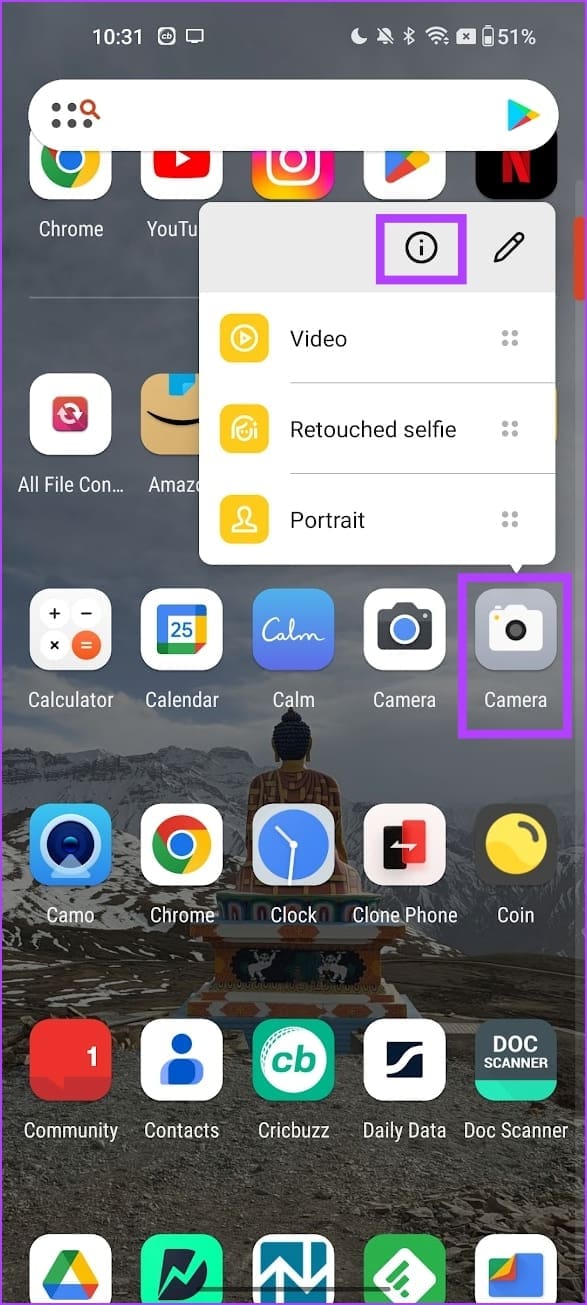
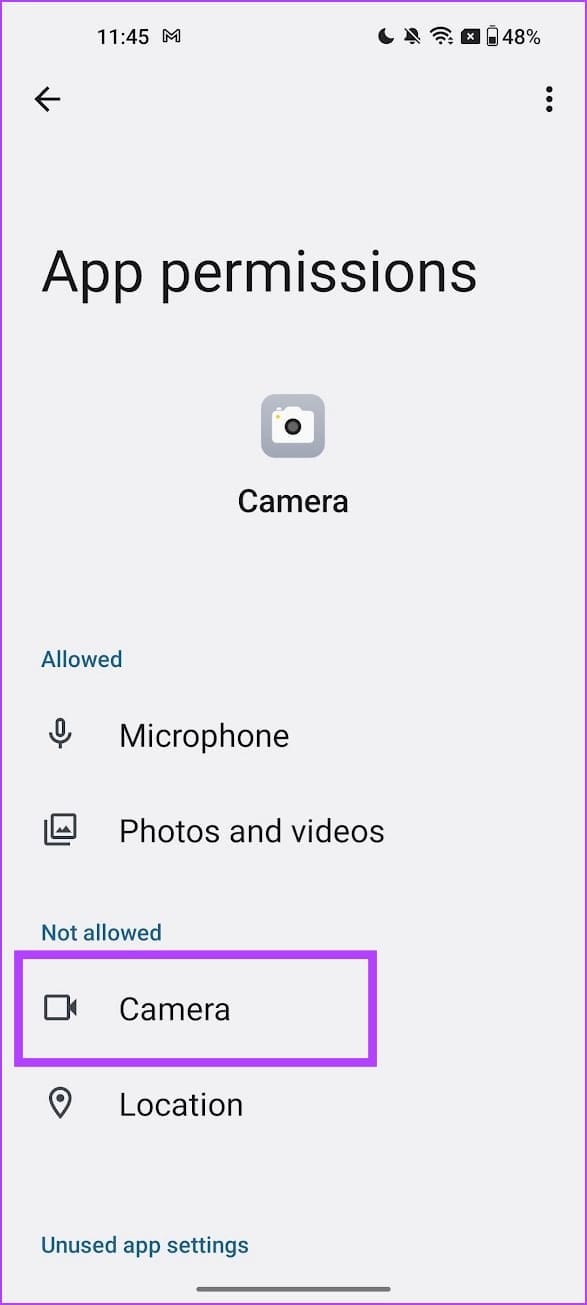
Step 2: Go to the Not allowed section and tap on the relevant permission. Then, select Allow only while using the app.

Repeat these steps and allow all permission for the Camera app on your Android device. Then, open the app and check again.
Also Read: How to fix security policy prevents camera use on Android
Fix 2: Force Stop the Camera App
After a long period of use, the Camera app may become corrupted and stop working. To see if this fixes the issue, you can force-stop and restart the Camera app and try using it again. Here’s how.
Step 1: Long-press the Camera app > tap on the i button > Force Stop > tap on OK when prompted.

Now, re-open the Camera app and use it to see if it works as expected.
Fix 3: Clear Camera App Cache
The Camera app collects cache in the background to speed up some app processes. However, this may corrupt the app as the size of the cache keeps growing with usage. So, clear the cache for the Camera app on your Android phone. Here’s how.
Step 1: Long-press the Camera app icon > tap on the i button > Storage Usage.
Step 2: Now, tap on Clear cache. Additionally, tap on Clear data to clear the app data > tap on OK to finish the process.


Fix 4: Use Safe Mode
Booting in Safe mode lets you use your Android device without third-party interference. You can use this to check for apps interfering with your device’s camera functions. Here’s how to do it.
Step 1: Long-press the Power button to open the power menu. Now, press and hold the Power off button.
Step 2: Here, tap on Safe mode.
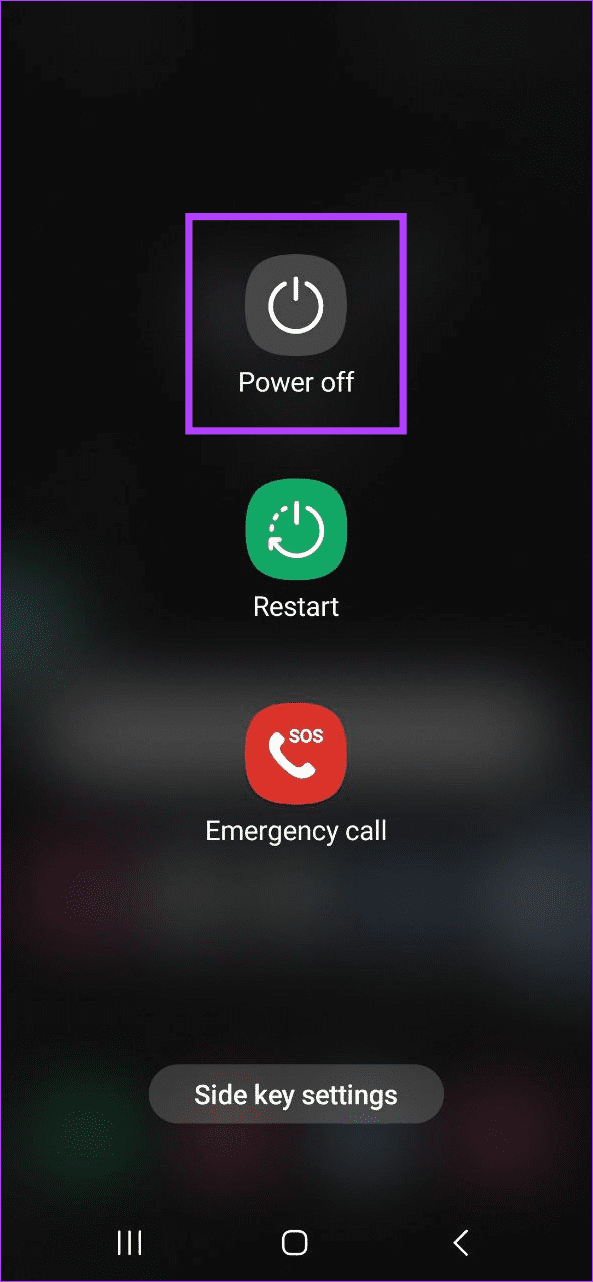

Once Safe Mode is visible, use the Camera app on your phone. If it works properly, uninstall any recently installed apps on your Android device. Then, reboot your device normally and see if this fixes the issue.
Also Read: How to fix camera failed error on Samsung Galaxy phones
Fix 5: Reset All Android Settings
Resetting your Android phone’s settings will remove any phone settings that might be preventing the Camera app from working properly. Note that doing this will not delete your device’s data. Here’s how to do it.
Tip: Check our article to know more about using Reset on your Samsung Galaxy device.
Step 1: Open Settings > tap on General management > Reset.
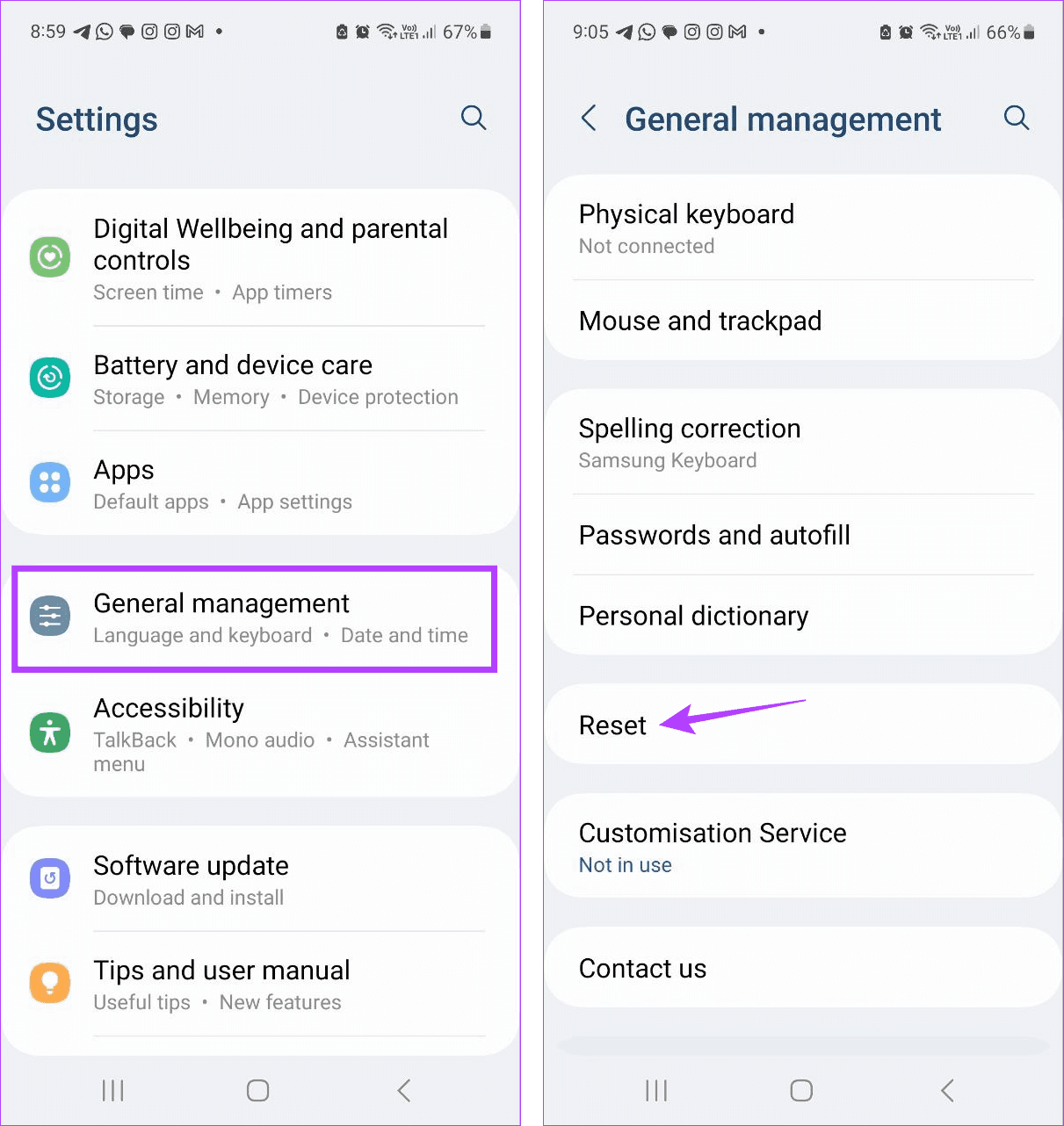
Step 2: Scroll down and tap on Reset all settings > Reset settings.
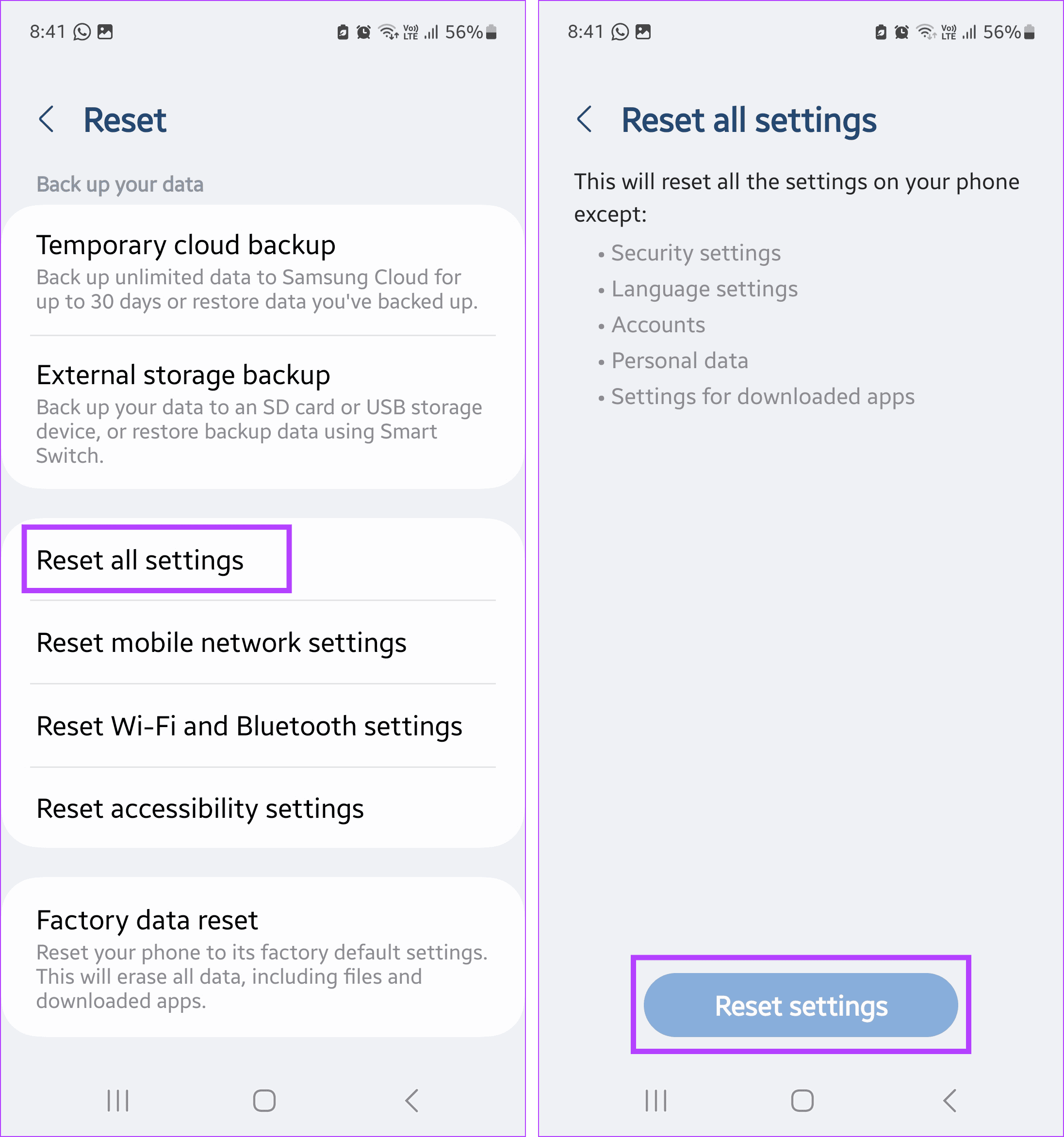
Now, follow the on-screen instructions to finish the process. Once done, re-open the Camera app and see if it is working properly.
Was this helpful?
Last updated on 16 May, 2024
12 Comments
Leave a Reply
Read Next
 Top 6 Ways to Fix Camera Focus Not Working on Android
Basic Fixes Check for Physical Damage: Before starting, it's important to ensure that this isn't a hardware issue.
Top 6 Ways to Fix Camera Focus Not Working on Android
Basic Fixes Check for Physical Damage: Before starting, it's important to ensure that this isn't a hardware issue.
 Your iPhone Can Now Take Pictures Like a $10,000 Camera — Thanks to Leica’s New Camera App
Over the years, phones have become synonymous with pocket cameras.
Your iPhone Can Now Take Pictures Like a $10,000 Camera — Thanks to Leica’s New Camera App
Over the years, phones have become synonymous with pocket cameras.
 5 Ways Fix YouTube App Not Working on Wi-Fi Issue
Basic Fixes: Restart your phone and router: If you're recently facing issues with the YouTube app, it is recommended to restart your phone.
5 Ways Fix YouTube App Not Working on Wi-Fi Issue
Basic Fixes: Restart your phone and router: If you're recently facing issues with the YouTube app, it is recommended to restart your phone.
 How to Fix Android Phone’s Ringtone Not Working Issue
Basic Fixes: Restart phone: Simple tricks are often the most useful.
How to Fix Android Phone’s Ringtone Not Working Issue
Basic Fixes: Restart phone: Simple tricks are often the most useful.
 5 Ways to Fix MIUI Widgets Not Working Issue
Basic Fixes Restart device: Restart your MIUI device to fix temporary bugs and glitches.
5 Ways to Fix MIUI Widgets Not Working Issue
Basic Fixes Restart device: Restart your MIUI device to fix temporary bugs and glitches.
 5 Ways to Fix Samsung Themes Not Working Issue
Fix 1: Sign Out of Your Samsung Account Once you sign out of your Samsung account, restart your device, and sign in again to check if the problem is solved.
5 Ways to Fix Samsung Themes Not Working Issue
Fix 1: Sign Out of Your Samsung Account Once you sign out of your Samsung account, restart your device, and sign in again to check if the problem is solved.
 3 Ways to Fix Facebook Messenger Camera Not Working on Android and iPhone
Fix 1: Enable Camera Permission for Messenger Like any other app, Messenger needs permission to access your phone's camera.
3 Ways to Fix Facebook Messenger Camera Not Working on Android and iPhone
Fix 1: Enable Camera Permission for Messenger Like any other app, Messenger needs permission to access your phone's camera.
 5 Ways to Fix Android System WebView Not Updating Issue
Fix 1: Turn Off Bluetooth As weird as it may sound, try updating the WebView app by turning off Bluetooth on your phone.
5 Ways to Fix Android System WebView Not Updating Issue
Fix 1: Turn Off Bluetooth As weird as it may sound, try updating the WebView app by turning off Bluetooth on your phone.
The article above may contain affiliate links which help support Guiding Tech. The content remains unbiased and authentic and will never affect our editorial integrity.
Another reason for the same is if the “Sensors off” option in settings is turned on .. it will give an obscure response as “Security Profile prohibits use of Camera”
My camera and my flashlight is not working pls help
Noka 7 plus
My redmi note 6 pro mobile my camera not working and not open camera please help me
My camera is not working
Different phone but same. Wish I could help.
I’ve tried everything. Still not working.
Not working
i’ve tried everything. force stop, restart, camera apps, clearing cache, everything. i opened the diagnostics tool and the front cam works, so it’s not a hardware issue. whatever i do, my camera app won’t work, this also affected my snapchat and instagram camera, none will function. it’s just a black screen. i really don’t know what to do, i’ve been trying to get it working for 3 days now.
I’m having this same issue it’s so anoyying
I’m having the exact same issue
I have the same problem please help guys
I could take a picture but lost all buttons to Copy, mark as Favorite, Share, Edit, Lens, Delete, etc. Photo was just frozen on screen until I backed out of the app. So, I force-stopped the camera app then exited without re-opening it and rebooted my phone. All functionality came back.