


Basic Fixes
- Restart device: Restart your device to fix any temporary bugs and glitches.
- Check network plan: Ensure your network plan has enough remaining cellular data bandwidth.
- Check signal strength: Check if there’s a low network strength in your surroundings. If yes, move to a new one and check if the apps work.
- Update device: Update your device to the latest available software version for a bug-free experience.
Fix 1: Enable Cellular Data Access for App
You may have prevented the app from accessing cellular data on your device.
On iPhone
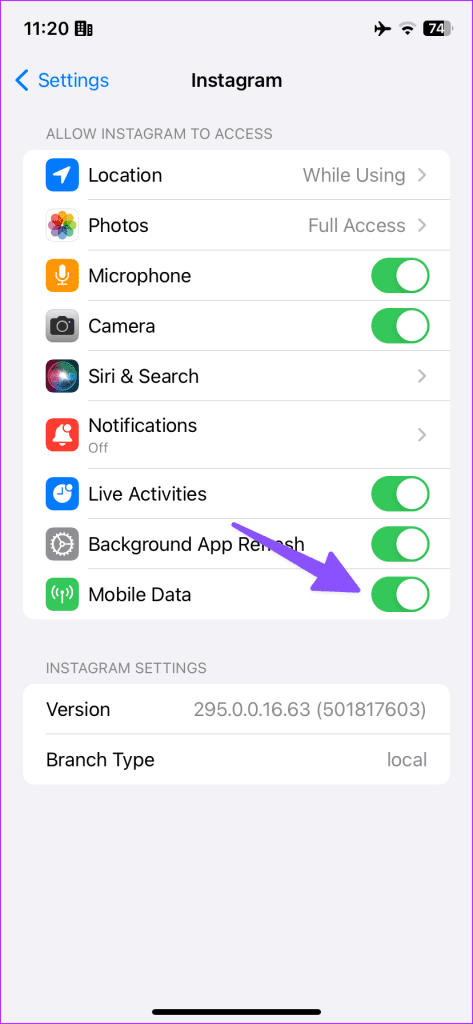
Go to Settings, scroll down, select the app from the list, and enable Mobile Data.

On Android
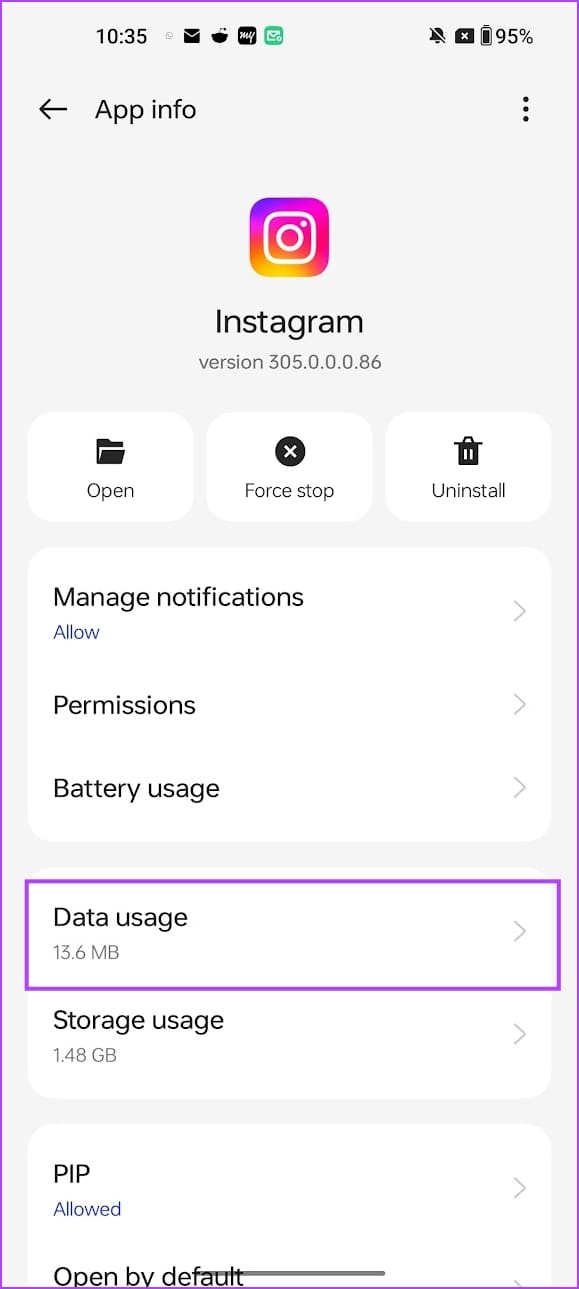
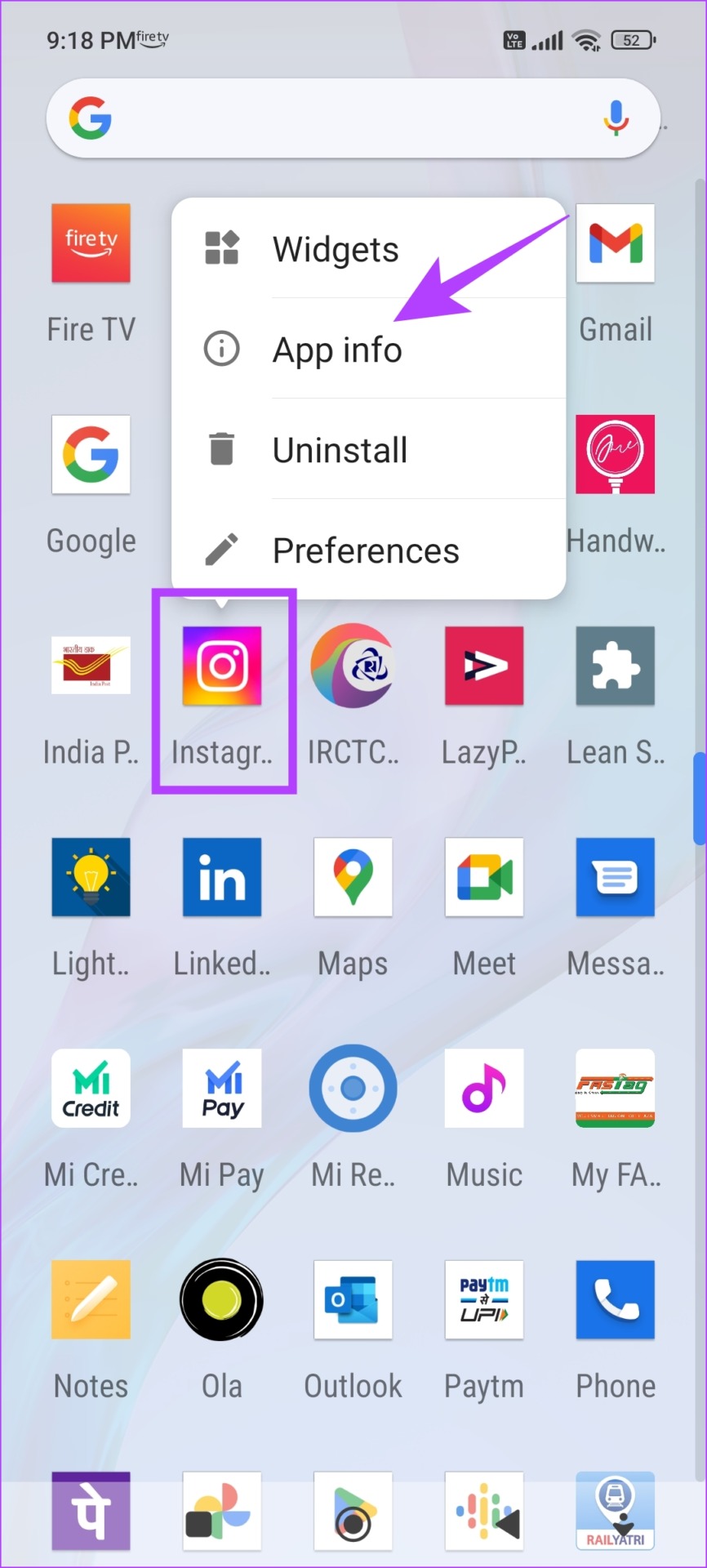
Step 1: Tap and hold an app icon, and select App Info.
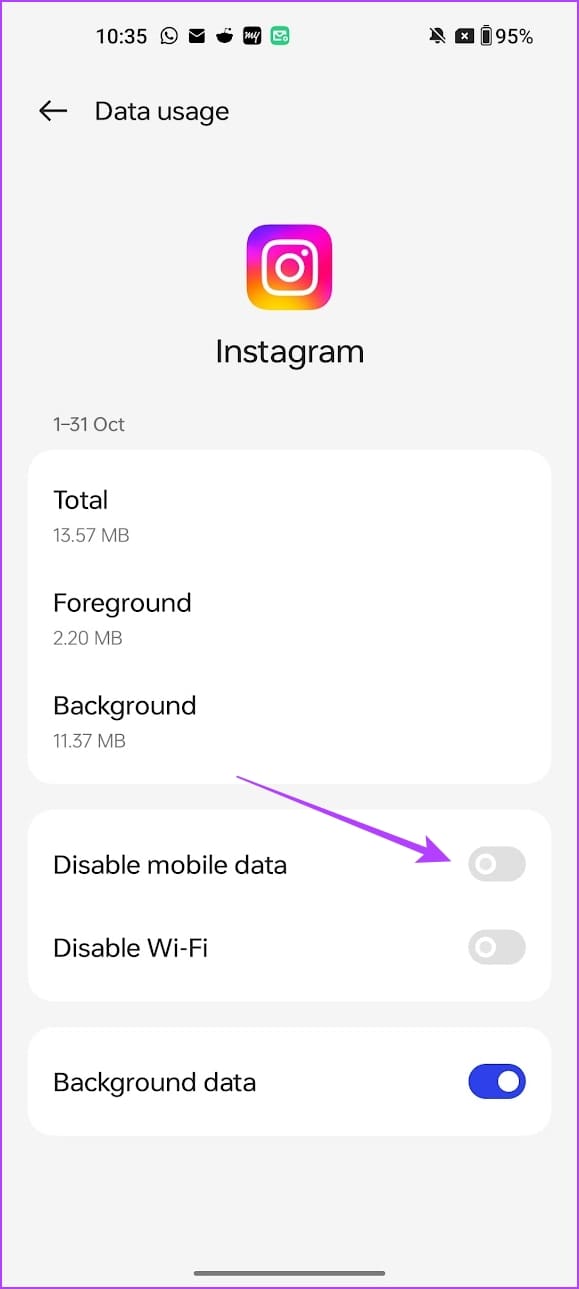
Step 2: Select Data usage and ensure you haven’t enabled Disable mobile data.

Fix 2: Disable Data Saver Mode Inside App
The data saver settings present inside an app may affect loading speeds when you are using cellular data. For example, here’s how you can turn it off on Instagram.
Step 1: Open the Profile tab, and tap on the menu button at the top right corner.
Step 2: Select Media quality and turn off Use less mobile data.


Fix 3: Disable Data Saver Mode on Device
Data saver settings on your device may affect apps and restrict them from loading content using mobile data.
On iPhone
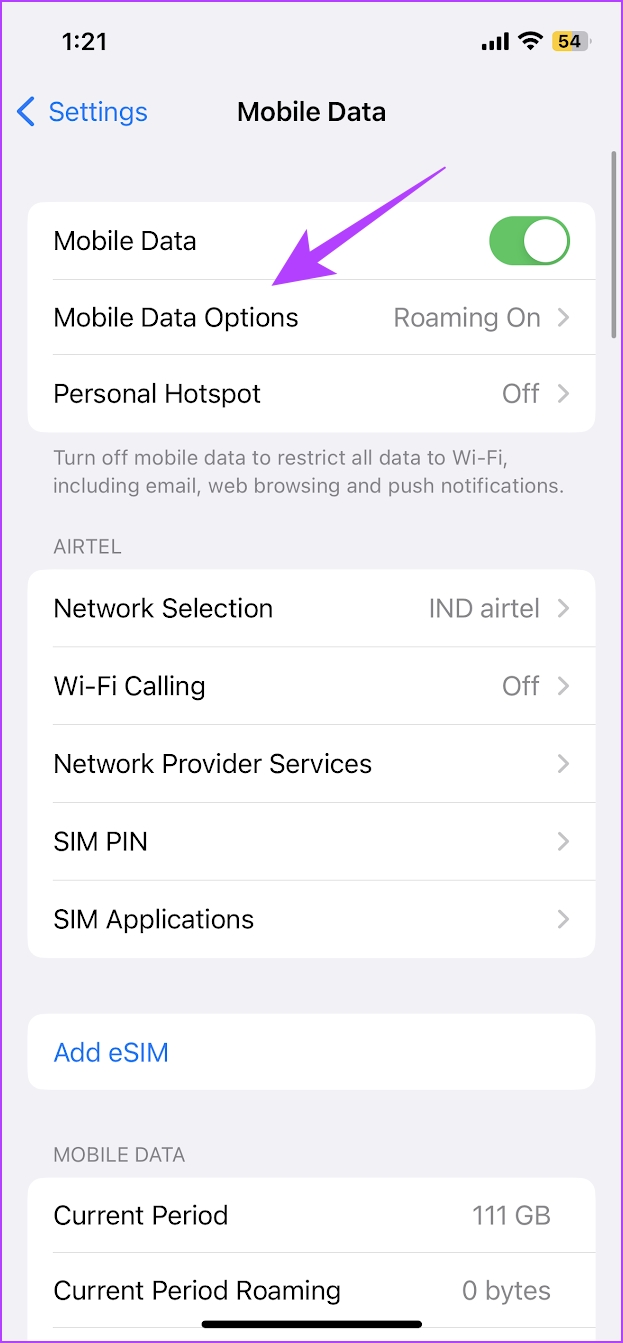
Step 1: Open Settings > tap on Cellular Data/Mobile data.
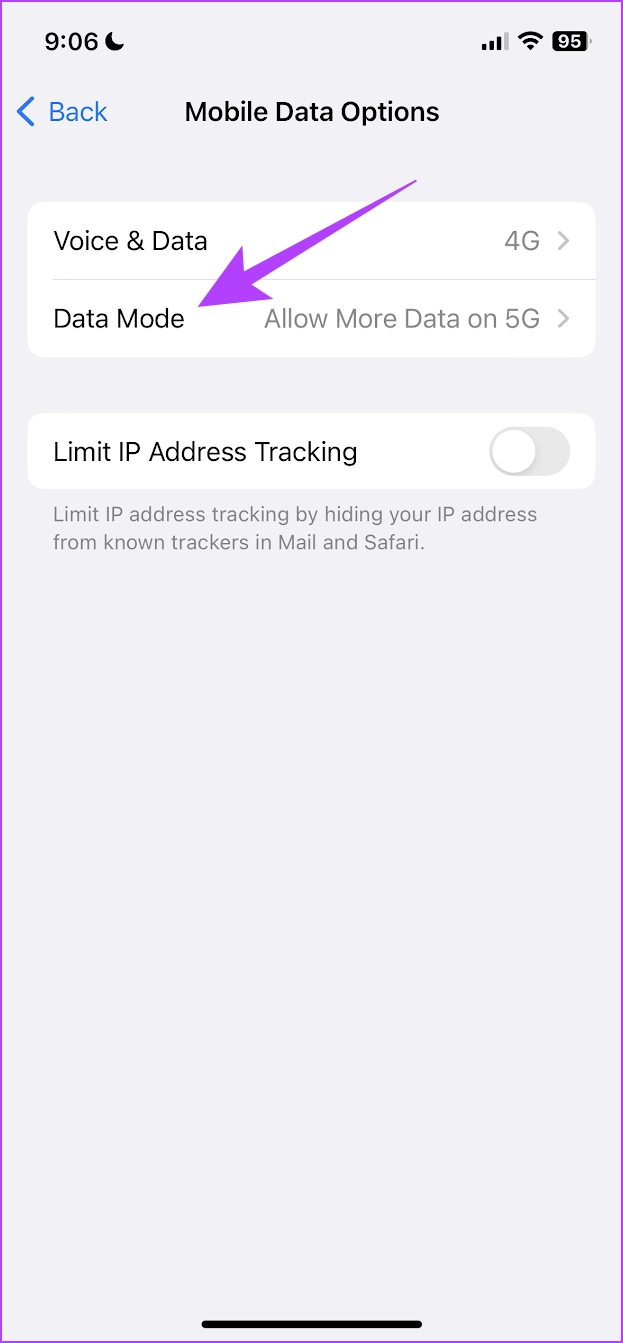
Step 2: Tap on Mobile Data Options (or Cellular Data Options).
Step 3: Tap on Data Mode. Ensure you haven’t selected Low Data Mode. Select Allow More Data on 5G or Standard.

On Android
Open the Settings app > go to Network & Internet > ensure you have not enabled the toggle for Use Data Saver.


Fix 4: Enable Data Roaming
If you are in a different state or country than your own, it’s necessary that the data roaming setting should be enabled. If it’s off, mobile data won’t work.
On iPhone
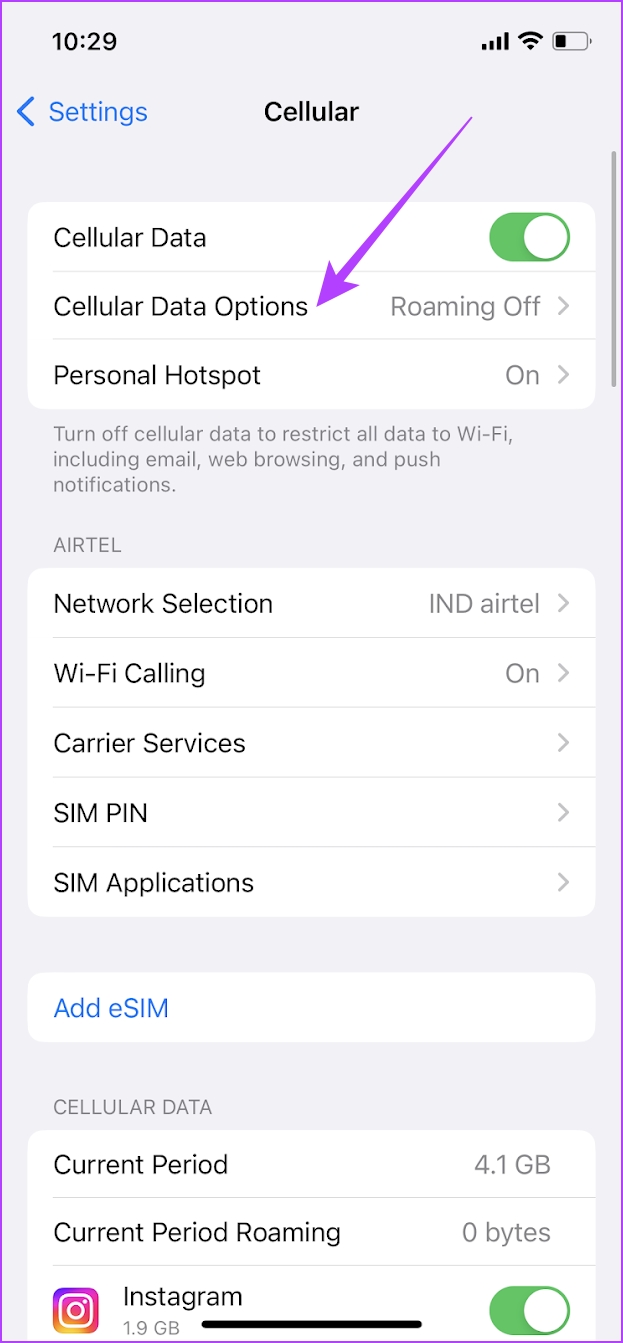
Open Settings > Cellular/Mobile Data > Cellular Data Options and turn on Data Roaming.


On Android
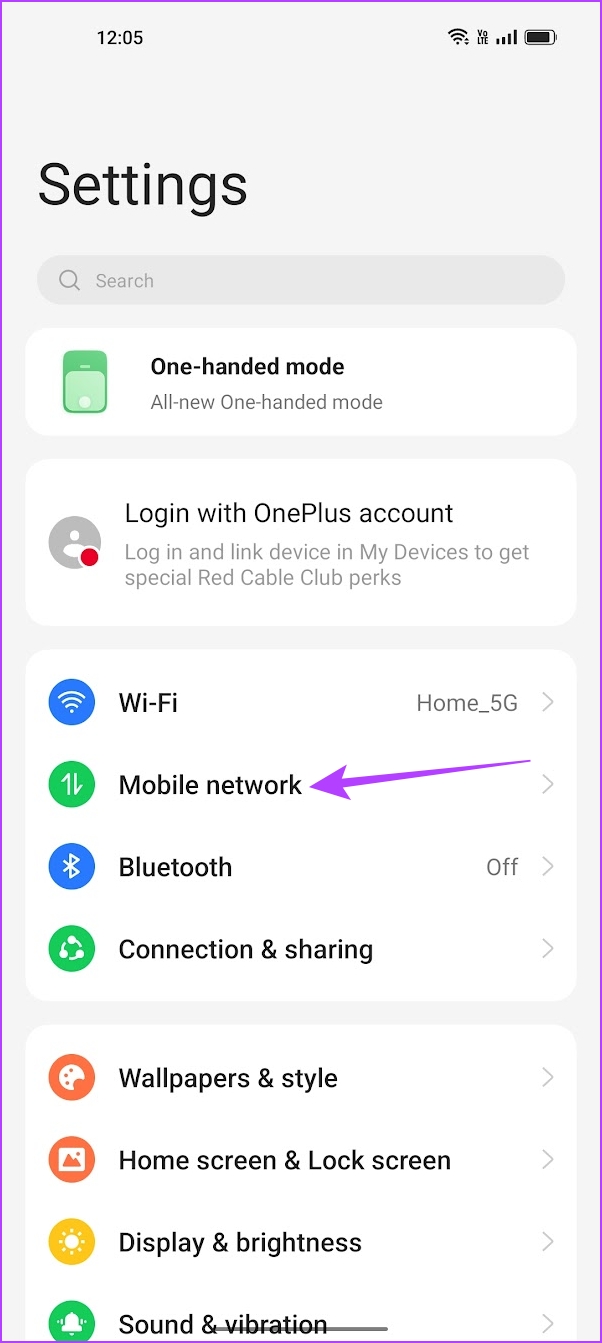
Step 1: Open Settings > Mobile Network.
Step 3: Tap on the SIM card you want to enable data roaming and turn it on.


Also Read: How to turn on data roaming on Android and iPhone.
Fix 5: Disable Data Limit (Android)
Android phones come with a feature where the mobile data is switched off once it reaches a set limit automatically. It helps in controlling data usage. You should check if the particular setting is enabled on your phone.
Step 1: Open Settings > Mobile Network > Data Usage.
Step 2: Tap on the Data usage limit. Turn off any sort of data usage limitations.


Fix 6: Clear Cache
Clearing cache and junk files may resolve the issue with apps not being able to work on mobile data.
On Android
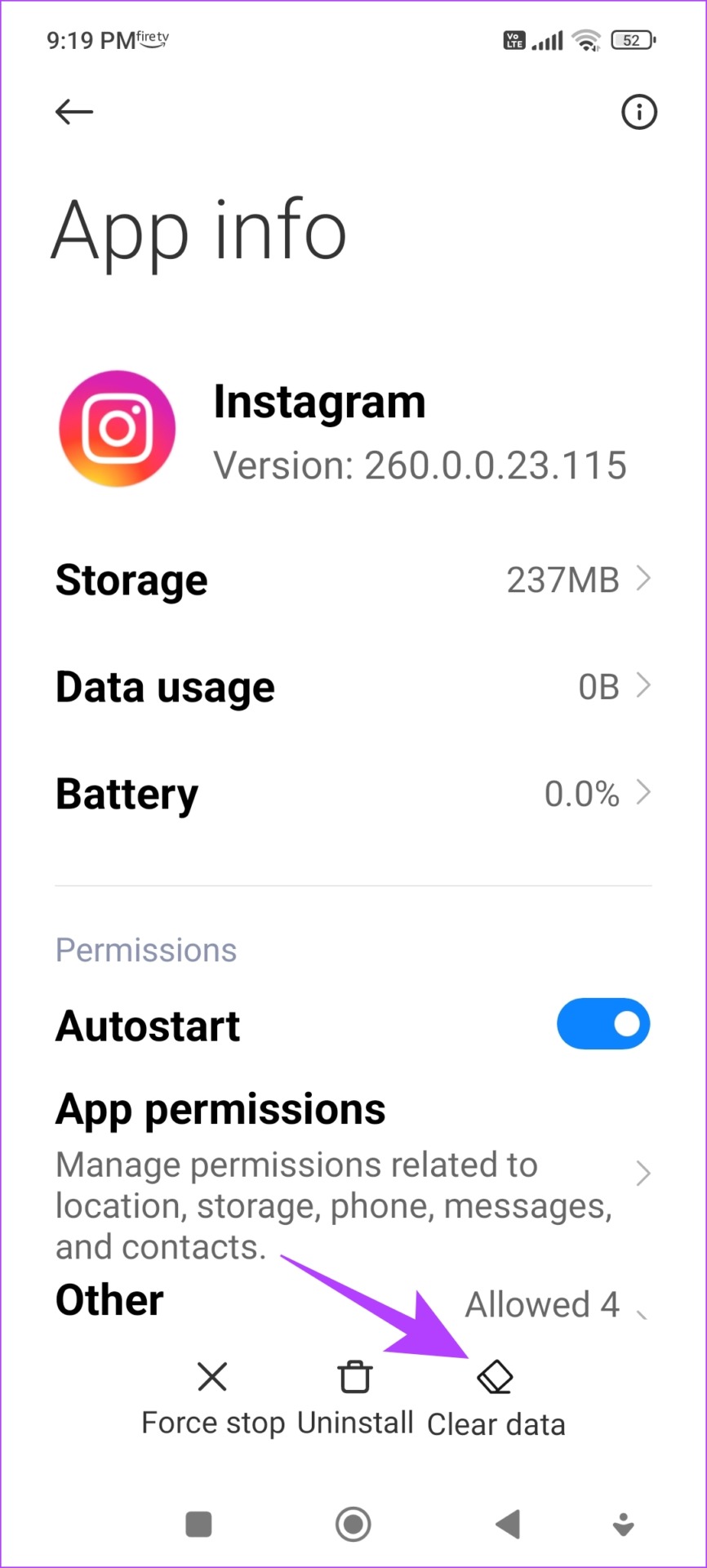
Step 1: Long-press the app icon on the home screen and tap on App info. Tap on Clear Data.
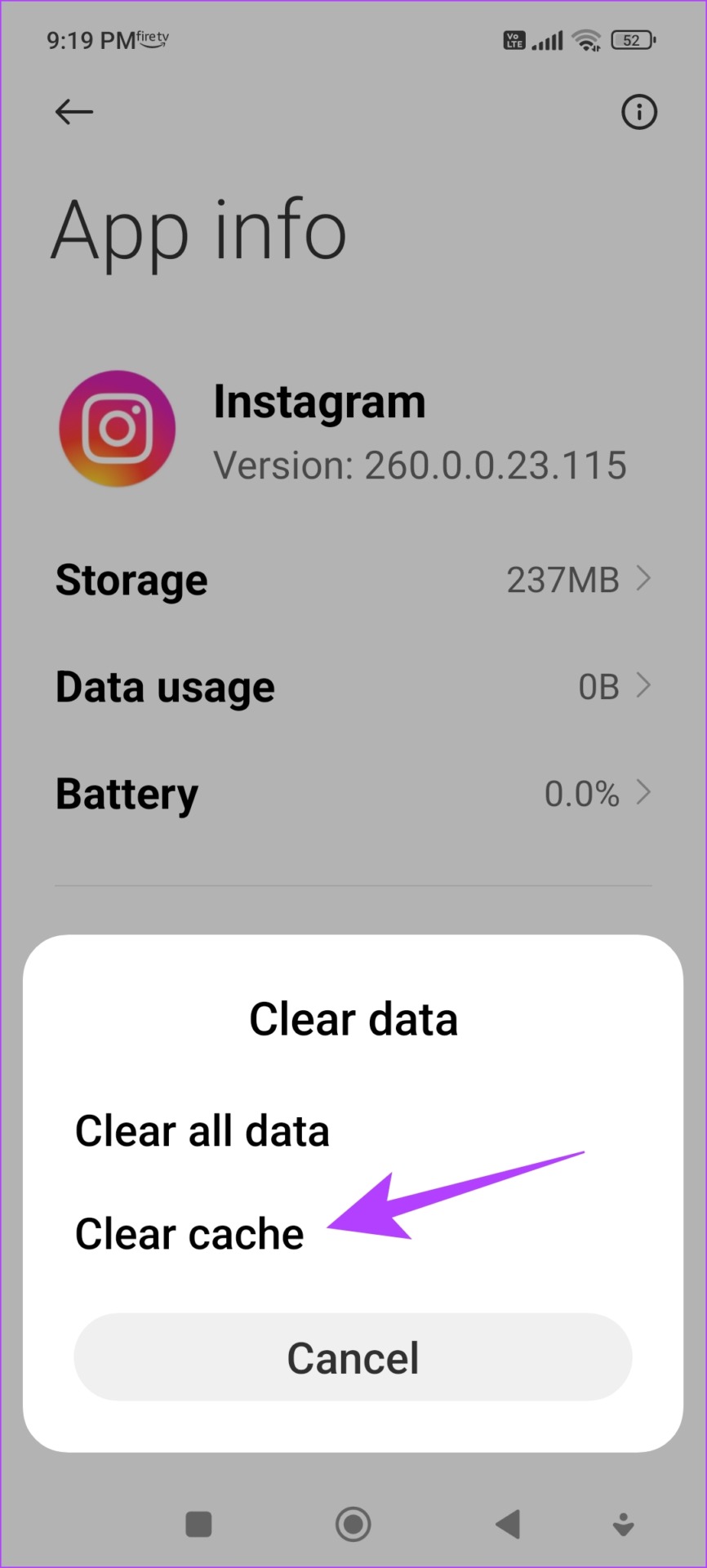
Step 2: Tap on Clear cache and select OK to confirm.
On iPhone
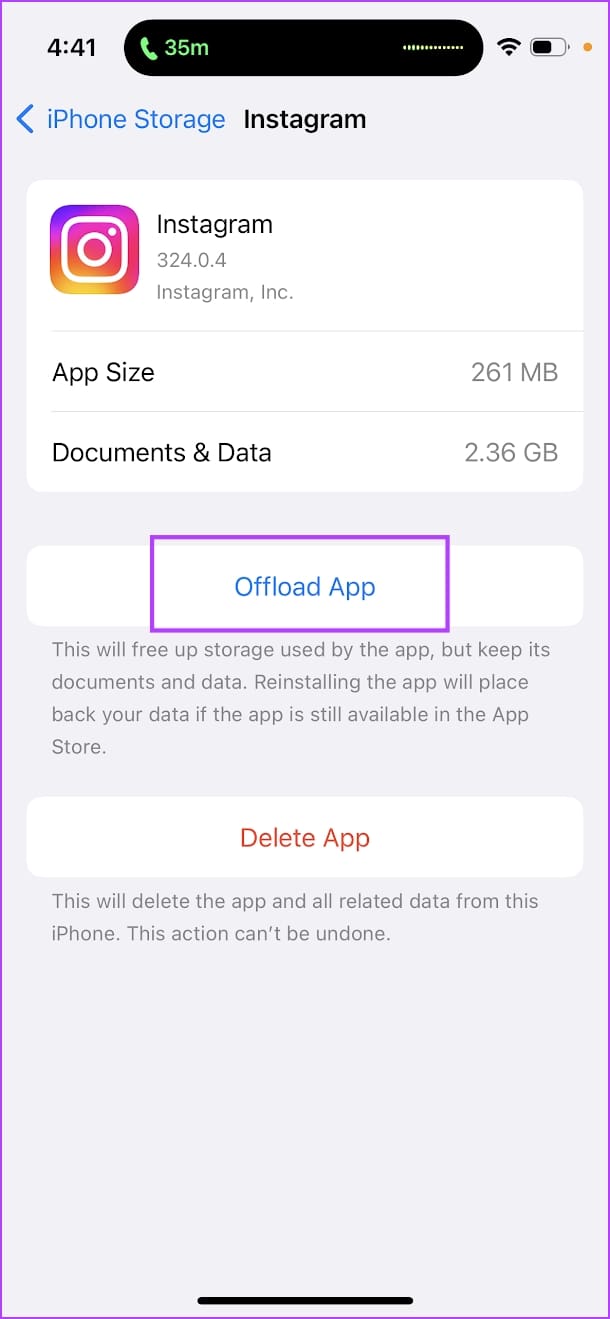
Offloading an application on your iPhone removes temporary data, including cache and junk files.
Step 1: Open the Settings app. Go to General -> iPhone Storage.
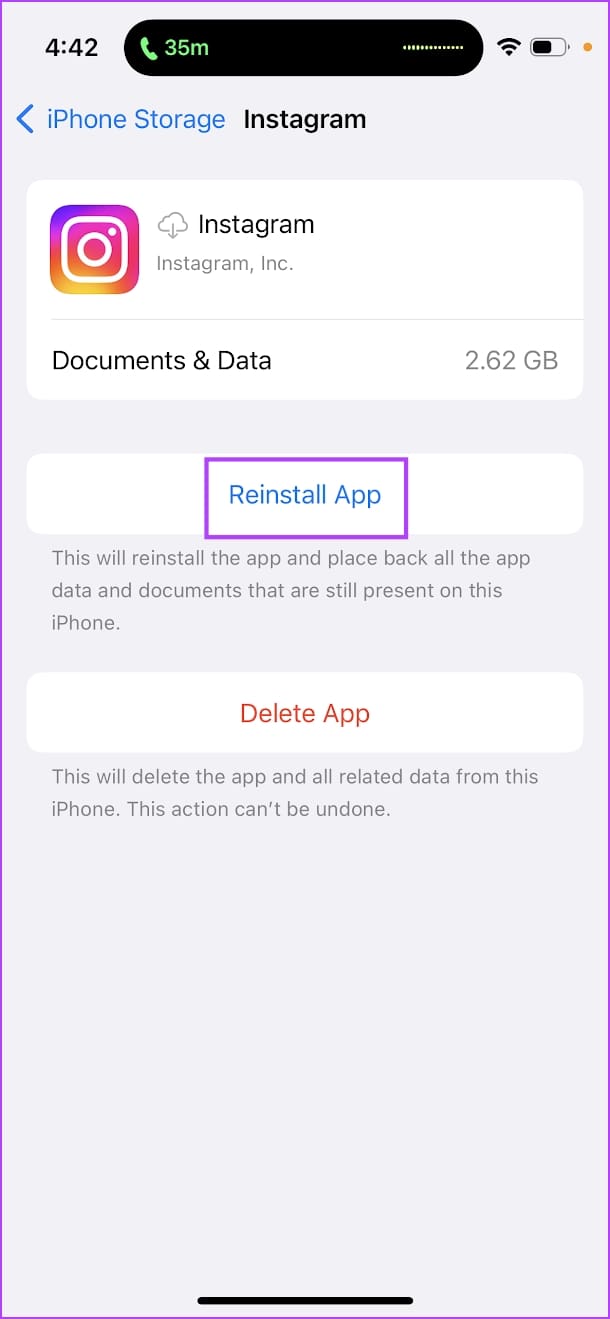
Step 2: Scroll down and select the app from the list. Select Offload App. Wait for the offloading to complete, then tap on the Reinstall App option.
Fix 7: Enable Unrestricted Data Usage (Android)
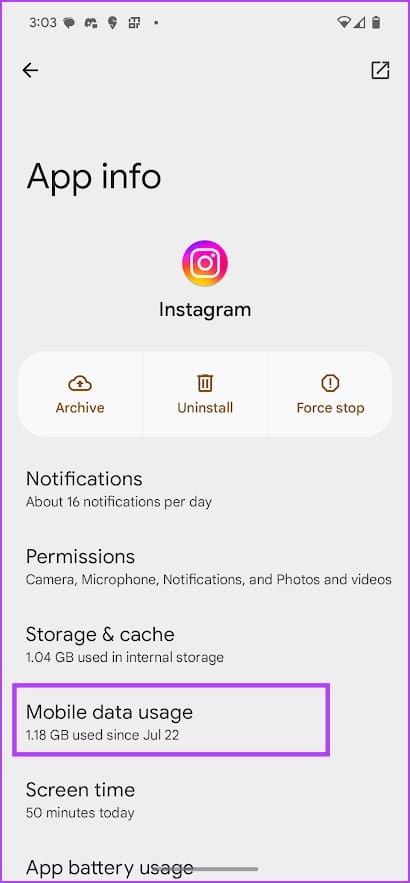
Enabling unrestricted data usage and turning on background data helps apps complete tasks even after you close the app.
Tap and hold the app icon, select App Info, and go to Mobile Data Usage. Turn on the toggle for Background Data and Unrestricted mobile data usage.

If none of the above methods work, consider resetting all the network settings on your device.
Was this helpful?
Last updated on 06 August, 2024
Read Next
 10 Best Messaging Apps That Work Without a Phone Number
Sharing your phone number on chatting platforms can expose you to unwanted spam, potential security breaches, and even compromise your identity.
10 Best Messaging Apps That Work Without a Phone Number
Sharing your phone number on chatting platforms can expose you to unwanted spam, potential security breaches, and even compromise your identity.
 7 Best Note-Taking Apps That Work on iPhone and Android
The Apple Notes app works perfectly well across Apple devices such as iPhone, iPad, and Mac.
7 Best Note-Taking Apps That Work on iPhone and Android
The Apple Notes app works perfectly well across Apple devices such as iPhone, iPad, and Mac.
 5 Best Free Reddit Apps For Android That Still Work in 2023
Reddit has increased its API fees significantly, making it impossible for third-party app developers to continue to operate.
5 Best Free Reddit Apps For Android That Still Work in 2023
Reddit has increased its API fees significantly, making it impossible for third-party app developers to continue to operate.
 4 Ways to Fix WhatsApp Not Working on Mobile Data
Before you begin, ensure you have no problems with using the internet via mobile data on your smartphone.
4 Ways to Fix WhatsApp Not Working on Mobile Data
Before you begin, ensure you have no problems with using the internet via mobile data on your smartphone.
 5 Ways to Fix Instagram Not Working on Mobile Data
Basic Fixes Check if Instagram is down: Check if Instagram is facing downtime.
5 Ways to Fix Instagram Not Working on Mobile Data
Basic Fixes Check if Instagram is down: Check if Instagram is facing downtime.
 9 Ways to Fix Facebook Not Working on Mobile Data
Basic Troubleshooting Check Facebook's status: Maybe Facebook servers are down, visit Downdetector and search for Facebook.
9 Ways to Fix Facebook Not Working on Mobile Data
Basic Troubleshooting Check Facebook's status: Maybe Facebook servers are down, visit Downdetector and search for Facebook.
 3 Ways to Fix Facebook “No Data Available” Error on Desktop and Mobile
Try Basic Fixes Check if Facebook is down: Facebook is not immune to occasional server-level hiccups.
3 Ways to Fix Facebook “No Data Available” Error on Desktop and Mobile
Try Basic Fixes Check if Facebook is down: Facebook is not immune to occasional server-level hiccups.
 How Does Deleting Messages on WhatsApp Work
What Happens When You Use Delete for Me WhatsApp offers four ways to delete messages and chats: Delete for me, Delete for everyone, Delete chat, and Clear chat.
How Does Deleting Messages on WhatsApp Work
What Happens When You Use Delete for Me WhatsApp offers four ways to delete messages and chats: Delete for me, Delete for everyone, Delete chat, and Clear chat.
The article above may contain affiliate links which help support Guiding Tech. The content remains unbiased and authentic and will never affect our editorial integrity.

