Basic Fixes:
- Restart Apple TV: You can use the System menu on your Apple TV remote to restart your Apple TV device. Then, open the App Store and try downloading the app again.
- Check the App Store server status: When one of the Apple servers faces an outage, you face problems with downloading apps on the Apple TV. You can visit the Apple System Status page and ensure a green indicator beside the App Store.
- Check storage on your Apple TV: If your Apple TV has insufficient storage space available, it will not be able to download and store new apps. So, check and ensure there’s at least 30% storage space available.
- Force quit other apps: If your Apple TV is running low on memory, you may have a problem downloading apps. Double-press the TV button on the remote to open the recent apps. Swipe up on an app and close it. Now, open the App Store and download the app again.
- Update tvOS: Outdated tvOS can be the main reason behind issues with downloading apps on Apple TV. Apple regularly releases new system updates for Apple TV. So, download and install the latest tvOS updates on your Apple TV.
Fix 1: Delete Unnecessary Apps
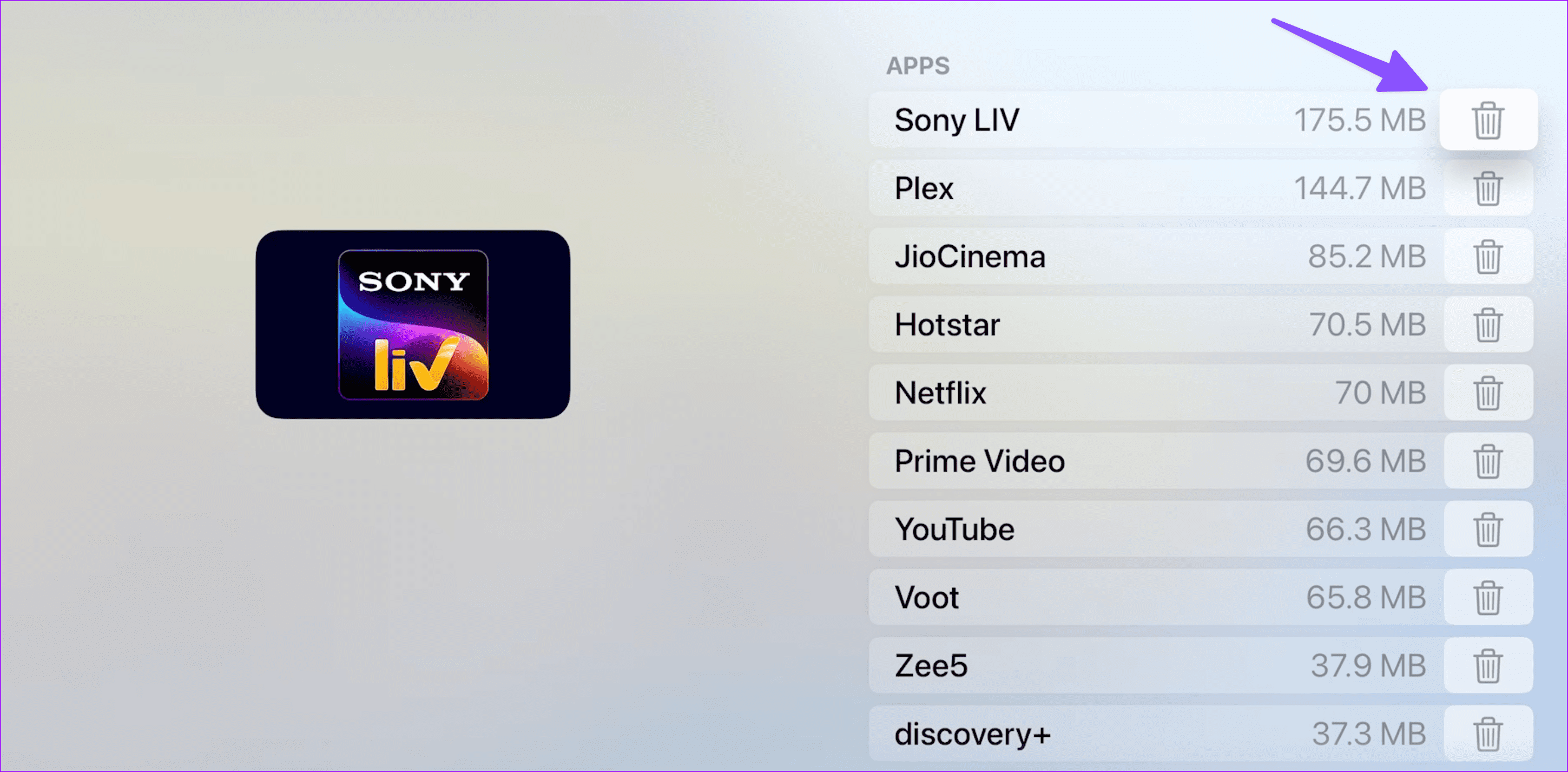
If your Apple TV has less storage space, it may face issues with downloading apps. tvOS doesn’t offer a detailed storage breakdown. You need to delete irrelevant apps and games and try again. Here’s how to do it.
Step 1: Open Settings and select General.

Step 2: Scroll to Manage Storage.

Step 3: Hit the delete icon beside the relevant apps and confirm your decision.
Fix 2: Enable Automatic App Updates
Apple TV also allows you to automatically update your currently installed apps. This ensures your apps don’t error out when downloading new apps. Follow the below steps to do it.
Step 1: Open Settings and select Apps.
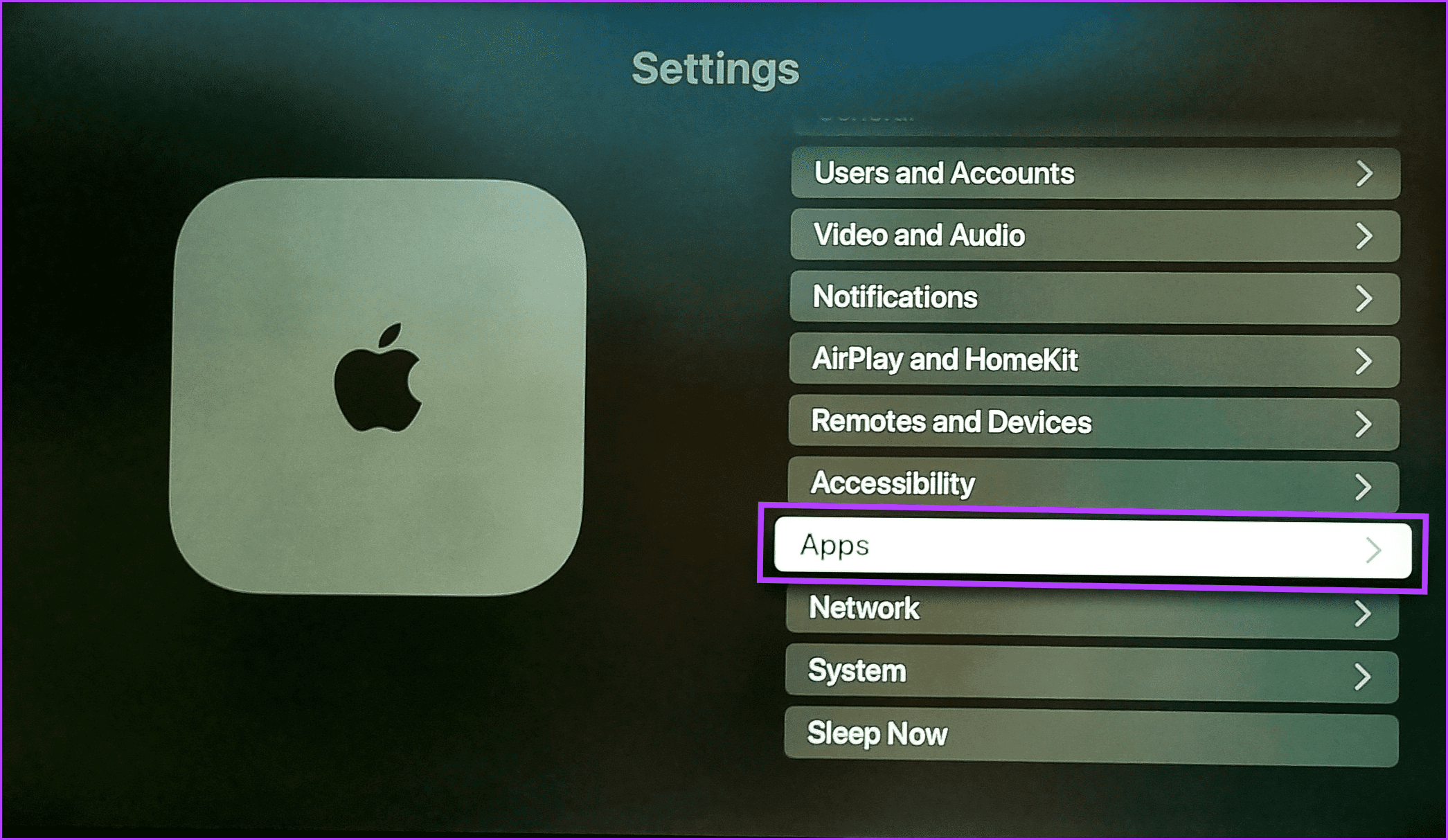
Step 2: Select Automatically Update Apps and wait for the option to change to On.

Fix 3: Remove and Re-Add User Profile on Apple TV
Did you recently change your Apple account password? Apple TV may fail to download apps due to an account authentication error. You’ll need to sign out from your current account and sign back in. Here’s how to do it.
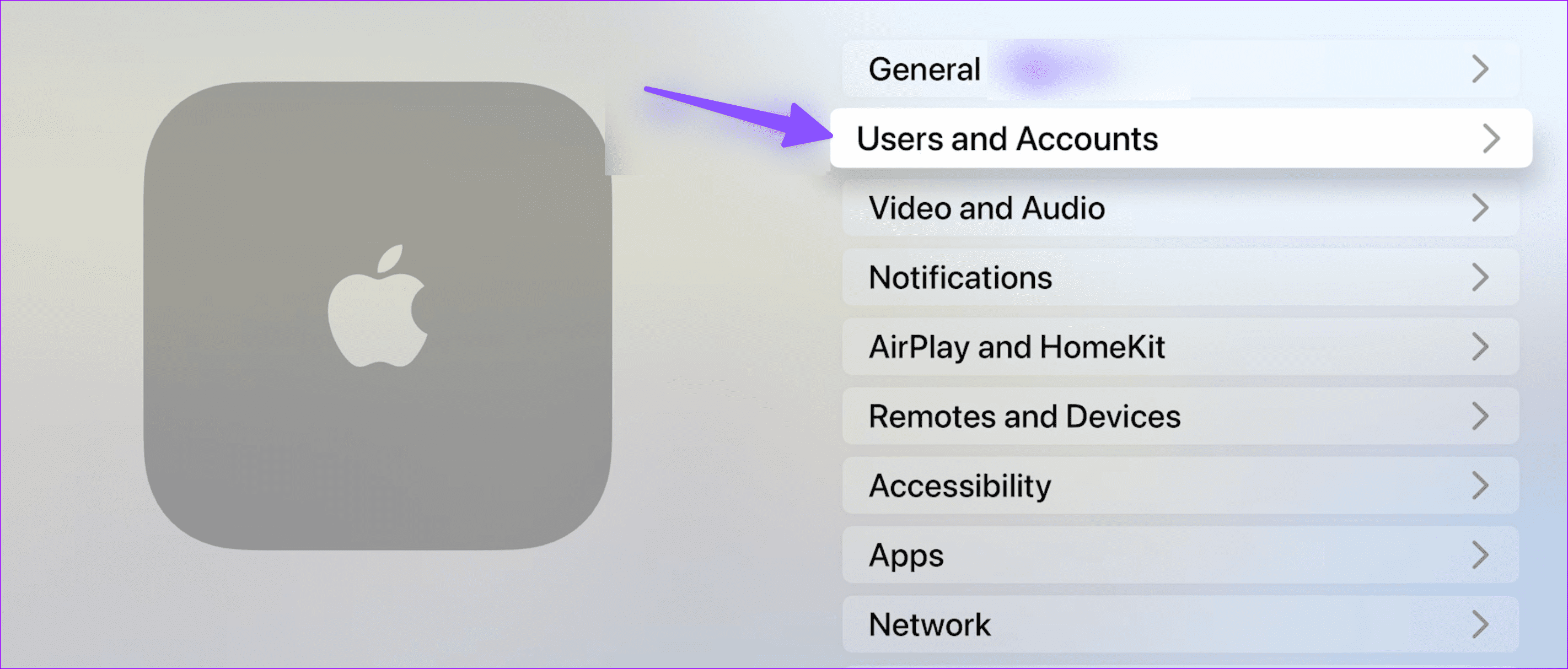
Step 1: Open Settings and select Users and Accounts.
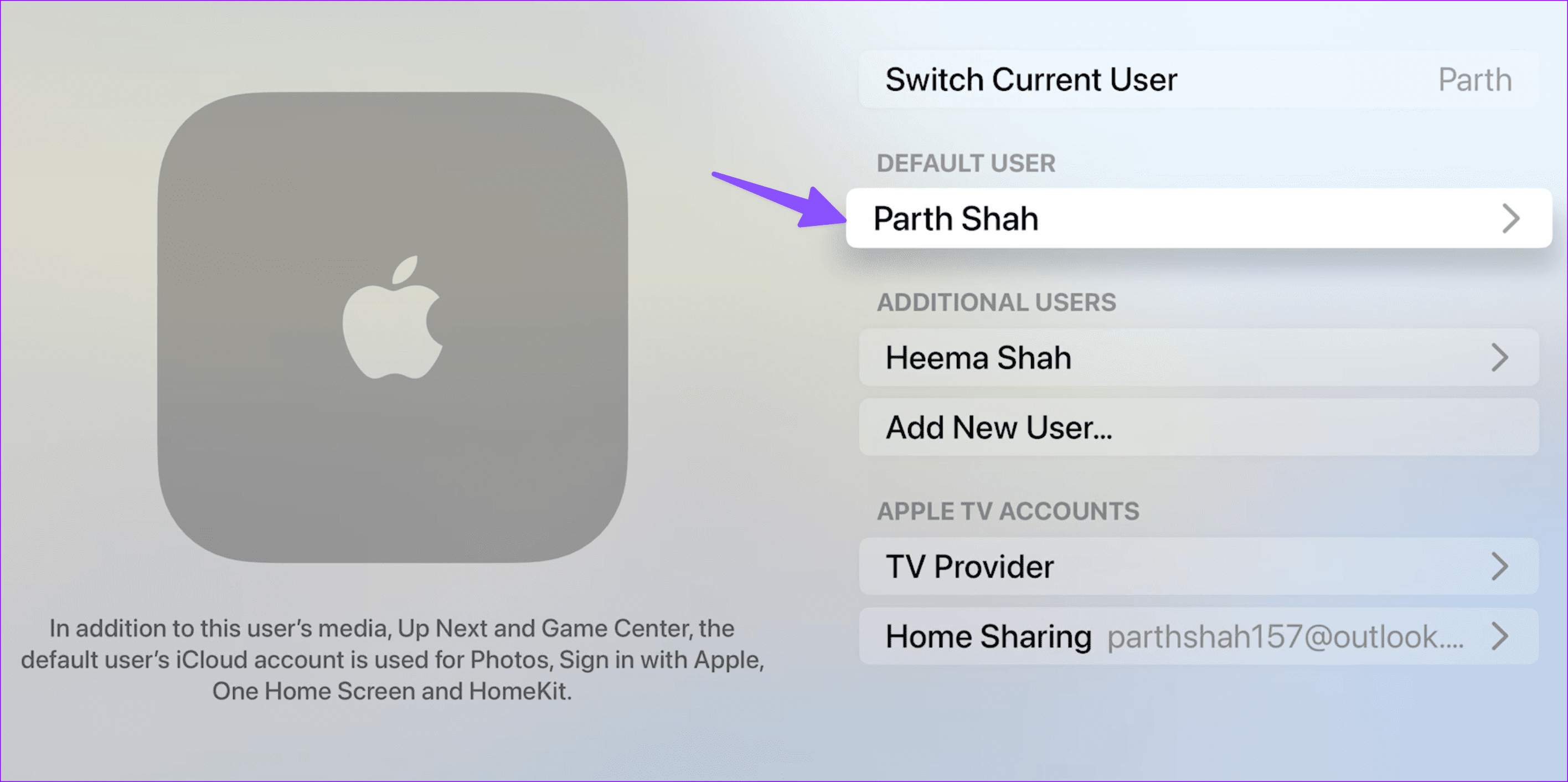
Step 2: Select your name under default user.
Step 3: Select iCloud and check your Apple ID. Hit Sign out.
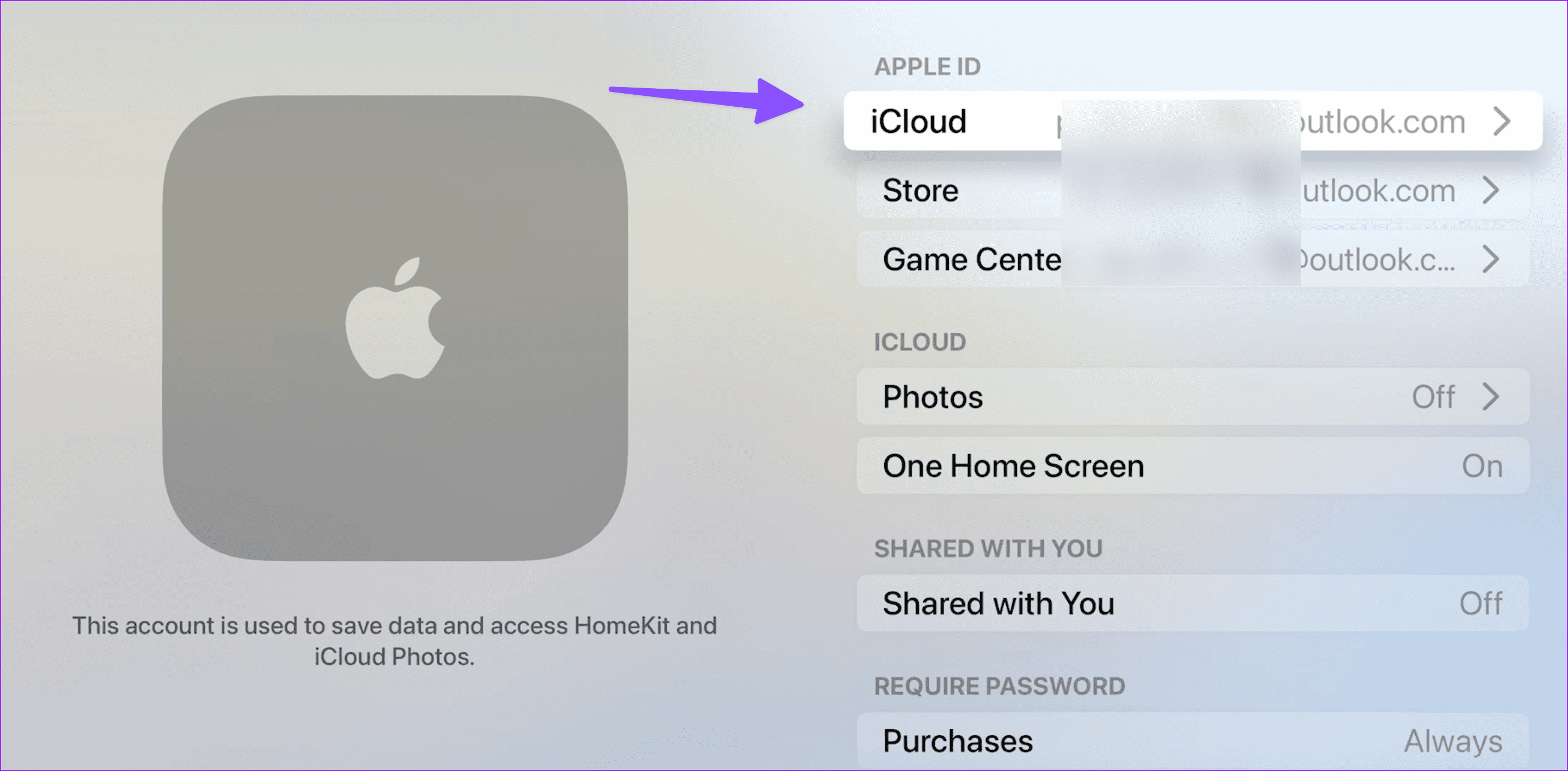
Sign in with your iPhone or sign in manually from the next screen. Follow the on-screen instructions to complete the process. Then, try downloading the app again.
Also Read: How to fix notifications not working on Apple TV
Fix 4: Reset Apple TV
Resetting the Apple TV should be the last resort to fix the Apple TV not downloading apps issue. It deletes all the apps, device data, and you must start from scratch. Follow the below steps to do it.
Step 1: Open Settings and select System.

Step 2: Select Reset and confirm your decision from the following menu.

Wait for the reset process to finish. Then, set up your Apple TV device again and try downloading the relevant app to see if the issue has been fixed.
Was this helpful?
Last updated on 05 July, 2024
Read Next
 4 Ways to Fix Apple Podcasts Not Downloading
Basic Fixes Check storage: Ensure your iPhone has enough storage space left to accommodate new downloads from the Podcasts app.
4 Ways to Fix Apple Podcasts Not Downloading
Basic Fixes Check storage: Ensure your iPhone has enough storage space left to accommodate new downloads from the Podcasts app.
 How to Fix Apple Mail Stuck at Downloading Messages
Basic Fixes Check your network connection: Ensure your device is connected to stable internet.
How to Fix Apple Mail Stuck at Downloading Messages
Basic Fixes Check your network connection: Ensure your device is connected to stable internet.
 3 Ways to Fix Apple Music Not Downloading Songs
Basic Fixes Check network: If you can't download songs on Apple Music, there is likely a problem with your internet connectivity.
3 Ways to Fix Apple Music Not Downloading Songs
Basic Fixes Check network: If you can't download songs on Apple Music, there is likely a problem with your internet connectivity.
 7 Ways to Fix Microsoft Store Not Downloading Apps or Games
Fix 1: Restart Microsoft Store Shutting down the app can kill any bugs, and it is unlikely to appear once you open the Microsoft Store again.
7 Ways to Fix Microsoft Store Not Downloading Apps or Games
Fix 1: Restart Microsoft Store Shutting down the app can kill any bugs, and it is unlikely to appear once you open the Microsoft Store again.
 5 Ways to Fix Android TV Not Downloading Apps
Fix 1: Check the Storage on Your Android TV Most Android TVs come with 8GB of internal storage.
5 Ways to Fix Android TV Not Downloading Apps
Fix 1: Check the Storage on Your Android TV Most Android TVs come with 8GB of internal storage.
 Top 5 Ways to Fix Samsung TV Not Downloading Apps
Preliminary Fixes Check the Network Connection: Ensure your Samsung TV is connected to a stable Wi-Fi network.
Top 5 Ways to Fix Samsung TV Not Downloading Apps
Preliminary Fixes Check the Network Connection: Ensure your Samsung TV is connected to a stable Wi-Fi network.
 3 Fixes for Apple Books App Not Downloading Books
Basic Fixes Check internet connection: Ensure that you have a strong internet connection on your Apple device.
3 Fixes for Apple Books App Not Downloading Books
Basic Fixes Check internet connection: Ensure that you have a strong internet connection on your Apple device.
 How to Stop iPhone From Automatically Downloading Apps
Why Is iPhone Downloading Apps Automatically?
How to Stop iPhone From Automatically Downloading Apps
Why Is iPhone Downloading Apps Automatically?
The article above may contain affiliate links which help support Guiding Tech. The content remains unbiased and authentic and will never affect our editorial integrity.