


Basic Fixes
- Check your network connection: Ensure your device is connected to a good internet connection. I recommend at least 5-10Mbps for HD and 20-25Mbps for 4K quality streaming in the Apple TV app.
- Check the Apple TV server status: Visit the Apple System Status page to check an active Apple TV service outage.
- Verify your Apple TV+ subscription: The Apple TV app requires an active subscription. Check your subscription details from the App Store > account picture (top-right corner) > Subscriptions.
- Disconnect VPN: Open the VPN app and tap Disconnect to disable the active connection. Reopen the Apple TV app.
- Disable Low Data Mode: Open the Settings app, select Wi-Fi, and tap i next to the connected network. Toggle off the Low Data Mode. If you’re on cellular data, disable Low Data Mode from Settings > Mobile Service > Mobile Data Options.
- Update iOS and iPadOS: Head to your iPhone/iPad settings, select General, and tap Software Update. Tap Install to update your iPhone or iPad.
Fix 1: Force Close and Restart the Apple TV App
Force closing and restarting the Apple TV app fixes most glitches preventing you from opening it.
Swipe up from the bottom of your screen to switch apps and slide up the Apple TV card to force close it. Reopen the app to use it.
Fix 2: Enable Cellular Data for Apple TV
By default, Apple TV disables streaming on cellular data to limit mobile data usage. Tweak your iPhone settings to fix Apple TV not working on mobile data.
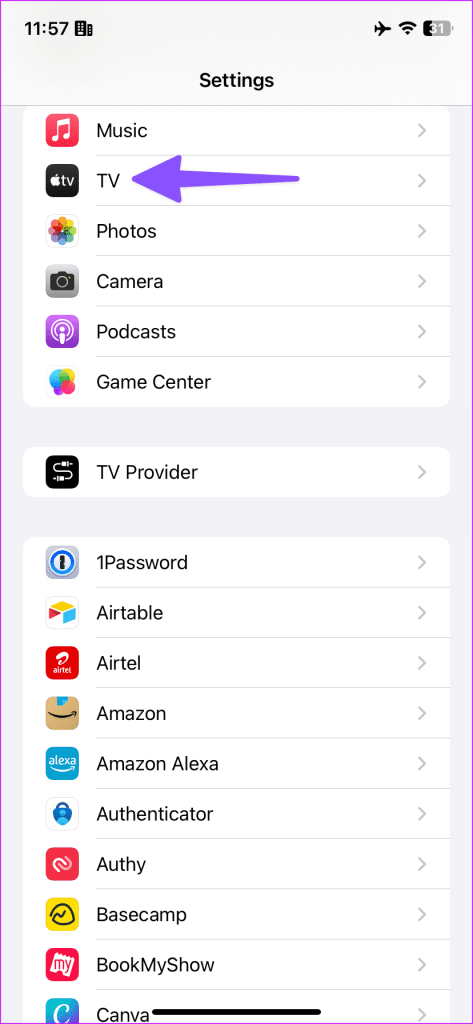
Step 1: Open iPhone Settings, scroll down, and select TV.
Step 2: Turn on the Mobile Data toggle and enable Use Cellular Data under Streaming Options.

Fix 3: Sign Out and Log in Again
Account authentication issue is a common reason for Apple TV not working or crashing on your iPhone or iPad. Sign out and log in again to restore its normal functioning.
Step 1: Open the Apple TV app > tap your account profile at the top-right > select Sign Out.


Step 2: Reopen the app > tap your account at the top > enter credentials to sign back in.
Fix 4: Change Country or Region
If the Apple TV app shows a blank white screen and fails to load its content, switch your device’s country/region to regain access.
Step 1: Open the iPhone setting > tap your Apple account banner > select Media & Purchases.


Step 2: Select View Account and tap Country/Region.


Step 3: Tap Change Country or Region and pick your desired region from the list.

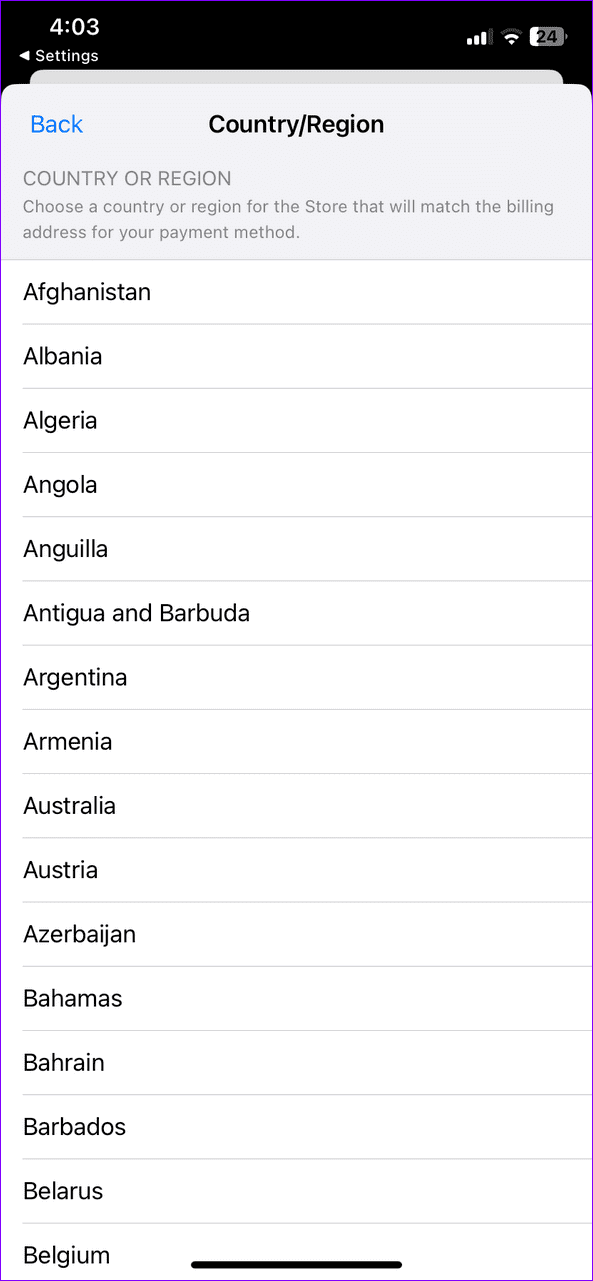
Step 4: Tap Agree at the top right to update your payment details and save changes. Reopen the Apple TV app.


Fix 5: Update or Reinstall the Apple TV App
Lastly, if the issue persists, update or reinstall the Apple TV app on your iPhone or iPad.
Step 1: Open the Apple App Store, search Apple TV, and tap Update (if available).
Step 2: Alternatively, long-tap the Apple TV icon > select Remove app. Tap Delete app when prompted and install it afresh from the Apple App Store.


Was this helpful?
Last updated on 15 July, 2024
Read Next
 3 Ways to Fix Apple iPad Can’t Connect to App Store
Basic Fixes: Restart iPad: A simple reboot may fix glitches like the iPad can’t connect to the App Store.
3 Ways to Fix Apple iPad Can’t Connect to App Store
Basic Fixes: Restart iPad: A simple reboot may fix glitches like the iPad can’t connect to the App Store.
 Top 9 Ways to Fix Apple Pencil Not Working on iPad
Your iPadOS experience is arguably incomplete without an Apple Pencil.
Top 9 Ways to Fix Apple Pencil Not Working on iPad
Your iPadOS experience is arguably incomplete without an Apple Pencil.
 3 Ways to Fix Apple Weather App Not Working on iPhone
Basic Fixes: Check the Apple system status page: Before starting, it is worth checking Apple's System Status.
3 Ways to Fix Apple Weather App Not Working on iPhone
Basic Fixes: Check the Apple system status page: Before starting, it is worth checking Apple's System Status.
 How to Use the Apple Freeform App on iPhone and iPad
Wondering why the Freeform app appeared on your iPhone?
How to Use the Apple Freeform App on iPhone and iPad
Wondering why the Freeform app appeared on your iPhone?
 3 Best Ways to Fix Apple Books Not Syncing Between iPhone and iPad
Try Basic Fixes Ensure both devices are connected to Wi-Fi: The syncing of any content between an iPhone and iPad happens via iCloud.
3 Best Ways to Fix Apple Books Not Syncing Between iPhone and iPad
Try Basic Fixes Ensure both devices are connected to Wi-Fi: The syncing of any content between an iPhone and iPad happens via iCloud.
 3 Ways to Fix Guided Access Not Working on iPhone or iPad
Basic Fixes Enable Guided Access: Make sure you have enabled Guided Access on your iOS device.
3 Ways to Fix Guided Access Not Working on iPhone or iPad
Basic Fixes Enable Guided Access: Make sure you have enabled Guided Access on your iOS device.
 3 Ways to Fix AutoFill Passwords Not Working on iPhone and iPad
Basic Fixes Turn off private browsing mode: The autofill feature does not work when you browse in private mode on your iPhone or iPad.
3 Ways to Fix AutoFill Passwords Not Working on iPhone and iPad
Basic Fixes Turn off private browsing mode: The autofill feature does not work when you browse in private mode on your iPhone or iPad.
 How to Fix Disney+ Not Working on iPhone or iPad
Common Fixes Check your network connection: Ensure your iPhone/iPad has a good internet connection.
How to Fix Disney+ Not Working on iPhone or iPad
Common Fixes Check your network connection: Ensure your iPhone/iPad has a good internet connection.
The article above may contain affiliate links which help support Guiding Tech. The content remains unbiased and authentic and will never affect our editorial integrity.

