


Fix 1: Change Android TV Volume
Starting with the basics, you can try changing the volume levels of your Android TV. Sometimes, the sound stops working because the audio is switched to mute. If you can’t change volume, restart your Android TV.
Fix 2: Disconnect Bluetooth Devices
Did you connect your Bluetooth headphones or TWS with your Android TV and forget about it? Android TV will continue playing sound on the connected accessory and won’t use speakers or a home theatre system. You must disconnect Bluetooth headphones from your Android TV and try again.
Fix 3: Check Sound Output From Settings
If your Android TV doesn’t detect the connected home theatre setup, you need to change the sound output from Settings.
Step 1: Head to your Android TV home screen and select Settings.
Step 2: Open Device Preferences.
Step 3: Choose Sound.

Step 4: Select Speakers.

Step 5: Click the radio button beside HDMI.
You can now restart your home theatre system and check Android TV sound. Select TV speakers from the same menu if the Android TV sound isn’t working.
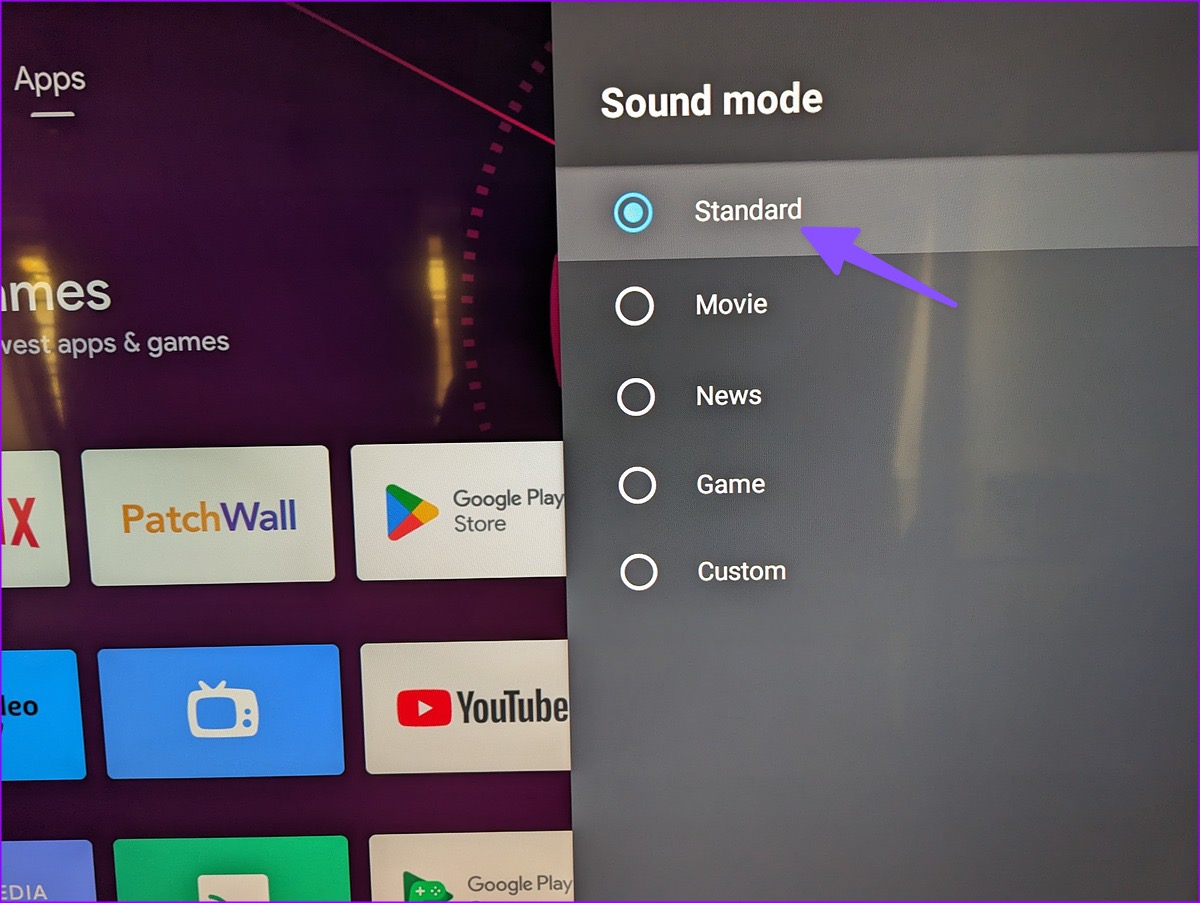
If you are using the Movie, News, Game, or a custom sound mode, revert to Standard to fix audio not working on Android TV.
Step 1: Head to your Android TV home screen and select the Settings gear at the top-right corner. Now, choose Device Preferences.
Step 2: Select Sound > Sound mode.

Step 3: Choose Standard, and you are good to go.
Fix 4: Check HDMI Connection and Reconnect the Home Theatre System
This trick fixed my Android TV sound not working issue in no time. You need to disconnect the home theater system from the Android TV and connect it again.
While at it, inspect the HDMI cable you use to connect the home theatre to the Android TV. If it is damaged or cut, replace it with another cable. After resetting your home theatre system, select it as the default audio output from the Sound menu (refer to the steps above).
Fix 5: Force Stop Affected Apps
If sound isn’t working in a specific app, you need to force stop the app and try again.
Step 1: Go to your Android TV home screen and select the Settings gear at the top-right corner. Then, select Apps.
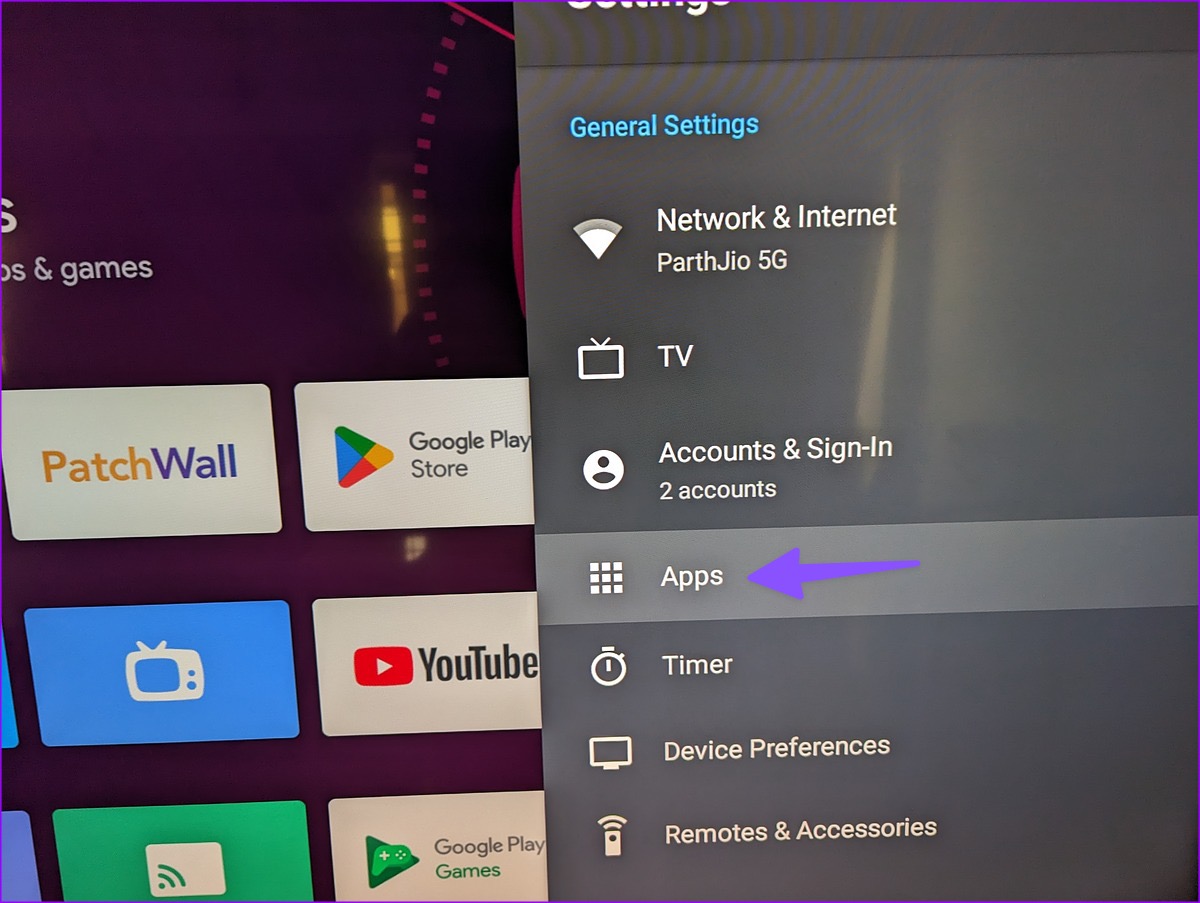
Step 2: Select See all apps.

Step 3: Open the affected app. Hit Force Stop from the following menu. You can also clear data and cache to start from scratch.

You should also update Android TV frequently. It fixes issues with Wi-Fi, sound, screen mirroring, and other aspects of your TV.
Step 1: Head to the About menu in Android TV Settings.

Step 2: Select System Update and install the latest OS build on your TV.

Was this helpful?
Last updated on 12 April, 2024
1 Comment
Leave a Reply
Read Next
 3 Ways to Fix Google TV Sound Not Working
Basic Fixes Use the volume keys: Press the volume up and down keys on your Google TV remote.
3 Ways to Fix Google TV Sound Not Working
Basic Fixes Use the volume keys: Press the volume up and down keys on your Google TV remote.
 4 Ways to Fix Zoom Audio and Sound Not Working on Android
Basic Fixes Check network connection: Ensure there isn't a problem with your device's cellular network or Wi-Fi.
4 Ways to Fix Zoom Audio and Sound Not Working on Android
Basic Fixes Check network connection: Ensure there isn't a problem with your device's cellular network or Wi-Fi.
 5 Ways to Fix Text Messaging Sound Not Working on Android
Basic Fixes Restart device: If there's any bug preventing you from receiving notifications, restarting your device will help.
5 Ways to Fix Text Messaging Sound Not Working on Android
Basic Fixes Restart device: If there's any bug preventing you from receiving notifications, restarting your device will help.
 3 Ways to Fix Notification Sound Not Working on Android
Basic Ways: Adjust notification volume: Use the volume buttons or go to the Settings menu to check the current notification volume.
3 Ways to Fix Notification Sound Not Working on Android
Basic Ways: Adjust notification volume: Use the volume buttons or go to the Settings menu to check the current notification volume.
 5 Ways to Fix No Sound in YouTube App on Android TV
Common Fixes Check if TV audio is mute - Press the Mute button on your TV remote to unmute the sound.
5 Ways to Fix No Sound in YouTube App on Android TV
Common Fixes Check if TV audio is mute - Press the Mute button on your TV remote to unmute the sound.
 How to Fix Sound Not Working on Fire Stick
Basic Fixes Unmute your TV and turn up the volume: Press the Mute button on your TV remote to unmute its volume.
How to Fix Sound Not Working on Fire Stick
Basic Fixes Unmute your TV and turn up the volume: Press the Mute button on your TV remote to unmute its volume.
 How to Fix WhatsApp Notification Sound Not Working
Basic Fixes Ensure silent mode is turned off - The first thing you should do is to check and turn off Vibrate/Silent mode on your iPhone or Android.
How to Fix WhatsApp Notification Sound Not Working
Basic Fixes Ensure silent mode is turned off - The first thing you should do is to check and turn off Vibrate/Silent mode on your iPhone or Android.
 3 Ways to Fix Instagram Story Sound Not Working
Basic Troubleshooting Turn off silent mode or increase the volume - Instagram's sounds are automatically muted on silent mode.
3 Ways to Fix Instagram Story Sound Not Working
Basic Troubleshooting Turn off silent mode or increase the volume - Instagram's sounds are automatically muted on silent mode.
The article above may contain affiliate links which help support Guiding Tech. The content remains unbiased and authentic and will never affect our editorial integrity.

I have no sound setting in device preferences where else can it be?