Common Fixes
- Check hardware damage: Ensure your phone’s touch screen is intact to avoid having ghost touch issues with the back navigation button.
- Uninstall suspicious apps: Open Android settings, tap Apps, and review all installed apps to uninstall unnecessary ones, fixing the back button issue.
- Scan your device: Some Android phone manufacturers (e.g., Samsung) include a Device Scanner to identify and fix corrupt system files. Head to Settings > Device Care and tap Optimize Now to fix ghost touch issues.
- Remove your phone case and screen protector: Remove rugged phone cases and low-quality screen protectors to avoid the back button pressing automatically on Android.
- Inspect the oleophobic coating: Oleophobic coating wears off with time, creating screen touch issues. Visit the nearest service center to inspect and repair it.
- Update system software: Open the Settings app, tap System Update, and select Update Now (if available).
Fix 1: Disable and Enable Navigation Buttons
If navigation buttons aren’t working accurately, enable the gesture navigation temporarily and switch it back to 3-button navigation, fixing existing glitches.
Step 1: Open the Settings app > tap System > select System Navigation.
Step 2: Enable Gesture navigation, wait a few seconds, and switch it back to 3-button navigation.


Fix 2: Turn off Accessibility Settings
Android’s Accessibility feature provides a large on-screen menu to control device key features. When active, it might interfere with the navigation buttons to create a ghost back touch. Disable it to restore normalcy.
Step 1: Open Android settings > select Shortcuts & accessibility > tap Accessibility.


Tip: Search Accessibility in the Settings app home screen to locate it quickly.
Step 2: Select the Accessibility menu and turn off its toggle.
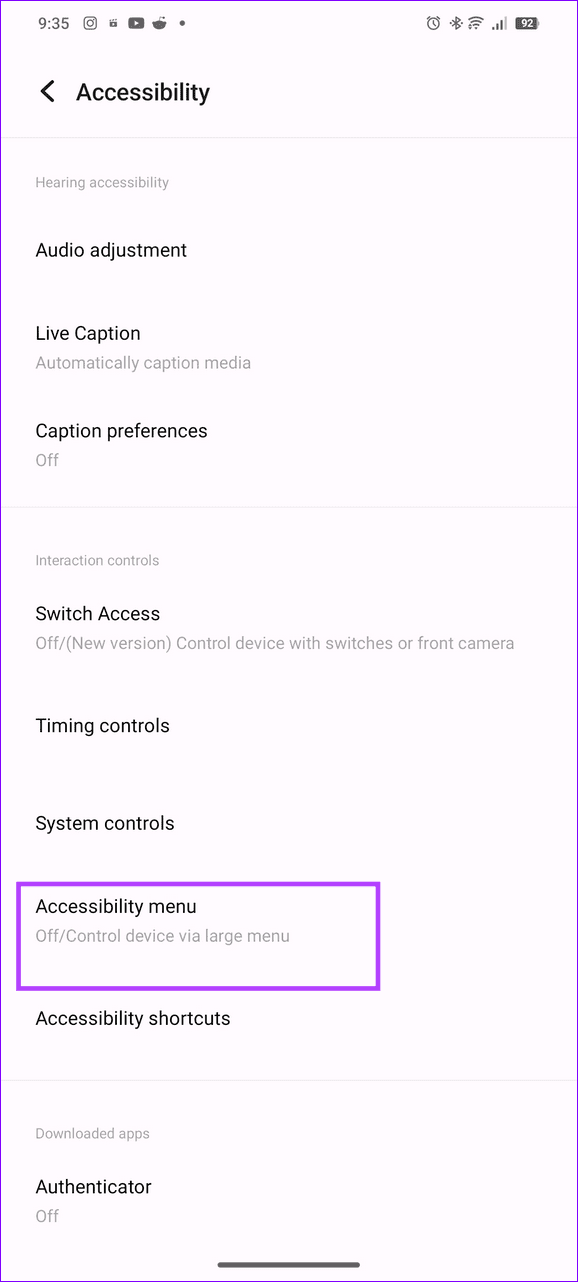

Step 3: Additionally, tap Switch Access and toggle it off to disable it.


Fix 3: Reduce Refresh Rate and Touch Sensitivity
High screen refresh rates and enhanced touch sensitivity are common reasons the back button is pressed automatically on Android. Open Android settings to lower them manually.
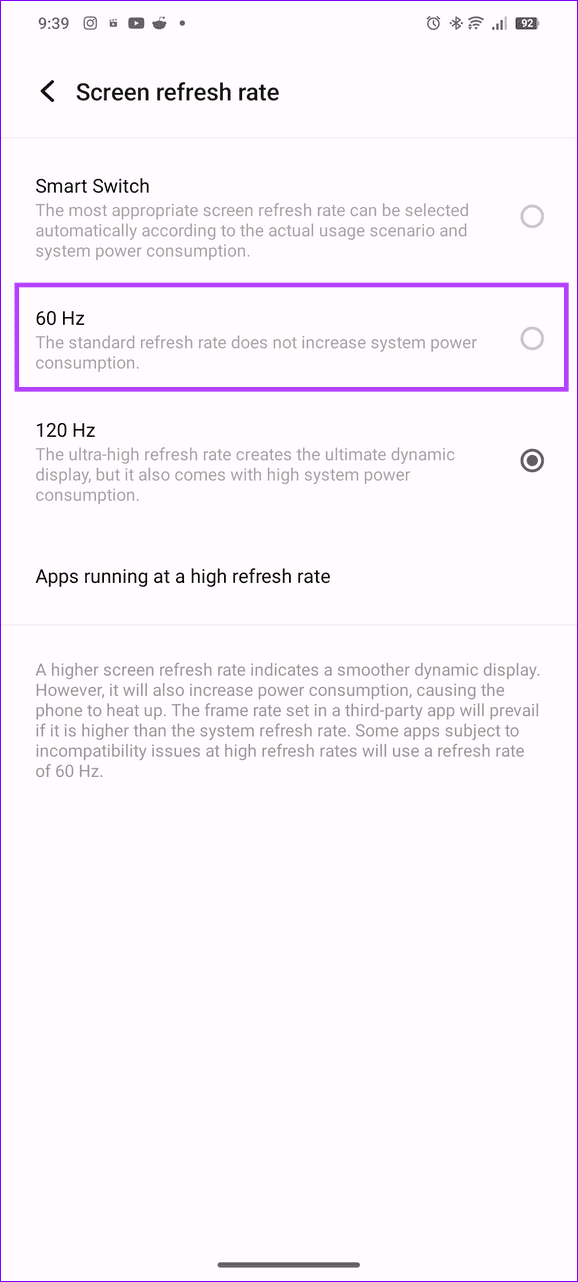
Step 1: Access Display and brightness under the Android Settings app, select Screen refresh rate, and lower the current value (e.g. select 60 Hz).


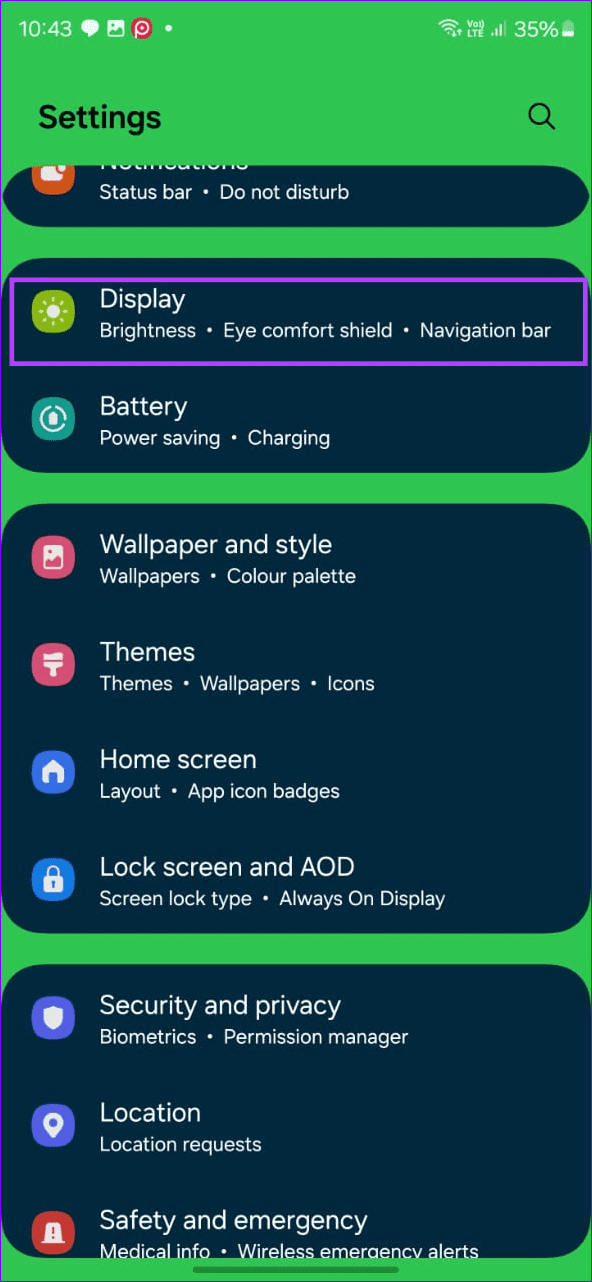
Step 2: To reduce touch sensitivity, head to Settings > Display > toggle off Touch sensitivity to reduce it.
Note: The Touch Sensitivity feature may be unavailable on certain Android devices. You can find it easily on Samsung phones.

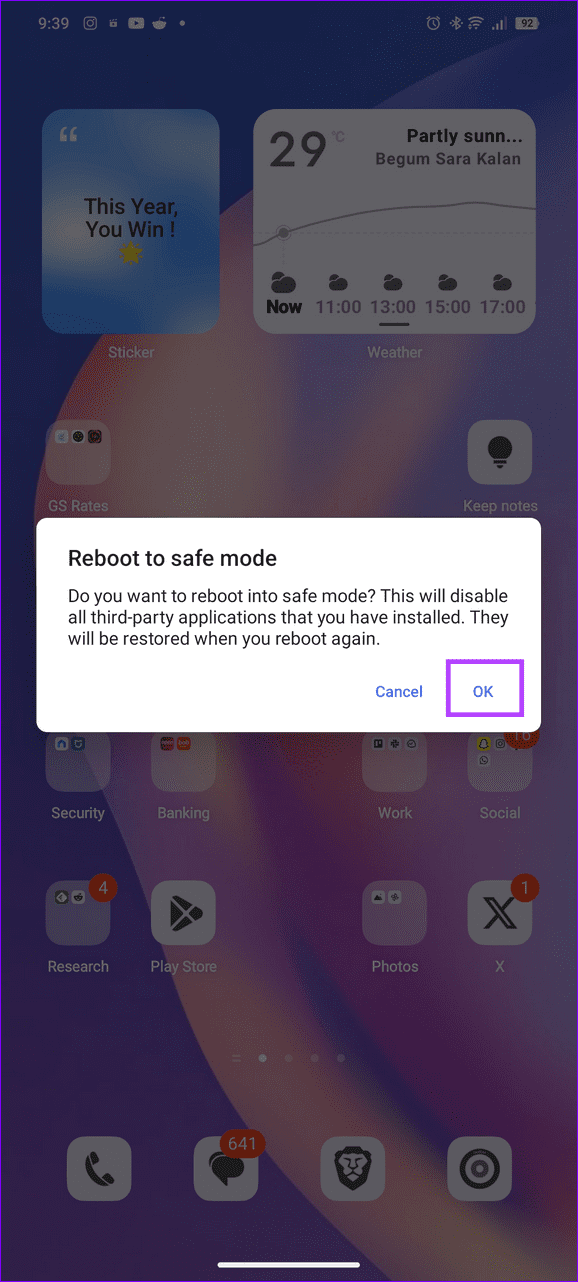
Fix 4: Boot Phone in Safe Mode
If the back button ghost touch issue appears suddenly, boot your device in safe mode to locate the culprit third-party app that caused it. Once identified, restart your phone in normal mode and uninstall it.
Long-press the physical lock/unlock button to view the Power menu. Hold Restart for a few seconds > tap OK to reboot to safe mode.

Fix 5: Factory Reset the Android Device
Lastly, you can reset your Android device to factory defaults if the above methods don’t work.
Note: Back up your device data before performing a factory reset.
Step 1: Open Android settings > tap System > select Reset options.
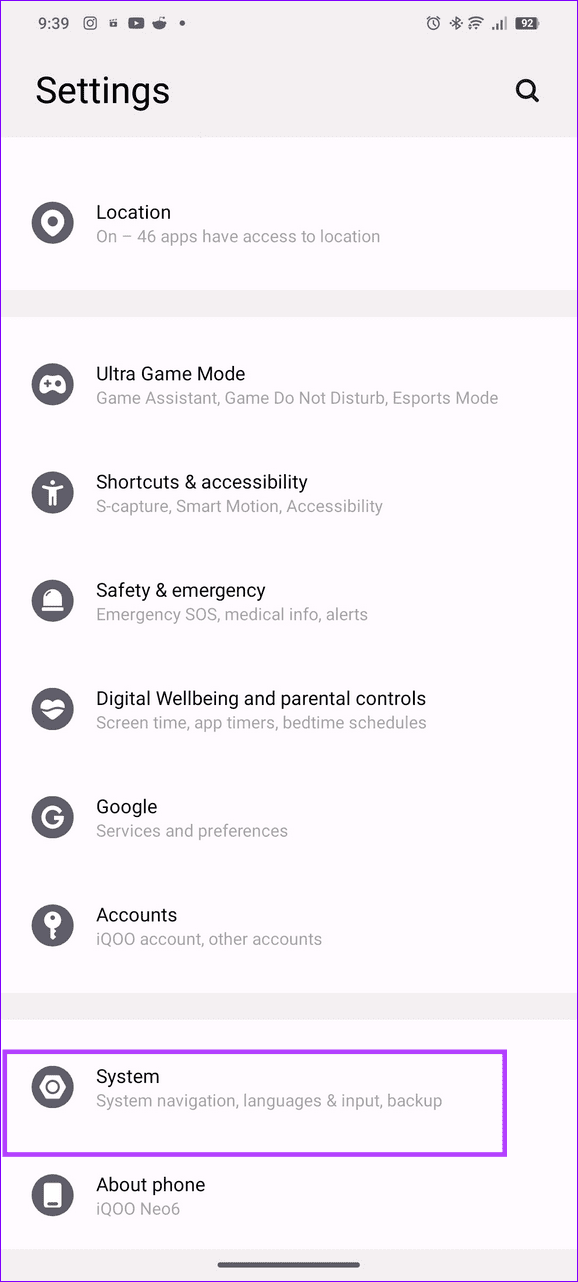

Step 2: Select Erase all data (factory reset) and confirm your action by tapping Erase all data at the bottom right.
If the issue persists, bring it in for repair to the nearest authorized service center.


Was this helpful?
Last updated on 21 May, 2024
Read Next
 6 Ways to Fix Black Screen on Pressing Alt + Tab on Windows
Fix 1: Change the Display Mode of the Application (Game) The black screen issue usually appears when tabbing out of a full-screen game.
6 Ways to Fix Black Screen on Pressing Alt + Tab on Windows
Fix 1: Change the Display Mode of the Application (Game) The black screen issue usually appears when tabbing out of a full-screen game.
 4 Ways to Fix Android Phone Automatically Goes into Silent Mode
Basic Fixes Restart device: Restart your Android device to fix temporary bugs and glitches.
4 Ways to Fix Android Phone Automatically Goes into Silent Mode
Basic Fixes Restart device: Restart your Android device to fix temporary bugs and glitches.
 5 Ways to Fix Android Phone Automatically Turning Down Volume
https://youtu.be/c3evW3GIp5w Basic Fixes Restart device: Restart your Android device to get rid of temporary bugs and glitches.
5 Ways to Fix Android Phone Automatically Turning Down Volume
https://youtu.be/c3evW3GIp5w Basic Fixes Restart device: Restart your Android device to get rid of temporary bugs and glitches.
 How to Automatically Forward Text Messages to Another Phone or PC on Android
Things to Know About the Auto Forward SMS App Android does not allow you to forward text messages via native features automatically.
How to Automatically Forward Text Messages to Another Phone or PC on Android
Things to Know About the Auto Forward SMS App Android does not allow you to forward text messages via native features automatically.
 3 Ways to Fix Android Not Connecting to Wi-Fi Automatically
Try Basic Fixes Use the updated Wi-Fi password: If the password is incorrect, your Android may fail to connect to a Wi-Fi network automatically.
3 Ways to Fix Android Not Connecting to Wi-Fi Automatically
Try Basic Fixes Use the updated Wi-Fi password: If the password is incorrect, your Android may fail to connect to a Wi-Fi network automatically.
 5 Ways to Fix Wireless Android Auto Not Connecting Automatically
Fix 1: Disable Mobile Hotspot I have personally noticed that keeping the mobile hotspot enabled prevented my phone from connecting to Android Auto, or it keeps disconnecting when turned on.
5 Ways to Fix Wireless Android Auto Not Connecting Automatically
Fix 1: Disable Mobile Hotspot I have personally noticed that keeping the mobile hotspot enabled prevented my phone from connecting to Android Auto, or it keeps disconnecting when turned on.
 5 Ways to Fix Android Accessibility Settings That Turn off Automatically
Fix 1: Check Accessibility Settings Ensure you haven't disabled the accessibility settings for the app you are trying to use.
5 Ways to Fix Android Accessibility Settings That Turn off Automatically
Fix 1: Check Accessibility Settings Ensure you haven't disabled the accessibility settings for the app you are trying to use.
 How to Fix Unknown Apps Keep Installing Automatically on Android
Basic Fixes: Use browsers with ad-blocks: Certain Android browsers come with native ad-blocking support that can help keep ads at bay.
How to Fix Unknown Apps Keep Installing Automatically on Android
Basic Fixes: Use browsers with ad-blocks: Certain Android browsers come with native ad-blocking support that can help keep ads at bay.
The article above may contain affiliate links which help support Guiding Tech. The content remains unbiased and authentic and will never affect our editorial integrity.