Basic Fixes
- Use 5GHz Wi-Fi: Bluetooth uses a 2.4GHz frequency band, which can overlap the signals and cause problems. Therefore, use a 5Ghz Wi-Fi.
- Disconnect other devices: Not all Bluetooth devices can connect to multiple devices at once. So, if your Bluetooth device is not connecting to your phone, it may have already connected to another device.
- Restart devices: Restart both your smartphone and the Bluetooth device to fix any bugs and glitches.
Fix 1: Forget Device
If you’ve previously paired and used the Bluetooth device, but it suddenly refuses to connect to your smartphone after some time, forgetting the device, and attempting to reconnect might help.
Open the Settings app > go to Bluetooth > select the settings icon next to your Bluetooth device > select Forget.


Fix 2: Update or Reset Bluetooth Device
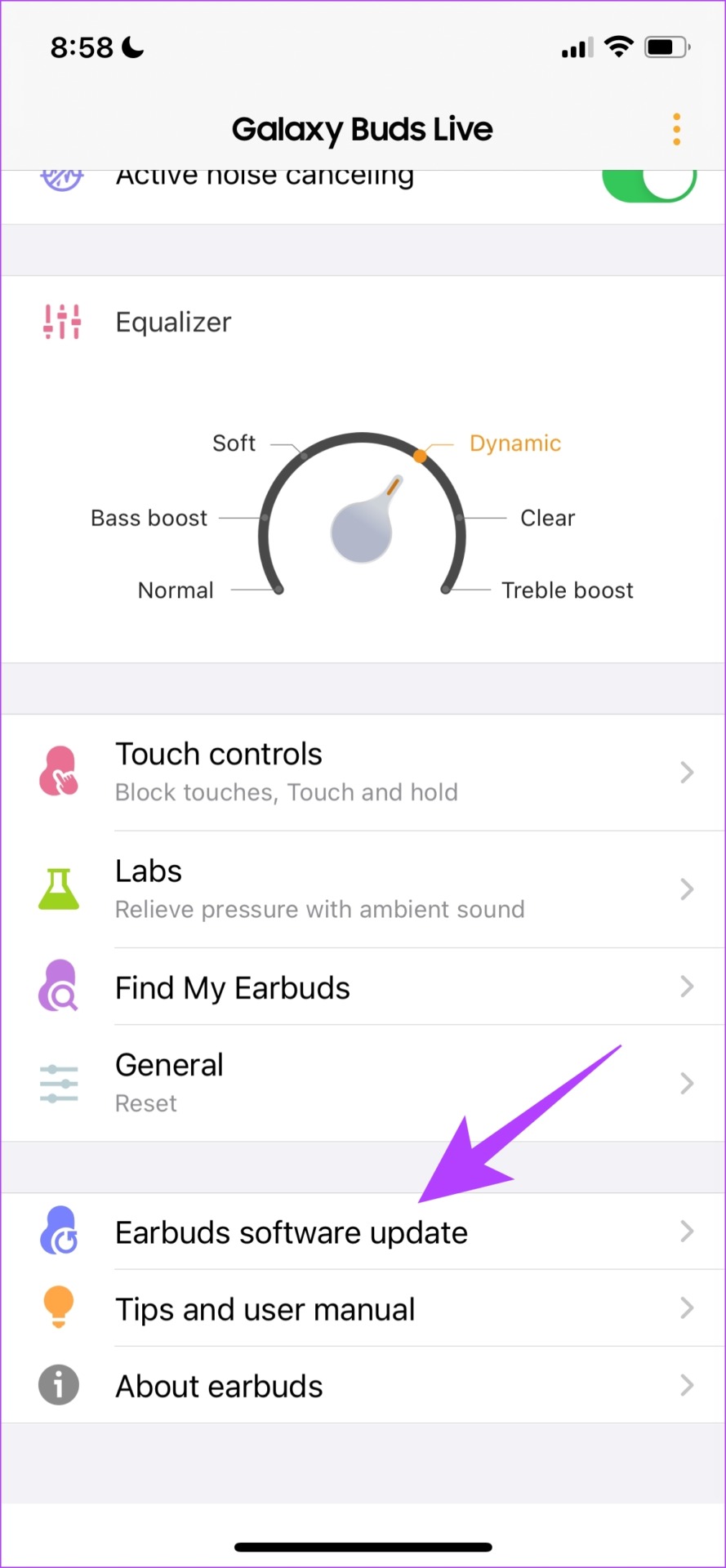
Some Bluetooth devices come with a dedicated app for controlling and configuring them. These apps also offer the option to update the firmware.
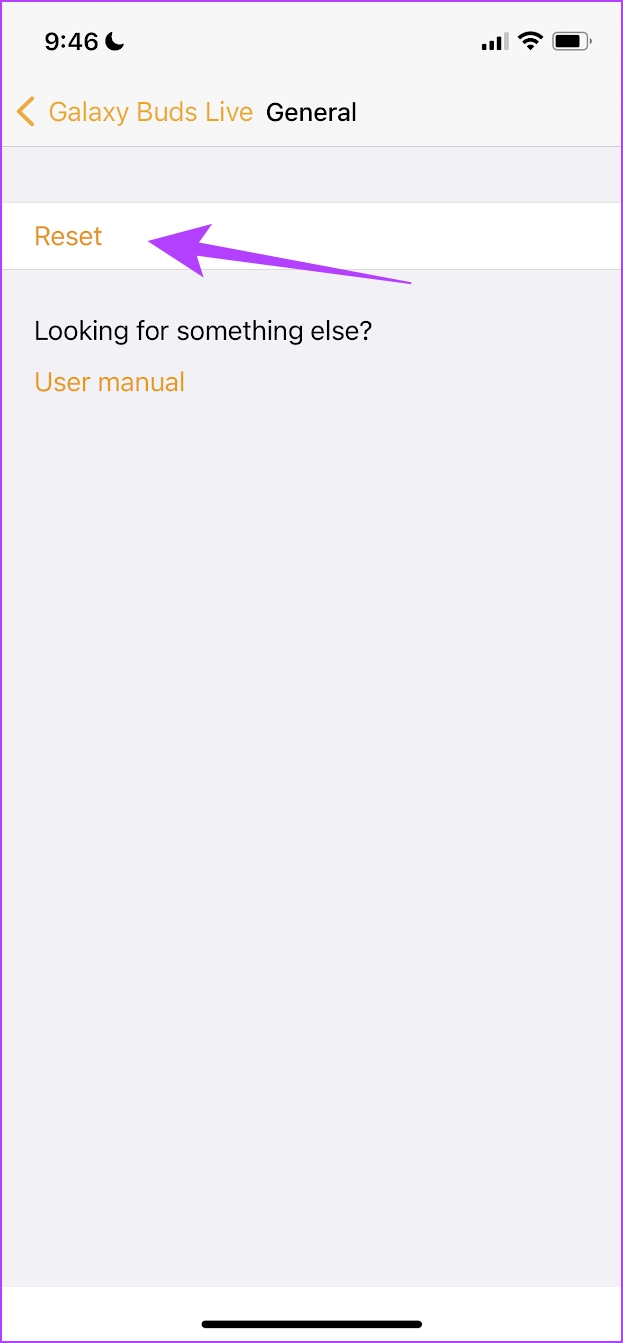
Resetting the Bluetooth device will reset all the applied configurations to default, which means that most issues will likely be fixed. This is also possible on the official Bluetooth device app. Here’s how it looks on the Samsung Galaxy Buds app.
For example, here’s how it looks on the dedicated app for Samsung Bluetooth devices to update the firmware.
Fix 3: Reset Network Settings
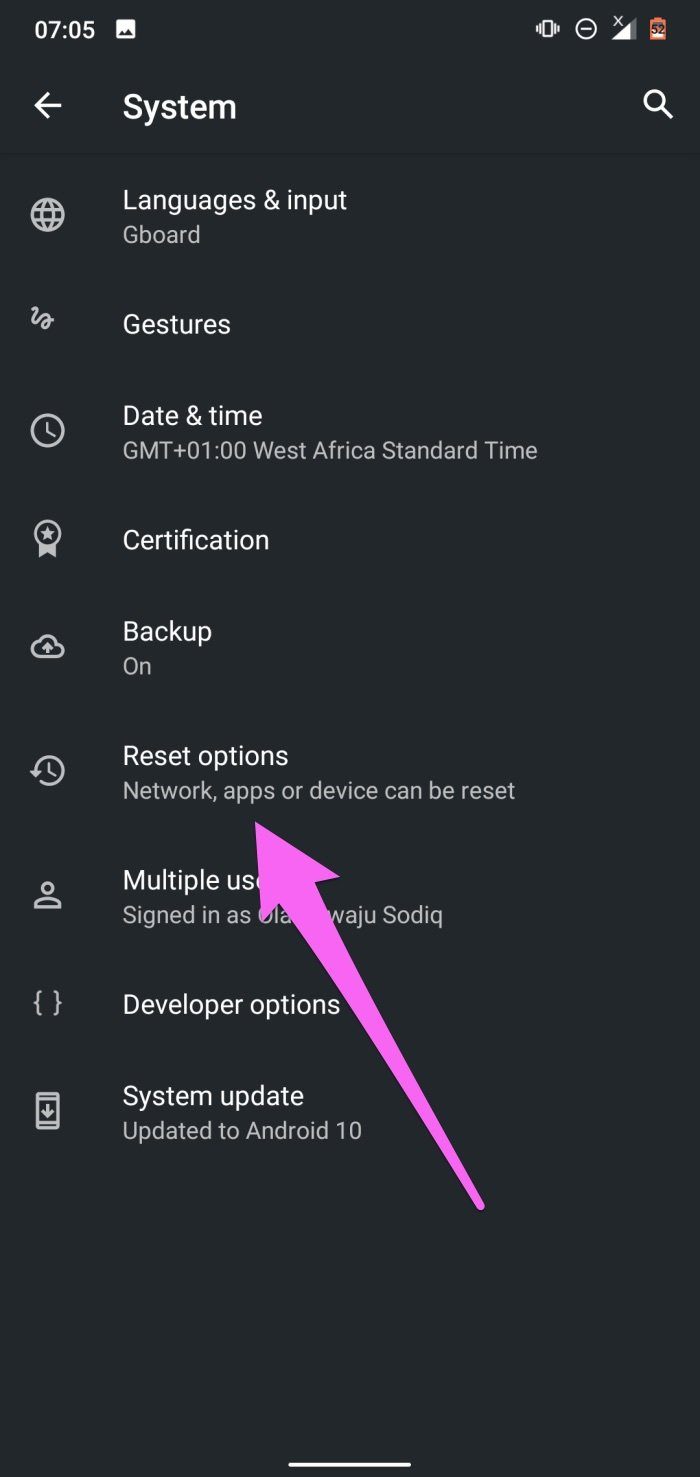
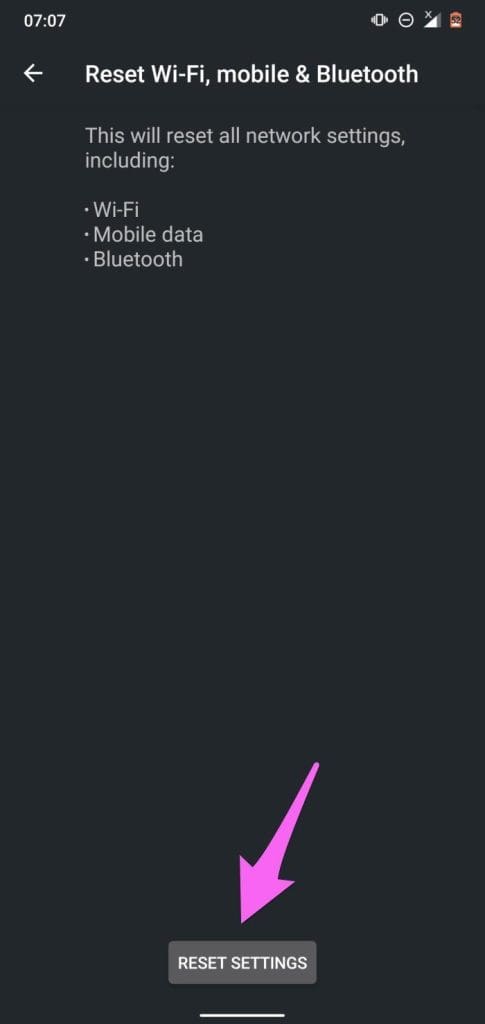
Performing a network reset is recommended when your phone won’t connect to any Bluetooth device but can connect to other devices. When you reset network settings, all Bluetooth connections, devices, and configurations will be deleted from your device. Learn more about resetting network settings on Android.
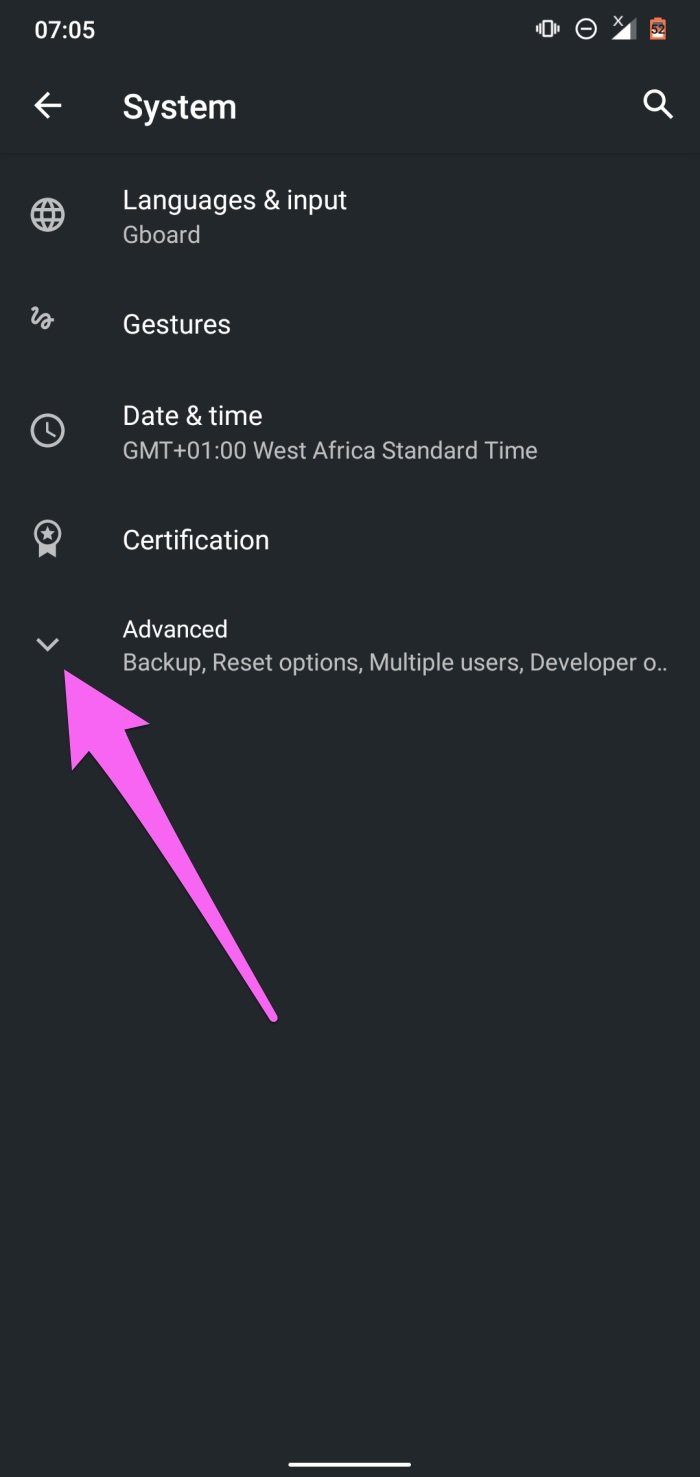
Open the Settings app > go to System > Advanced > Reset options > select Reset Wi-Fi, mobile & Bluetooth (or Reset Network settings).
Also Read: How to fix Bluetooth keeps disconnecting on Android
Was this helpful?
Last updated on 02 August, 2024
Read Next
 3 Ways to Fix Android Can’t Find Nearby Bluetooth Devices
Try Basic Fixes Restart your phone and the Bluetooth device: Sometimes, OS-related glitches can prevent your Android from detecting nearby Bluetooth devices.
3 Ways to Fix Android Can’t Find Nearby Bluetooth Devices
Try Basic Fixes Restart your phone and the Bluetooth device: Sometimes, OS-related glitches can prevent your Android from detecting nearby Bluetooth devices.
 How to Fix “Try Connecting Your Device” Bluetooth Error on Windows 11
Using Bluetooth to connect any device to your Windows PC frees you from the constraints of wires.
How to Fix “Try Connecting Your Device” Bluetooth Error on Windows 11
Using Bluetooth to connect any device to your Windows PC frees you from the constraints of wires.
 3 Fixes for iPhone Not Connecting to a Bluetooth Speaker
Basic Fixes Check the Bluetooth speaker battery: Most Bluetooth speakers have an LED indicator suggesting its current charge.
3 Fixes for iPhone Not Connecting to a Bluetooth Speaker
Basic Fixes Check the Bluetooth speaker battery: Most Bluetooth speakers have an LED indicator suggesting its current charge.
 4 Fixes for Bluetooth Keyboard Not Connecting to Windows 11 PC
Basic Fixes Check the battery level on your Bluetooth keyboard: Most Bluetooth keyboards come with a battery-level indicator.
4 Fixes for Bluetooth Keyboard Not Connecting to Windows 11 PC
Basic Fixes Check the battery level on your Bluetooth keyboard: Most Bluetooth keyboards come with a battery-level indicator.
 4 Fixes for Bluetooth Headphones Not Connecting to Fire TV Stick 4K
Basic Fixes Disconnect Bluetooth headphones from other devices: It sounds obvious and is one of the biggest reasons behind the issue.
4 Fixes for Bluetooth Headphones Not Connecting to Fire TV Stick 4K
Basic Fixes Disconnect Bluetooth headphones from other devices: It sounds obvious and is one of the biggest reasons behind the issue.
 2 Fixes for Bluetooth Device Not Connecting Automatically on iPhone
Basic Fixes Reconnect device: Open the Settings app, go to Bluetooth, select your device, and tap on Forget.
2 Fixes for Bluetooth Device Not Connecting Automatically on iPhone
Basic Fixes Reconnect device: Open the Settings app, go to Bluetooth, select your device, and tap on Forget.
 4 Ways to Fix Android Phone Not Connecting to PC
Basic Fixes Ensure your phone is unlocked: Keep this in mind while connecting to PC.
4 Ways to Fix Android Phone Not Connecting to PC
Basic Fixes Ensure your phone is unlocked: Keep this in mind while connecting to PC.
 3 Ways to Fix Android Not Connecting to Wi-Fi Automatically
Try Basic Fixes Use the updated Wi-Fi password: If the password is incorrect, your Android may fail to connect to a Wi-Fi network automatically.
3 Ways to Fix Android Not Connecting to Wi-Fi Automatically
Try Basic Fixes Use the updated Wi-Fi password: If the password is incorrect, your Android may fail to connect to a Wi-Fi network automatically.
The article above may contain affiliate links which help support Guiding Tech. The content remains unbiased and authentic and will never affect our editorial integrity.