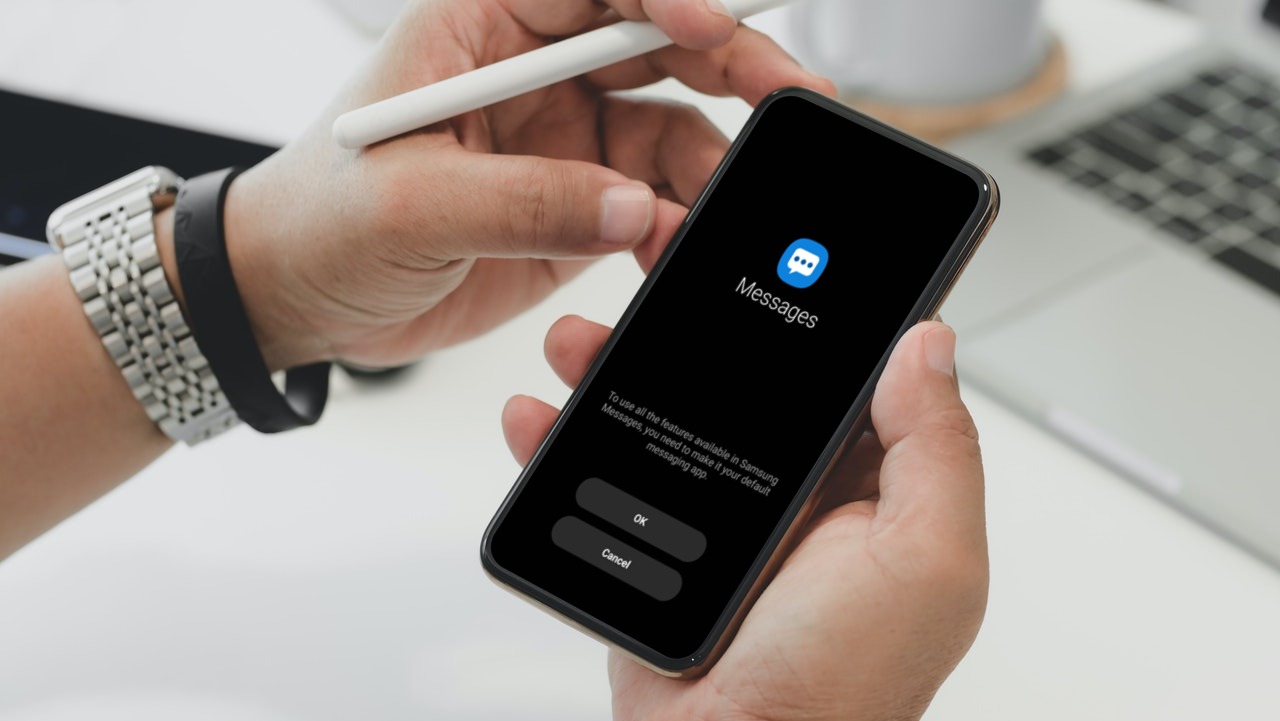
Why Does Android Get Stuck at Optimizing Apps on Startup
Before we get started on fixing this issue, let us briefly look at what might be causing your Android device to get stuck on optimizing apps:
- A newly installed app is incompatible or optimized with your current Android OS version, causing Android to optimize it on every device boot.
- You have recently updated your Android device OS version, causing most apps to be optimized to run properly.
- You have previously saved an app on the SD card instead of your device memory, prompting your device to optimize it on every startup.
- Your device cache is causing issues with app optimization.
- An app you downloaded was not installed properly, causing it to require constant optimization.
Basic Fixes:
- Wait a while: Before you start troubleshooting, we suggest waiting a while and seeing if the issue resolves itself. Certain devices with low CPU power might take longer than usual when performing such tasks.
- Unplug the charger and restart: If you constantly restart your device while plugged in, you might face the Android optimizing apps on startup error. To fix this, unplug your device before restarting. This will help fix this issue and might also reduce the startup time in some cases.
- Remove and re-insert SD card: Once your Android device completely shuts down, manually remove the SD card from the slot. Wait a while before re-inserting it back into the dedicated slot. Once done, long-press the power button and restart your Android device. Then, check again.
Fix 1: Boot in Safe Mode
Booting your Android device in Safe mode allows you to use it without third-party interference. It is also an excellent way to gauge if any rouge app is causing your Android device to constantly optimize apps when starting up. Here’s how to do it.
Step 1: Long-press the Power button to open the power menu. Now, press and hold the Power off button.
Step 2: Here, tap on Safe mode.


If the issue goes away, a recently installed app might be the culprit. You can uninstall it to resolve the issue. Additionally, reboot your device to exit Safe mode on Android.
Fix 2: Uninstall Recently Installed Apps
Certain apps might not work properly with your current Android OS version. When this happens, it might cause your device to be stuck on optimizing them every time you restart it. If this problem starts after installing a particular app, uninstall that app from your Android device. Here’s how to do it.
Step 1: Long-press the app you wish to delete. Once the options appear, tap on Uninstall.
Step 2: Tap on OK to confirm. Repeat these steps to uninstall any other recently installed app.

Tip: You can manually check and install the latest app updates. This can help ensure the apps are compatible with your device’s updated Android OS version.
Fix 3: Wipe Cache Partition
Your device also collects all sorts of cache over time. While we can’t clear it the regular way, you can use Recovery Mode on your Android device to wipe away the cache partition. This might help you fix the Android update stuck at optimizing apps issue. Follow the below steps to do it.
Note: This option might not be available for certain newer Android devices.
Step 1: Shut down your device. Then, simultaneously press and hold the volume up and Power buttons until your phone turns on.
Step 2: Use the device touch screen or the volume buttons and navigate to the Wipe Cache Partition option.
Step 3: Press the Power button to select it.

Once done, reboot your Android device normally and see if the issue has been fixed. You can also check our guide if Recovery mode is not working on your Android phone.
Was this helpful?
Last updated on 26 June, 2024
Read Next
 5 Ways to Fix Google Drive Stuck at Starting Upload on Android
How to Stop Google Drive Uploads in Progress on Android Before we get started on how to fix the issue of Google Drive uploads getting stuck, let us have a
5 Ways to Fix Google Drive Stuck at Starting Upload on Android
How to Stop Google Drive Uploads in Progress on Android Before we get started on how to fix the issue of Google Drive uploads getting stuck, let us have a
 3 Ways to Fix Google Drive Not Starting on Startup (Windows and Mac)
Preliminary Fixes Restart your computer: A restart clears the system cache, refreshes the operating system, and can eliminate any temporary glitches or conflicts preventing Google Drive from launching properly.
3 Ways to Fix Google Drive Not Starting on Startup (Windows and Mac)
Preliminary Fixes Restart your computer: A restart clears the system cache, refreshes the operating system, and can eliminate any temporary glitches or conflicts preventing Google Drive from launching properly.
 4 Ways to Fix Microsoft Excel Stuck at Starting on Windows 11/10
Preliminary Fixes Force restart Microsoft Excel: When Microsoft Excel is stuck at starting on Windows 11, a force restart can often resolve the issue.
4 Ways to Fix Microsoft Excel Stuck at Starting on Windows 11/10
Preliminary Fixes Force restart Microsoft Excel: When Microsoft Excel is stuck at starting on Windows 11, a force restart can often resolve the issue.
 How to Create and Share Link of YouTube Videos Starting at a Certain Time
YouTube, one of the most popular video-streaming community, actually has a lot of tricks that power users like you must be aware of, but if you’re specifically looking for a
How to Create and Share Link of YouTube Videos Starting at a Certain Time
YouTube, one of the most popular video-streaming community, actually has a lot of tricks that power users like you must be aware of, but if you’re specifically looking for a
 Top 3 Ways to Stop Microsoft Teams From Starting Automatically on Windows 10
Microsoft Teams app is great for team management and communication.
Top 3 Ways to Stop Microsoft Teams From Starting Automatically on Windows 10
Microsoft Teams app is great for team management and communication.
 5 Ways to Fix “No App Found to Open URL” Error on Android
Basic Fixes: Install Android updates: Bugs and glitches within Android on your phone can trigger such errors.
5 Ways to Fix “No App Found to Open URL” Error on Android
Basic Fixes: Install Android updates: Bugs and glitches within Android on your phone can trigger such errors.
 6 Ways to Fix Google Play Store Has Stopped Error on Android
Common Fixes Restart the device: Long-press the physical Power button and select Restart in the power menu.
6 Ways to Fix Google Play Store Has Stopped Error on Android
Common Fixes Restart the device: Long-press the physical Power button and select Restart in the power menu.
 Top 9 Ways to Fix Failed to Obtain IP Address Error on Android
Is your Android phone showing the ‘Failed to obtain IP address’ error while connecting to a Wi-Fi network?
Top 9 Ways to Fix Failed to Obtain IP Address Error on Android
Is your Android phone showing the ‘Failed to obtain IP address’ error while connecting to a Wi-Fi network?
The article above may contain affiliate links which help support Guiding Tech. The content remains unbiased and authentic and will never affect our editorial integrity.