Fix 1: Enable Developer Options Once Again
By default, Developer Options are disabled on all Android devices. You will have to enable them manually. If you’ve already done that but still don’t see the menu after a while, try enabling developer options again.
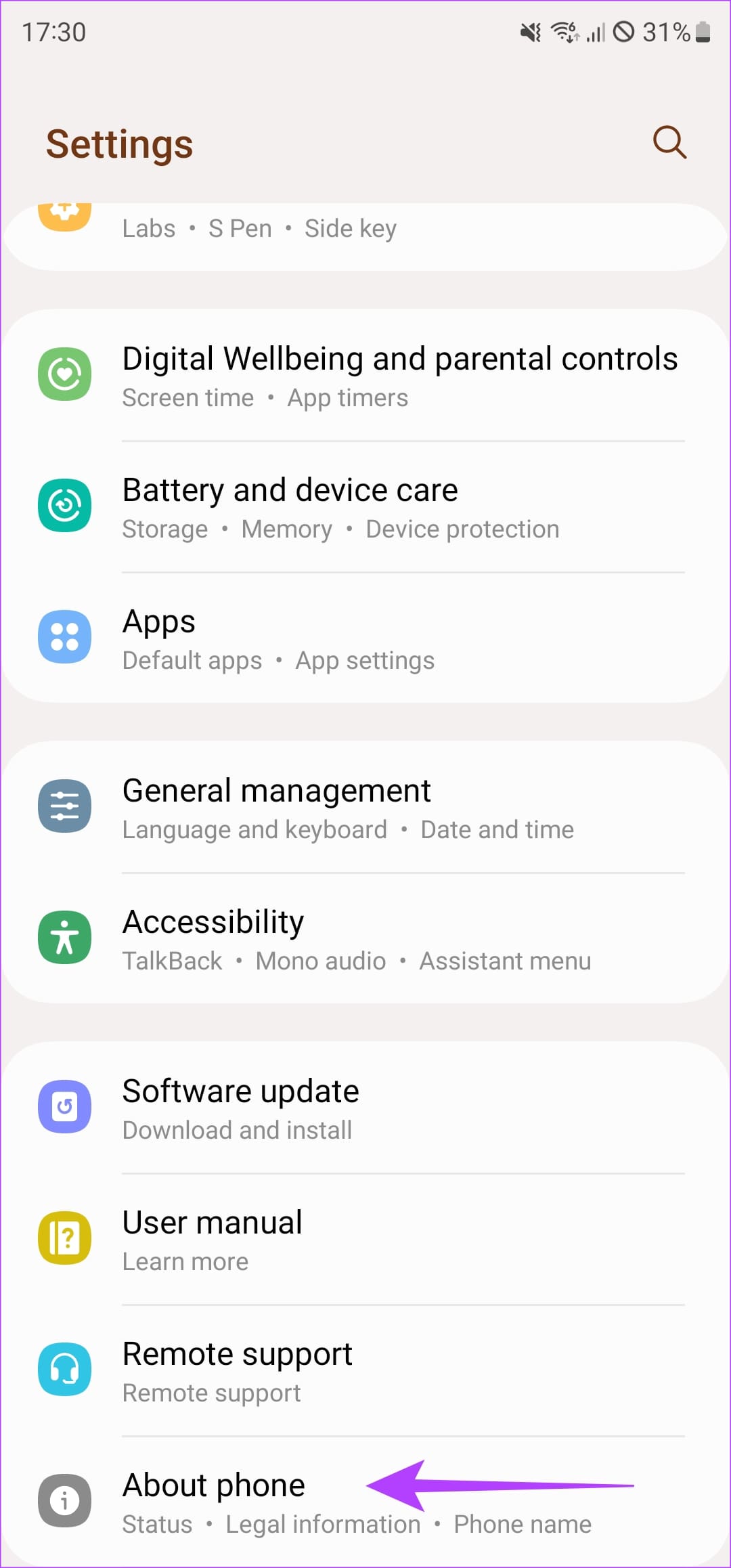
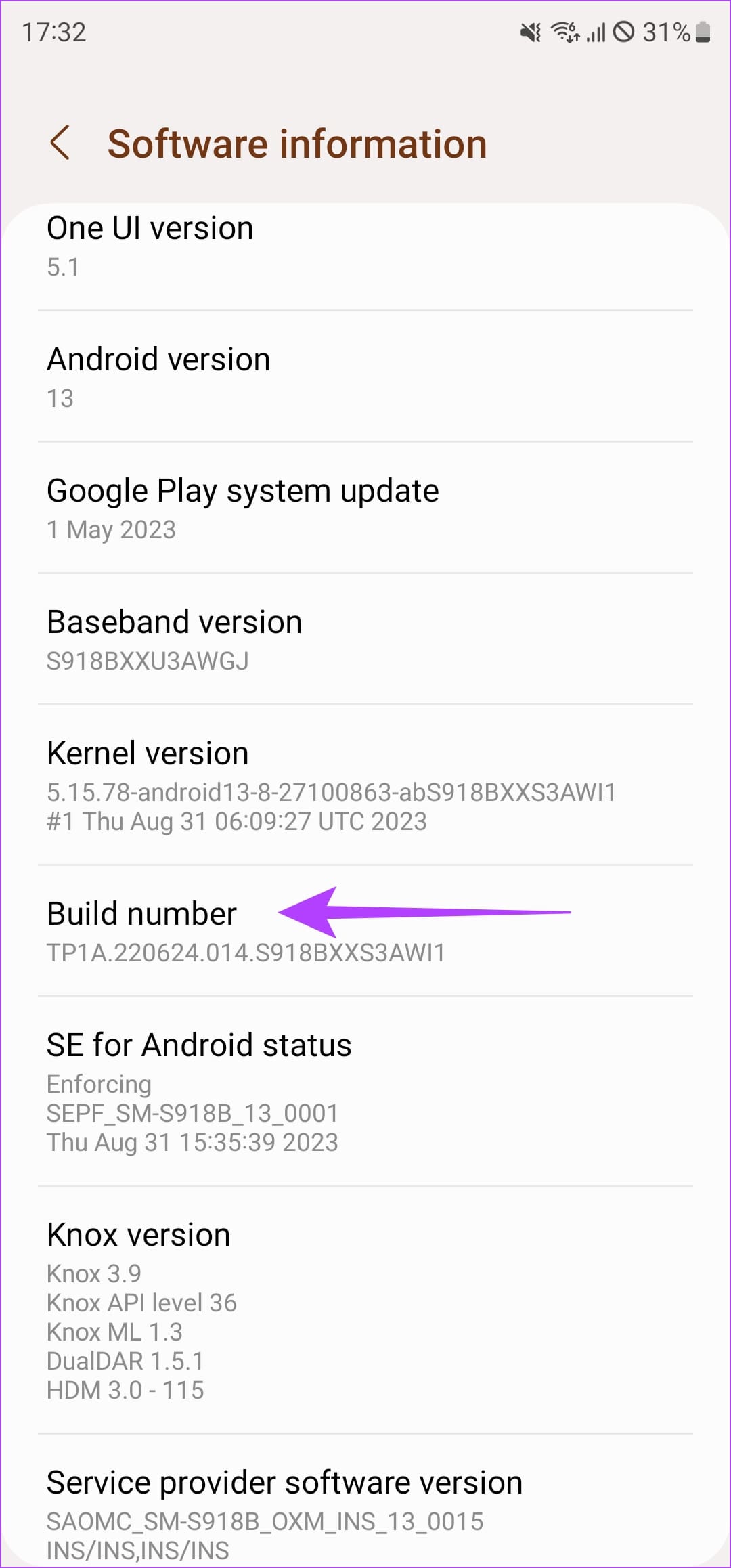
Step 1: Open the Settings app on your Android Phone. Head to the About Phone section, and navigate to Software Information.
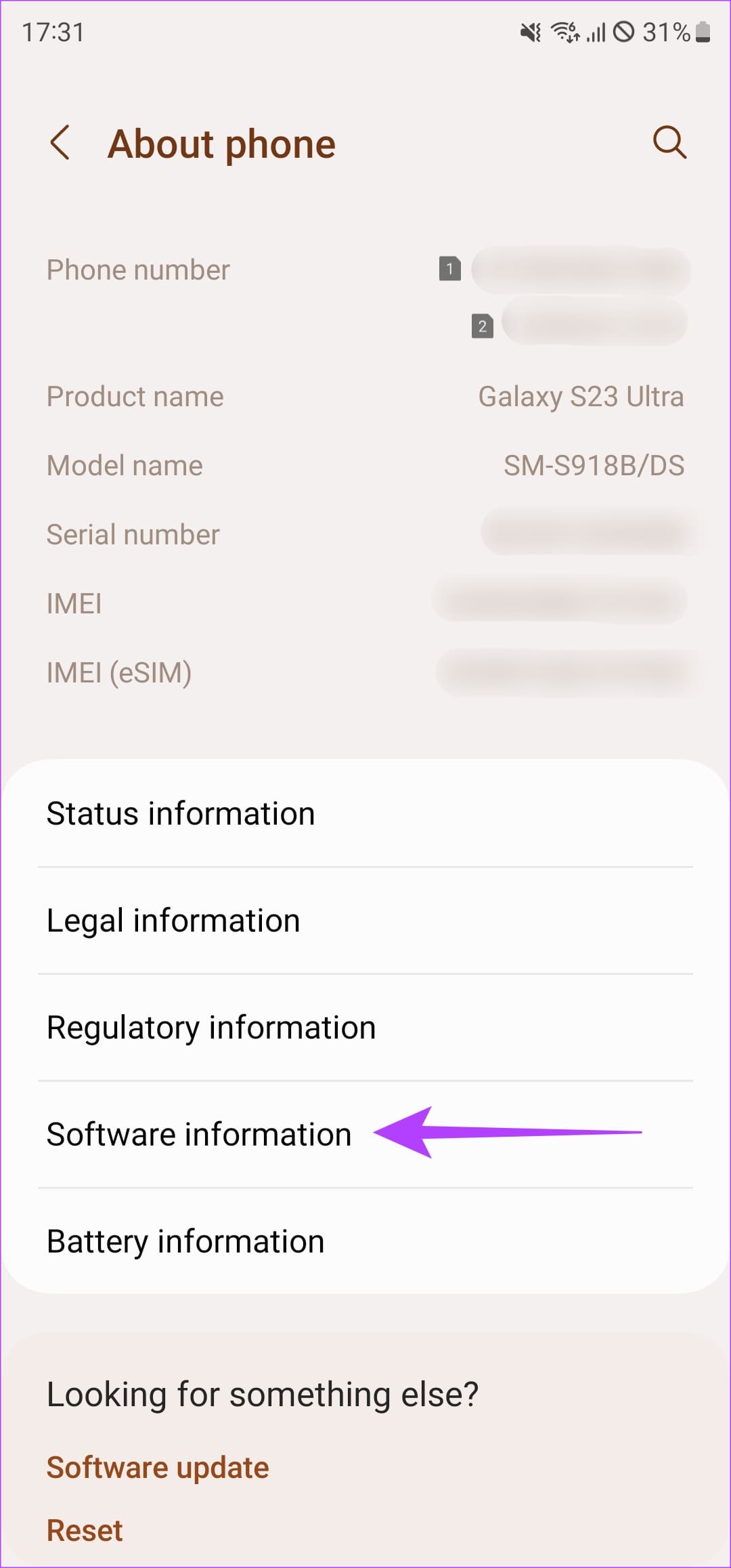
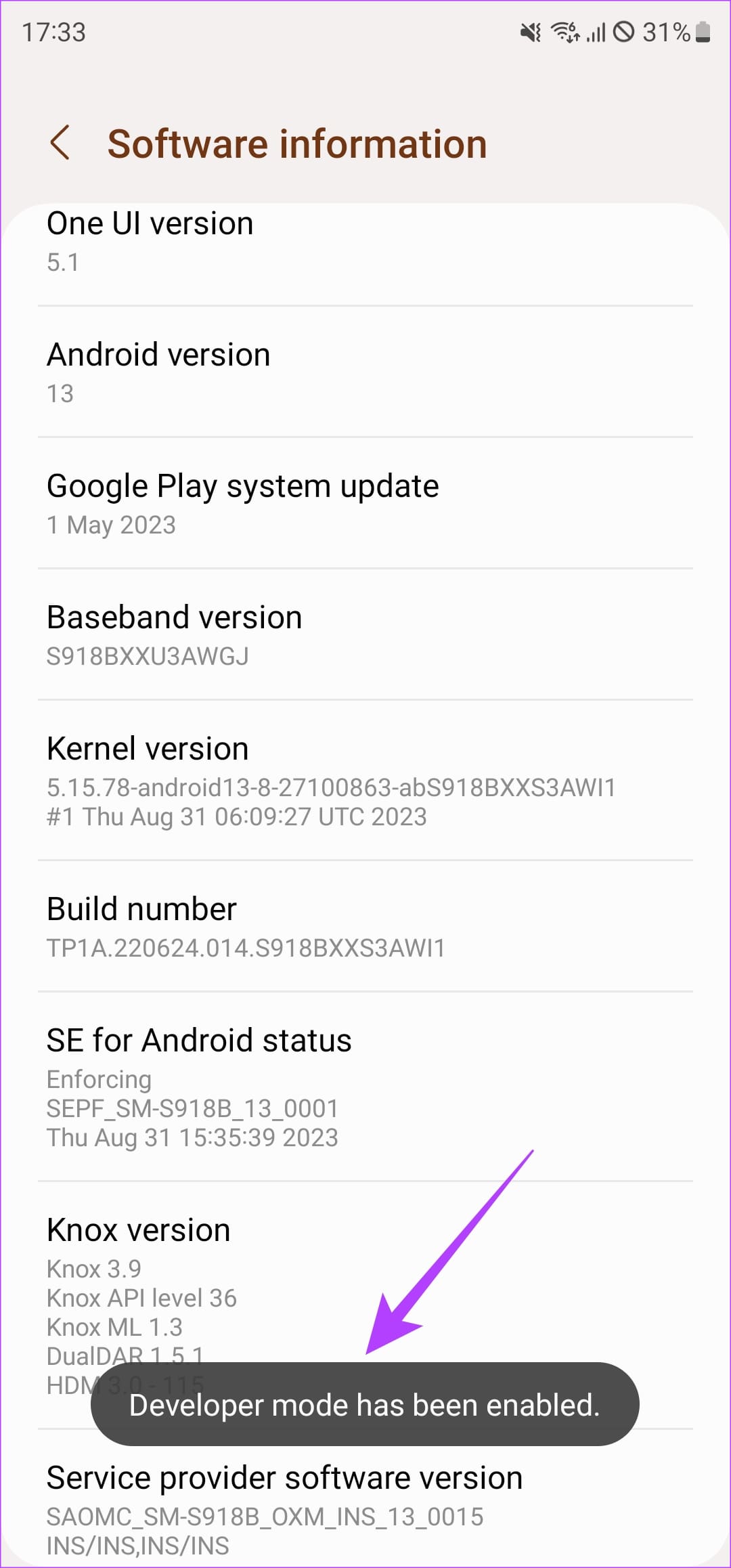
Step 2: Find the Build number. Tap on it constantly seven times before you see the ‘Developer Mode has been enabled’ message.
Enter your PIN if prompted.
Also Read: How to force high refresh rate on all Android apps without root
Fix 2: Enable the Toggle for Developer Settings
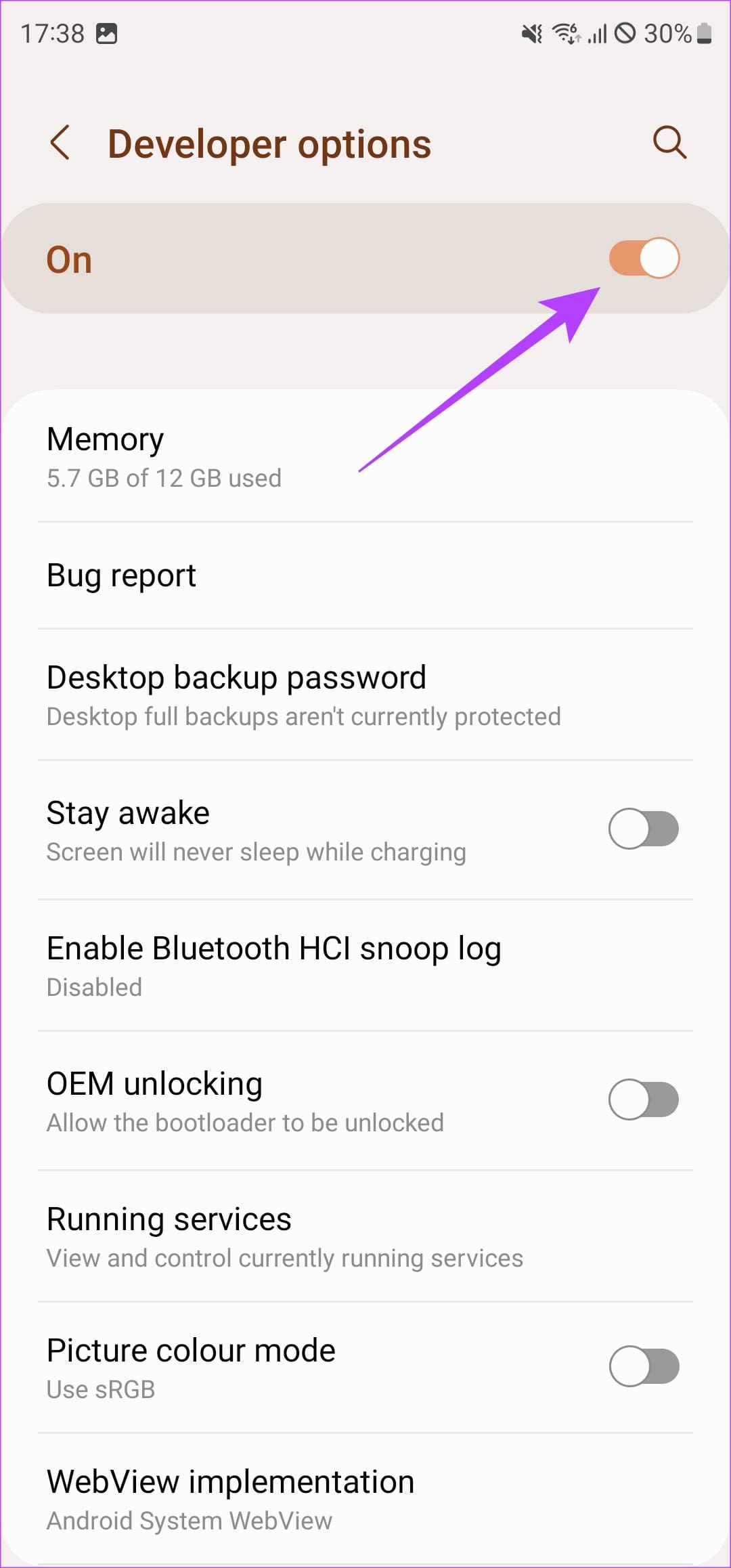
If you see the ‘Developer Mode has already been enabled’ message after performing the above steps, it might mean the toggle on the Settings page is turned off. Ensure it always stays enabled to use Developer Options.
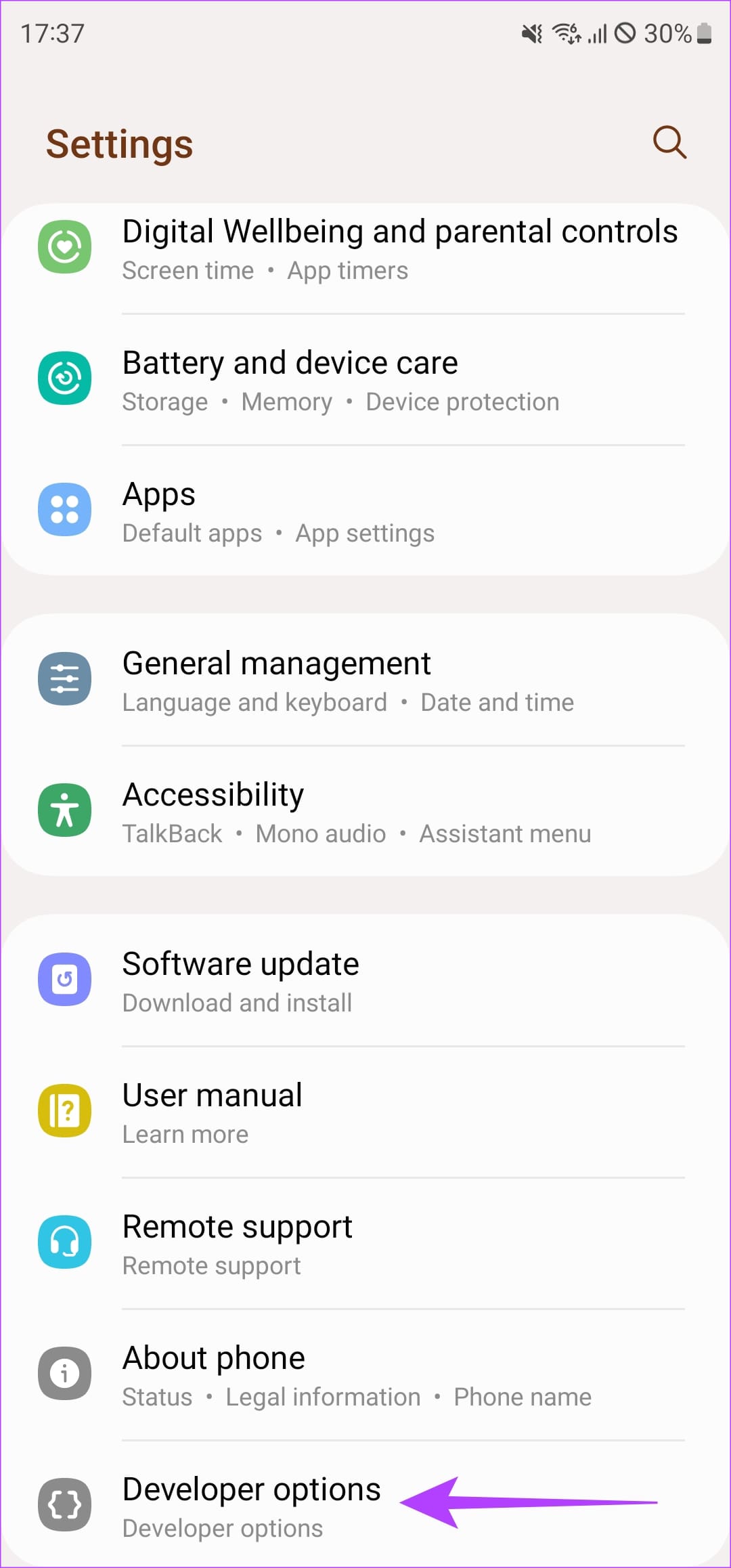
Open the Settings app on your Android Phone. Scroll down and head to the Developer Options section. Ensure the toggle at the top of the page is enabled. If not, turn it on.
Fix 3: Disable System Administrators
If your Android device was issued to you by a school or company, they may have enforced policies that prevent Developer Options. The policy can also be enforced if you have added a company account to your phone or if your company’s app has been set as the administrator. This is where you’ll see the “Developer Options are not available for this user” toggle.
If this is the case, you will need to talk to the IT department or remove any third-party app with those permissions from your phone. Here’s how to do it.
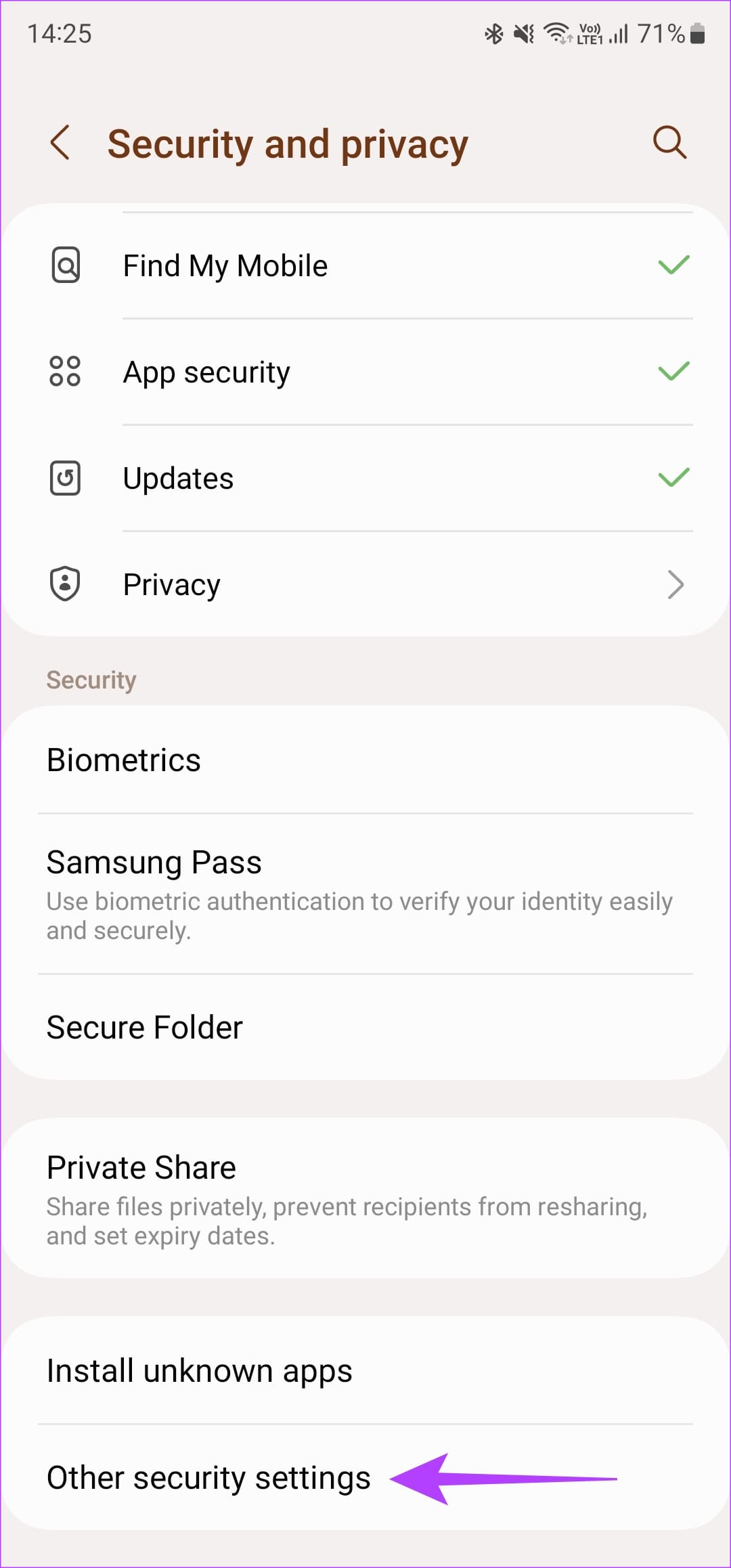
Step 1: Open the Settings app and navigate to the Security and Privacy section. Then, head to other security settings.

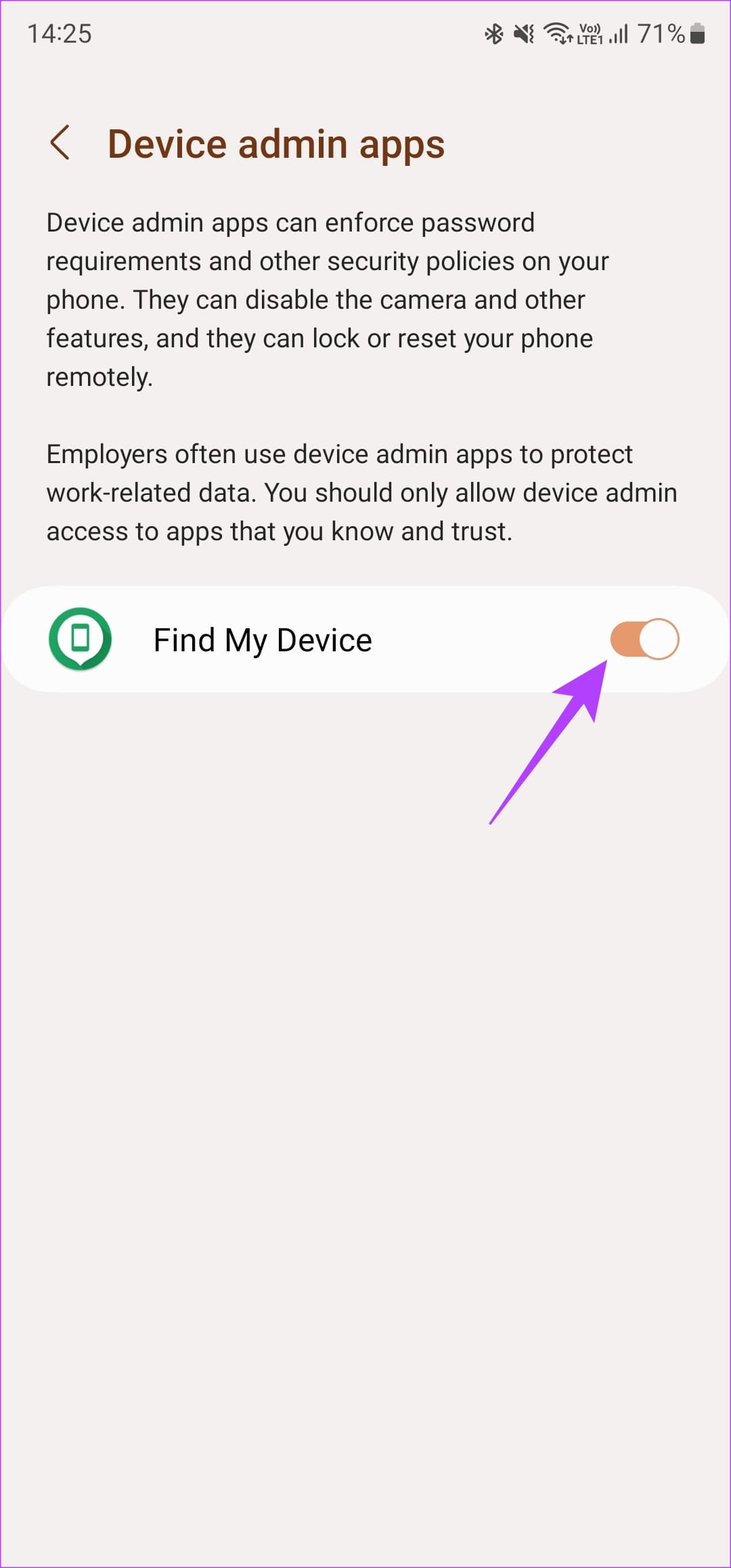
Step 2: Tap on Device admin apps. If you see any app you don’t recognize here, turn off the toggle next to it.

Was this helpful?
Last updated on 30 August, 2024
Read Next
 10 Best Android Developer Options You Must Try
Have you ever tried out the Developer Options on your Android phone?
10 Best Android Developer Options You Must Try
Have you ever tried out the Developer Options on your Android phone?
 11 Best Ways to Fix Android Keyboard Not Showing Error
Does your Android phone keyboard fail to show up when you want to type in an important message or email?
11 Best Ways to Fix Android Keyboard Not Showing Error
Does your Android phone keyboard fail to show up when you want to type in an important message or email?
 5 Ways to Fix Incoming Calls Not Showing on Screen on Android
Fix 1: Enable Notifications for Incoming Calls You may have disabled the notifications for incoming calls on your Android device.
5 Ways to Fix Incoming Calls Not Showing on Screen on Android
Fix 1: Enable Notifications for Incoming Calls You may have disabled the notifications for incoming calls on your Android device.
 3 Ways to Fix Google Maps Showing Wrong Location on Android and iPhone
Try Basic Fixes Turn off battery saver mode: When you enable battery-saving mode, your phone turns off power-hungry features such as GPS tracking and background app data to improve battery
3 Ways to Fix Google Maps Showing Wrong Location on Android and iPhone
Try Basic Fixes Turn off battery saver mode: When you enable battery-saving mode, your phone turns off power-hungry features such as GPS tracking and background app data to improve battery
 3 Ways to Fix YouTube Comments Not Showing on iPhone and Android
Basic Fixes Check if YouTube is down: You can check YouTube's server status on Downdetector to know if it is facing downtime.
3 Ways to Fix YouTube Comments Not Showing on iPhone and Android
Basic Fixes Check if YouTube is down: You can check YouTube's server status on Downdetector to know if it is facing downtime.
 6 Ways to Fix Call History Not Showing on Android
Fix 1: Allow the Phone App to Access Call Logs The Phone app may not show any call history if it does not have the necessary permissions to access and
6 Ways to Fix Call History Not Showing on Android
Fix 1: Allow the Phone App to Access Call Logs The Phone app may not show any call history if it does not have the necessary permissions to access and
 3 Ways to Fix Wi-Fi Login Page Not Showing on Android
https://youtu.be/PI8mmzRDJ0c Try Basic Fixes Disable and re-enable Wi-Fi: Temporary issues with your Android's Wi-Fi may prevent it from communicating with the network and loading the login page.
3 Ways to Fix Wi-Fi Login Page Not Showing on Android
https://youtu.be/PI8mmzRDJ0c Try Basic Fixes Disable and re-enable Wi-Fi: Temporary issues with your Android's Wi-Fi may prevent it from communicating with the network and loading the login page.
 2 Ways to Fix SD Card Not Showing on Android
Try Basic Fixes Check the SD card and insert it properly: Your SD card might not work if you haven't inserted it properly or is damaged.
2 Ways to Fix SD Card Not Showing on Android
Try Basic Fixes Check the SD card and insert it properly: Your SD card might not work if you haven't inserted it properly or is damaged.
The article above may contain affiliate links which help support Guiding Tech. The content remains unbiased and authentic and will never affect our editorial integrity.