Basic Fixes
- Restart Apple Watch: Your watch may be experiencing a software issue, which might trigger the alarm, but there may not be any sound. Hence, a simple restart may fix the issue at times. To do so, press and hold the side button on your watch to see the option.
- Check Speaker Volume: While the Apple Watch generally wakes you up with the haptic engine, you might rely on the sound, which would be absent if your Apple Watch is in Silent mode.
Fix 1: Enable Push Alerts From iPhone
The Apple Watch has a neat little feature that mirrors your iPhone’s notifications directly on your Apple Watch. This includes alarms. But, for the feature to work flawlessly, you must enable the ‘Push alerts from iPhone’ toggle within the Watch app. Let’s see the steps.
Step 1: Open the Watch app on your iPhone. Navigate to the Notifications tab, scroll down, and select Clock.
Step 2: Next, enable the toggle next to ‘Push Alerts from iPhone.


Also See: How to See Steps on Apple Watch
Fix 2: Disable Focus Modes
Focus Modes sync across Apple devices. Enabling one on your iPhone or Mac means your Apple Watch also automatically switches to it. So, if you don’t want to miss an alarm, disable the Focus Mode on your Apple Watch by following the steps below.
Step 1: Press the Side button on your Apple Watch to bring up the Control Center. If your Apple Watch runs watchOS 9 or lower, swipe up from the bottom of the watch face to bring up the Control Center.
Step 2: If you see a DND icon at the top, it means a Focus Mode is enabled. Now, scroll down and tap on the Focus Mode to turn it off.


Fix 3: Delete the Alarm and Re-Add It
If you followed the steps above to set an alarm directly on your Apple Watch, it should ideally ring every time. But, if it rang for a few days and suddenly stopped ringing, it’s a good idea to delete and re-add it. Here’s how.
Step 1: Press the digital crown on your Apple Watch to bring up the app library. Tap on the Clock app and choose the alarm of your choice.
Step 2: Scroll down and hit the Delete button. Now, tap on the + sign and follow the steps in the previous solution to set an alarm.


Was this helpful?
Last updated on 21 August, 2024
Read Next
 5 Ways to Fix Low or Loud Alarm Volume on iPhone
Common Fixes Restart iPhone - Press and hold either of the volume buttons with the side button and drag the power off slider to shut down.
5 Ways to Fix iPhone Alarm Going off but No Sound Issue
https://youtu.be/MNH-PL3LSMo Basic Fixes: Check iPhone volume: If your device's volume is not set to max, the culprit might be your iPhone's volume controls.
5 Ways to Fix Low or Loud Alarm Volume on iPhone
Common Fixes Restart iPhone - Press and hold either of the volume buttons with the side button and drag the power off slider to shut down.
5 Ways to Fix iPhone Alarm Going off but No Sound Issue
https://youtu.be/MNH-PL3LSMo Basic Fixes: Check iPhone volume: If your device's volume is not set to max, the culprit might be your iPhone's volume controls.
 How to Change Apple Watch Face from iPhone or Watch
Traditional watches had the problem that you couldn't change their clock face.
How to Change Apple Watch Face from iPhone or Watch
Traditional watches had the problem that you couldn't change their clock face.
 5 Ways to Fix Alarm Not Working on Android Phones
Basic Fixes: Restart your phone: Restarting your phone can help remove any temporary bugs or glitches that can cause your Android phone's alarm not to ring.
5 Ways to Fix Alarm Not Working on Android Phones
Basic Fixes: Restart your phone: Restarting your phone can help remove any temporary bugs or glitches that can cause your Android phone's alarm not to ring.
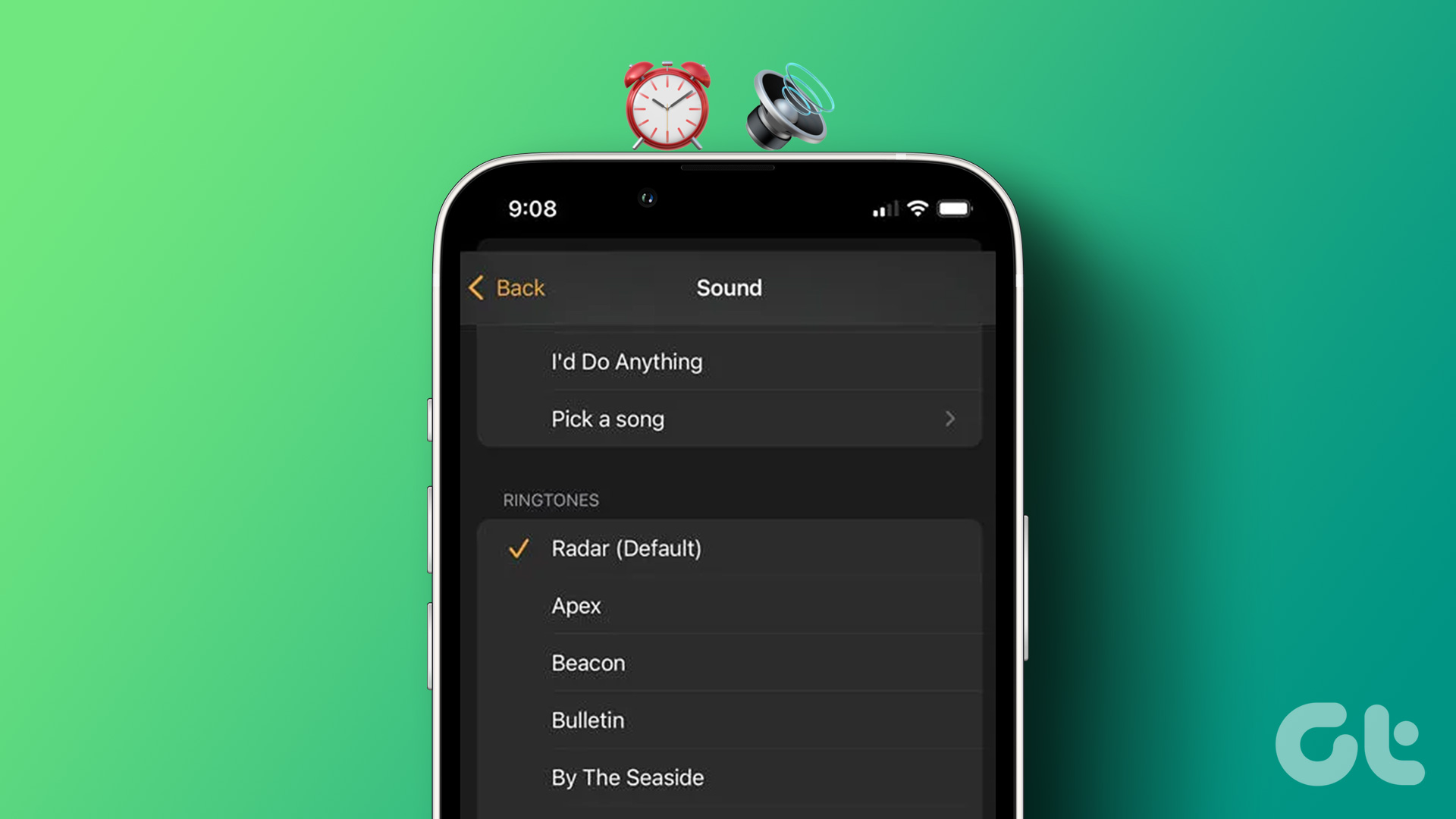 How to Set a Custom Alarm Sound on iPhone (For Free)
Method 1.
How to Set a Custom Alarm Sound on iPhone (For Free)
Method 1.
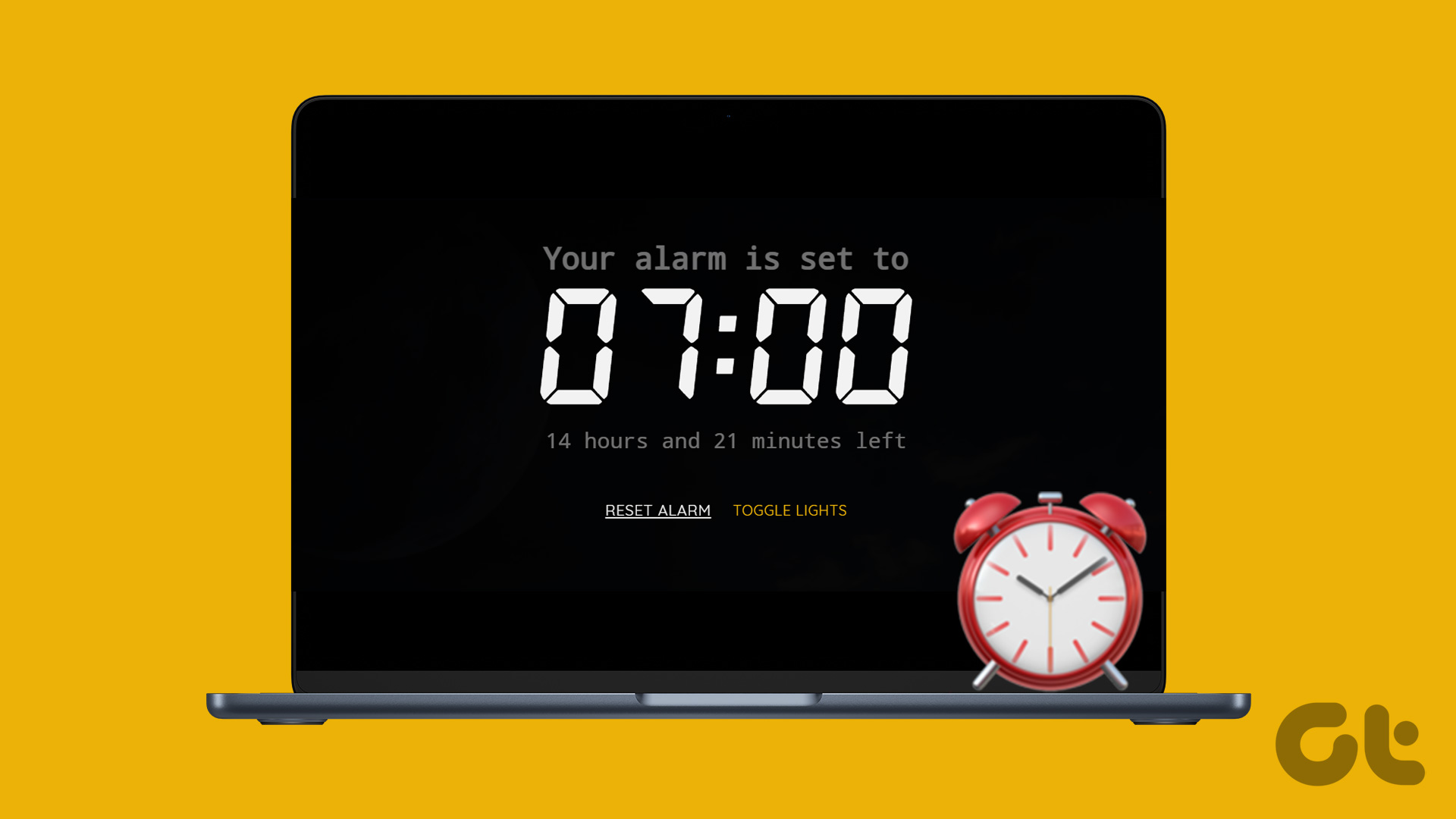 8 Best Online Alarm Clock Websites for Free
Online alarm clocks are an ideal option for people who travel frequently or need multiple alarms or reminders throughout the day.
8 Best Online Alarm Clock Websites for Free
Online alarm clocks are an ideal option for people who travel frequently or need multiple alarms or reminders throughout the day.
 5 Ways to Fix Apple Watch Not Ringing for Incoming Calls
Basic Fixes Restart Apple Watch: Restarting your Apple Watch can get rid of any temporary bugs and glitches.
5 Ways to Fix Apple Watch Not Ringing for Incoming Calls
Basic Fixes Restart Apple Watch: Restarting your Apple Watch can get rid of any temporary bugs and glitches.
 7 Ways to Fix Apple Watch Not Tracking Sleep
Try Basic Fixes Charge your Apple Watch: If your Apple Watch battery life is below 30%, you may face issues with tracking sleep during night hours.
7 Ways to Fix Apple Watch Not Tracking Sleep
Try Basic Fixes Charge your Apple Watch: If your Apple Watch battery life is below 30%, you may face issues with tracking sleep during night hours.
The article above may contain affiliate links which help support Guiding Tech. The content remains unbiased and authentic and will never affect our editorial integrity.