Method 1: Use the Start Menu
The simplest and quickest method to view all the users who are currently logged in to Windows is through the Start menu. So, let’s start with that.
Step 1: Click the Start icon or press the Windows key to open the Start menu.
Step 2: Click on your profile picture at the bottom. You should see the Signed in tag under the user accounts that are currently active on your computer.

Apart from the above, the Start menu also lets you sign out or switch between user accounts on Windows.
Method 2: Use the Task Manager
Task Manager is a useful utility on Windows that lets you manage startup apps, monitor system processes, and force-close unresponsive apps and programs. However, did you know that you can also use it to see a list of signed-in users on Windows? We’ll show you how.
Step 1: Press the Ctrl + Shift + Esc keyboard shortcut to open the Task Manager quickly.
Step 2: In the Task Manager window, select the Users tab from the left sidebar. You should see all signed-in users under the Users column in the right pane.

Method 3: Use the Query User Command
Not a fan of GUI? No problem. You can also use a command-line tool like Command Prompt or Windows PowerShell to see who is currently logged in on a local or remote computer. This method also shows the exact time they logged in.
It’s important to note that the “query user” command is not available in Windows Home. It is only available on Windows Pro and Enterprise editions. If you are unsure, you can find out which edition your PC runs using the winver command. If your PC is running Windows Home, you must use one of the other methods in this guide.
Step 1: Press the Windows key + S keyboard shortcut to access the search menu. Type powershell in the search box and select the first result that appears.

Step 2: In the console, type query user and press Enter to view all the signed-in users.
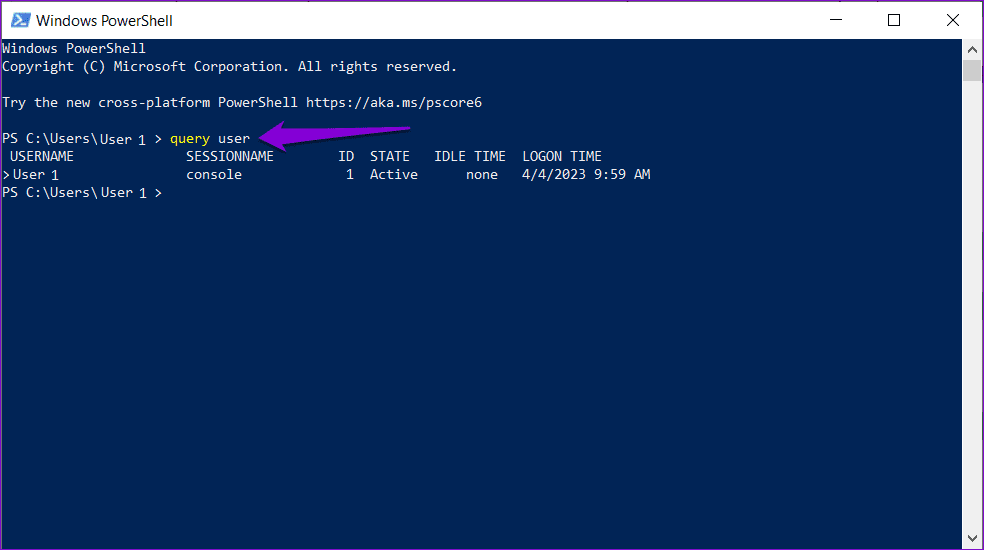
If you want to see who is logged into a remote computer, type in the following command and press Enter.
query user /server:computername
Make sure you replace computername in the above command with the actual name of the computer you are querying. You can use the same commands mentioned above in Command Prompt as well.
Method 4: Use the WMIC Utility
Windows Management Instrumentation Command (WMIC) is a powerful tool that can help you manage a variety of Windows features, including user accounts. Here’s how you can use WMIC to determine who is currently logged into your Windows computer.
Step 1: Press the Windows key + R to open the Run dialog box. Type cmd in the text box and press Enter.
Step 2: Type the following command in the console and press Enter.
WMIC /NODE:"ComputerName" COMPUTERSYSTEM GET USERNAME
Replace ComputerName with the actual computer name of the system you are querying. Alternatively, you can also replace ComputerName with the IP address of the system.

Step 3: Once you run the above command, you should see a list of active users under the UserName column.

Was this helpful?
Last updated on 15 July, 2024
Read Next
 How to Fix Chrome If It Doesn’t Keep You Logged in Windows
Chrome's ability to keep you logged into sites that offer to remember you saves a ton of time otherwise spent on manual logins.
How to Fix Chrome If It Doesn’t Keep You Logged in Windows
Chrome's ability to keep you logged into sites that offer to remember you saves a ton of time otherwise spent on manual logins.
 5 Fixes for Logged in With a Temporary Profile Error on Windows
Try Basic Fixes Disable the antivirus program: Sometimes antivirus programs on your PC can interfere with Windows and force it to log you in with a temporary profile.
5 Fixes for Logged in With a Temporary Profile Error on Windows
Try Basic Fixes Disable the antivirus program: Sometimes antivirus programs on your PC can interfere with Windows and force it to log you in with a temporary profile.
 How to Fix Windows 10’s This Action Is Only Valid for Products That Are Currently Installed Error
Windows 10 users usually face the error 'This action is only valid for products that are currently installed' when working with a version of Office suite of apps.
How to Fix Windows 10’s This Action Is Only Valid for Products That Are Currently Installed Error
Windows 10 users usually face the error 'This action is only valid for products that are currently installed' when working with a version of Office suite of apps.
 What Does Your Location Is Currently in Use Mean on Windows
Why Do Apps Track Your Location on Windows Weather, Maps, and news widgets frequently use your location to deliver astute results.
What Does Your Location Is Currently in Use Mean on Windows
Why Do Apps Track Your Location on Windows Weather, Maps, and news widgets frequently use your location to deliver astute results.
 How to Fix ‘There Are Currently No Power Options Available’ Error in Windows
Preliminary Fixes Check for Windows Update: Sometimes, the error can occur due to bugs or issues introduced in a previous Windows update.
How to Fix ‘There Are Currently No Power Options Available’ Error in Windows
Preliminary Fixes Check for Windows Update: Sometimes, the error can occur due to bugs or issues introduced in a previous Windows update.
 6 Fixes for “This Image Cannot Currently Be Displayed” Error in Microsoft Word
Fix 1: Use the "In Line With Text" Option for Wrap Text A common reason images might not appear in your Word document is if you use a wrapping style
6 Fixes for “This Image Cannot Currently Be Displayed” Error in Microsoft Word
Fix 1: Use the "In Line With Text" Option for Wrap Text A common reason images might not appear in your Word document is if you use a wrapping style
 5 Ways to Fix Sync Is Currently Experiencing Problems on Android
Basic Fixes: Check Google server status: If Google is experiencing issues in the backend, it might affect sync on your Android phone.
5 Ways to Fix Sync Is Currently Experiencing Problems on Android
Basic Fixes: Check Google server status: If Google is experiencing issues in the backend, it might affect sync on your Android phone.
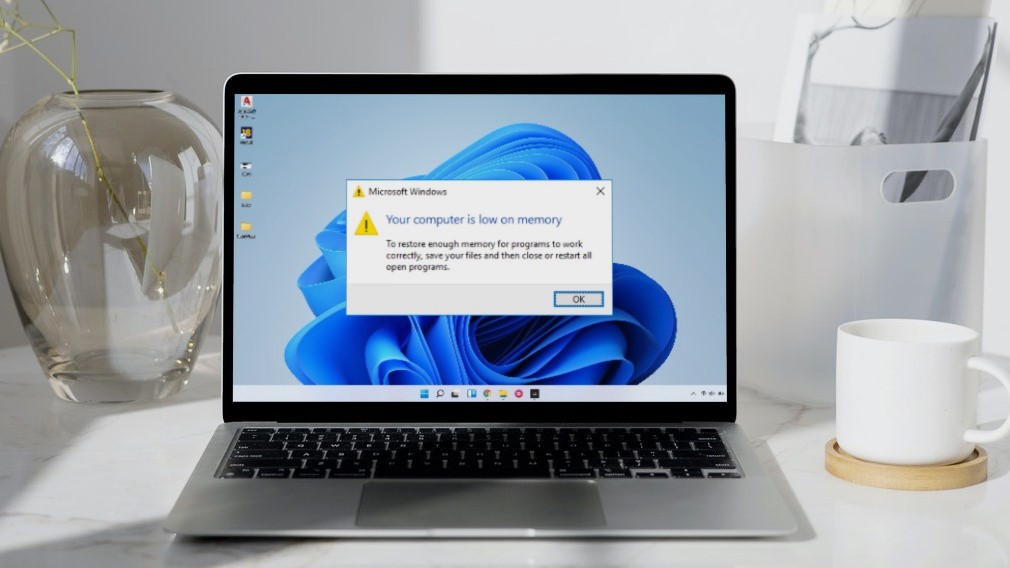 5 Ways to Fix “Your Computer Is Low on Memory” Error on Windows 10 and Windows 11
Try Basic Fixes Close unwanted apps and programs: Start by closing any unwanted apps and programs on your computer, especially the ones consuming a major chunk of your PC’s memory.
5 Ways to Fix “Your Computer Is Low on Memory” Error on Windows 10 and Windows 11
Try Basic Fixes Close unwanted apps and programs: Start by closing any unwanted apps and programs on your computer, especially the ones consuming a major chunk of your PC’s memory.
The article above may contain affiliate links which help support Guiding Tech. The content remains unbiased and authentic and will never affect our editorial integrity.