Enable Equation Editor on MS Word for Mac
Enabling the equation editor in Word for Mac users is immensely simple. Here is how to do so.
Step 1: Open Microsoft Word. Then, select the Insert option on the toolbar at the top.
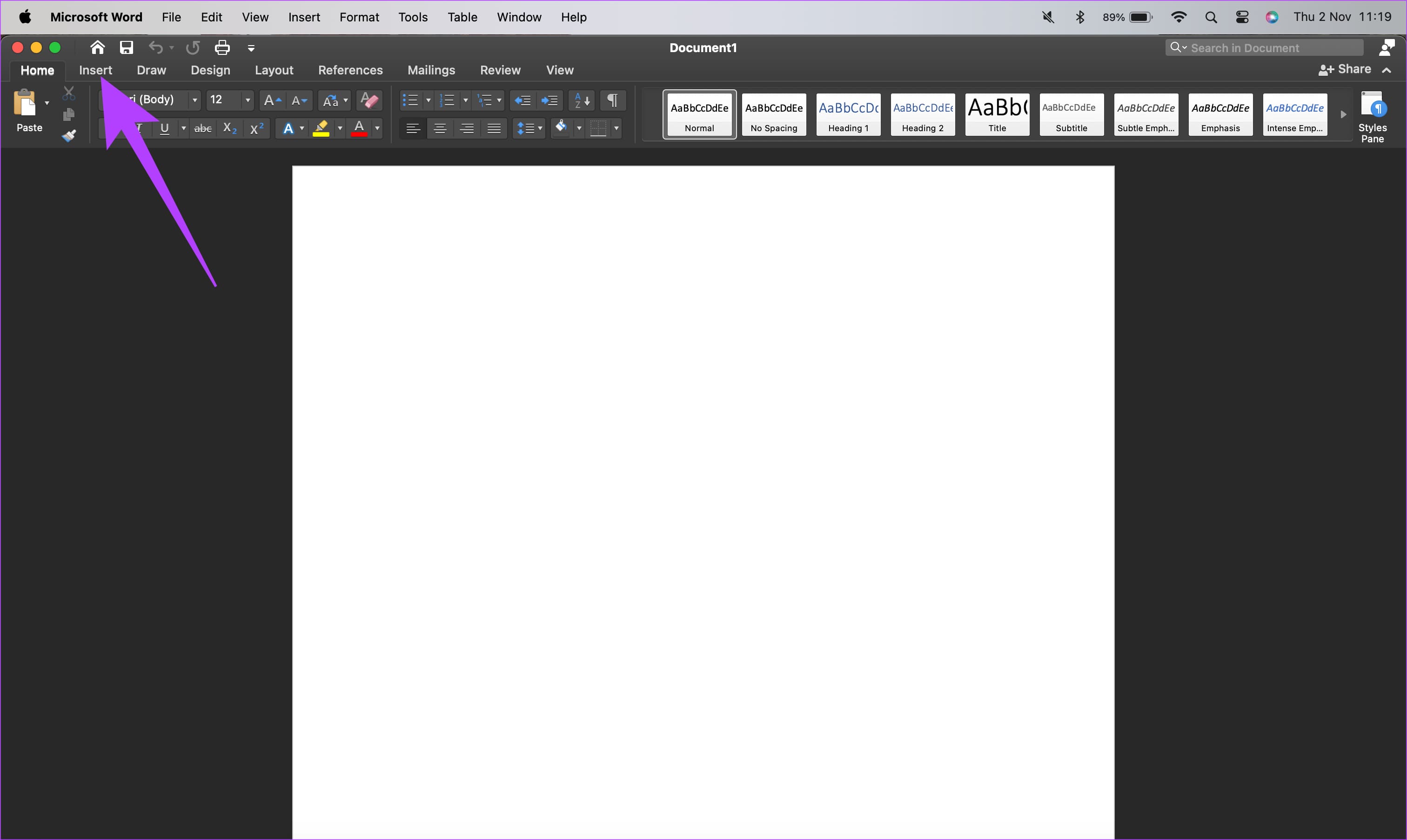
Step 2: Click on the Equations tab on the right-hand side of the page.
How to Insert an Equation on MS Word for Windows
If you own Microsoft 365, 2023, 2019, or 2016 versions of Word, you can use these steps to access the equation editor in your document.
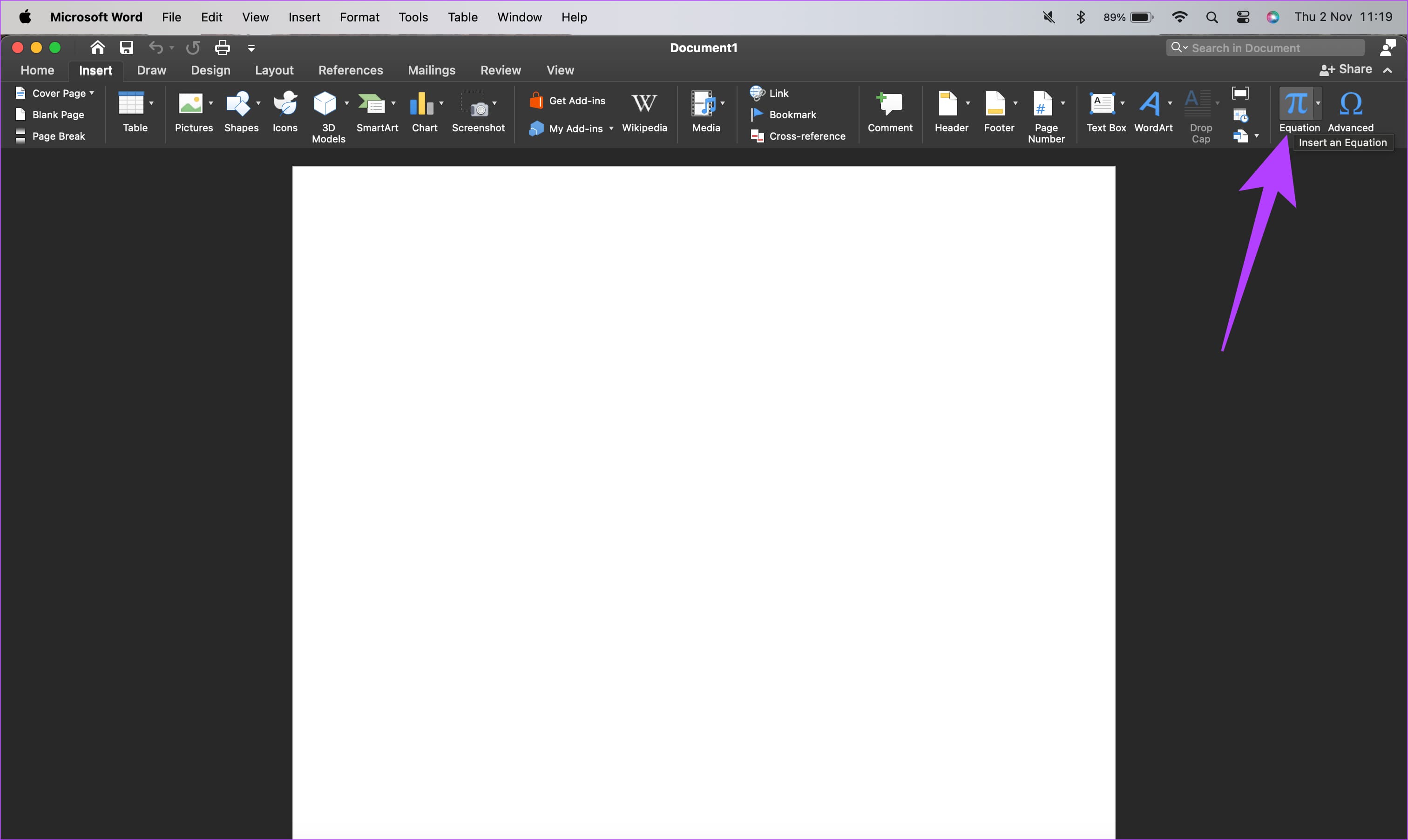
Step 1: Open Microsoft Word. Then, select the Insert option.
Step 2: Tap on the Equations tab on the right-hand side of the page.

If you can’t find the equation option with the above steps, don’t worry. Here’s how to restore the missing equation editor in Word.
Step 1: In Word, go to File > Options.

Step 2: Go to the Customize Ribbon. Use the Customize the Ribbon drop-down menu to select Main tabs.

Step 3: Select the Insert tab. Then, click the Reset button and select Reset only selected Ribbon tab.

On Word 2010 and 2007
If you’re using an older version of Microsoft Word that dates back over a decade, here’s how you get to the equation editor.
Step 1: Press Windows + R to open the Run dialog box. Type appwiz.cpl in the box and hit Enter.
Step 2: Select your installation of Microsoft Word or Microsoft Office in the list. Select the Change button.
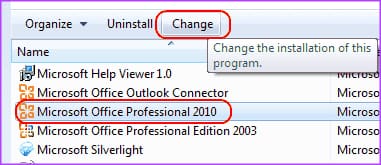
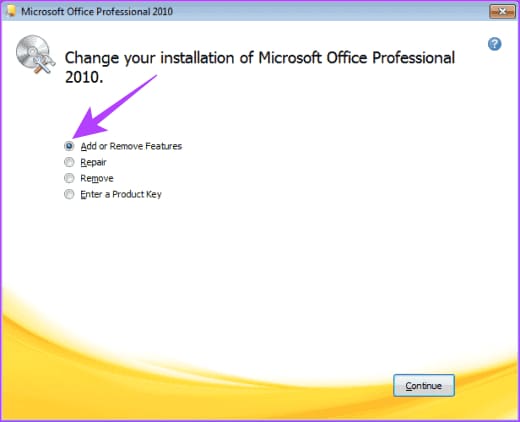
Step 3: Choose Add or Remove Features. Once done, select Continue.
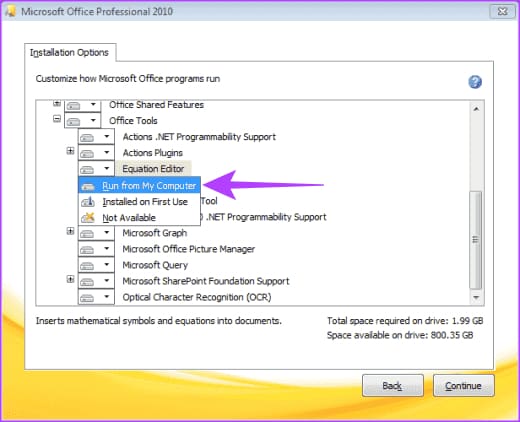
Step 4: Select the plus sign next to Office Tools and select Equation Editor. Then, select the Run from My Computer option.
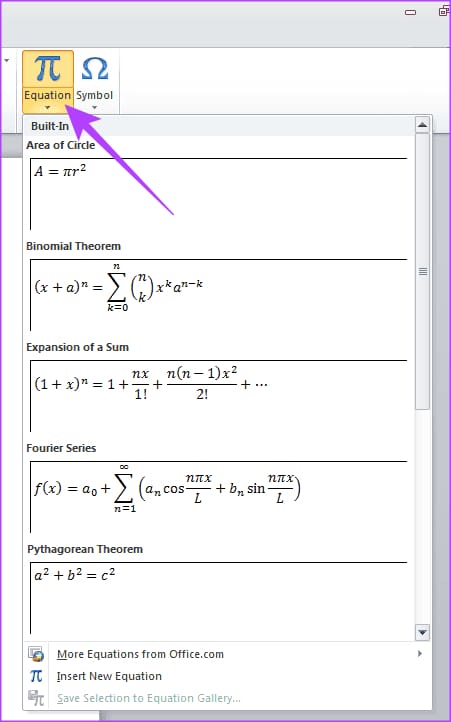
Step 5: Select Continue and the Equation Editor will take a few minutes to install. Once complete, select Close and it will be available under the Insert menu.
Was this helpful?
Last updated on 03 September, 2024
Read Next
 Apple Pages vs Microsoft Word: Which Word Processing Software Is Better
Every major tech company out there is offering their version of the productivity suite.
Apple Pages vs Microsoft Word: Which Word Processing Software Is Better
Every major tech company out there is offering their version of the productivity suite.
 Google Docs vs. Microsoft Word Online: Which Word Processor Is Better
Google Docs vs.
Google Docs vs. Microsoft Word Online: Which Word Processor Is Better
Google Docs vs.
 How to Enable and Disable Focus Mode in Microsoft Word
How to Enable Focus Mode in Microsoft Word Focus Mode hides the Ribbon and Taskbar on your document to reduce distractions and let you work only on the document's text
How to Enable and Disable Focus Mode in Microsoft Word
How to Enable Focus Mode in Microsoft Word Focus Mode hides the Ribbon and Taskbar on your document to reduce distractions and let you work only on the document's text
 How to Enable and Disable Hyphenation in Microsoft Word
How to Turn on Hyphenation in Microsoft Word There are two types of hyphenation - automatic and manual.
How to Enable and Disable Hyphenation in Microsoft Word
How to Turn on Hyphenation in Microsoft Word There are two types of hyphenation - automatic and manual.
 How to Edit PDFs Using Microsoft Edge’s Built-In PDF Editor
How to Open a PDF in Microsoft Edge By default, Microsoft Edge opens all PDF files in its PDF viewer, allowing you to start editing them immediately.
How to Edit PDFs Using Microsoft Edge’s Built-In PDF Editor
How to Open a PDF in Microsoft Edge By default, Microsoft Edge opens all PDF files in its PDF viewer, allowing you to start editing them immediately.
 How to Enable or Disable Auto Capitalization in Word
How to Enable Auto-Capitalization in Microsoft Word Microsoft Word has a proofing section where users can personalize spelling and grammar settings.
How to Enable or Disable Auto Capitalization in Word
How to Enable Auto-Capitalization in Microsoft Word Microsoft Word has a proofing section where users can personalize spelling and grammar settings.
 2 Ways to Fix Group Policy Editor (gpedit) Missing on Windows
Why Can't I Find the Group Policy Editor on Windows PC?
2 Ways to Fix Group Policy Editor (gpedit) Missing on Windows
Why Can't I Find the Group Policy Editor on Windows PC?
 4 Best Ways to Fix Registry Editor Not Working on Windows 11
Fix 1: Run SFC and DISM Scan Problems with the system files on your PC can cause Windows and its programs to malfunction.
4 Best Ways to Fix Registry Editor Not Working on Windows 11
Fix 1: Run SFC and DISM Scan Problems with the system files on your PC can cause Windows and its programs to malfunction.
The article above may contain affiliate links which help support Guiding Tech. The content remains unbiased and authentic and will never affect our editorial integrity.