

Edit Reels Using the Built-In Editor
Step 1: Open the Instagram app and tap on the Create button at the bottom.
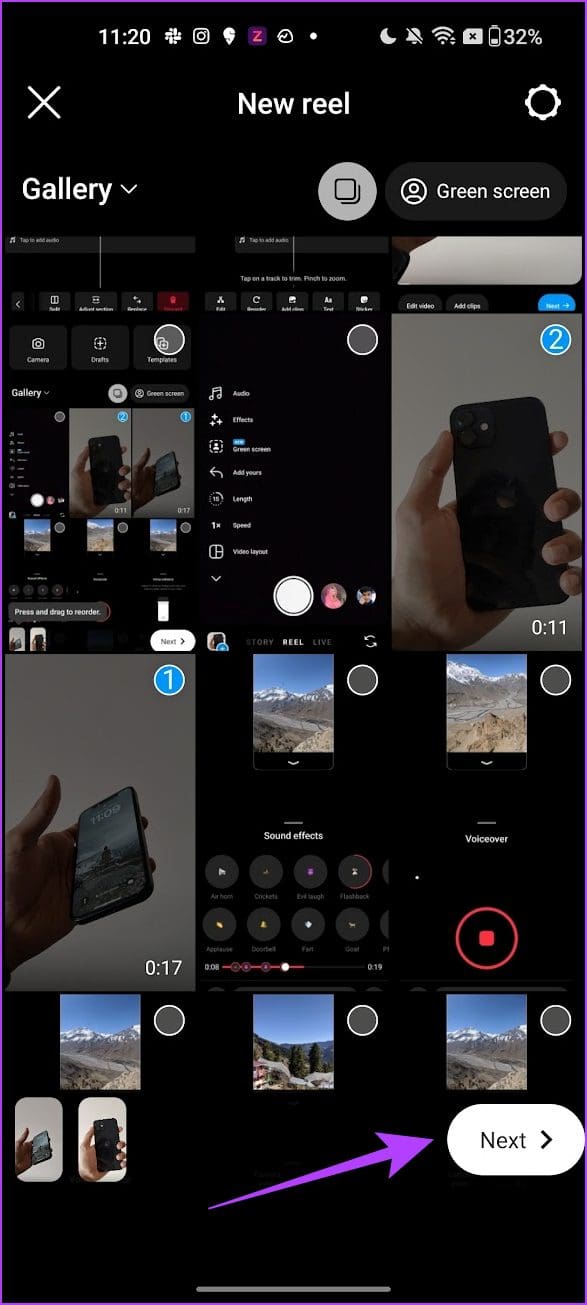
Step 2: Tap on Reel and select all the videos and pictures you want to add to the Reel.
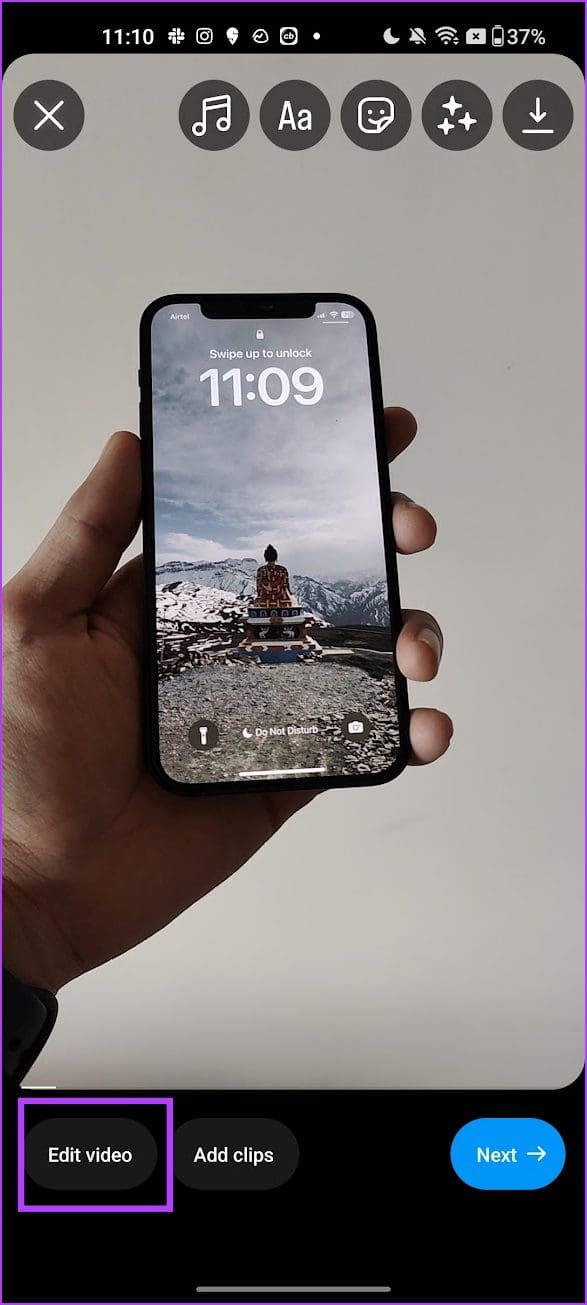
Step 3: Tap on the next button > Skip if Instagram prompts you to add music – we’ll do that later. Tap on Edit video to begin.
Also Read: Why are my Instagram Reels blurry and how to fix it?
How to Trim the Length of Clips on Instagram
This allows you to reduce the duration of clips with details you do not want in your Reel.
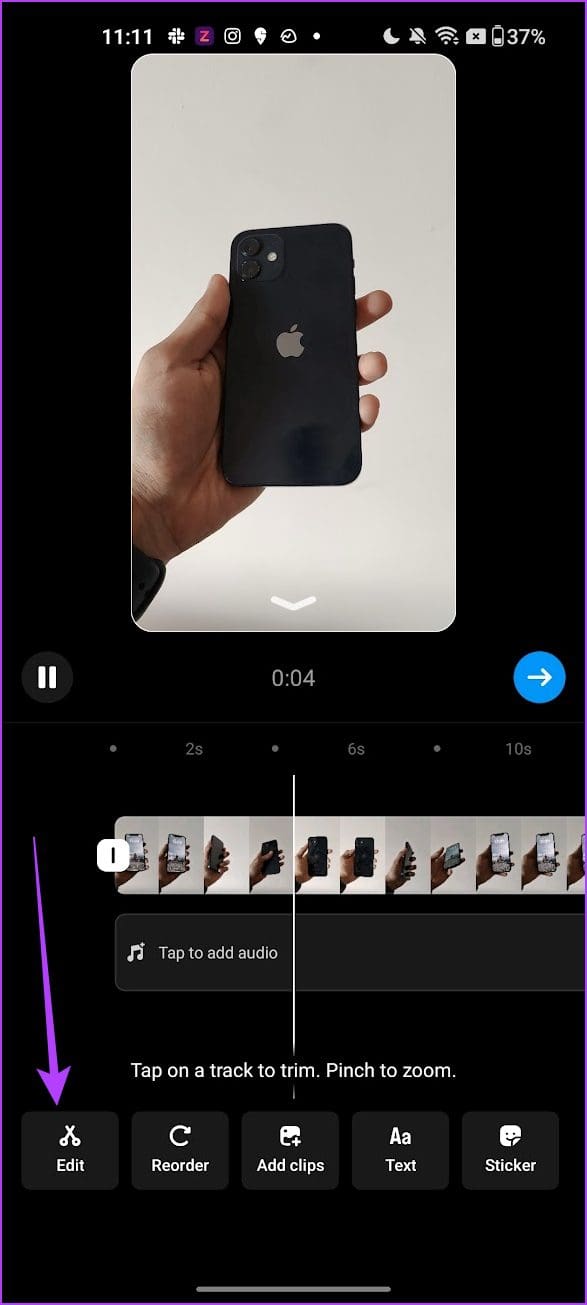
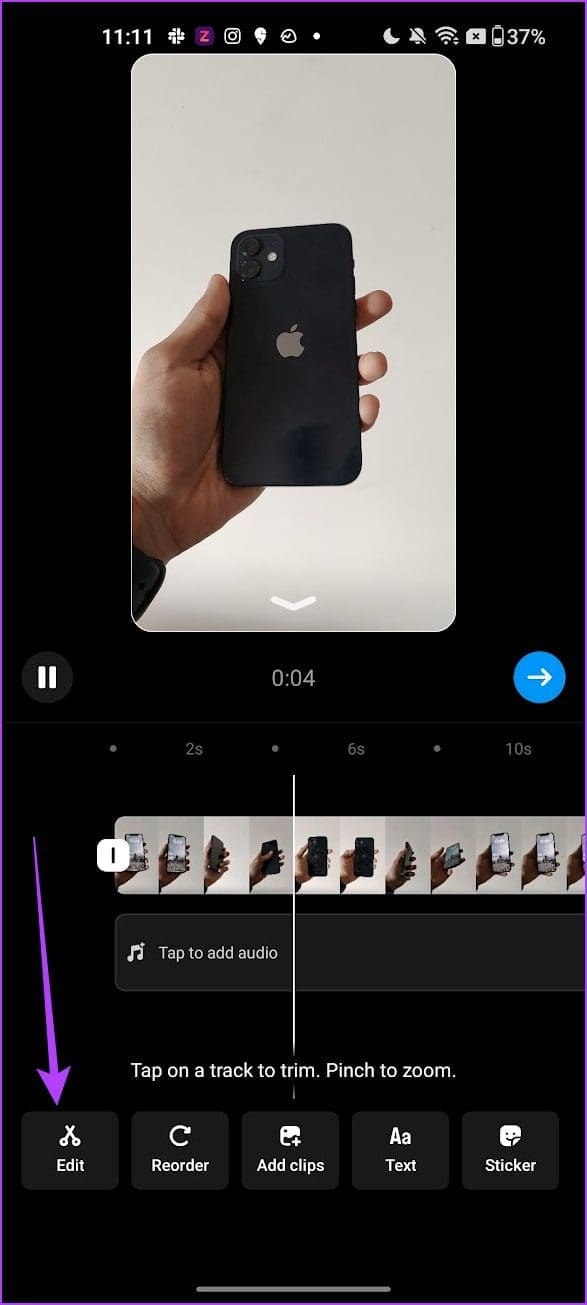
Step 1: After uploading the photos and videos to Instagram, tap on Edit.
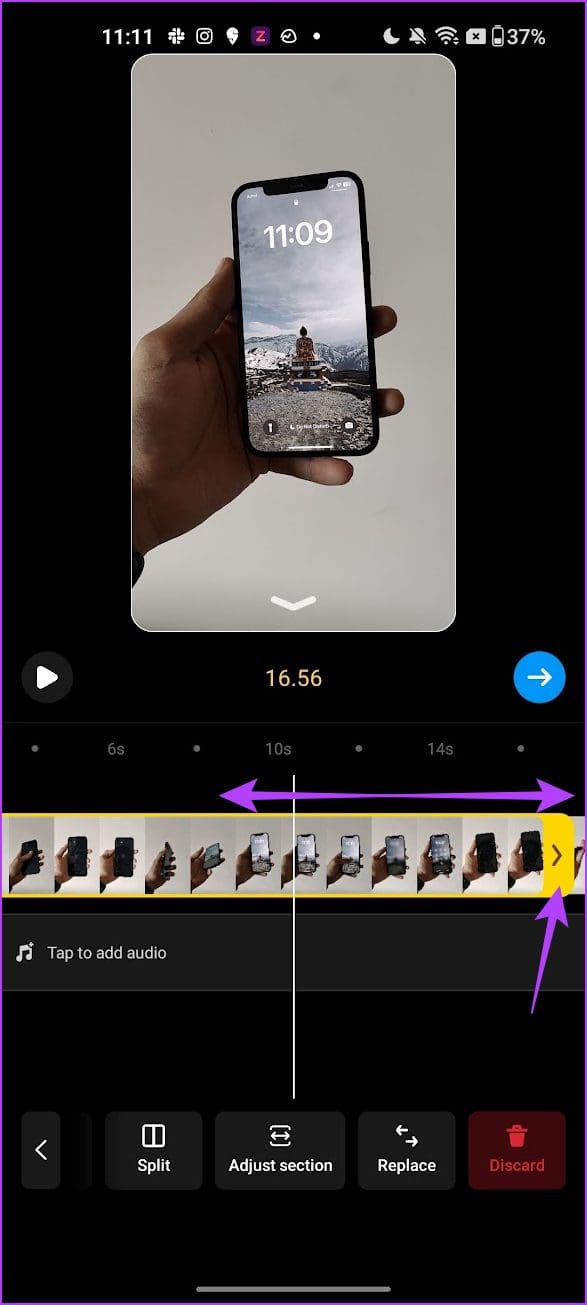
Step 2: Now, tap on a track to trim. Drag the yellow handles at the beginning and end of the track to adjust and trim the track.
How to Split the Clips for Your Reel
Splitting your tracks can help you add different text, music, and effects to your Reel at the right place.
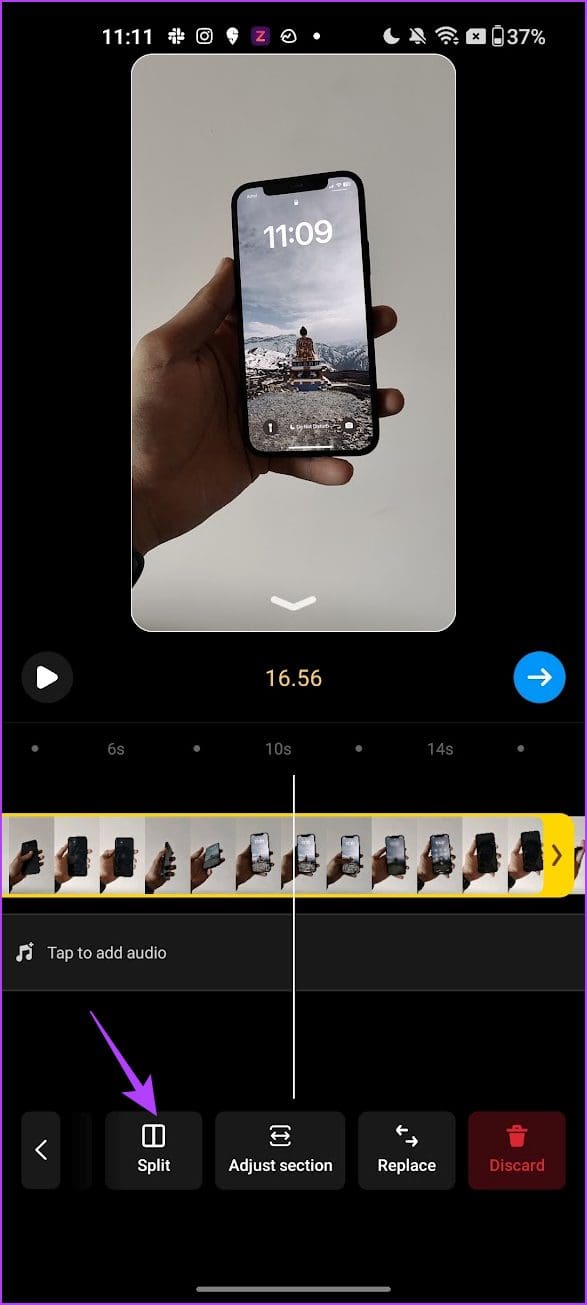
Step 1: After uploading the photos and videos to Instagram, tap on Edit.
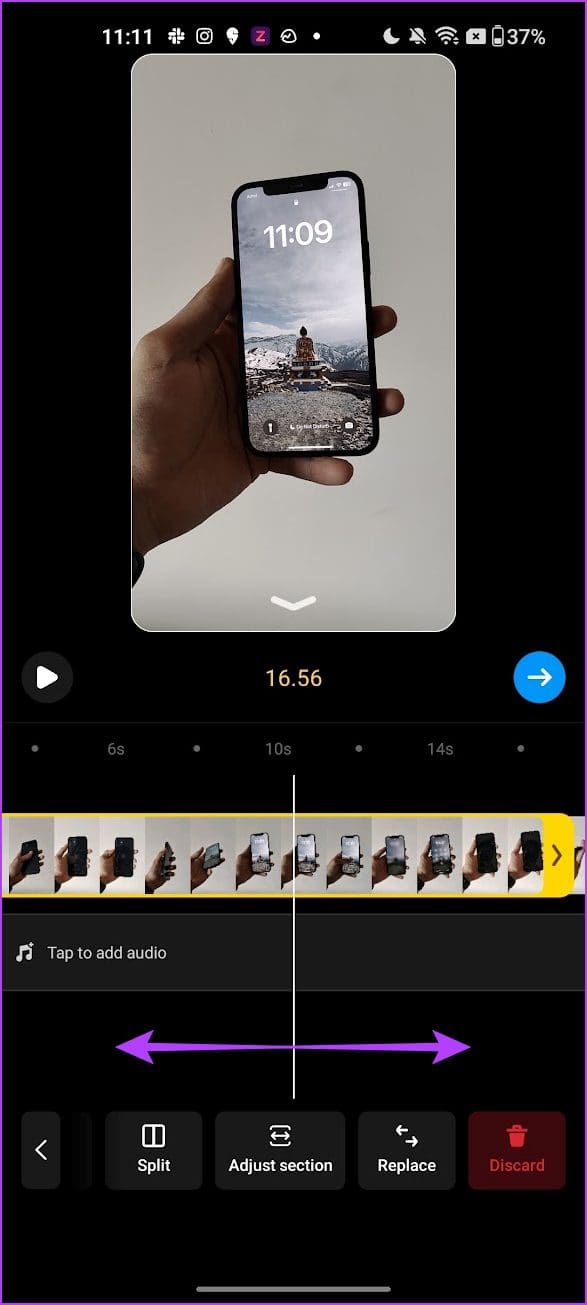
Step 2: Drag the video slider – the thin white bar to where you want to split the track. Tap on Split.
Your track will split into two parts. You can further split the tracks by repeating the process.
How to Reorder Clips on Instagram Reels
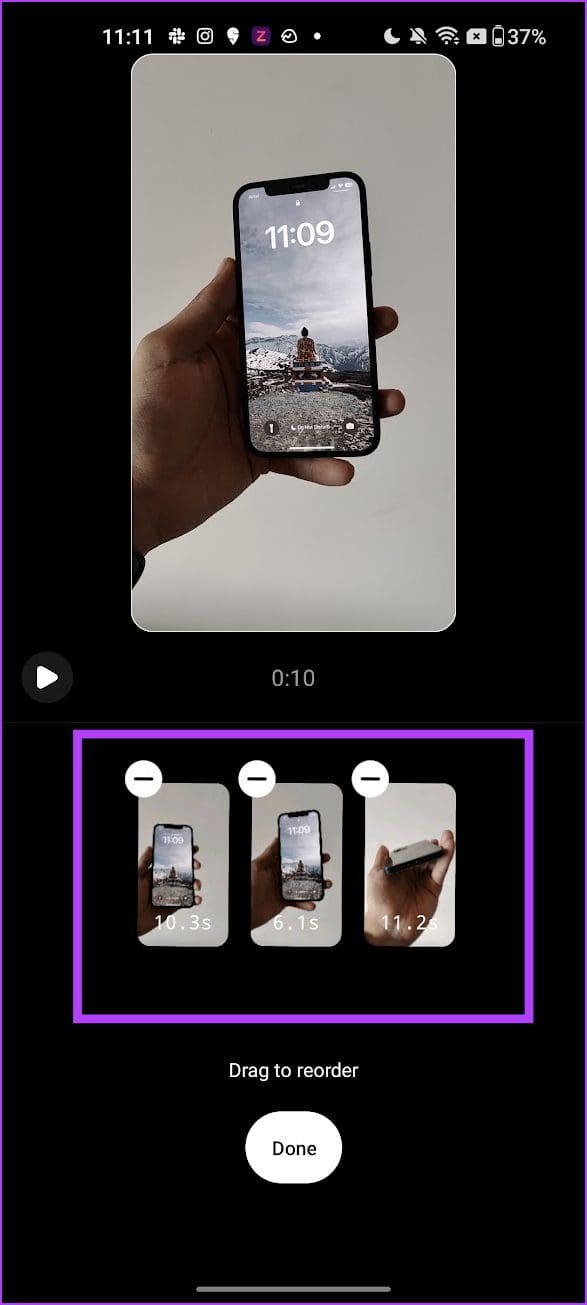
Once you split the tracks, here’s how to reorder them if needed.
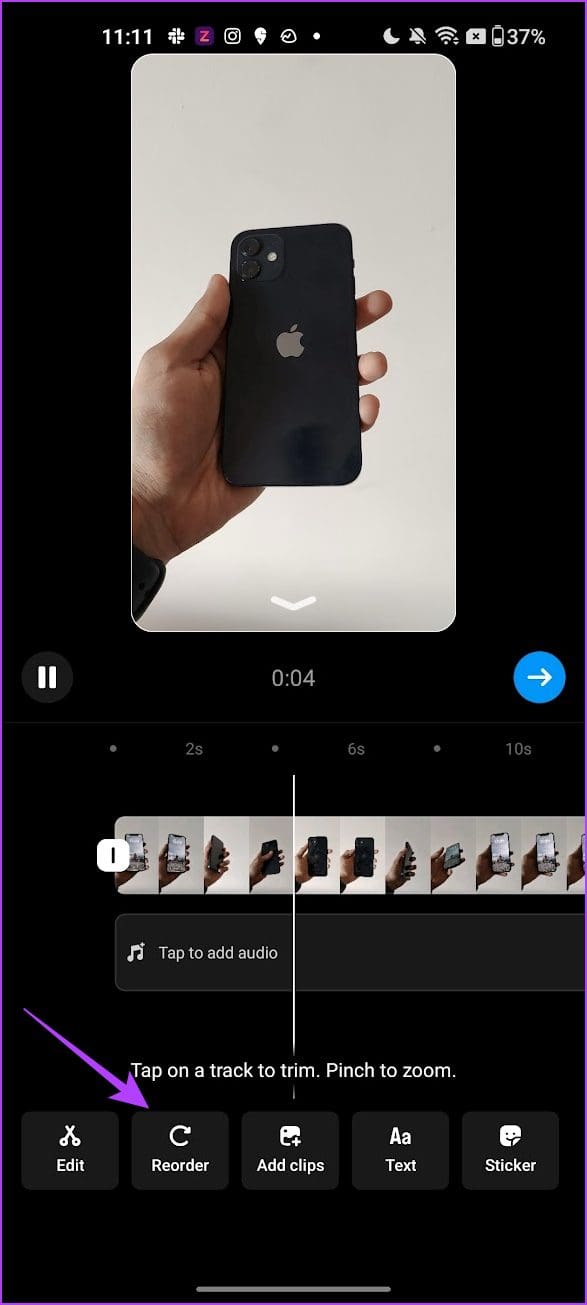
Step 1: Tap on Reorder, and you will see all the different tracks in your Reel.
Step 2: Drag and reorder them as per your liking.
How to Add a Transition Between Clips
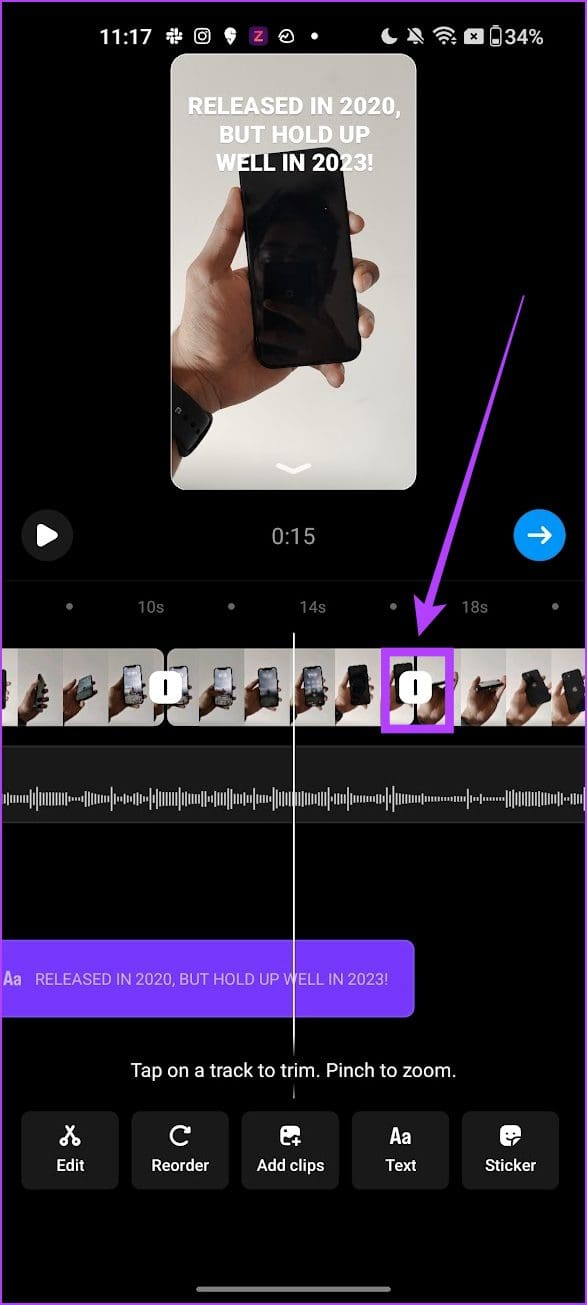
Once you have added and reordered all the tracks, here’s how to use transitions between them.
Step 1: Tap on the Edit button > white handle where a track ends to add a transition to the next track.
Step 2: Select and preview a transition and tap on Done once you have made your choice.
Tip: If you want the transition to be added for all tracks, tap on Apply to All.

How to Add Music to Instagram Reels
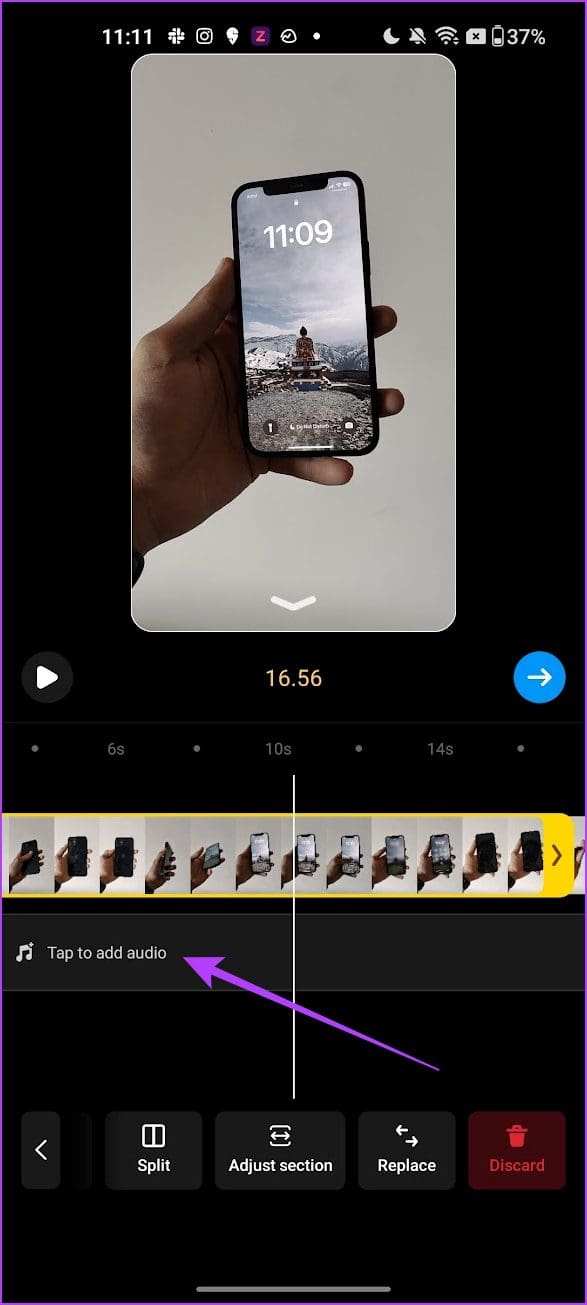
Here’s how to add music to your tracks on an Instagram Reel.
Step 1: Tap on the Edit button > Tap to add audio.
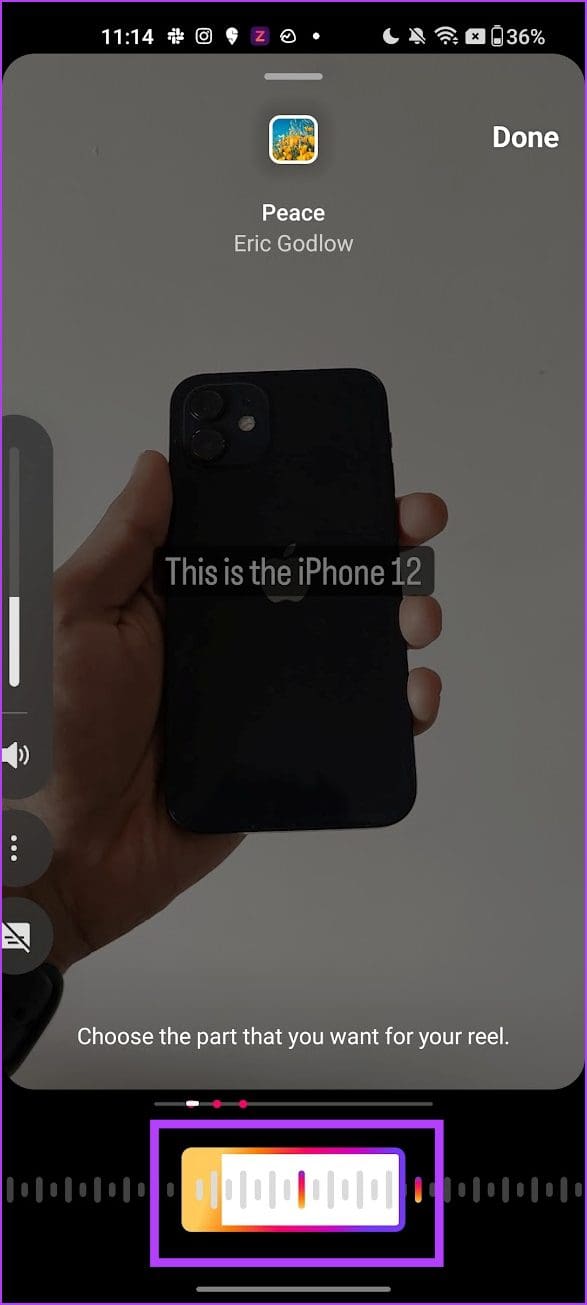
Step 2: Search and select a song from Instagram’s music library. Choose the part of the song to add to your Reel.
Note: You cannot add multiple songs to a Reel.
Adjust and Enhance Audio Volume Levels on Instagram Reels
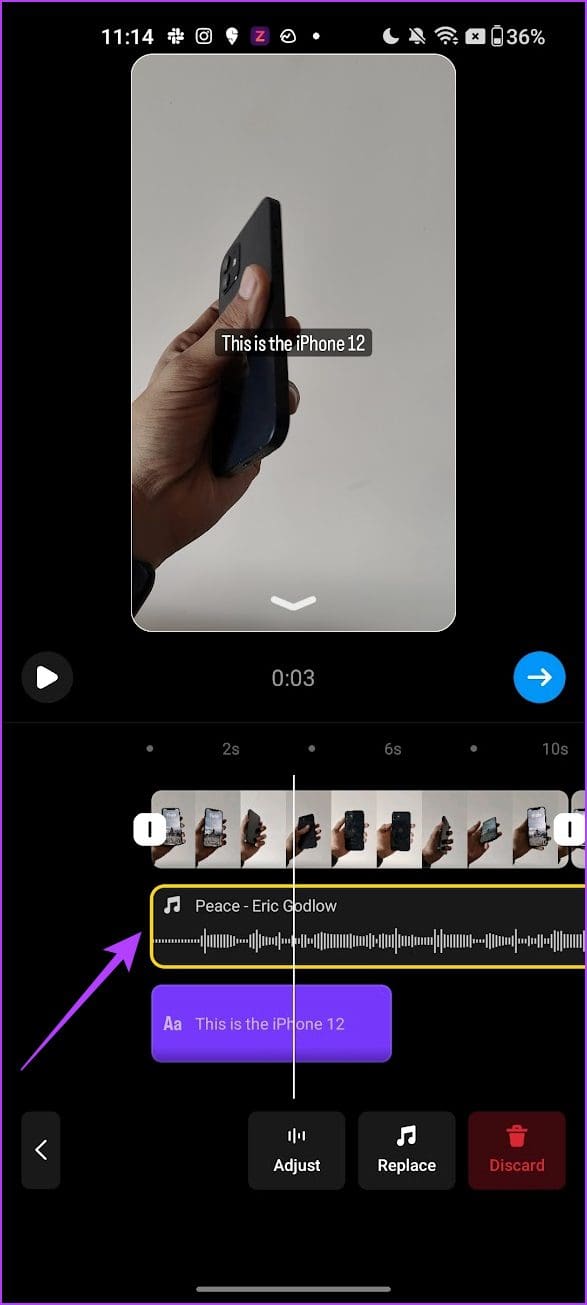
If the clips you have added to your Reel have audio, mix them with the audio you added from Instagram’s library. This will allow you to add multiple audios to one Reel.
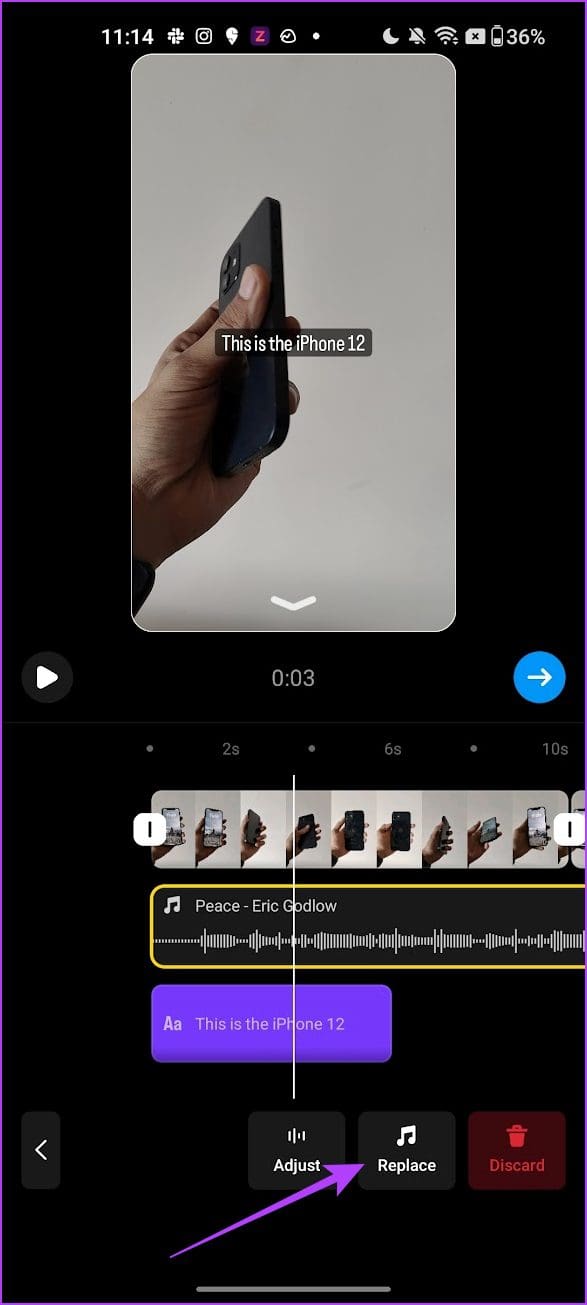
Step 1: Once you’ve added the song from Instagram’s library, tap on Replace.
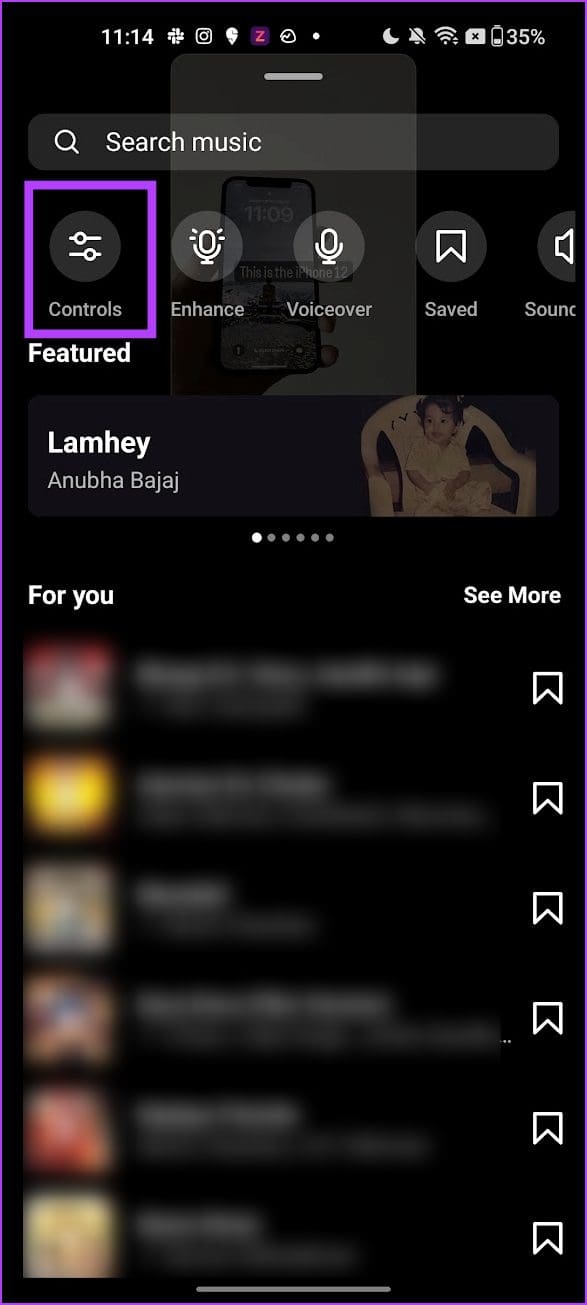
Step 2: Tap on Controls.
Step 3: Adjust the volume levels for the original audio of the clips and the audio added from Instagram’s library. Tap on Done.

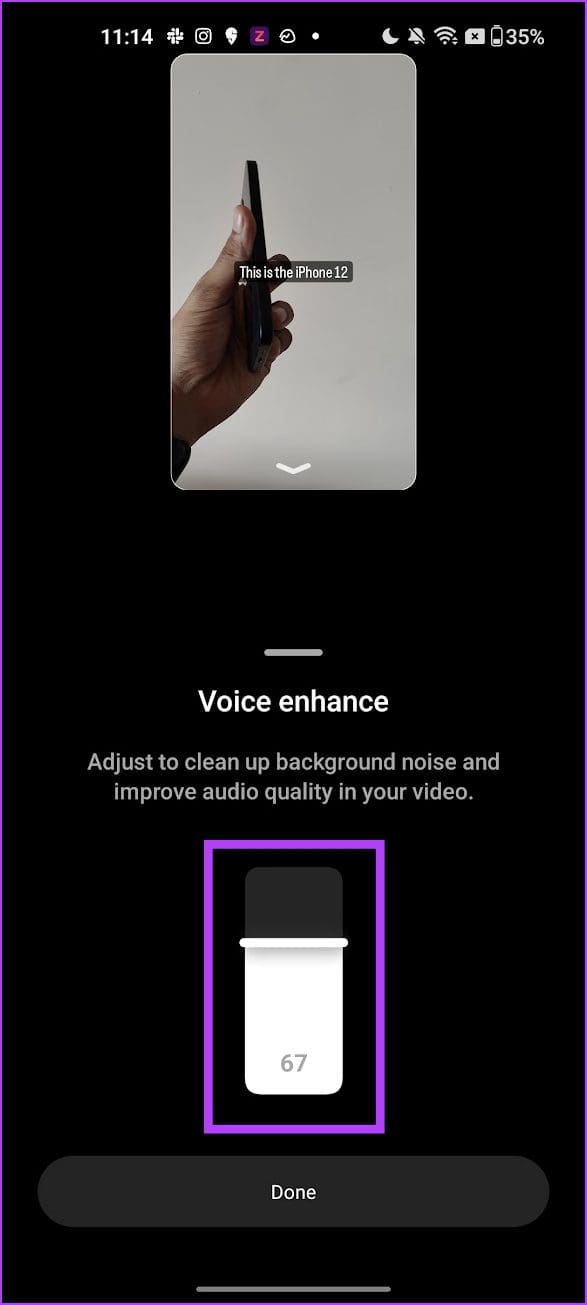
In the Audio menu, you will also see the following options:
- You can also improve the audio quality of the clip using Enhance. This reduces the background noise and improves the clarity of the audio.
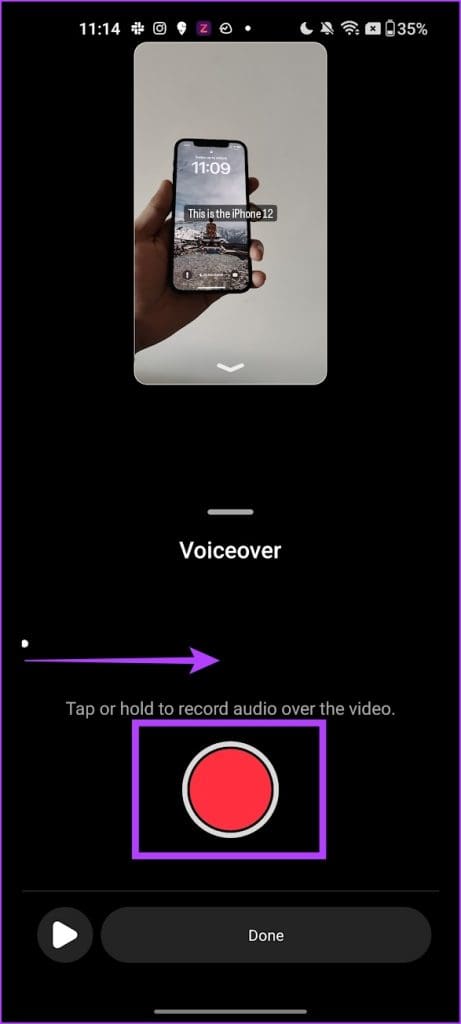
- Further, you can also add a voiceover to your clips on an Instagram reel. Select Voiceover and add a voiceover wherever necessary.
- You can also add sound effects to the clips. Tap on the Sound Effects button. Select the sound effect and use the slider to position it in the clip.

How to Add Text to Reels on Different Frames
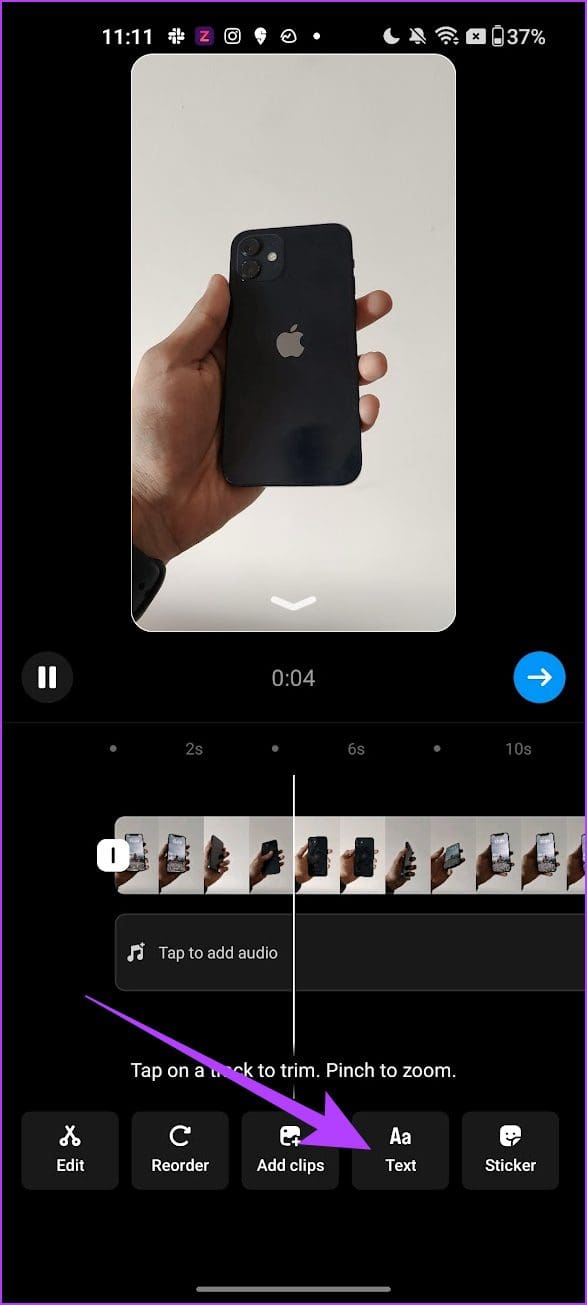
Adding text to your Reels can effectively act as subtitles or descriptions for tracks.
Step 1: Scroll to where you want to add text. Tap on Text.
Step 2: Add your text. Customize and position your text using the available tools.
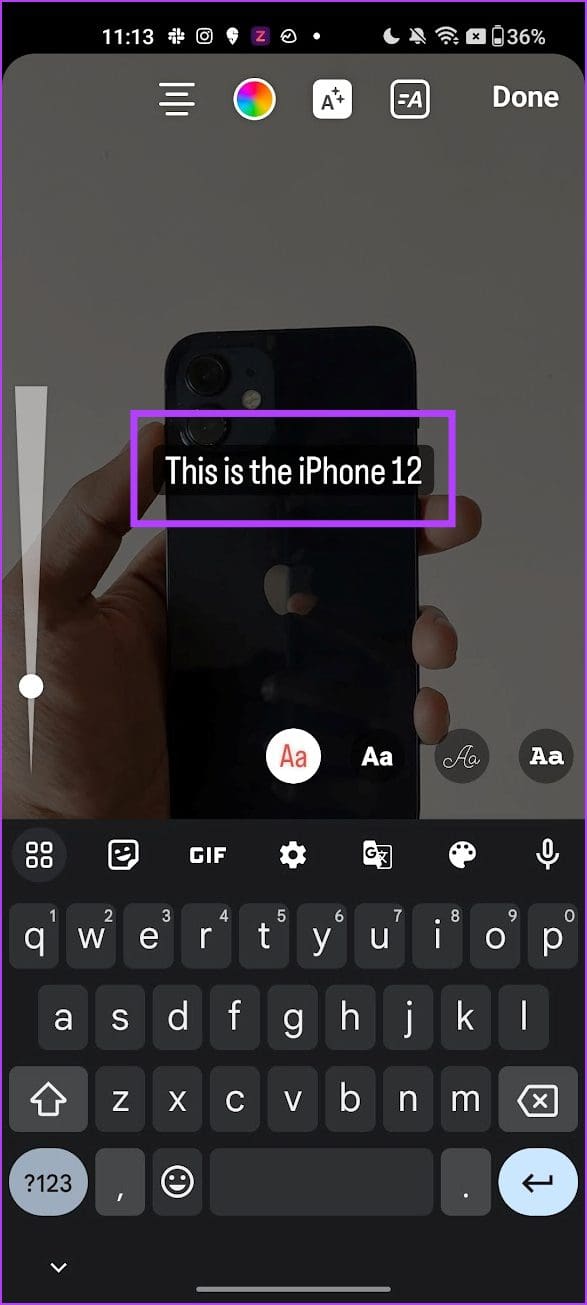

You can add text to other parts of your Reel and then using the timeline, adjust the duration for which the text appears.
Add Text-to-Speech on Instagram Reels
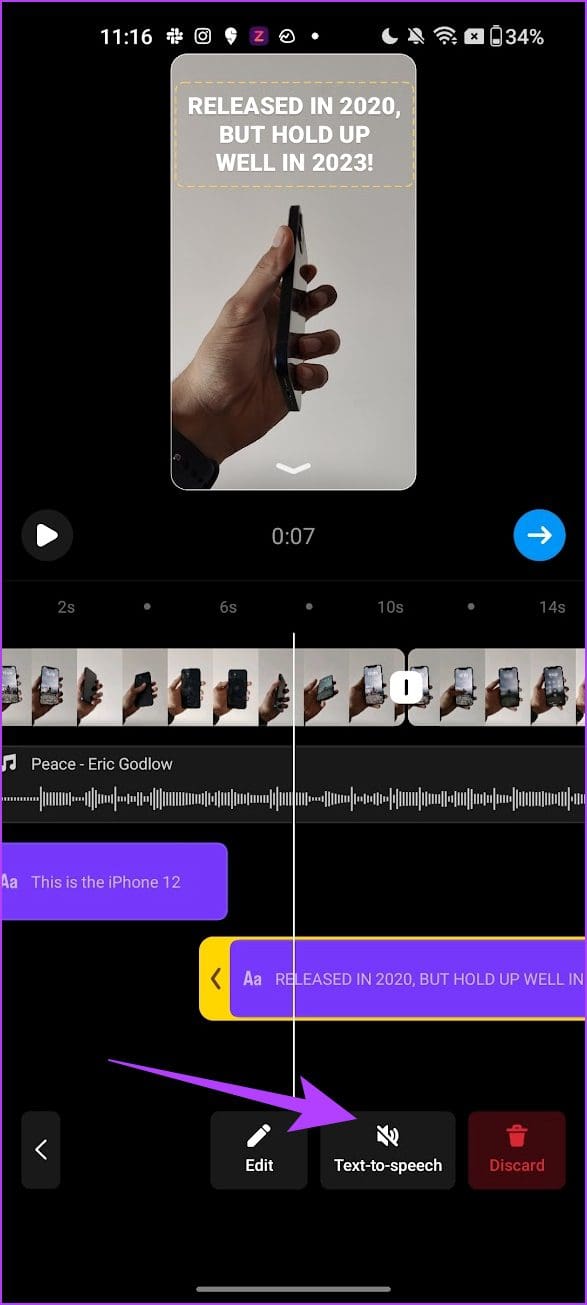
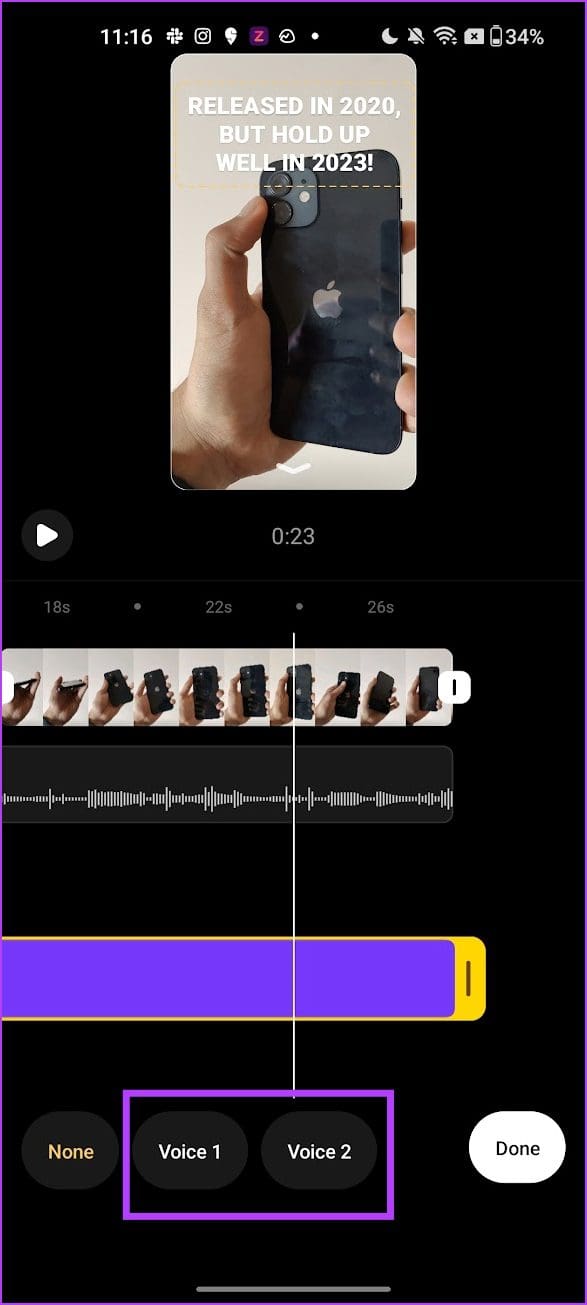
If you want your Reel to speak out the added text, here’s how to do it. However, text-to-speech is robotic. Therefore, we recommend adding a voiceover for better results.
You can tap on the Text-to-speech button to add a voiceover to your text. You can select between the two voices.
How to Add Stickers on Instagram Reels
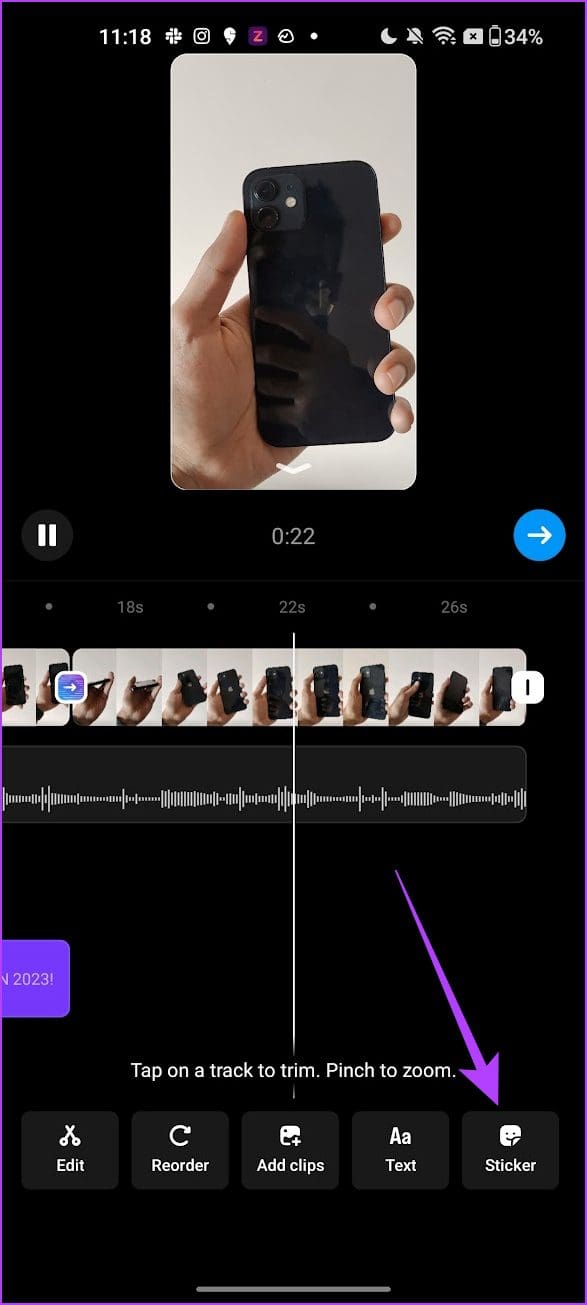
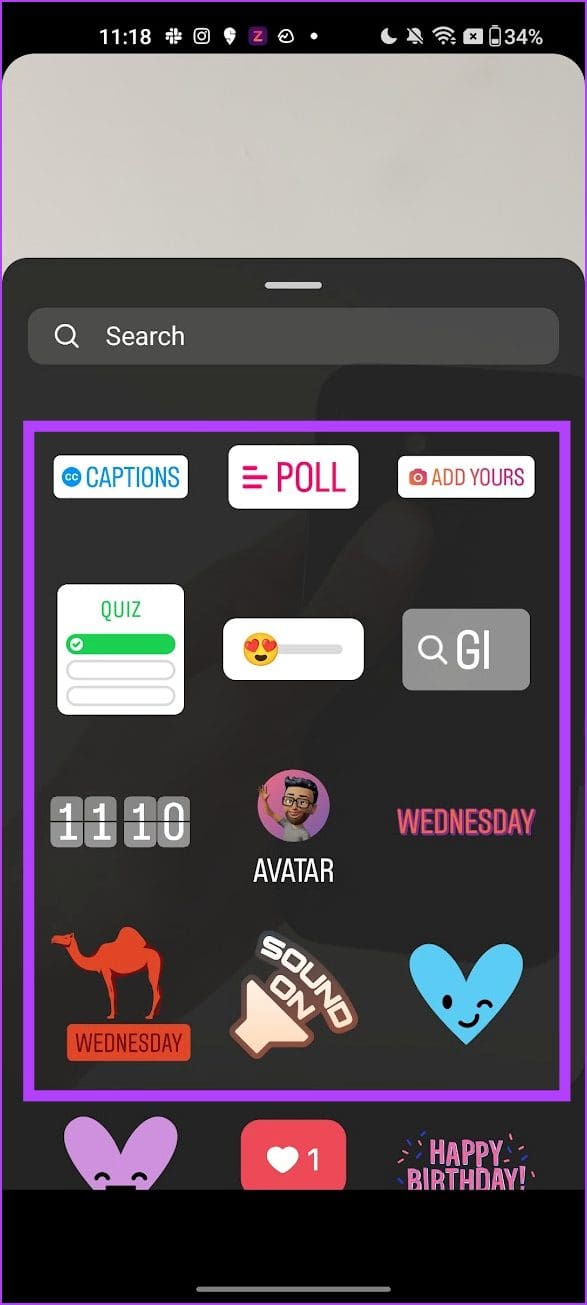
Instagram has a plethora of stickers to add more information and context to your Reel. Here’s how to add them to your tracks on a Reel.
Step 1: Slide to the position in the timeline where you want to add a sticker. Next, tap on Sticker.
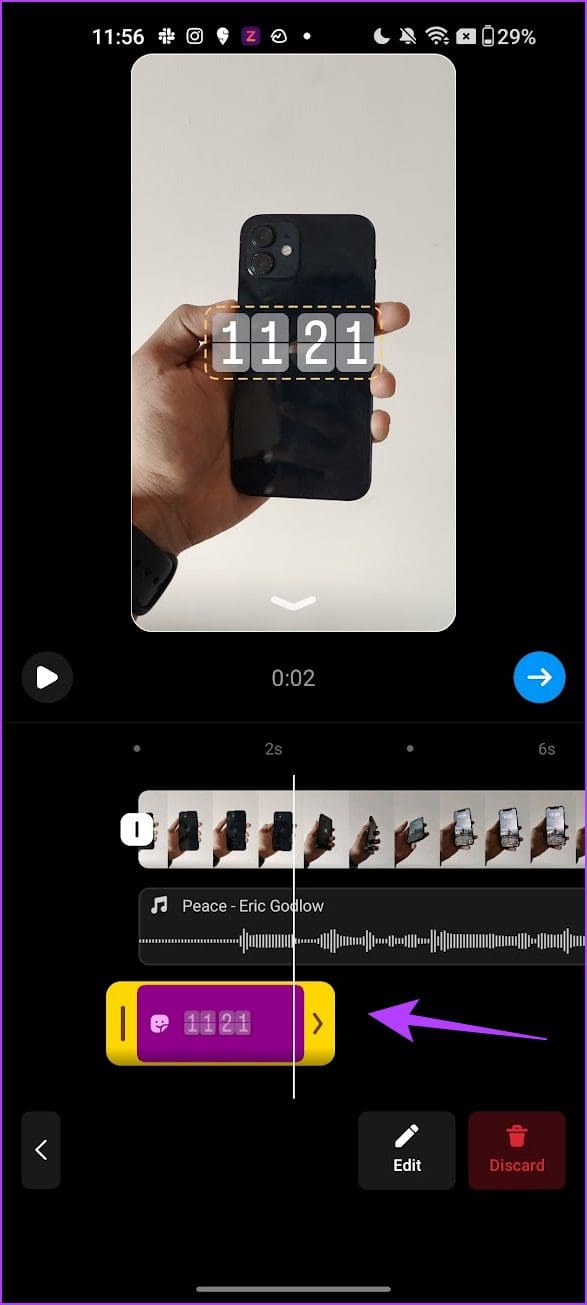
Step 2: Select and add the sticker. Tap on the Sticker in the timeline and adjust its duration accordingly.
How to Add Effects on Instagram Reels
Lastly, you can add a few effects and filters before publishing a Reel. Here’s how to do that while previewing your edited Instagram reel.
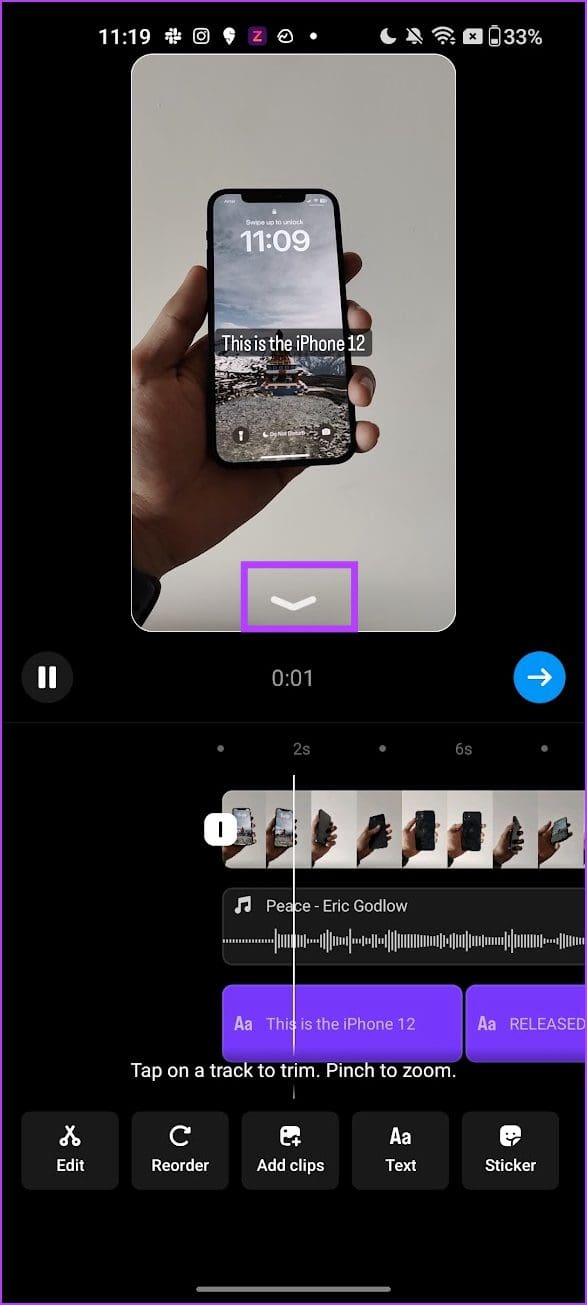
Step 1: Tap on the bottom-facing arrowhead to enter preview mode.
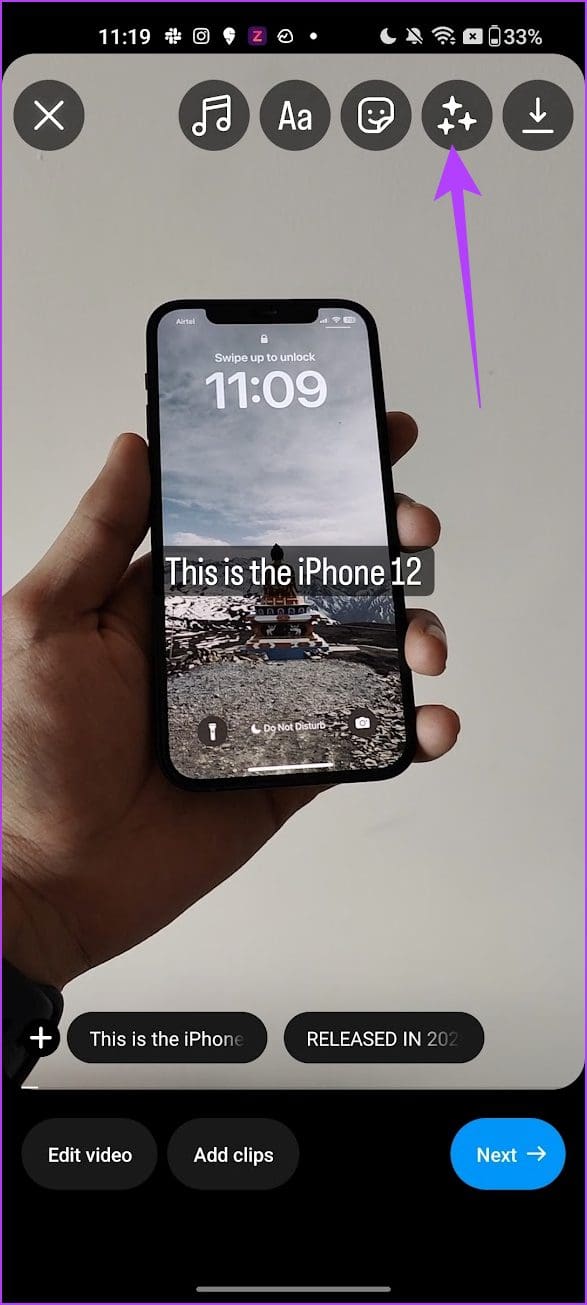
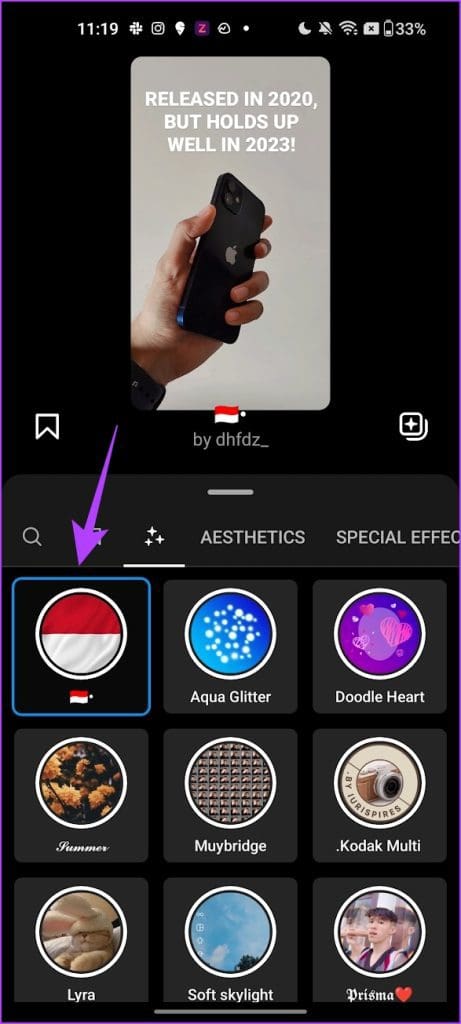
Step 2: Next, tap on Effects. Add the effect of your choice.
Also Read: How to download Instagram Reels on iPhone and Android
Was this helpful?
Last updated on 16 May, 2024
1 Comment
Leave a Reply
Read Next
 How to Edit PDFs Using Microsoft Edge’s Built-In PDF Editor
How to Open a PDF in Microsoft Edge By default, Microsoft Edge opens all PDF files in its PDF viewer, allowing you to start editing them immediately.
How to Edit PDFs Using Microsoft Edge’s Built-In PDF Editor
How to Open a PDF in Microsoft Edge By default, Microsoft Edge opens all PDF files in its PDF viewer, allowing you to start editing them immediately.
 6 Best Browsers With Built-in VPN for Android
Why Should You Need a Browser With VPN VPN (Virtual Private Network) serves multiple purposes apart from the fact that it unlocks content locked away in your geolocation.
6 Best Browsers With Built-in VPN for Android
Why Should You Need a Browser With VPN VPN (Virtual Private Network) serves multiple purposes apart from the fact that it unlocks content locked away in your geolocation.
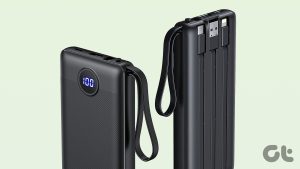 6 Best Power Banks With Built-In Cables
A power bank with built-in cables takes convenience to the next level, as you don't have to carry additional cables.
6 Best Power Banks With Built-In Cables
A power bank with built-in cables takes convenience to the next level, as you don't have to carry additional cables.
 How to Hide Reels on Facebook on Desktop or Mobile
How to Remove Reels on Facebook Note: For demonstration, we will go with a desktop.
How to Hide Reels on Facebook on Desktop or Mobile
How to Remove Reels on Facebook Note: For demonstration, we will go with a desktop.
 Top 5 Ways to Fix Facebook Not Showing Reels on Mobile
https://youtu.be/Jgtj4Z-2Dzs Preliminary Fixes Check the Network Connection: Ensuring a stable network connection is crucial for loading content on Facebook, including Reels.
Top 5 Ways to Fix Facebook Not Showing Reels on Mobile
https://youtu.be/Jgtj4Z-2Dzs Preliminary Fixes Check the Network Connection: Ensuring a stable network connection is crucial for loading content on Facebook, including Reels.
 How to Fix Reels Not Showing on Instagram
Basic Fixes Check your Internet connection: You need a stable internet connection to view Instagram reels.
How to Fix Reels Not Showing on Instagram
Basic Fixes Check your Internet connection: You need a stable internet connection to view Instagram reels.
 Why Are My Instagram Reels Blurry and How to Fix It
Why Do My Instagram Reels Look Blurry?
Why Are My Instagram Reels Blurry and How to Fix It
Why Do My Instagram Reels Look Blurry?
 How to Fix Instagram Showing the Same Reels
Basic Fixes Check your network connection: Ensure your device has a good internet connection.
How to Fix Instagram Showing the Same Reels
Basic Fixes Check your network connection: Ensure your device has a good internet connection.
The article above may contain affiliate links which help support Guiding Tech. The content remains unbiased and authentic and will never affect our editorial integrity.
Hi, I cannot see some of the clips in the when I play the reel. What should I do?