How to Edit Google Forms Once Created
On Desktop
Step 1: Go to Google Forms and log in with the same Google account you used to create the form.
Step 2: Click on the form you want to edit.

You will be taken to your Google Form, which contains existing questions and answers.
Step 3: Edit it like you would a new form. Add or remove questions or answers, import questions, sections, etc., as required.
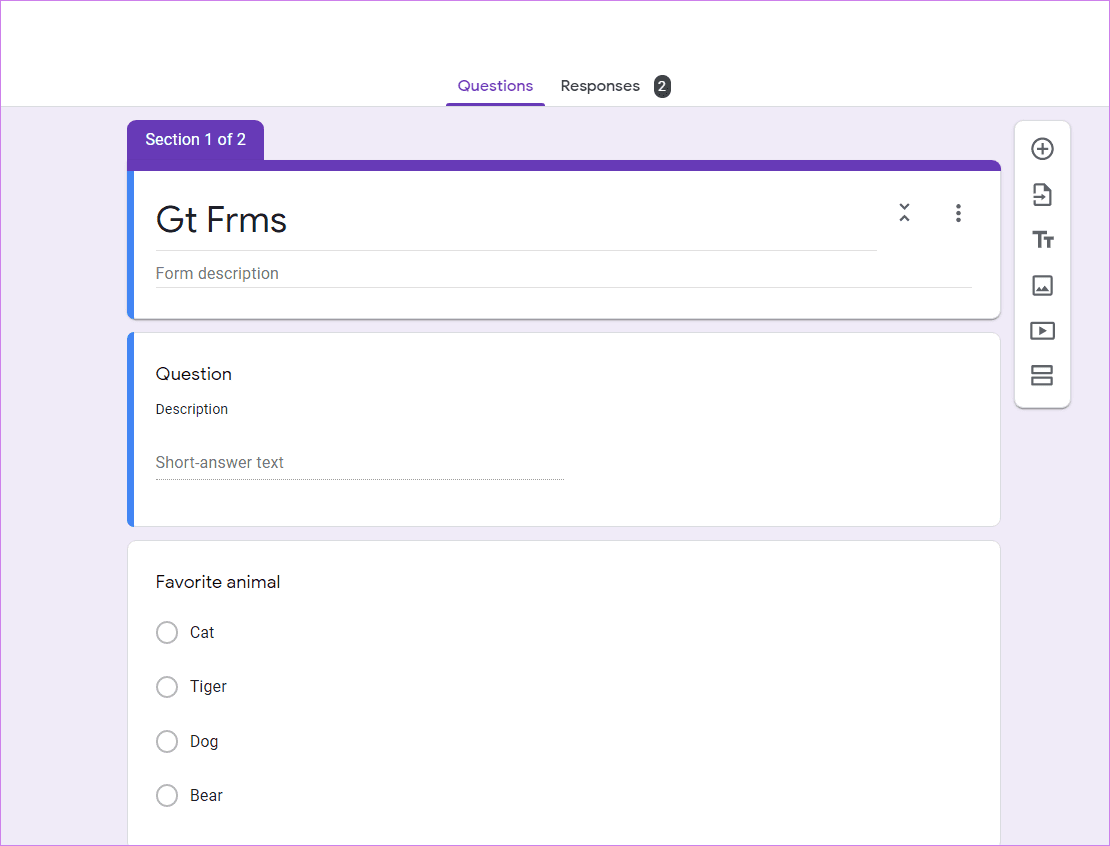
The changes will automatically appear for new users who fill out the form. You don’t have to create or share a new link. If you want to do the same on mobile, continue reading.
On Android, iPhone, and iPad
You can utilize Google Drive to easily modify questions, add new sections, and adjust settings as you would on a desktop. Check out our guide on creating and editing Google Forms on mobile.
Once your changes are complete, they are automatically saved in real-time and immediately appear on your live form without changing the URL. Users with the old form URL will see the new changes in the form.
How to Edit Google Form Responses in Sheets
Once a user submits the form, the form’s creator can change his or her response in the spreadsheet.
Step 1: Open the Google Sheet, go to the Responses tab at the top, and click on it.

Here, you will see a summary and individual responses. If you go to the Individual section, you will find responses, but you cannot edit them.
Step 2: Click on the Google Sheets icon at the top. Then, double-click on any value in the Google Sheet to edit it.
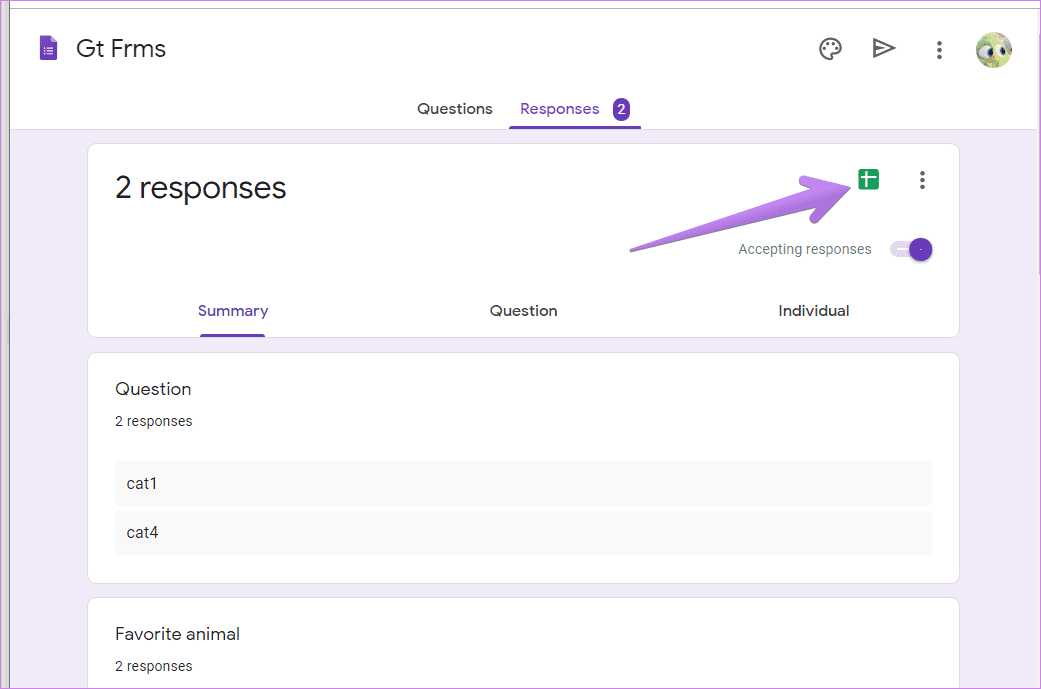
Any changes you make to the spreadsheet’s values will not reflect under individual responses in your Google Form. That’s a great feature to check the actual answer of the user. Of course, you can also see the edit history in Google Sheets. For that, right-click on the cell and choose Show Edit history.
How to Let Users Edit Form Responses After Submission
Step 1: Open Google Forms, navigate to the form you want to let users edit, and click on Settings.
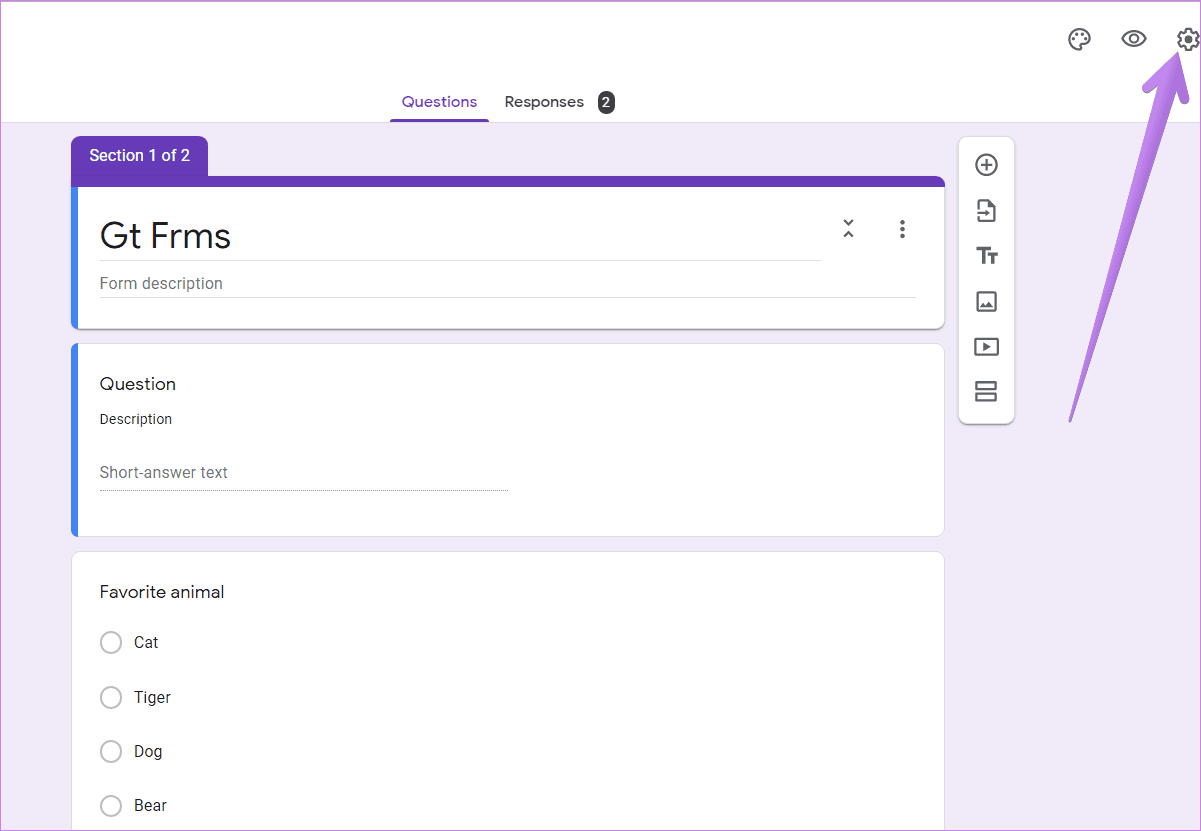
Step 2: Under the General tab in Settings, check the box for Edit after submit.

Also Read: How to send Google Form responses to multiple emails
How to Edit Google Form Response After Submission of Form
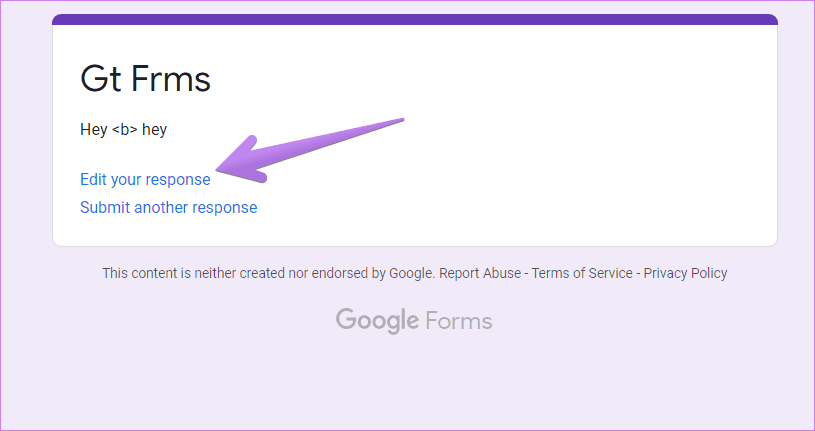
Note: If the creator doesn’t allow editing of responses, you will not see the Edit your response link. There is no easy way to edit such forms. Moreover, the form owner can see all the edits or previous answers.
Step 1: Click on the Edit your response link at the end of the Thank you page. Your existing answers will automatically show up in the form.
Step 2: Type or choose a different answer. The new answers will replace your existing answers instantly.
Also Read: How to import questions into Google Forms easily
How to Know if Someone Edited the Answers
When any user modifies their answer in the form, it will reflect in your spreadsheet. You will see a tiny icon that indicates that the user has changed the response after submitting it once.

Right-click on the cell and choose View Edit history to see the changes.
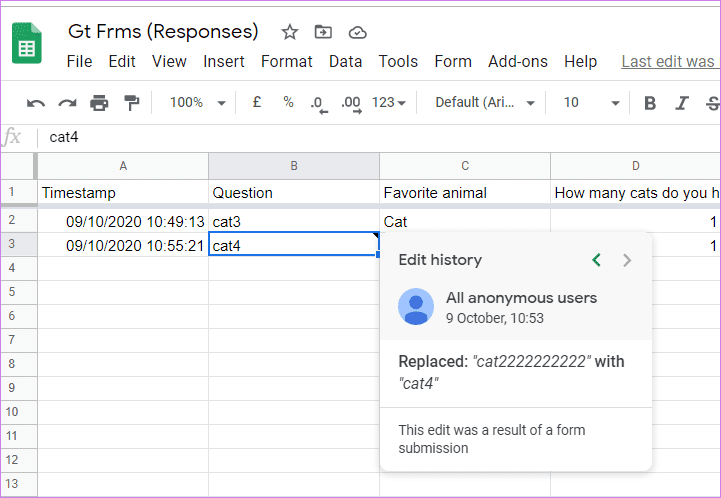
It’s okay to make mistakes; however, at times, you need to be careful. For instance, if the form owner doesn’t allow editing of responses, you are stuck with your submitted answers. Be careful while submitting answers in Google Forms.
Was this helpful?
Last updated on 29 August, 2024
Read Next
 How to Create Google Forms on Mobile: A Beginner’s Guide
Google Forms is the go-to option for many people when it comes to creating digital forms.
How to Create Google Forms on Mobile: A Beginner’s Guide
Google Forms is the go-to option for many people when it comes to creating digital forms.
 A Complete Guide to Using Sections in Google Forms
If you work a lot with Google Forms, you probably have to create, edit, move, or perform other manipulations on form sections.
A Complete Guide to Using Sections in Google Forms
If you work a lot with Google Forms, you probably have to create, edit, move, or perform other manipulations on form sections.
 A Complete Guide to Adding and Editing Text in Paint 3D
Adding text to your image is one of the basic functionalities of any photo-editing apps.
A Complete Guide to Adding and Editing Text in Paint 3D
Adding text to your image is one of the basic functionalities of any photo-editing apps.
 2 Best Ways to Import Questions Into Google Forms From Google Sheets
Typically, when you create a Google Form, you need to perform several steps.
2 Best Ways to Import Questions Into Google Forms From Google Sheets
Typically, when you create a Google Form, you need to perform several steps.
 How to Convert Google Forms to PDF, Google Docs, or Word
How to Convert Google Forms to PDF Google Forms doesn’t have a native option to convert it into PDF.
How to Convert Google Forms to PDF, Google Docs, or Word
How to Convert Google Forms to PDF Google Forms doesn’t have a native option to convert it into PDF.
 How to Add Conditional Logic to Google Forms (And Cool Tricks)
It's true that the attention span of the new-age millennial is getting shorter by the day.
How to Add Conditional Logic to Google Forms (And Cool Tricks)
It's true that the attention span of the new-age millennial is getting shorter by the day.
 3 Ways to Check Answers in Google Forms
Method 1: View Responses Inside Google Forms One of the easiest ways to view the answers received on your Google Forms is from the Google Forms itself.
3 Ways to Check Answers in Google Forms
Method 1: View Responses Inside Google Forms One of the easiest ways to view the answers received on your Google Forms is from the Google Forms itself.
 How to Send Email Based on Response in Google Forms
Google Forms lets you collect answers and opinions from your respondents in various ways, whether it's a simple quiz or a long questionnaire.
How to Send Email Based on Response in Google Forms
Google Forms lets you collect answers and opinions from your respondents in various ways, whether it's a simple quiz or a long questionnaire.
The article above may contain affiliate links which help support Guiding Tech. The content remains unbiased and authentic and will never affect our editorial integrity.