There’s nothing worse than sitting down to a game after a long day only to find that the client that allows you to run it won’t open in the first place. There’s no shortage of errors that can plague the EA app, but we’re here to help with six fixes for when the EA app won’t open.
Fixes to Try When an EA App Won’t Open
Let’s get straight into the fixes to solve the EA app problem. We have them listed below:
Restart
Let’s start with a restart. It’s a quick and simple fix, but rebooting your PC to troubleshoot issues is always the first step for a reason. Hopefully, this is where your problems stop.
End Running Processes
Okay, so your problems didn’t stop there. If you’ve tried and failed numerous times to open the EA app, some EA processes may still be running and interfering with the app starting properly. To fix this:
Step 1. Open “Task Manager” by hitting (Ctrl + Shift + Esc).
Step 2. Under the “Processes” tab, look for any running EA app processes. If you see any, select them.
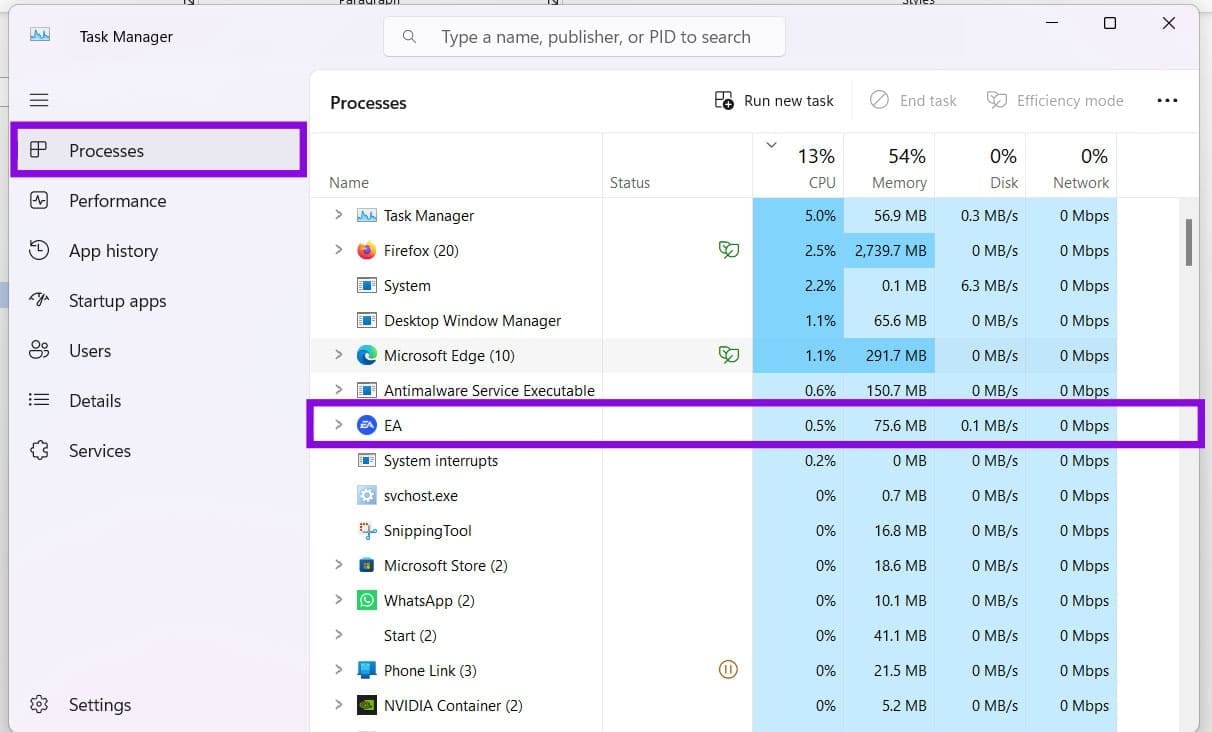
Step 3. With the process selected, click the “End task” button at the top. The process will end.
Step 4. Once all processes are closed, try reopening the EA app again.
Run the App as Administrator
This is another simple troubleshooter that can help you rule out permission problems as part of the issue. Here’s what to do:
Step 1. Type EA in the search bar to bring up the app.

Step 2. Right-click the app icon and choose “Run as administrator” from the context menu. Confirm the UAC pop-up.
Step 3. See if the app starts up normally.
Clear the App Cache
Sometimes an app’s cache can build up and become corrupted over time. Starting with a clean slate can also help your app start normally. Here’s what to do for the EA app:
Step 1. Open the “Start” menu and select “All apps.”
Step 2. Find the EA app, click the three-dot menu next to it, and select “Advanced options.”

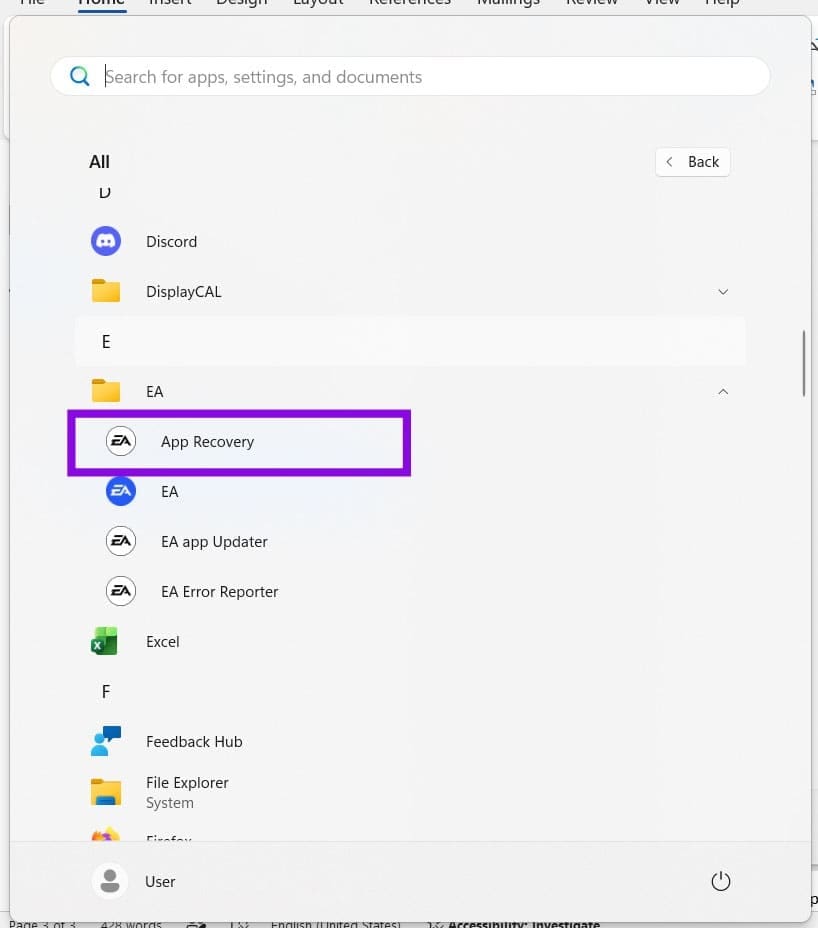
Step 3. Click to expand the folder and select “App Recovery.”
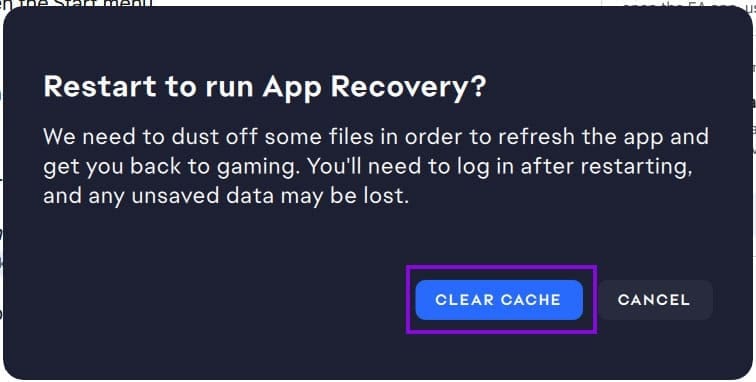
Step 4. Click the “Clear Cache” button on the pop-up that appears.
Step 5. After the process is finished, restart the app. You’ll keep all saved files, but you will be logged out of the app.
Repair the App
It could be that the app itself has been corrupted. In that case, you can try repairing it:
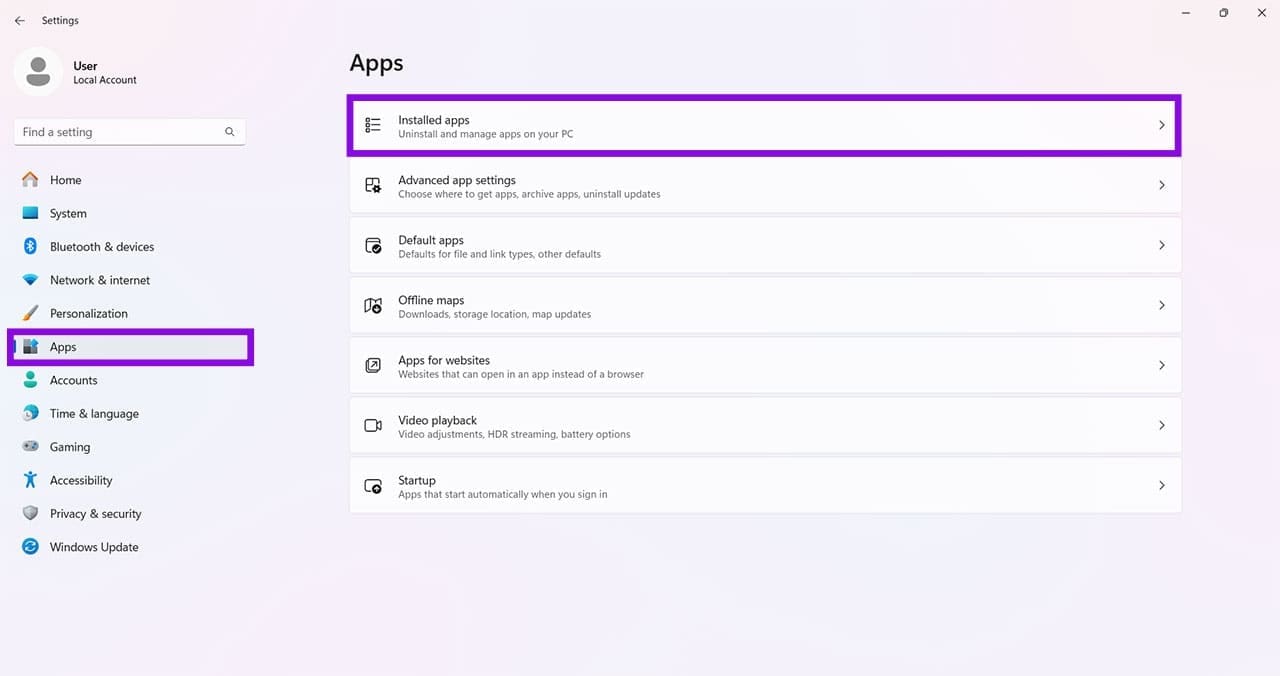
Step 1. Open “Settings” (Win + I) and choose “Apps” from the sidebar.
Step 2. Click “Installed apps.”
Step 3. Scroll down to the EA app and click “Modify” after clicking it.
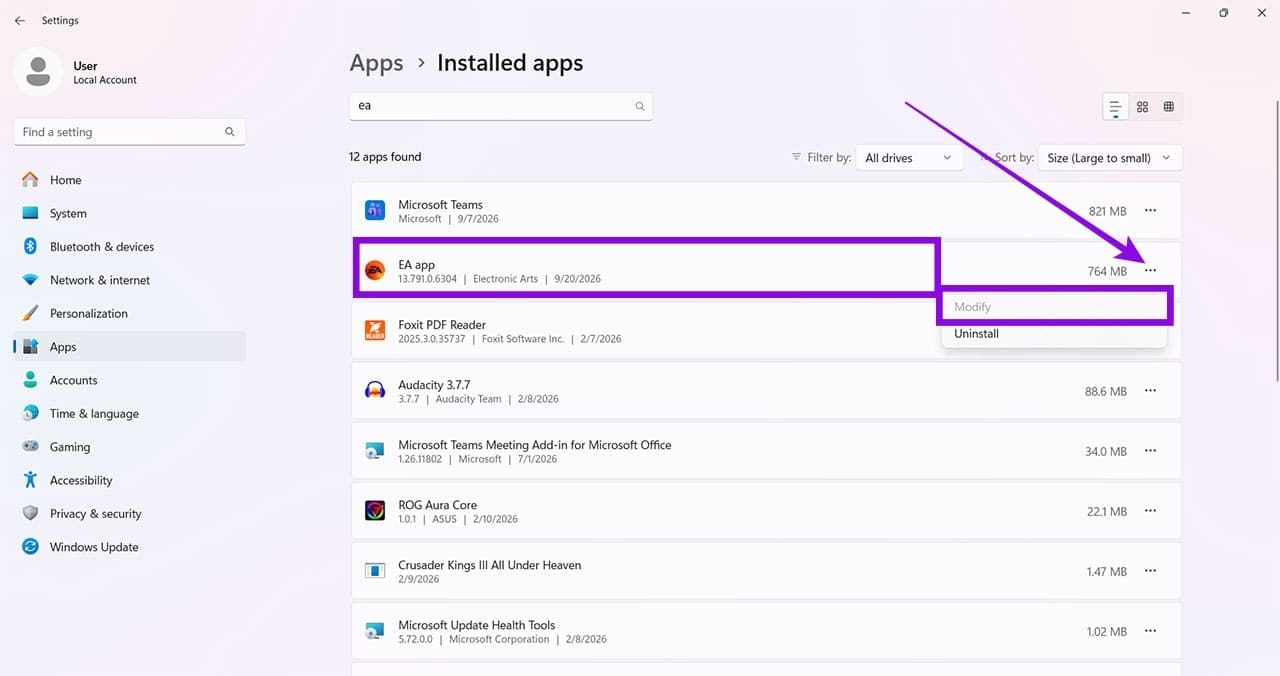
Step 4. Click the “Repair” button and allow the process to run. Once it’s finished, restart your PC and try opening the EA app again.
Disable the Antivirus
Sometimes an overzealous antivirus and firewall can block the app from accessing the servers to update and run. Try temporarily disabling your antivirus to see if the app starts normally. Also ensure that the app is added as an exception to your firewall.
Was this helpful?
Last updated on 26 September, 2026
Read Next
 7 Best Ways to Fix Kindle for PC Desktop App Won’t Open on Windows
Many users prefer the Kindle app on their desktop for reading eBooks.
7 Best Ways to Fix Kindle for PC Desktop App Won’t Open on Windows
Many users prefer the Kindle app on their desktop for reading eBooks.
 2 Fixes if WhatsApp Keeps Crashing or Won’t Open on iPhone
https://youtu.be/5vjjcO8-G2c Basic Fixes: Check WhatsApp server status: It is always worth checking if WhatsApp is working as expected.
2 Fixes if WhatsApp Keeps Crashing or Won’t Open on iPhone
https://youtu.be/5vjjcO8-G2c Basic Fixes: Check WhatsApp server status: It is always worth checking if WhatsApp is working as expected.
 Start Menu on Windows 10 Won’t Open: Here Are 11 Ways to Fix It
Windows Start Menu is a gateway to all the apps and software available on your system.
Start Menu on Windows 10 Won’t Open: Here Are 11 Ways to Fix It
Windows Start Menu is a gateway to all the apps and software available on your system.
 12 Best Fixes for Windows 10 Laptop Won’t Connect to iPhone Hotspot
I usually travel light with my Windows laptop and iPhone.
12 Best Fixes for Windows 10 Laptop Won’t Connect to iPhone Hotspot
I usually travel light with my Windows laptop and iPhone.
 4 Fixes for Microsoft Teams Notification Won’t Go Away on Windows
Fix 1: Open the Chat App and Clear Notifications (Windows 11 Only) Your Windows 11 PC includes a dedicated Chat app that can help you access and respond to your
4 Fixes for Microsoft Teams Notification Won’t Go Away on Windows
Fix 1: Open the Chat App and Clear Notifications (Windows 11 Only) Your Windows 11 PC includes a dedicated Chat app that can help you access and respond to your
 4 Fixes for Windows 11 Won’t Install on Your PC
We’ve seen many versions of Microsoft’s Windows operating system over the years, from the likes of Windows 95 and 98 through to the more recent releases of Windows 10 and
4 Fixes for Windows 11 Won’t Install on Your PC
We’ve seen many versions of Microsoft’s Windows operating system over the years, from the likes of Windows 95 and 98 through to the more recent releases of Windows 10 and
 Windows 11 25H2 Won’t Install – Common Fixes
Just when it seems you’re over the hurdle of installing Windows 11 24H2, along comes its successor a year later to make your life difficult all over again.
Windows 11 25H2 Won’t Install – Common Fixes
Just when it seems you’re over the hurdle of installing Windows 11 24H2, along comes its successor a year later to make your life difficult all over again.
 Cross Device Experience Host Won’t Install on Windows 11 – 5 Fixes to Try
The Cross Device Experience Host is a Microsoft feature that supports Windows' cross-device and mobile-device connectivity.
Cross Device Experience Host Won’t Install on Windows 11 – 5 Fixes to Try
The Cross Device Experience Host is a Microsoft feature that supports Windows' cross-device and mobile-device connectivity.
The article above may contain affiliate links which help support Guiding Tech. The content remains unbiased and authentic and will never affect our editorial integrity.