Method 1: Download Image
On Mobile
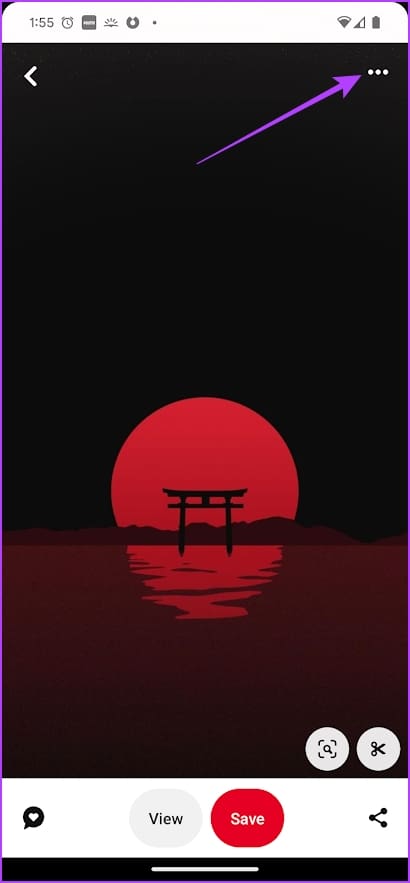
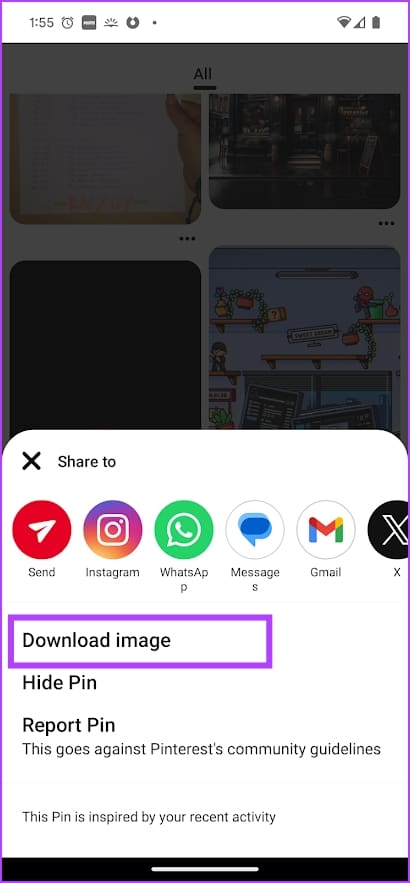
Open the image you want to download, tap on the three-dots icon at the top right, and select Download image.
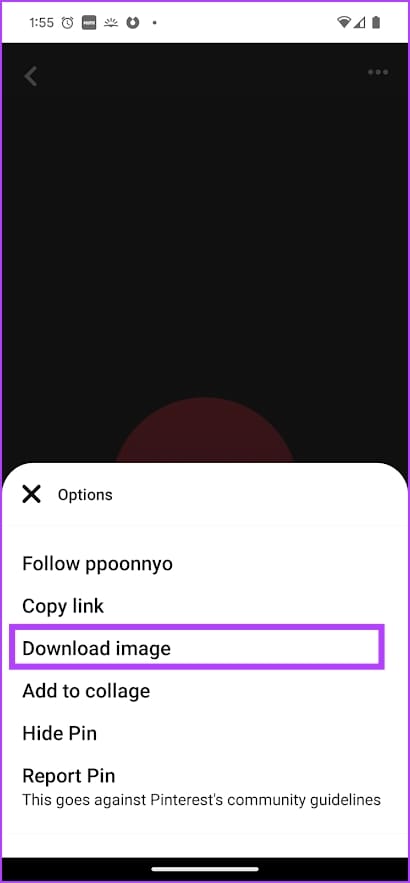
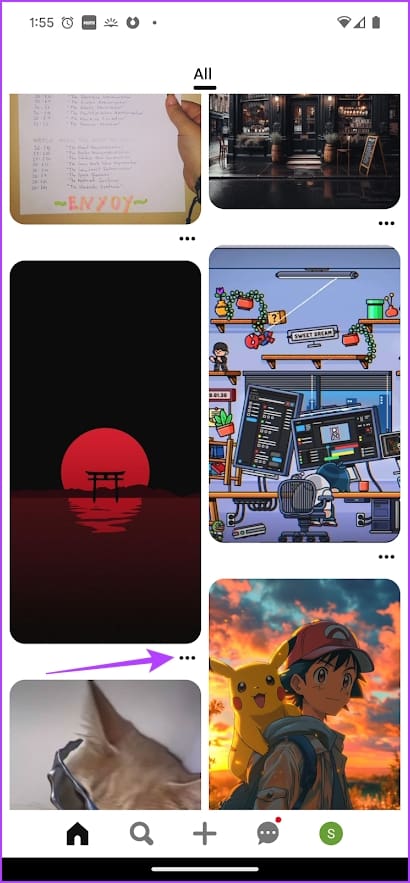
You can also download the image directly from your feed. Tap on the three-dots icon on the image, and select Download Image.
Also Read: Pinterest Pin vs Board: Know the difference
On Web
Step 1: Open the image you want to download, and tap on the three dots icon at the top right corner.
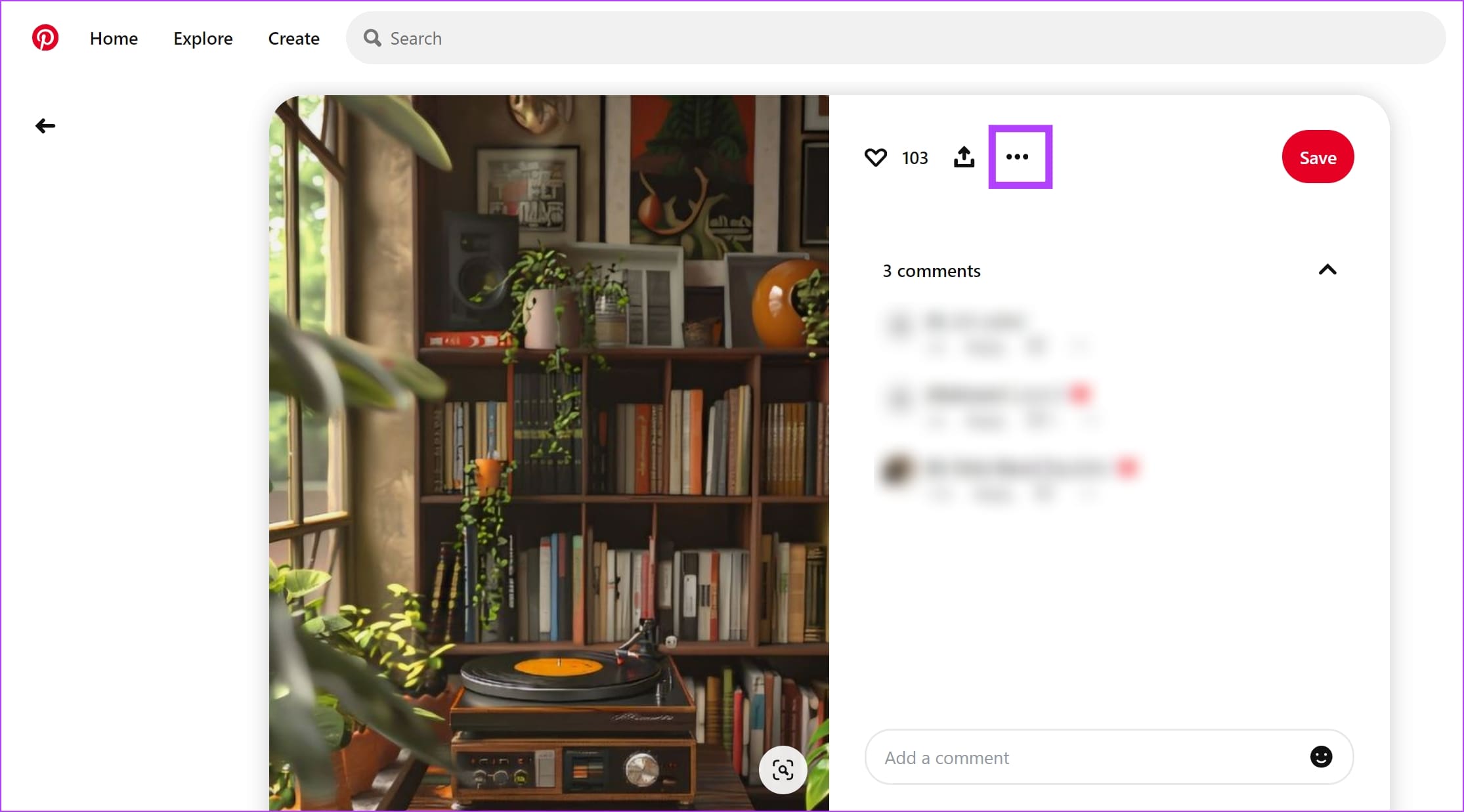
Step 2: Click on Download image.

Note: If the image looks blurry, right-click on it > Open the image in a new tab and then download it.
Method 2: Download All Images on a Board
Using this extension, you can download all the images you see on your Pinterest feed or a board at once.
Step 1: Download the Image Downloader extension from the Chrome Web Store.
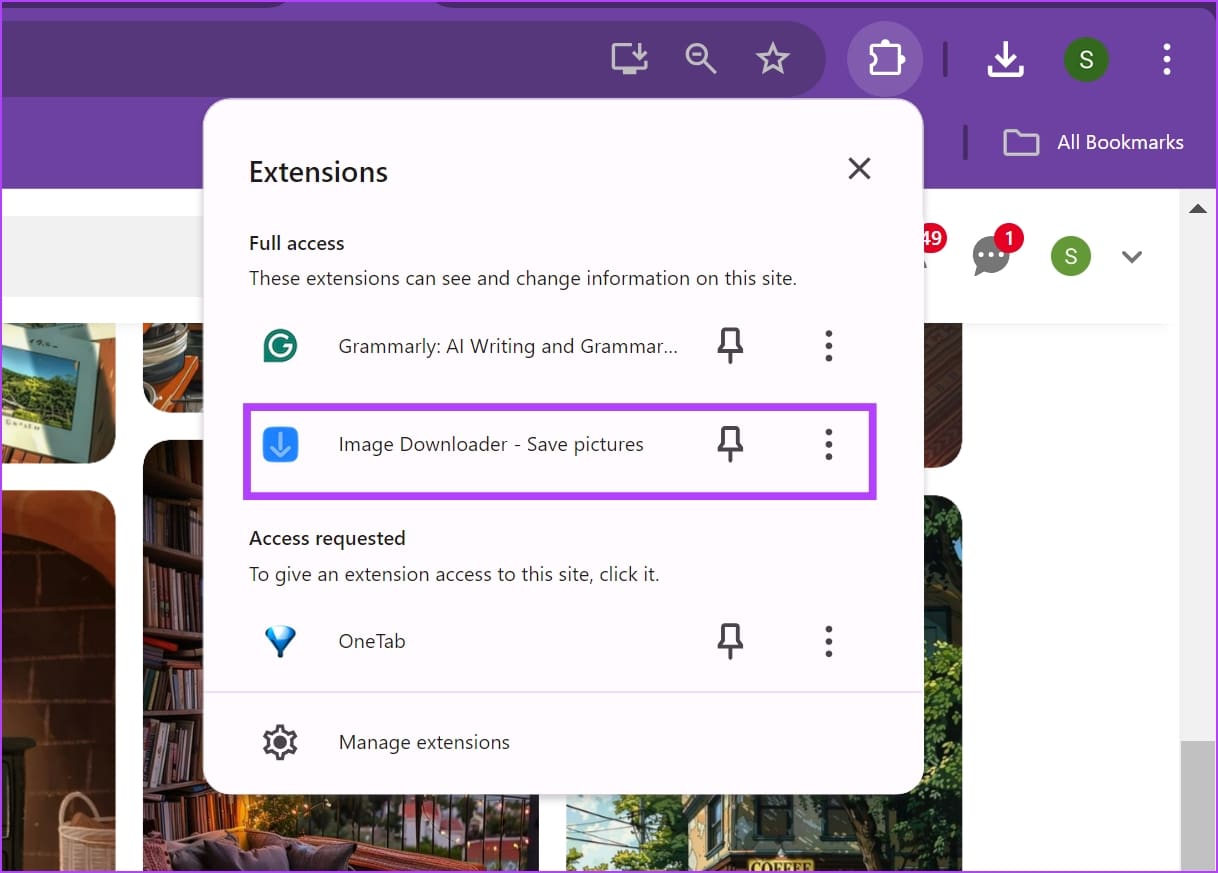
Step 2: After you install the extension, open Pinterest and the board from which you want to download images. Open the extensions menu, and select the extension.
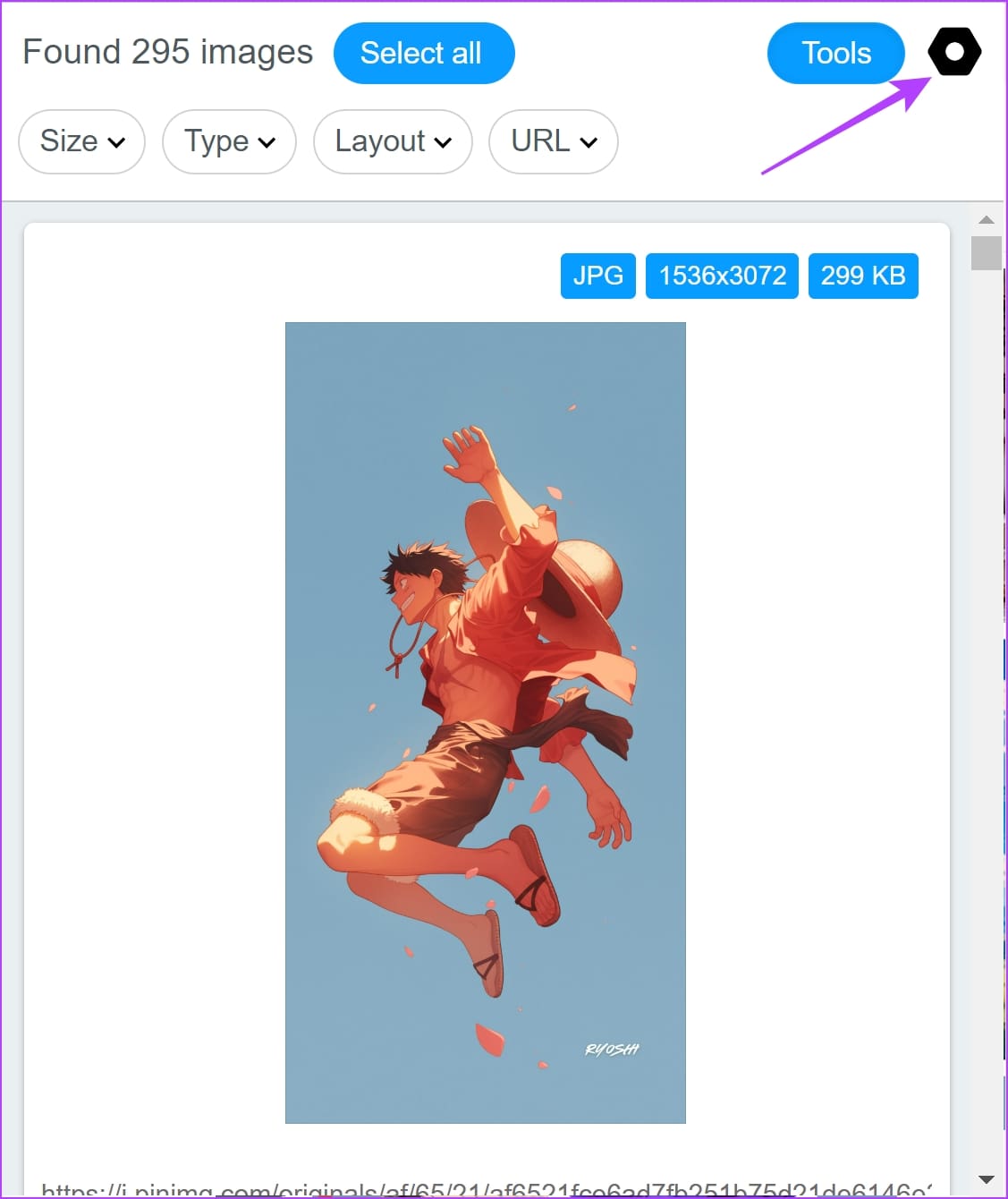
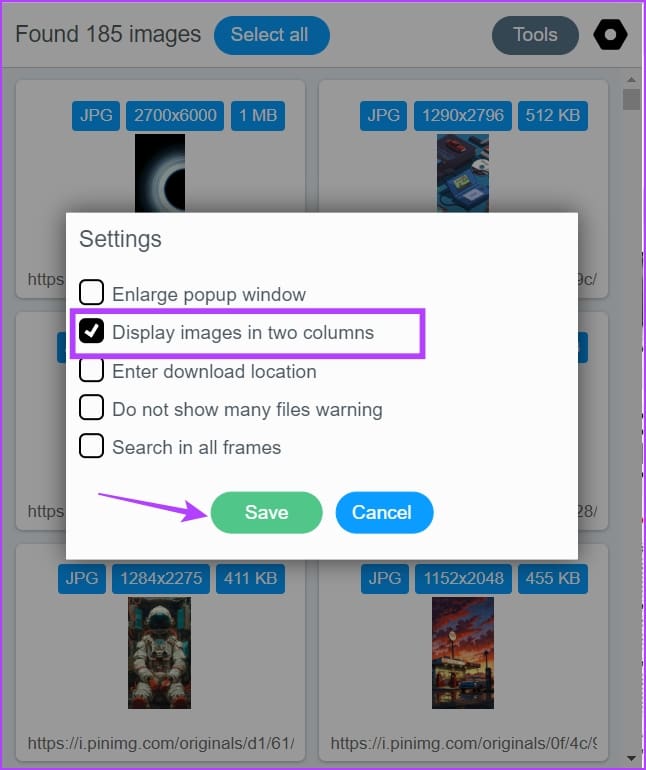
Step 3: Click on the settings icon at the top right. Select Display images in two columns and hit Save.
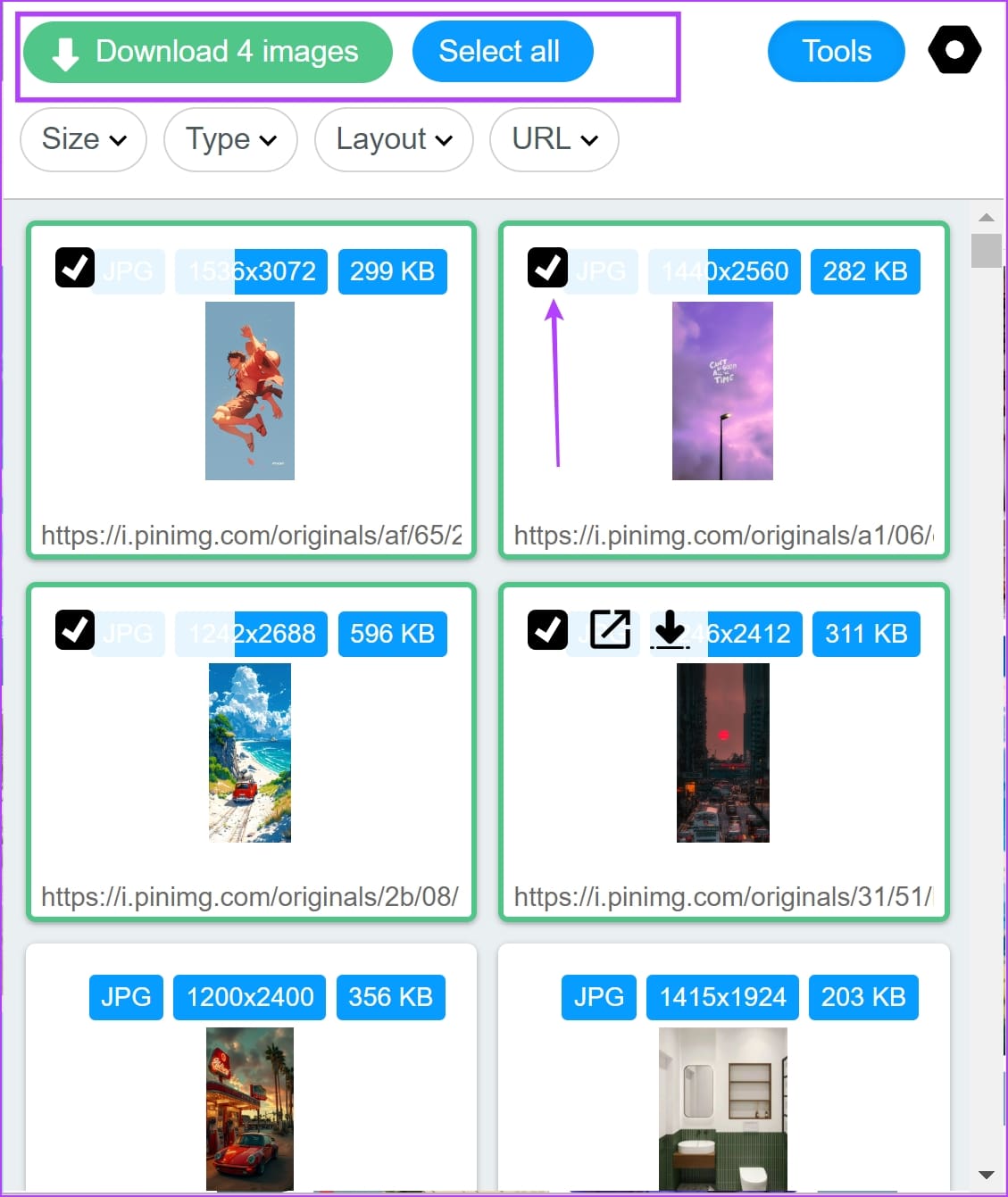
You can now see all the images from the feed/board. You can filter them by Size, Type, or Layout.
Step 4: Select individual images, or use the Select all option and Download all the images.
Also Read: How to download GIFs from Pinterest
Was this helpful?
Last updated on 27 August, 2024
Read Next
 How to Share Pinterest Boards on Desktop and Mobile
Pinterest is the one-stop destination to find any image primarily design ideas, trends, and inspirational photos.
How to Share Pinterest Boards on Desktop and Mobile
Pinterest is the one-stop destination to find any image primarily design ideas, trends, and inspirational photos.
 How to Download GIFs from Pinterest
Download GIFs from Pinterest on the Mobile App Method 1: Using the Native Download Button Step 1: Navigate to the GIF that you want to download.
How to Download GIFs from Pinterest
Download GIFs from Pinterest on the Mobile App Method 1: Using the Native Download Button Step 1: Navigate to the GIF that you want to download.
 Pinterest Pin vs Board: Know the Difference
What Are Pinterest Pins?
Pinterest Pin vs Board: Know the Difference
What Are Pinterest Pins?
 How to Download Emails From Outlook on Web, Desktop, and Mobile
How to Download an Email From Outlook’s Web Version Note: You may choose to skip this method if you have multiple emails you want to download.
How to Download Emails From Outlook on Web, Desktop, and Mobile
How to Download an Email From Outlook’s Web Version Note: You may choose to skip this method if you have multiple emails you want to download.
 How to Download Photos From Google Photos on Desktop and Mobile
If you save photos in Cloud services like Google Photos, you may want to download your precious memories to your local storage.
How to Download Photos From Google Photos on Desktop and Mobile
If you save photos in Cloud services like Google Photos, you may want to download your precious memories to your local storage.
 How to Download and Save Images From Google Docs on Phone and PC
How to Export Images From Google Docs on Desktop Method 1: Save to Google Keep Step 1: Open the Google Docs document to extract an image.
How to Download and Save Images From Google Docs on Phone and PC
How to Export Images From Google Docs on Desktop Method 1: Save to Google Keep Step 1: Open the Google Docs document to extract an image.
 5 Fixes for WhatsApp Desktop Not Downloading Images
Fix 1: Check Internal Storage If you can't download images using WhatsApp Desktop, start by checking your internal storage on Mac or Windows PC.
5 Fixes for WhatsApp Desktop Not Downloading Images
Fix 1: Check Internal Storage If you can't download images using WhatsApp Desktop, start by checking your internal storage on Mac or Windows PC.
 2 Best Ways to Create a Poll on Discord for Desktop and Mobile
Want a quick and easy way to gain input from friends, family, or a community on Discord?
2 Best Ways to Create a Poll on Discord for Desktop and Mobile
Want a quick and easy way to gain input from friends, family, or a community on Discord?
The article above may contain affiliate links which help support Guiding Tech. The content remains unbiased and authentic and will never affect our editorial integrity.