Download Internet Speed Meter for Windows for Real-Time Monitoring
To show internet speed in the taskbar on Windows, you will have to download a dedicated app known as NetSpeedMonitor.
The app was primarily designed to run on Windows Vista, XP, and 7. However, that doesn’t mean it won’t work on Windows 8 and above. However, you must run the installer in Compatibility mode. Don’t worry. We have mentioned the steps in detail. Follow along.
Step 1: Download NetSpeedMonitor.
Note: You will see two download options: x86 and x64. The first one is for 32-bit Windows systems and the second one is for 64-bit. Click on the desired option and save the file on your computer.

Step 2: Navigate to the folder where you downloaded the file.
If you are running Windows version below Windows 8, installation should start normally. Anything above it will throw an error that the operating system isn’t supported. Don’t worry. It’s time to tweak certain things.
Step 3: Right-click on the setup file and go to Properties.
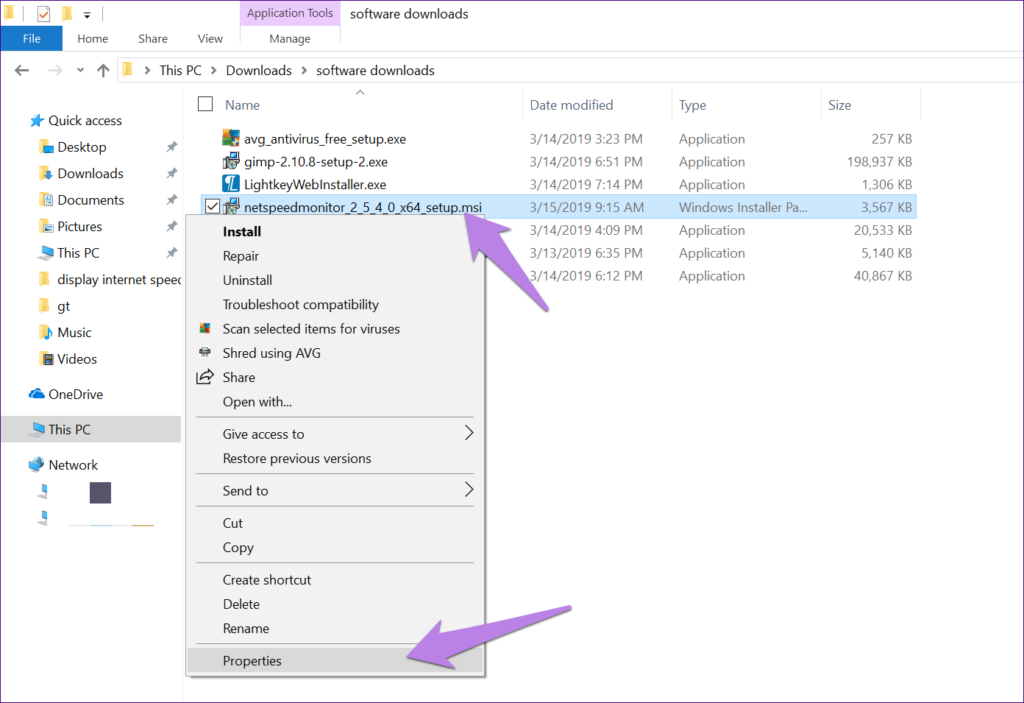
Step 3: Click on the Compatibility tab. Here, check the box next to Run this program in compatibility mode for:. The drop-down should show Previous version of Windows.
Step 4: Click on Apply followed by OK to save the changes.

Step 5: Now, double-click the setup file to begin the installation and follow the on-screen instructions during the installation process.
Once installed, you will have to enable the program.
Step 6: Right-click anywhere on your taskbar and hit the Toolbars option. Here select NetSpeedMonitor.

As soon as you enable it, you will see the upload and download speed on the taskbar.

Why Is NetSpeedMonitor Not Working
In case the visible download speeds are stuck at zero, here’s how to fix it.
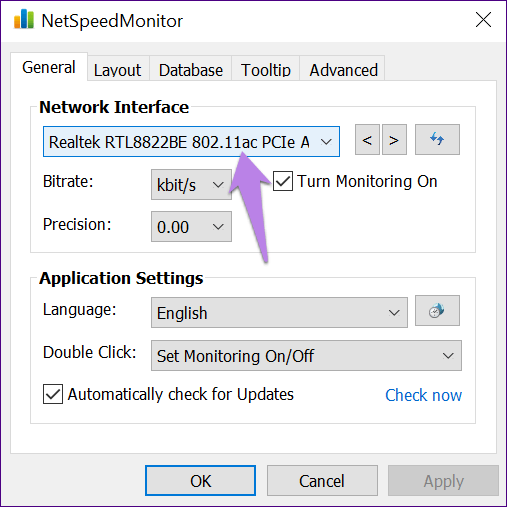
Step 1: Right-click the network speed monitor in the taskbar and select Configuration.

Step 2: In the NetSpeedMonitor window, change the Network interface to a different one and click OK.
The meter should be working now. If it’s still not working, repeat the process with other interfaces to find the one that works.
Tips and Tricks for Network Speed Monitor on Windows
Here are some useful tips and tricks to make the best use of the internet speed monitoring tool on your Windows computer.
1. Change the Speed Unit
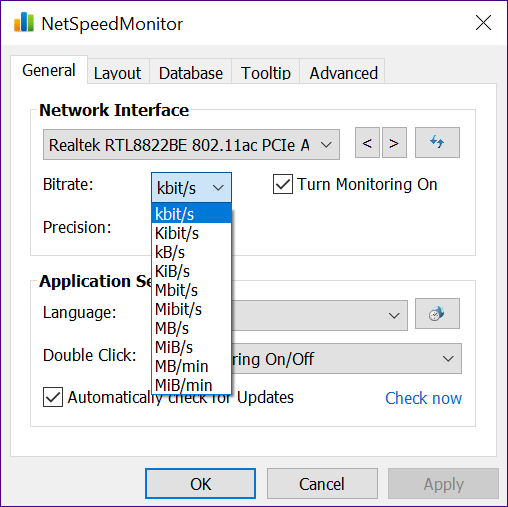
By default, the NetSpeedMonitor tool shows speed in kilobits/second (Kbit/s), which might look a bit weird for normal usage. To make it readable, we suggest changing it to kilobytes/second (KB/s), Megabits/second (Mbit/s), or any other metric that you like.
Fun Fact: The Internet and download speed are two different things.
To change the speed metric, right-click on the NetSpeedMonitor on the taskbar and select Configuration. Choose the speed unit from the drop-down menu next to Bitrate.
2. View Data Usage
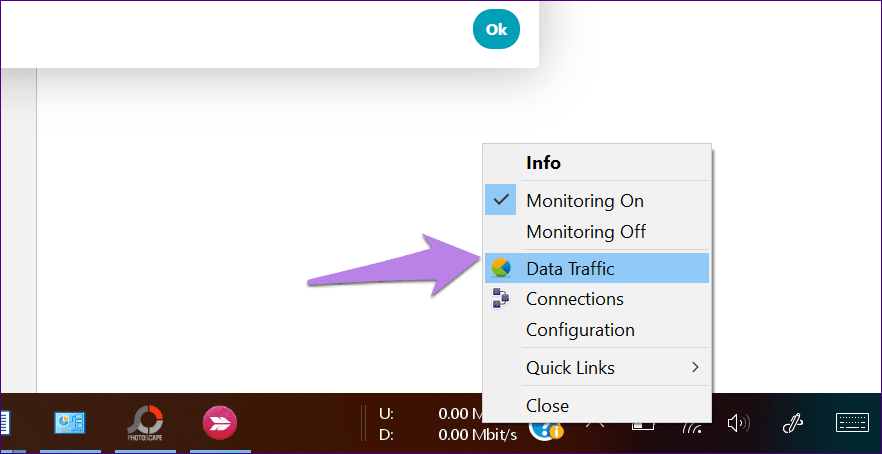
The NetSpeedMonitor tool not only shows the current internet speed but you can also use it to track your data usage. For that, right-click the NetSpeedMonitor meter on the taskbar and hit Data Traffic.
3. Change the Double Click Action
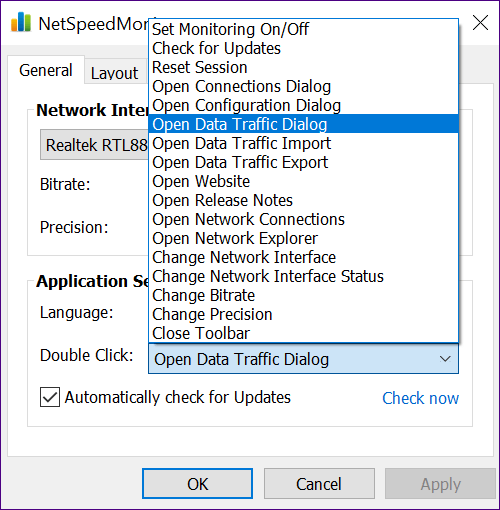
Double-clicking the NetSpeedMonitor tool on the taskbar is used to enable and disable the monitoring, by default. However, you can customize it and use it for an action of your choice. We have set it to open the data traffic window.
To change it, right-click the NetSpeedMonitor meter on the taskbar, go to Configuration, and choose the appropriate option for Double Click.
4. Customize Tool Font
If you like tinkering with fonts, the app lets you customize the font style and size. For that, right-click the NetSpeedMonitor meter on the taskbar > go to Configuration > Layout. Here, change the font.

Further, you can also customize the initials shown for upload and download speed in Layout.

5. Export Database
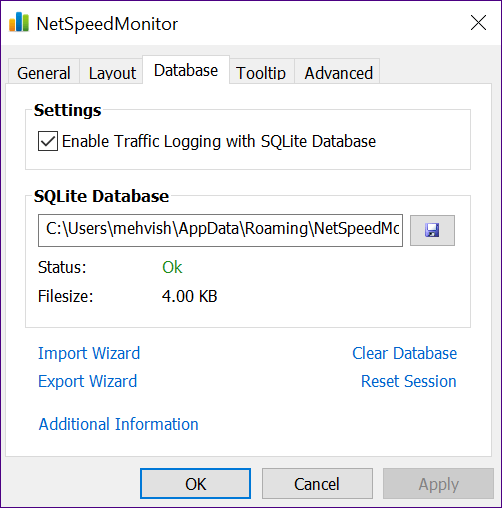
Since the tool records everyday data usage, you can export its database too. This is handy if you wish to get an overview of your data usage or speed patterns. To do so, right-click the NetSpeedMonitor meter on the taskbar > go to Configuration > Database > Export Wizard.
FAQs for Displaying Internet Speed on Taskbar in Windows
Yes, the NetSpeedMonitor app displays your network speed in real time by connecting to the internet. Hence, it is reliable and accurate.
Windows gives you the ability to check internet speeds using the command prompt. Launch a cmd window and enter “ping google.com”. You should be able to see the network speed listed.
Was this helpful?
Last updated on 30 August, 2024
Read Next
 5 Best Internet Speed Meter Apps for Windows 10 PC
Typically, when we want to check our internet speed, we do it using a speed test website.
5 Best Internet Speed Meter Apps for Windows 10 PC
Typically, when we want to check our internet speed, we do it using a speed test website.
 8 Ways to Fix Slow Internet Speed on Windows 11
https://youtu.be/JSqfxm-5XZI Fix 1: Turn Off the Metered Connection Setting your internet connection as metered on Windows can prevent apps from using the internet proficiently, leading to slow internet speeds.
8 Ways to Fix Slow Internet Speed on Windows 11
https://youtu.be/JSqfxm-5XZI Fix 1: Turn Off the Metered Connection Setting your internet connection as metered on Windows can prevent apps from using the internet proficiently, leading to slow internet speeds.
 Speedtest vs Fast: In-Depth Comparison of Two Internet Speed Test Providers
The present decade has seen data rates going down, with increased penetration of the internet.
Speedtest vs Fast: In-Depth Comparison of Two Internet Speed Test Providers
The present decade has seen data rates going down, with increased penetration of the internet.
 How to Show Internet Speed on Status Bar in Samsung Phones
Show Internet Speed on Samsung Sadly, Samsung has failed to implement the speed meter feature on their phones.
How to Show Internet Speed on Status Bar in Samsung Phones
Show Internet Speed on Samsung Sadly, Samsung has failed to implement the speed meter feature on their phones.
 How to Get Windows 11-Like Taskbar in Windows 10
Method 1: Use Stardock Start11 As Windows doesn’t have a setting to make the taskbar look like Windows 11, you can only rely on third-party apps like Stardock Start11.
How to Get Windows 11-Like Taskbar in Windows 10
Method 1: Use Stardock Start11 As Windows doesn’t have a setting to make the taskbar look like Windows 11, you can only rely on third-party apps like Stardock Start11.
 10 Ways to Fix Action Center Not Visible or Showing on Taskbar in Windows 10
The Action Center is a notification center where you can view, interact with, and dismiss all Windows 10 notifications.
10 Ways to Fix Action Center Not Visible or Showing on Taskbar in Windows 10
The Action Center is a notification center where you can view, interact with, and dismiss all Windows 10 notifications.
 How to Fix Windows 10 Invisible Taskbar Icons Issue
Pinning the frequently used apps to the taskbar is quite helpful.
How to Fix Windows 10 Invisible Taskbar Icons Issue
Pinning the frequently used apps to the taskbar is quite helpful.
 8 Best Ways to Fix Taskbar Disappeared or Missing on Windows 11
The Windows 11 taskbar is where you can find your favorite apps and the Start menu.
8 Best Ways to Fix Taskbar Disappeared or Missing on Windows 11
The Windows 11 taskbar is where you can find your favorite apps and the Start menu.
The article above may contain affiliate links which help support Guiding Tech. The content remains unbiased and authentic and will never affect our editorial integrity.