What Are Disappearing Messages in WhatsApp
If the ephemeral WhatsApp status wasn’t enough, Facebook launched another feature on WhatsApp: Disappearing messages. The feature works for both individual and group chats.
Facebook Messenger and Instagram got the vanish mode, where messages self-destruct after a specific time. Similarly, WhatsApp received the Disappearing messages feature.
When Disappearing messages are turned on in a personal or group chat, the messages sent until the feature is turned off will automatically disappear after seven days, just like the WhatsApp Status that disappears after 24 hours.
What Does ‘Disappearing Messages Were Turned off’ Alert Mean
When a user enables Disappearing messages in the chat, WhatsApp notifies the participants by showing an alert message. They will see the ‘turned on disappearing messages‘ message. Similarly, when the Disappearing messages are turned off, WhatsApp again notifies about it. That’s why you see turned off disappearing messages.


You or the other person can enable or disable the Disappearing messages feature in a one-on-one chat. Note that if you enable the feature, your name will be mentioned in the message notifying you about it. Moreover, the other person can also disable it. However, only Group admins can activate or deactivate the feature in WhatsApp Groups.
What Happens When Disappearing Messages Are Turned Off
As mentioned above, when Disappearing messages are turned on, the messages sent during that period will get deleted automatically within seven days. However, when you turn off Disappearing Messages, all the text and multimedia you share will continue to appear like normal messages. Any message that has been quoted or forwarded will still show up.
The rules are slightly different for the media received during Disappearing messages. If WhatsApp auto-download is enabled, the media gets saved in your gallery as well. Even though the media will be removed from the WhatsApp chat after seven days of disappearing messages, it will not be deleted from your phone. You will have to remove it from your phone’s storage manually.
Tip: Find out in detail how to delete WhatsApp photos from Android and iPhone.
The Disappearing messages rules will not apply to any new messages you receive after disabling the feature. The new messages will not be deleted unless you delete them using the Delete for everyone feature.
How to Turn on or off Disappearing Messages in Personal Chats
If someone disables the disappearing messages, you can enable it again if you want some messages to disappear. Here is how:
Note: The screenshots are taken on an Android phone, but the steps are the same for iPhone.
Step 1: Open the WhatsApp chat where you want to enable or disable the Disappearing messages.
Step 2: Tap on the contact’s name at the top of the chat. Tap on Disappearing messages.


Step 3: Select the box next to On or Off to enable or disable Disappearing messages, respectively.
Enable or Disable Disappearing Messages in WhatsApp Groups
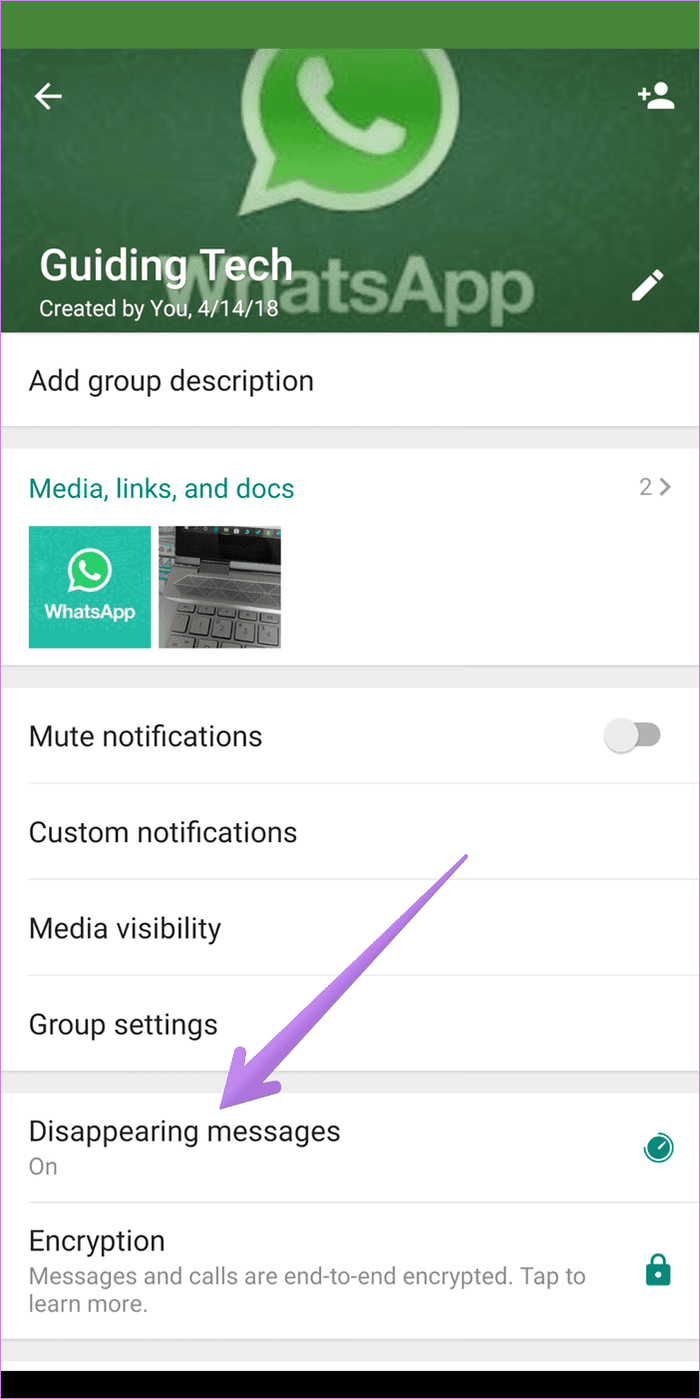
Like other privileges enjoyed by WhatsApp group admins, only they have the right to enable or disable disappearing messages in group chats. Follow the below steps to do so.
Step 1: Open the WhatsApp group where you want to turn on or off Disappearing messages.
Step 2: Tap on the group name at the top of the chat > select Disappearing messages > enable or disable them on the next screen.

Was this helpful?
Last updated on 29 May, 2024
Read Next
 Why Do My Telegram Messages Keep Disappearing?
Your Contact Is Deleting Your Messages On WhatsApp, you have a certain time window to delete messages from both sides.
Why Do My Telegram Messages Keep Disappearing?
Your Contact Is Deleting Your Messages On WhatsApp, you have a certain time window to delete messages from both sides.
 How to Send Disappearing Messages in Facebook Messenger
Send Disappearing Messages in Facebook Messenger Mobile App The process of sending disappearing messages on the mobile app is the same for Android and iOS devices.
How to Send Disappearing Messages in Facebook Messenger
Send Disappearing Messages in Facebook Messenger Mobile App The process of sending disappearing messages on the mobile app is the same for Android and iOS devices.
 How to Send Silent and Disappearing Messages on Instagram
Send Silent Messages on Instagram Whether the recipient’s phone is on DND (Do Not Disturb) or not, silent messages won’t produce a notification on their phone.
How to Send Silent and Disappearing Messages on Instagram
Send Silent Messages on Instagram Whether the recipient’s phone is on DND (Do Not Disturb) or not, silent messages won’t produce a notification on their phone.
 Top 4 Ways to Fix Taskbar Turned White Issue in Windows 10
Most of us click on the Taskbar to access frequently used apps, services, view time, and so on.
Top 4 Ways to Fix Taskbar Turned White Issue in Windows 10
Most of us click on the Taskbar to access frequently used apps, services, view time, and so on.
 How to Fix Windows Security Center Is Turned off Error
The Windows Security Center comes preinstalled with all versions of Windows 10 computers.
How to Fix Windows Security Center Is Turned off Error
The Windows Security Center comes preinstalled with all versions of Windows 10 computers.
 3 Ways to Fix Mouse Pointer Disappearing in Google Chrome
Try Basic Fixes Restart Google Chrome: Press Ctrl + L to access the address bar at the top, type in chrome://restart and press Enter.
3 Ways to Fix Mouse Pointer Disappearing in Google Chrome
Try Basic Fixes Restart Google Chrome: Press Ctrl + L to access the address bar at the top, type in chrome://restart and press Enter.
 7 Top Ways to Fix OneNote Notebook Disappearing Error on Windows
Microsoft OneNote has gone through a number of iterations.
7 Top Ways to Fix OneNote Notebook Disappearing Error on Windows
Microsoft OneNote has gone through a number of iterations.
 How to Fix Desktop Icons Disappearing on Windows 11
Basic Fixes Run a malware scan: Malware is a common source of corruption that may lead to this icon issue.
How to Fix Desktop Icons Disappearing on Windows 11
Basic Fixes Run a malware scan: Malware is a common source of corruption that may lead to this icon issue.
The article above may contain affiliate links which help support Guiding Tech. The content remains unbiased and authentic and will never affect our editorial integrity.