Method 1: Don’t Allow Deleting Apps
In the Content Restrictions menu on your iPhone, you can disable deleting apps. This setting is protected by your screen time password, and cannot be modified without authentication.
Step 1: Open Settings > Screen Time > Conten & Privacy Restritions > iTunes & App Store Purchases

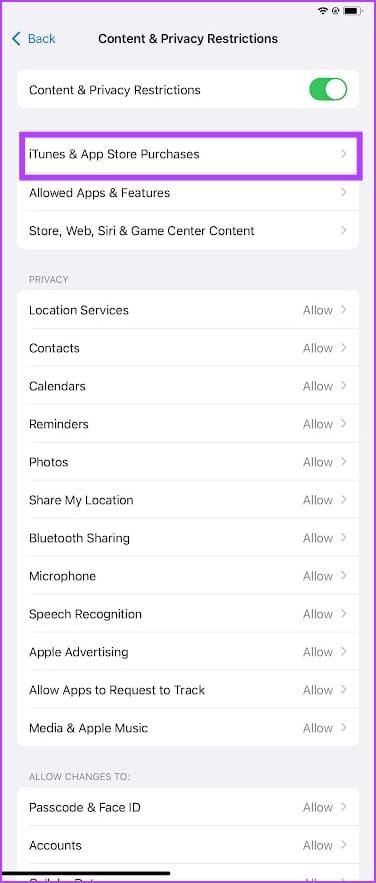
Step 2: Tap on Deleting Apps > Don’t Allow.


Method 2: Disable Offload Unused Apps
If you’ve enabled Offload Unused Apps, your iPhone will automatically Offload apps to free up storage. Here’s how you can turn it off.
Open Settings > App Store and turn off Offload Unused Apps.

Also Read: What’s the difference between offloading and deleting apps in iOS and iPadOS?
Was this helpful?
Last updated on 28 August, 2024
Read Next
 How to Restrict or Disable Instant Messaging on Tumblr
Restrict or Disable Messaging on Tumblr If you're tired of getting constant message notifications on Tumblr, disabling the Instant Messaging feature becomes reasonable.
How to Restrict or Disable Instant Messaging on Tumblr
Restrict or Disable Messaging on Tumblr If you're tired of getting constant message notifications on Tumblr, disabling the Instant Messaging feature becomes reasonable.
 How to Restrict Battery Charging at 80% on iPhone
On iPhone 15 Series The iPhone 15 series has a new feature called 80% Limit that allows you to restrict battery charging to 80%.
How to Restrict Battery Charging at 80% on iPhone
On iPhone 15 Series The iPhone 15 series has a new feature called 80% Limit that allows you to restrict battery charging to 80%.
 Why Am I Getting Calls When Do Not Disturb or Focus Mode Is On
Stop Getting Calls During DND or Focus Mode on iPhone 1.
Why Am I Getting Calls When Do Not Disturb or Focus Mode Is On
Stop Getting Calls During DND or Focus Mode on iPhone 1.
 4 Ways to Fix Apple Watch Not Showing or Getting Notifications
Basic Fixes Ensure the Apple Watch is connected to the iPhone: The Apple Watch uses Bluetooth, so it must be connected to your iPhone to receive notifications.
4 Ways to Fix Apple Watch Not Showing or Getting Notifications
Basic Fixes Ensure the Apple Watch is connected to the iPhone: The Apple Watch uses Bluetooth, so it must be connected to your iPhone to receive notifications.
 How to Stop Getting Calls From Blocked Numbers
Method 1: Review the Blocked Numbers List Before you delve deeper, double-checking the list of blocked numbers on your phone should fix calls from blocked contacts.
How to Stop Getting Calls From Blocked Numbers
Method 1: Review the Blocked Numbers List Before you delve deeper, double-checking the list of blocked numbers on your phone should fix calls from blocked contacts.
 Instagram Restrict vs. Block: Which Privacy Option Should You Use
What Does Restrict Mean on Instagram Touted as an anti-bullying feature, restrict on Instagram helps avoid unwanted interactions without letting the other person know about it.
Instagram Restrict vs. Block: Which Privacy Option Should You Use
What Does Restrict Mean on Instagram Touted as an anti-bullying feature, restrict on Instagram helps avoid unwanted interactions without letting the other person know about it.
 What Happens When You Restrict Someone on Instagram
Here is the list of things you should know when restricting someone on Instagram.
What Happens When You Restrict Someone on Instagram
Here is the list of things you should know when restricting someone on Instagram.
 4 Ways to Fix “We Restrict Certain Activity to Protect Our Community” on Instagram
Basic Fixes Check if Instagram is down: Check if Instagram is facing downtime.
4 Ways to Fix “We Restrict Certain Activity to Protect Our Community” on Instagram
Basic Fixes Check if Instagram is down: Check if Instagram is facing downtime.
The article above may contain affiliate links which help support Guiding Tech. The content remains unbiased and authentic and will never affect our editorial integrity.