Remove Recent Files in Adobe Reader Desktop
Step 1: On the Recent list, hover over the shortcut you want to delete.
Step 2: Next, click the checkbox on the left of the listing to select it. A separate pane should appear on the screen.
Step 3: Click Remove From Recent to remove the file listing from Recent. You can also select multiple items and remove them in a single go.
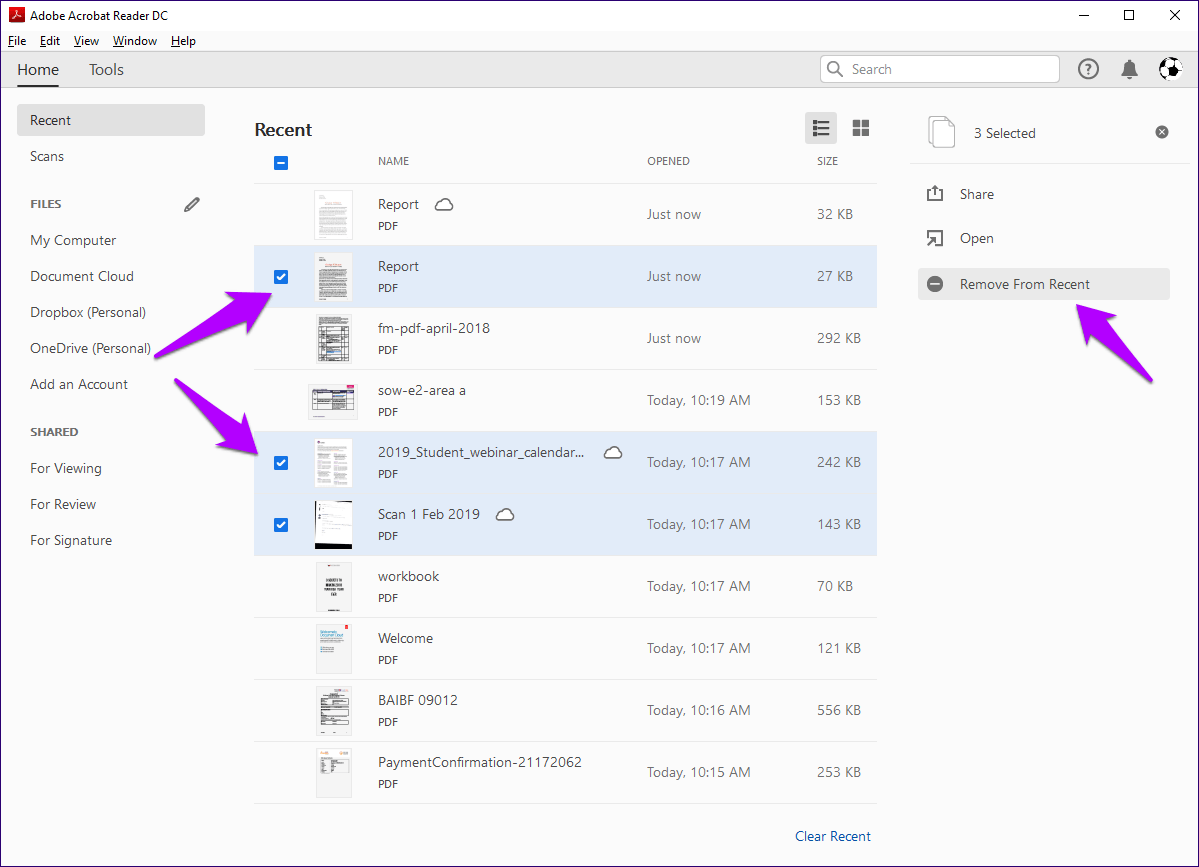
If you have many items on the list and want to remove the majority of them, make selecting them less of a chore by checking the box right underneath Recent. That prompts the application to select all items on the list. Then, you may uncheck the items that you want to keep on the list.

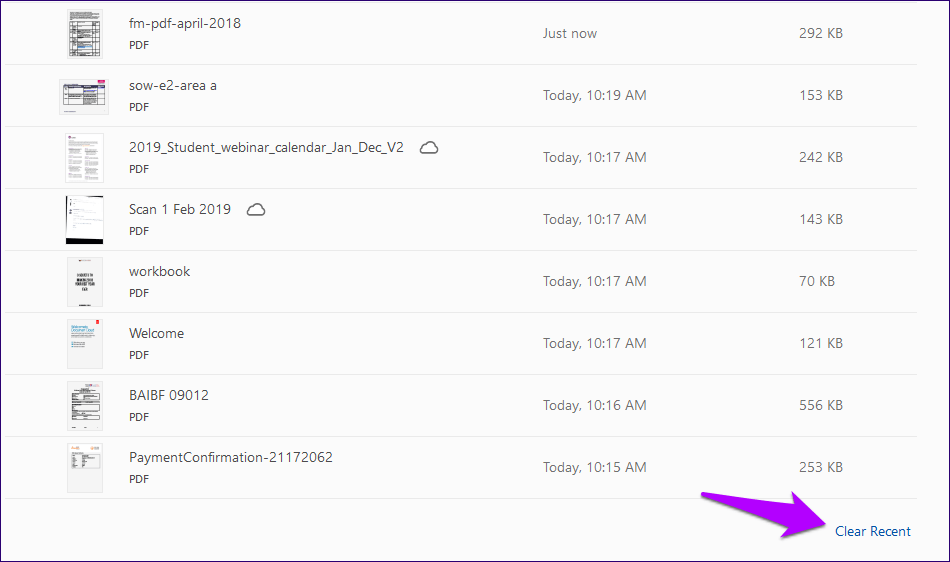
Additionally, you can also choose to clear the entire list immediately. There’s a Clear Recent option in the lower-right corner of the window. Click it, then click Clear List on the confirmation pop-up to flush out the entire list.
Disable Recent Files in Adobe Reader Desktop
If you don’t like Recent files populating a list of every file you open, configure Adobe Acrobat to stop showing them.
Step 1: Pull down the Edit menu and click Preferences in the Adobe Acrobat Reader application.

Step 2: On the Preferences pane, click the Documents tab. In the box next to Documents in the recently used list, enter 0.
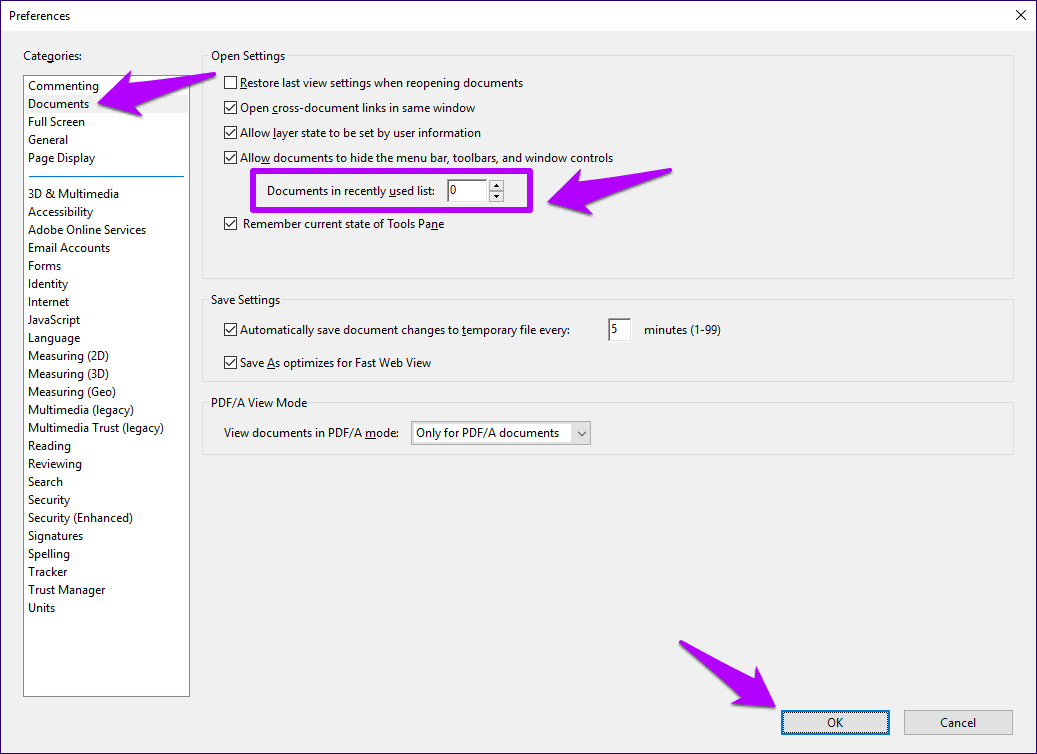
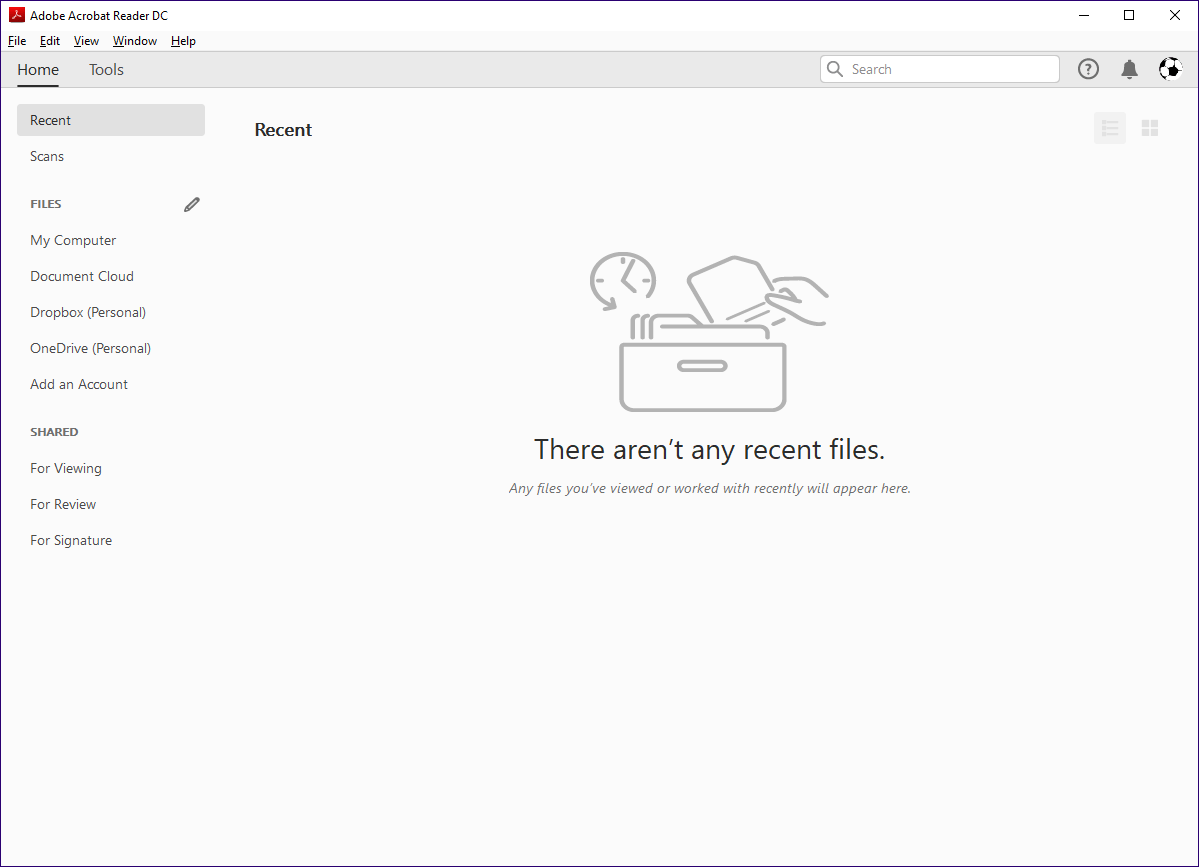
Step 3: Click OK to save your changes. After that, no recently opened files should show up.
Clear Recent Files in Adobe Reader Mobile
On Android
Step 1: On the Android version of Adobe Acrobat Reader, you can remove the shortcut by tapping the three-dot icon next to a listed item.
Step 2: On the menu that appears, tap Remove From Recent to remove the shortcut.


Step 3: To remove multiple shortcuts from the list, tap and hold any one item to enter selection mode.
Step 4: Then, check the boxes following the items you want to remove, tap the three-dot icon at the upper-right corner of the screen, and tap Remove From Recent.


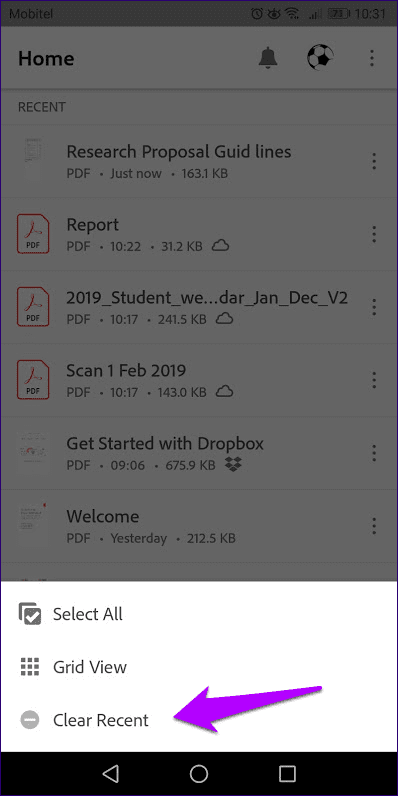
Step 5: You can also clear the entire list simultaneously. To do that, tap the three-dot icon at the screen’s upper-right corner without selecting any item and tap Clear Recent.

On iOS
Removing items from the Recent list on the iOS version of Adobe Acrobat DC is similar to that on Android, except when selecting multiple items for deletion.
Step 1: Tapping and holding will not work. Hence, tap the three-dot icon > Select to enter the selection mode.


Step 2: After selecting the shortcuts you want to delete, tap the correct icon (circle with a minus), as shown in the image above. Tapping the trash icon will also delete the file, so be careful.
Was this helpful?
Last updated on 08 July, 2024
Read Next
 How to Open Files in Separate Windows on Adobe Acrobat Pro, Standard, and Reader DC
The tabbed-view in Adobe Acrobat Pro, Standard, and Reader DC is a mixed bag.
How to Open Files in Separate Windows on Adobe Acrobat Pro, Standard, and Reader DC
The tabbed-view in Adobe Acrobat Pro, Standard, and Reader DC is a mixed bag.
 How to Enable Scrolling By Default in Adobe Acrobat DC and Reader DC
Switching to your preferred page mode in Adobe Acrobat DC and Acrobat Reader DC often disables continuous scrolling.
How to Enable Scrolling By Default in Adobe Acrobat DC and Reader DC
Switching to your preferred page mode in Adobe Acrobat DC and Acrobat Reader DC often disables continuous scrolling.
 How to Fit Full Page to Window By Default in Adobe Acrobat DC and Reader DC
Adobe Acrobat DC and Acrobat Reader DC prefer fitting pages by width.
How to Fit Full Page to Window By Default in Adobe Acrobat DC and Reader DC
Adobe Acrobat DC and Acrobat Reader DC prefer fitting pages by width.
 5 Fixes for Adobe Acrobat Reader Not Opening in Windows 11/10
Before starting the fixes, please note that Adobe Acrobat Reader DC and Adobe Acrobat Reader are the same now.
5 Fixes for Adobe Acrobat Reader Not Opening in Windows 11/10
Before starting the fixes, please note that Adobe Acrobat Reader DC and Adobe Acrobat Reader are the same now.
 How to Hide or Remove the Adobe Reader DC Tools Pane Permanently
Just launch a PDF in Adobe Reader DC, and you should find a Tools pane pop up to the right of the screen.
How to Hide or Remove the Adobe Reader DC Tools Pane Permanently
Just launch a PDF in Adobe Reader DC, and you should find a Tools pane pop up to the right of the screen.
 How to Remove Recent Files From Quick Access in Windows 11
Remove Files and Folders From Quick Access in File Explorer If you want to remove only specific files or folders from Quick Access (or Home) in File Explorer, follow the
How to Remove Recent Files From Quick Access in Windows 11
Remove Files and Folders From Quick Access in File Explorer If you want to remove only specific files or folders from Quick Access (or Home) in File Explorer, follow the
 How to Change the Author Name for Comments in Adobe Acrobat
Method 1.
How to Change the Author Name for Comments in Adobe Acrobat
Method 1.
 How to Add or Remove PDF Background Using Adobe Acrobat
Change Background in a PDF File If you have an Adobe Acrobat Pro subscription, you can change the background color of your PDF using the Edit PDF tool.
How to Add or Remove PDF Background Using Adobe Acrobat
Change Background in a PDF File If you have an Adobe Acrobat Pro subscription, you can change the background color of your PDF using the Edit PDF tool.
The article above may contain affiliate links which help support Guiding Tech. The content remains unbiased and authentic and will never affect our editorial integrity.