Recovering deleted photos from an SD card depends entirely on how they were lost. If you delete photos from an SD card while connected to a Mac, you can restore them instantly from the Trash (ensure the SD card is still connected to the Mac).
However, on Windows, you aren’t quite as lucky. Files deleted from external drives on Windows bypass the Recycle Bin and are entirely removed. In such scenarios, your only lifeline is a recent backup; otherwise, photo recovery software becomes your last resort.
Accidental deletion isn’t the only way you lose your photos from an SD card. SD cards can often face formatting errors, corrupted file systems, hidden files, or physical damage causing data loss. Each of these scenarios demands a different approach for recovery.
This guide covers seven different methods to restore lost or deleted SD card photos, from free checks to pro recovery. We also compare popular tools so you can pick the right one.
Do This Before Recovering Your Photos
- Stop using the card: Do not shoot, copy, save, or format the SD card.
- Remove it safely: Eject it from the camera or PC first.
- Avoid camera cables: Use a card reader for direct and more stable connectivity.
- Never save recovered files to the same card: Use your PC’s drive.
Why Do Photos Disappear from an SD Card?
Photos disappear from SD cards due to human error, software glitches, and physical damage to the storage media.
- Accidental Deletion: Pressing “Delete All” on a camera or deleting files while connected to a computer is the most common cause.
- Accidental Formatting: Formatting the entire SD card when it’s connected to your camera or your computer.
- File System Corruption: Unplugging the card during a transfer or right after taking a photo can corrupt the card’s file system, turning it into a “RAW” drive.
- Interrupted File Transfers: Sudden power loss, a dying laptop battery, or a loose cable during a transfer can leave files partially written and unreadable.
- Using the Card Across Multiple Devices: Sharing one single SD card between a drone, phone, and camera can corrupt the card.
- Physical Damage and Wear: Dust, dirt, scratches, or exposure to moisture and heat can damage the internal flash memory chip.
Here’s a device-wise breakdown of photo loss causes from an SD card for better understanding.
| Device Type | Common Causes of Photo Disappearance |
|---|---|
| Digital Cameras (DSLR/Mirrorless) |
|
| Smartphones & Tablets |
|
| Drones & Action Cams |
|
| Computers (Mac/Windows PC) |
|
How to Recover Deleted or Lost SD Card Photos?
Trying to recover deleted, lost, or disappeared photos from your SD card? Whether you lost photos from an SD card due to accidental deletion, formatting, card corruption, or physical damage, this guide has all the answers.
Note: Mac users should check the trash bin before trying these recovery attempts. However, photos deleted from an SD card on a Camera or Windows PC bypass the Recycle Bin or Trash.
Method 1: Check Backups and Cloud Sync
Start with the easy recovery methods. Many phones and cameras silently back up your photos to a cloud backup service. This can save you time and effort, only if auto-backup was enabled previously.
Check these places:
- Google Photos or iCloud. Open the app and look in “Trash” or “Recently Deleted.”
- OneDrive, Dropbox, or DCIM Upload folders. Look for synced copies.
- Your PC or laptop. Search for the photo’s file name.
- Camera companion apps. Nikon Imaging Cloud, Sony Ci Media Cloud, Canon, or Fujifilm XApp keep copies of photos if a backup was created previously.
Method 2: Use Stellar Photo Recovery
Regardless of the device you use or how the data was lost, using dedicated photo recovery software is the most dependable solution for deleted or formatted SD cards. It bypasses the corrupted operating system by reading the card at a sector-by-sector level, allowing it to locate and rebuild files that the card’s file system no longer lists.
Stellar Photo Recovery has been preferred by many for this job. It supports all types of SD cards, including SDHC, SDXC, microSD, MMC, CF cards, and others on both Windows and Mac. It also handles RAW formats from major camera brands, plus video files. In our tests, it also detected a physically damaged SD card and attempted recovery of inaccessible files.
Steps:
- Connect the card. Insert it into a card reader and plug it into your PC or Mac.
- Open the software. Choose “Photos” or “Everything,” then select your SD card.
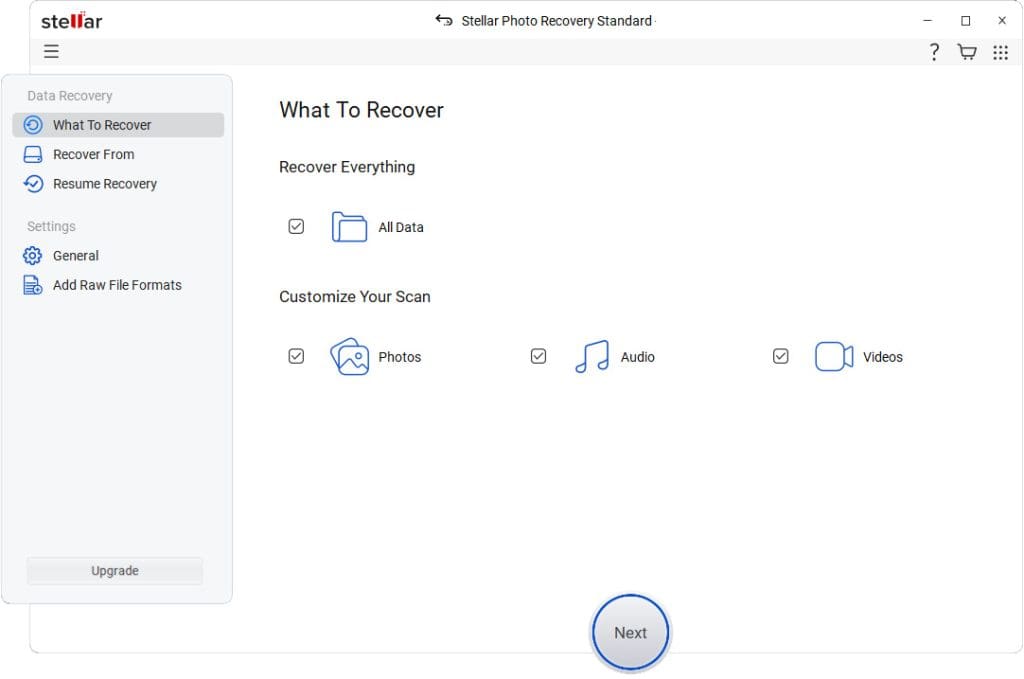
- Start the scan. Use Quick Scan first. Use Deep Scan if photos are missing after formatting.

- Preview your photos. Double-click on the image to preview it before you recover anything.

- Save to a safe drive. Pick a folder on your computer and save it there. The trial plan allows recovery of 10 files for free.
Pro tip: If the card was formatted, go straight to Deep Scan. It takes longer but finds more.
Method 3: Try Other Recovery Tools
While Stellar Photo Recovery stands out as our top recommendation due to its performance, it is far from your only choice. Certain free alternatives exist depending on your technical needs. Below, we have compared the free data recovery alternatives based on our hands-on testing and their core features so you can find the perfect match for your situation.
Recuva (Windows only). It’s simple and quick for recent deletions. It’s a good first free attempt. But it has no Mac version, and results on formatted cards can be limited. However, there is a limited preview option.
PhotoRec (Windows, Mac, Linux). It’s free and open-source, and it recovers many file types. The trade-off is a text-based interface and lost file names. However, there is no preview option. Photos often come back as generic names like “f12345.jpg.”
Note: A full format on an SD card overwrites the entire data layer with zeros, making files permanently unrecoverable or allowing only partial recovery even for advanced software.
How to choose:
- Want a simple, guided process and RAW support? Go with Stellar.
- Want to operate a command-line tool and need a free tool? Try PhotoRec.
- Need a quick check on Windows for free? Try Recuva first.
Method 4: Run CHKDSK to Fix File System Errors
Sometimes, photos aren’t deleted. The card’s file system is damaged, so files look missing. Windows can often fix this.
- Press Windows + S, type cmd, right-click it, and choose Run as administrator.
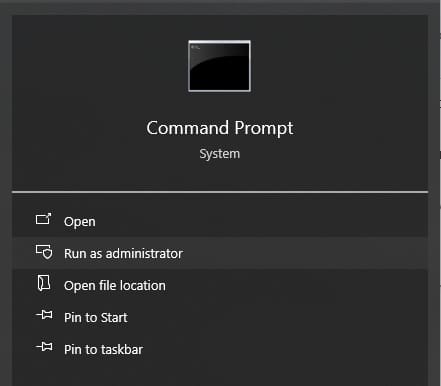
- Type
chkdsk E: /f /rand press Enter. Replace E: with your card’s drive letter.

- Wait for the scan to finish.
This repairs errors and checks for bad sectors. Don’t interrupt it.
Run this after your files are safe if the card is behaving oddly. If the card is failing, CHKDSK can make things worse. When photos are critical, scan with recovery software first.
Method 5: Unhide Files With ATTRIB
Viruses or errors can hide your photos. They’re still on the card but invisible.
- Open Command Prompt as administrator.
- Type
attrib -h -r -s /s /d E:\*.*and press Enter. Replace E: with your card letter.
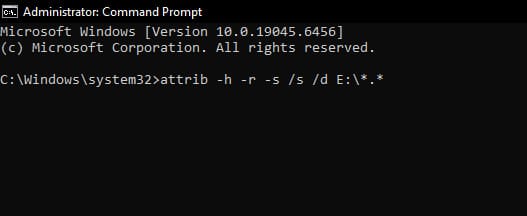
- Open the card in File Explorer.
Look for new folders or files that were hidden before.
Method 6: Restore From File History or Previous Versions
This works only if the photos were stored in a folder on your PC. Windows may have kept earlier versions.
- Open the folder in File Explorer.
- Right-click it and select Properties.
- Open the Previous Versions tab.
- Pick a version from before the deletion and click Restore.
No versions listed? File History probably wasn’t on. Move on to the next method.
Method 7: Fix a Card That Doesn’t Show Up
If the card isn’t visible, you may have a drive letter conflict. Recovery tools can’t scan what Windows doesn’t show.
- Right-click Start and open Disk Management.

- Find your SD card in the list.
- Right-click its partition and choose Change Drive Letter and Paths.
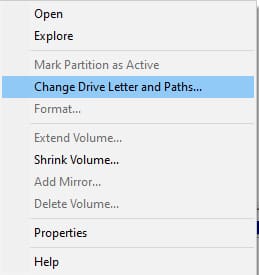
- Click Change, pick an unused letter, and click OK.
If Disk Management shows the card as “Unallocated” or “RAW,” don’t format it. Use recovery software instead.
When to Use a Professional Data Recovery Service
Software can’t fix hardware problems. Consider a lab if:
- The card is cracked, bent, or water-damaged.
- Your PC doesn’t detect the card at all.
- The card is detected but shows 0 bytes.
- The photos are irreplaceable, such as wedding or event shots.
Professional services can be costly and slower. Ask about pricing and a no-recovery, no-fee policy before you send anything.
How to Avoid Losing Photos Again
- Back up right after every shoot.
- Use two card slots if your camera offers them.
- Format cards in the camera, not on your PC.
- Don’t remove a card while the camera is writing.
- Replace older cards, since they wear out.
Final Thoughts
Deleted SD card photos are often recoverable. Because deletion and quick formatting typically remove the file index, not the photos themselves. Stop using the card, check your backups, and deep scan it with reliable photo recovery software.
Start with the easy methods and move to professional help only if you need it. For most deletions and formatted cards, Stellar Photo Recovery offers the best recovery. Free and open-source tools like PhotoRec and Recuva can work if the data loss isn’t severe and you are willing to navigate through technical command-line setup.
Was this helpful?
Last updated on 06 October, 2026
Read Next
 6 Ways to Recover Deleted Sticky Notes in Windows 10
Microsoft improved Sticky Notes with Windows 10 while retaining the simplicity of taking notes that came with the classic version.
6 Ways to Recover Deleted Sticky Notes in Windows 10
Microsoft improved Sticky Notes with Windows 10 while retaining the simplicity of taking notes that came with the classic version.
 3 Ways to Recover Deleted Snaps on iPhone and Android
Method 1: Recover Deleted Snaps Using Snapchat Memories With Memories, you can recover Snapchat pictures on iOS and Android devices without a computer.
3 Ways to Recover Deleted Snaps on iPhone and Android
Method 1: Recover Deleted Snaps Using Snapchat Memories With Memories, you can recover Snapchat pictures on iOS and Android devices without a computer.
 How to Recover Deleted Instagram Posts, Stories, Reels, and IGTV Videos
To save people from losing their Instagram data when their account gets hacked, Instagram launched the Recently Deleted feature.
How to Recover Deleted Instagram Posts, Stories, Reels, and IGTV Videos
To save people from losing their Instagram data when their account gets hacked, Instagram launched the Recently Deleted feature.
 How to Recover Deleted Passwords in Google Chrome
Recover Deleted Passwords in Google Chrome Step 1: Launch Google Chrome on the computer you have previously logged into your Google account.
How to Recover Deleted Passwords in Google Chrome
Recover Deleted Passwords in Google Chrome Step 1: Launch Google Chrome on the computer you have previously logged into your Google account.
 How to Recover a Deleted Item or Folder in Outlook
 Desktop If you have not cleared it from your deleted items or trash folder, you can recover it.
How to Recover a Deleted Item or Folder in Outlook
How to Recover a Deleted Item or Folder in Outlook Desktop If you have not cleared it from your deleted items or trash folder, you can recover it.
 How to Recover Deleted Apps and Games on Android
Method 1: Using Play Store Mobile The most common way to see your history of deleted apps is by using your smartphone.
How to Recover Deleted Apps and Games on Android
Method 1: Using Play Store Mobile The most common way to see your history of deleted apps is by using your smartphone.
 How to Recover an Accidentally Deleted Desktop Folder
You were a little too hasty in trying to clean your computer’s desktop and accidentally deleted a shortcut or folder that was extremely important.
How to Recover an Accidentally Deleted Desktop Folder
You were a little too hasty in trying to clean your computer’s desktop and accidentally deleted a shortcut or folder that was extremely important.
 How to Recover a Deleted Admin Account in Windows 11
If you’ve accidentally deleted Admin account Windows 11 you normally use, you might not be able to install software or change most settings.
How to Recover a Deleted Admin Account in Windows 11
If you’ve accidentally deleted Admin account Windows 11 you normally use, you might not be able to install software or change most settings.
The article above may contain affiliate links which help support Guiding Tech. The content remains unbiased and authentic and will never affect our editorial integrity.