How to Delete Photos from iPhone But Keep Them in Google Photos
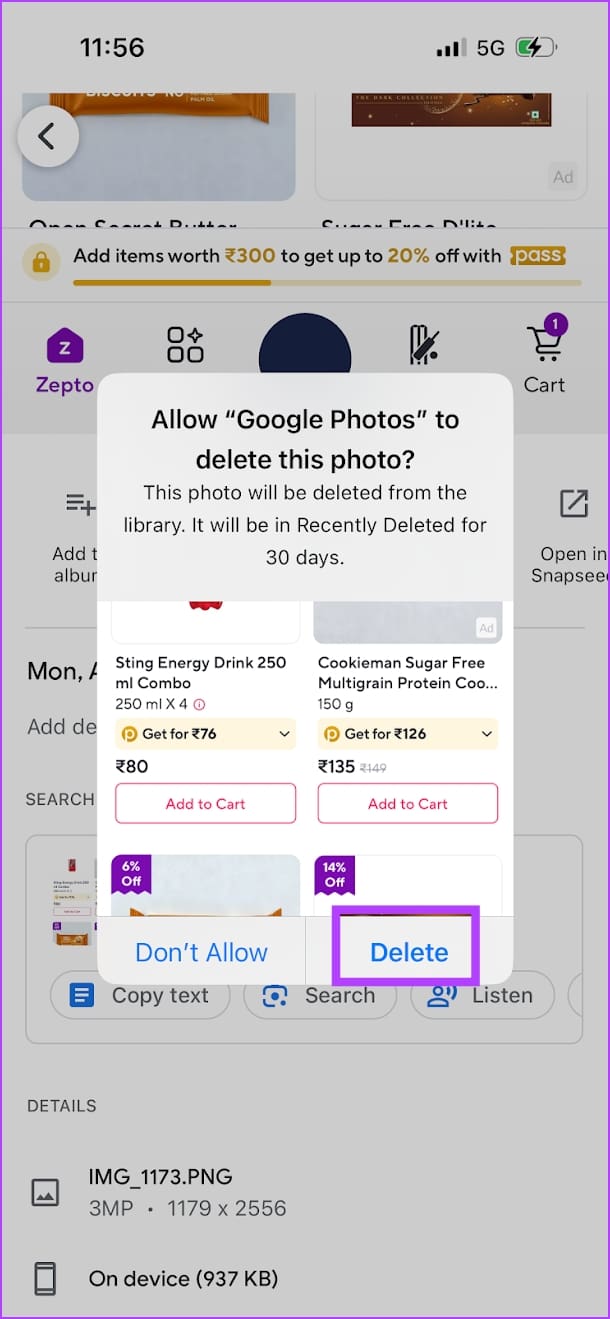
Open Google Photos, swipe up the photo you want to delete, and select Delete from Device. The photo has not been backed up if you don’t see the option. Then tap on Delete and confirm your action.
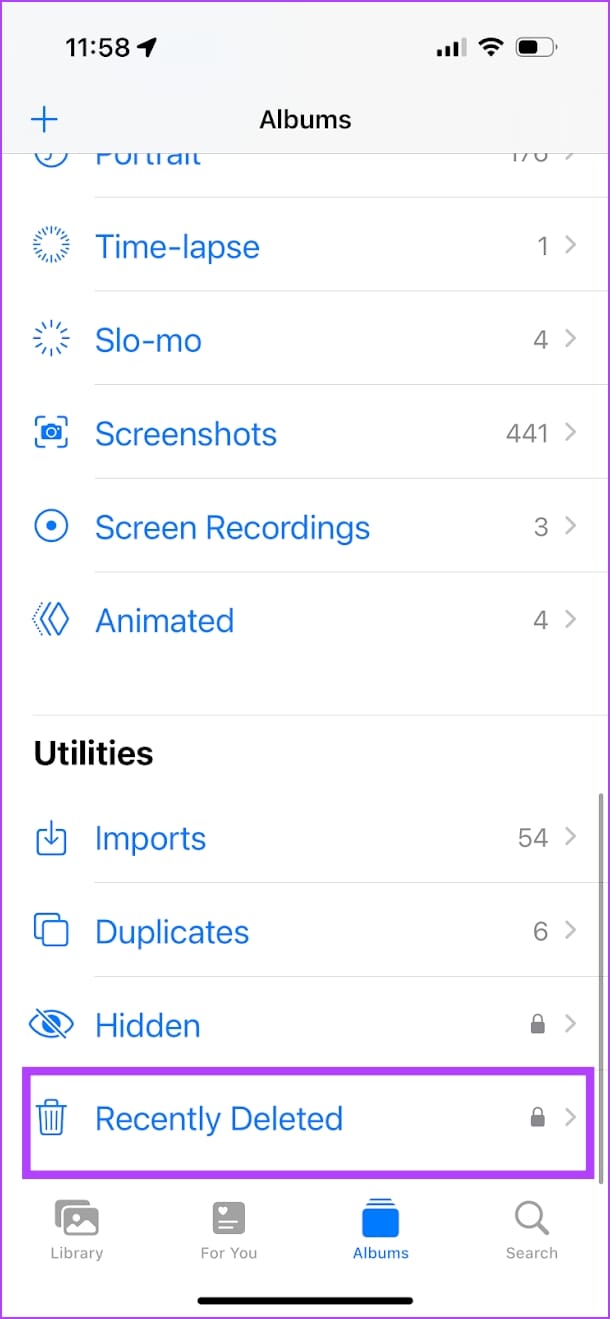
The photo will be moved to the Recently Deleted album on your iPhone Photos app. Open the album and delete the photo permanently.

Note:
- Do not use the Delete option under a photo on Google Photos. This will delete the photo from your iPhone and Google Photos.
- If you accidentally used the option, go to Library > Trash on Google Photos and restore the image. You can also use the Recently Deleted album on your iPhone to restore the deleted image.
Also Read: What is the cloud icon on Google Photos
How to Delete All Photos Backed up to Google Photos From iPhone
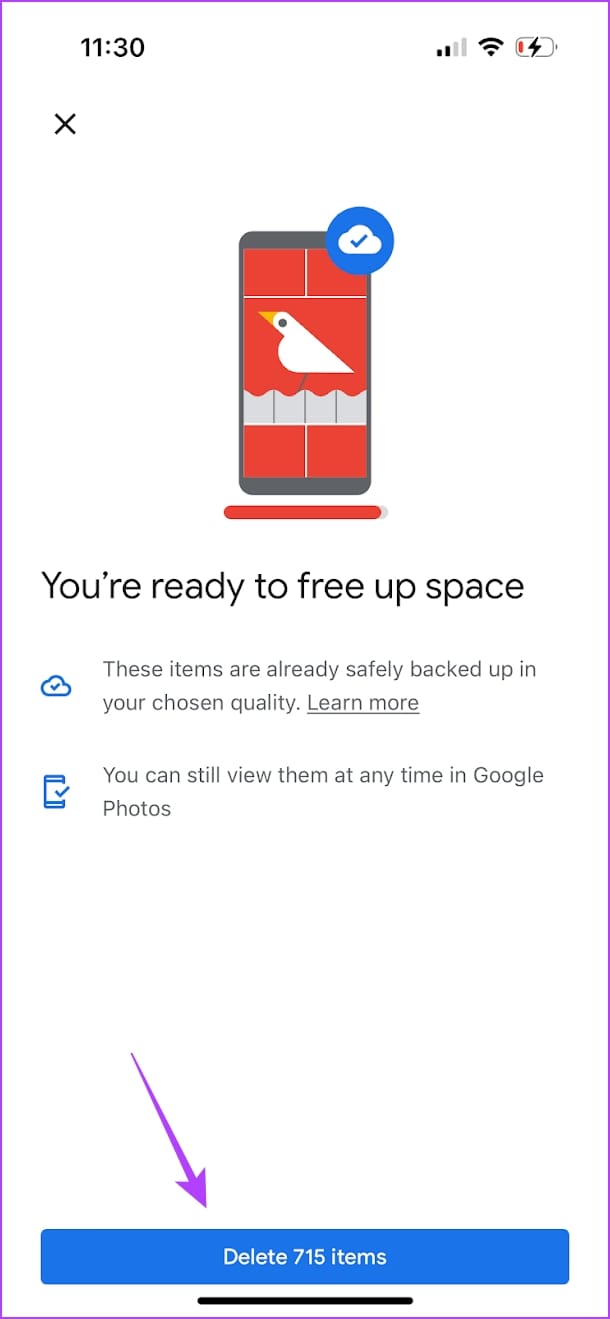
Open Google Photos and tap on your profile icon at the top right corner. Then, tap on Free up Space > delete to confirm. This will delete all the local copies of photos on your iPhone.
Then, go to the Recently Deleted album on the Photos app and delete all the images permanently.


Note:
- If you’ve selected the Storage Saver backup quality on Google Photos, you will lose high-quality images once you delete them on your iPhone.
- You can always change the quality of the backup on Google Photos and retain high-quality images on the cloud.
Was this helpful?
Last updated on 24 April, 2024
Read Next
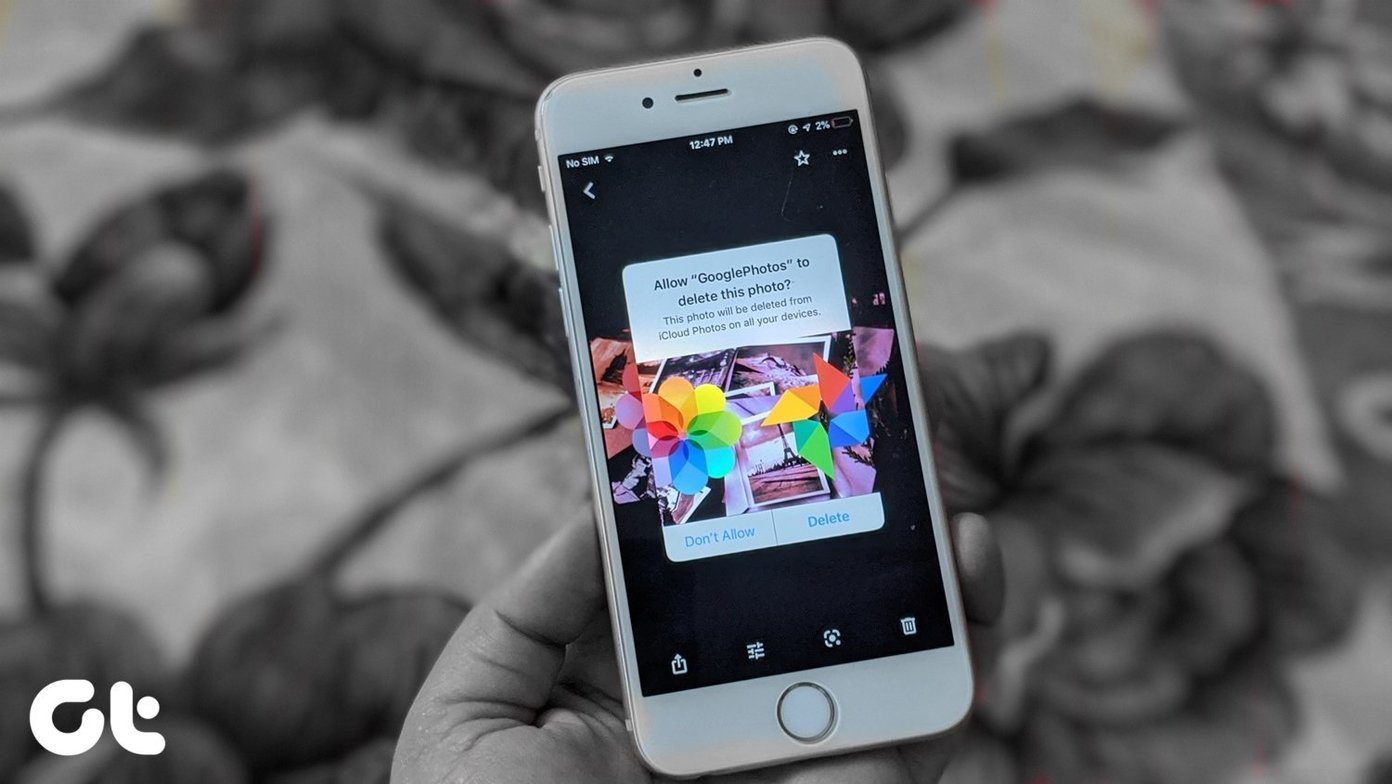 How to Delete Photos from Google Photos But Not From iCloud
How Do Google Photos and iCloud Work Both Apple Photos and Google Photos act as a medium to show you the photos on your phone.
How to Delete Photos from Google Photos But Not From iCloud
How Do Google Photos and iCloud Work Both Apple Photos and Google Photos act as a medium to show you the photos on your phone.
 How to Delete Photos From Google Photos But Not From Phone
What Happens When You Delete Photos?
How to Delete Photos From Google Photos But Not From Phone
What Happens When You Delete Photos?
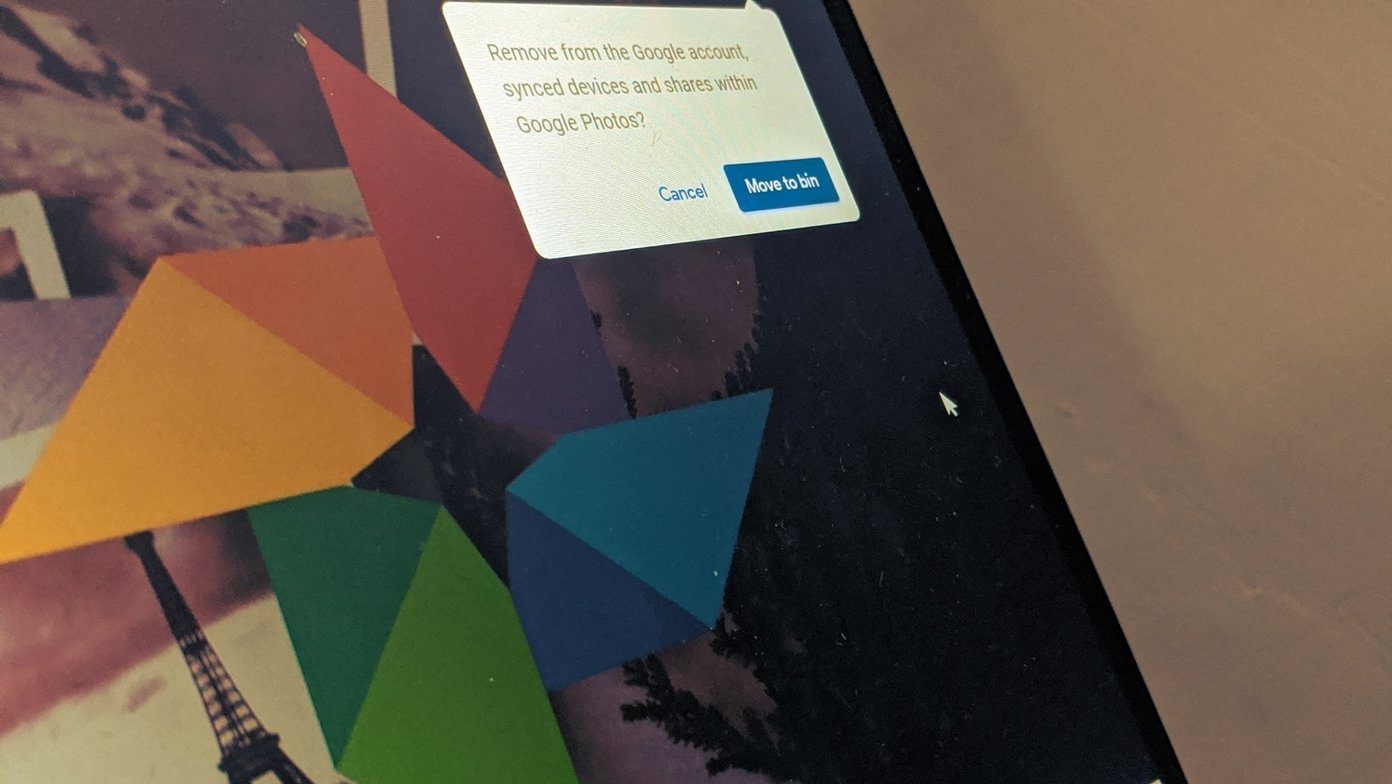 What Happens When You Delete Photos from Google Photos
If you use the gallery app on your phone without the cloud storage service, things are pretty easy.
What Happens When You Delete Photos from Google Photos
If you use the gallery app on your phone without the cloud storage service, things are pretty easy.
 How to Move Photos From iPhone to Google Photos
Method 1.
How to Move Photos From iPhone to Google Photos
Method 1.
 Google Drive vs Google Photos: Which Is Best for Storing Photos
Google Drive vs Google Photos Comparison Key Differences Feature Google Drive Google PhotosFile Types All types Photos, Videos, GIFsOrganization Folders & Subfolders AlbumsPhoto Quality Original Original, High (compressed), Express (compressed)Storage
Google Drive vs Google Photos: Which Is Best for Storing Photos
Google Drive vs Google Photos Comparison Key Differences Feature Google Drive Google PhotosFile Types All types Photos, Videos, GIFsOrganization Folders & Subfolders AlbumsPhoto Quality Original Original, High (compressed), Express (compressed)Storage
 How to Remove Photos from Google Drive but Not Google Photos
Google Drive and Photos are two similar yet distinct products for storing photos and videos.
How to Remove Photos from Google Drive but Not Google Photos
Google Drive and Photos are two similar yet distinct products for storing photos and videos.
 How to Sync Apple Photos Library With Google Photos
How to Enable Backup & Sync in Google Photos To add the pictures in your Photos app to the Google Photos app, you first need to enable the automatic sync
How to Sync Apple Photos Library With Google Photos
How to Enable Backup & Sync in Google Photos To add the pictures in your Photos app to the Google Photos app, you first need to enable the automatic sync
 5 Ways to Fix Google Photos App Not Showing All Photos
Basic Fixes Check your network connection - Ensure your phone is connected to a good internet connection.
5 Ways to Fix Google Photos App Not Showing All Photos
Basic Fixes Check your network connection - Ensure your phone is connected to a good internet connection.
The article above may contain affiliate links which help support Guiding Tech. The content remains unbiased and authentic and will never affect our editorial integrity.