


Note: While you can delete multiple apps on your iPhone, you can’t select all and delete them in one go. No matter which method you use, app deletion will happen one by one.
Method 1. Delete Multiple Apps From the Home Screen or App Library
Follow these steps to mass delete apps on iPhone or iPad from the Home Screen or App Library.
Step 1: Long-press on any empty space on your home screen until the app icons start to jiggle.
Step 2: Tap the Remove icon – (Home Screen) or X (App Library).
Step 3: A confirmation pop-up will show up. Tap Delete App.
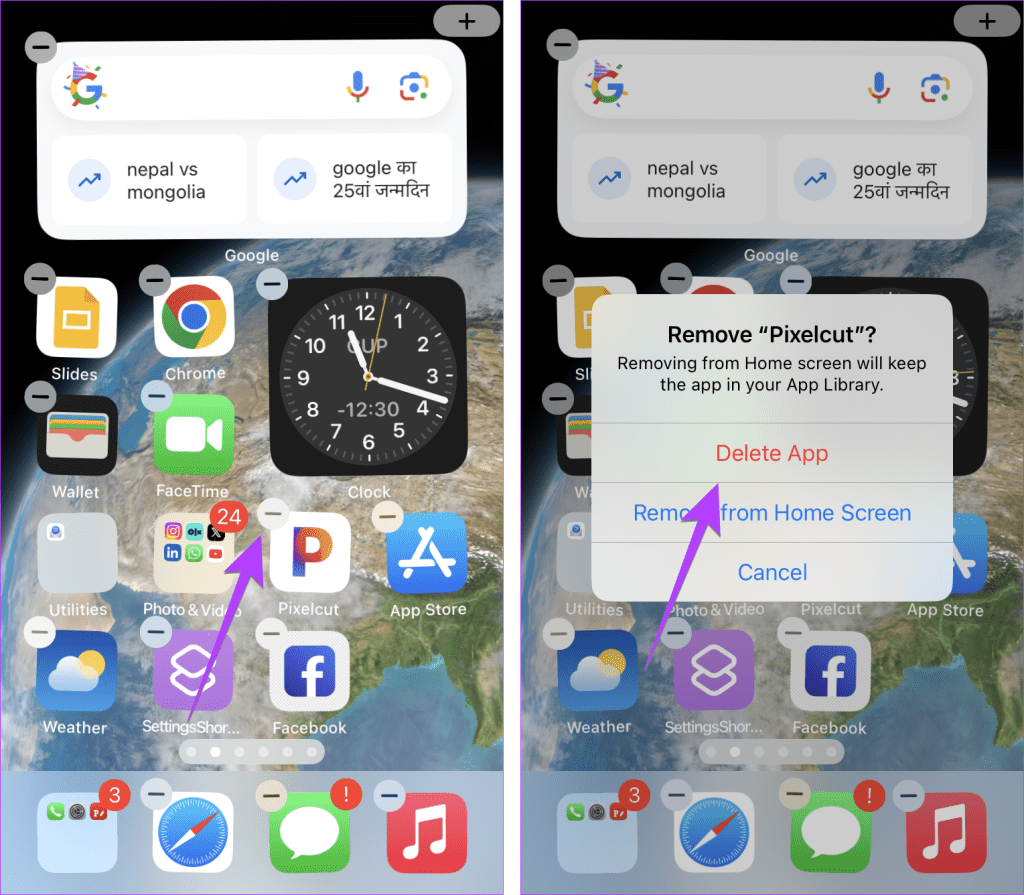
Step 4: The app icons will still be jiggling. Tap the – or X on another app that you want to delete. Repeat the steps for all the apps you want to delete.
Step 5: Once you have deleted all the apps, tap Done.
Remove Multiple Apps From the iPhone’s Home Screen
While you can’t delete multiple apps in a single go, you can select and move multiple apps on the Home Screen. Here’s how.
Step 1: Long-press anywhere on the Home Screen to enter the jiggle mode.
Step 2: Drag one of the apps you want to remove from the home screen to the bottom right above the dock. Do not lift your finger from that icon.
Step 3: Now, while holding that app icon, use your other finger or hand to tap other apps to select them. You will notice that the apps will start bundling.
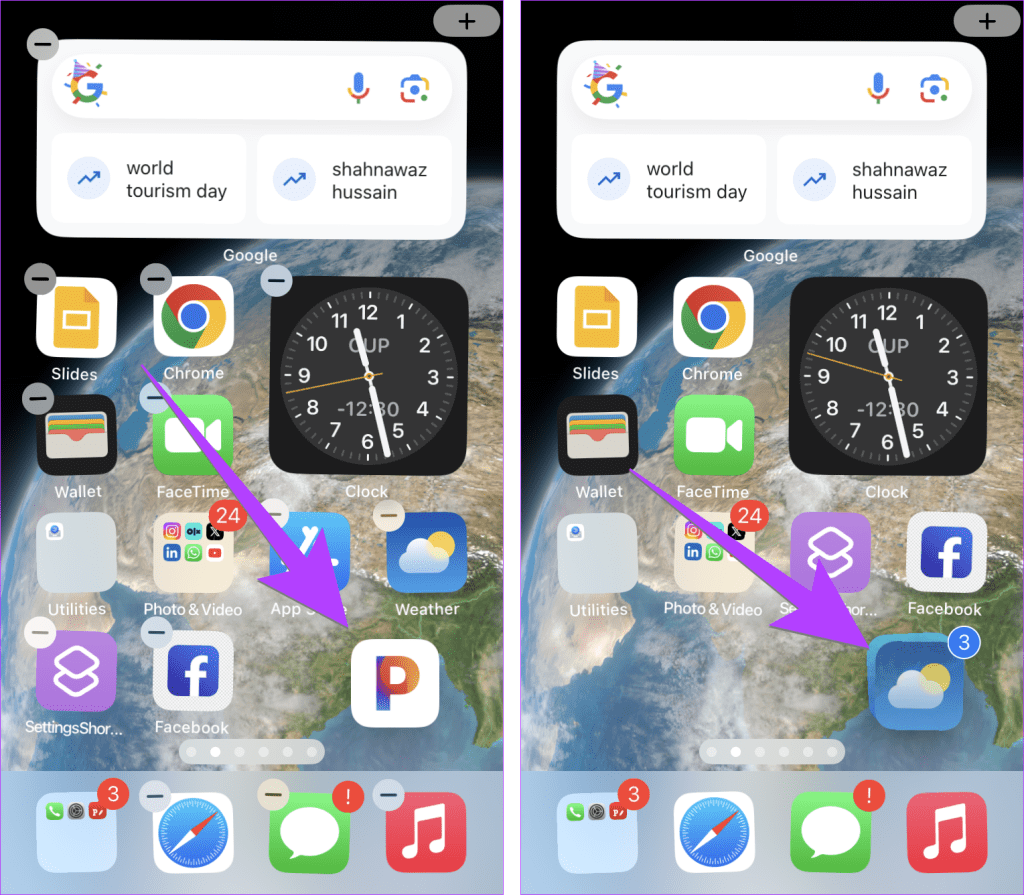
Step 4: Now, drag these selected apps to another Home Screen or the App Library (rightmost home screen) and leave them there.
Note:
- Lift your finger from the apps only when you reach the desired location.
- You can swipe between your home screens to reach the App Library using your other hand.
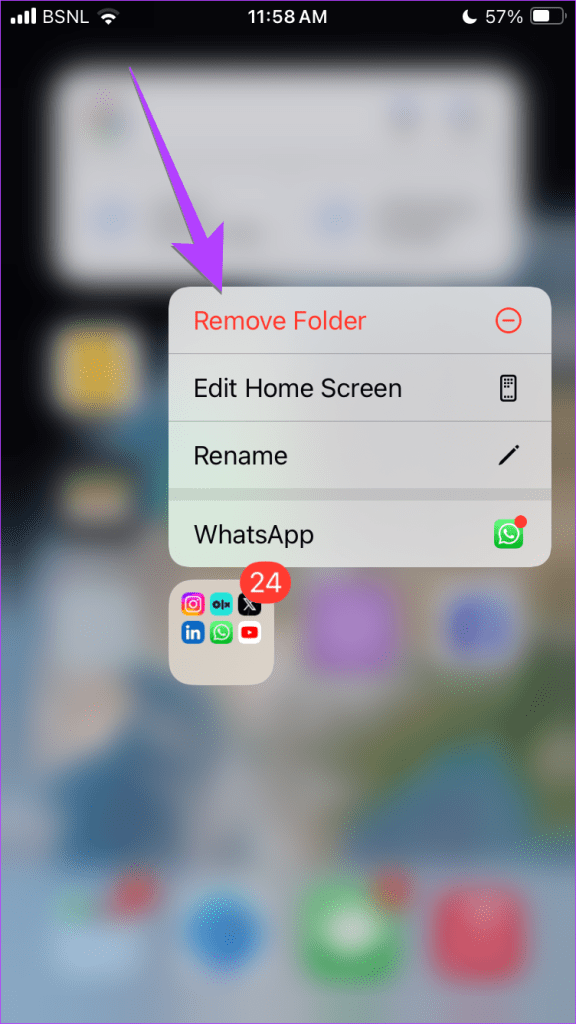
Alternatively, you can put the apps you want to remove from your home screen into a folder. Then, long-press the folder and select Remove Folder. Doing so will remove multiple apps from the home screen. However, you can still access them from the App Library.

Tip: Learn how to add apps back to the home screen
Method 2. Using Settings to Bulk Delete Apps on iPhone
This time around, we will use the Settings app to quickly delete apps on iPhones. Going through Settings allows you to see the size of each individual app. You can also view other useful information, including the last time you used each app and what type of app consumes most of your iPhone or iPad’s memory.
Step 1: Go to Settings → General → iPhone/iPad Storage.

On the screen that appears, you can see each app’s size, usage, and other info.
Step 2: Swipe left on the app you want to delete and press Delete. Tap Delete again from the confirmation pop-up.
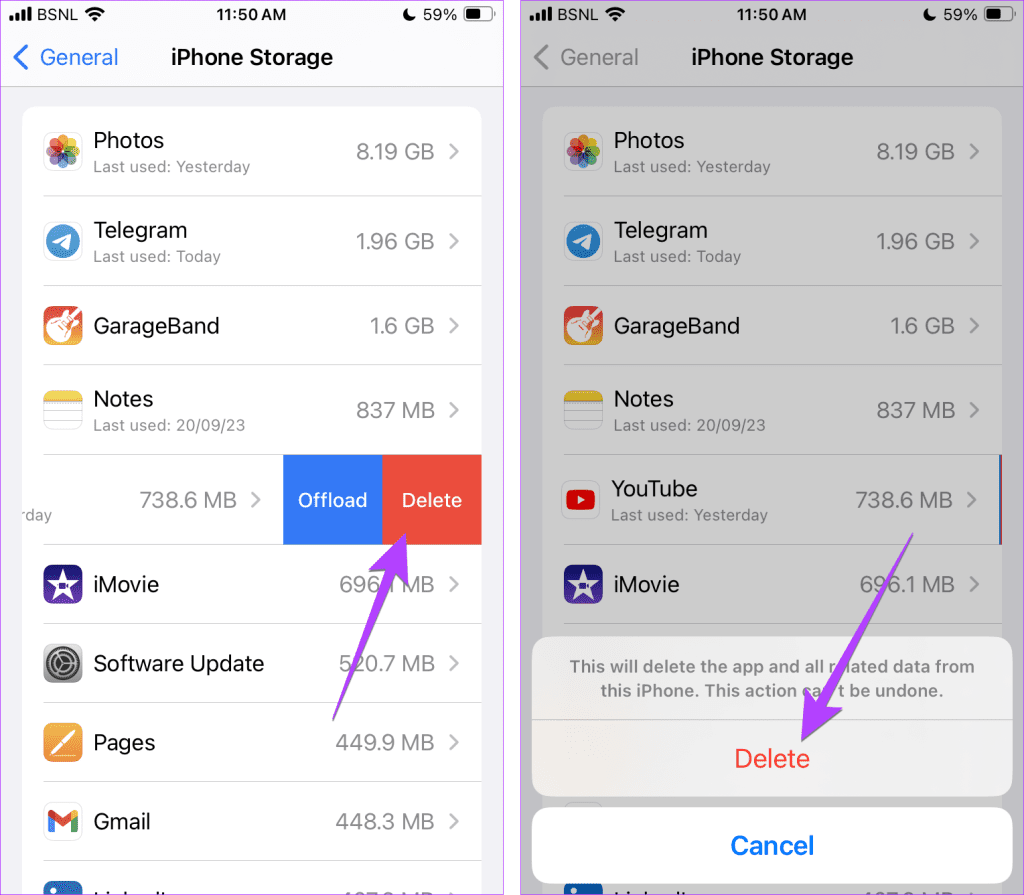
Step 3: Similarly, swipe left on other apps to delete and press Delete.
Method 3. Delete App via App Store
The App Store also offers a workaround to bulk delete apps on iPhone or iPad, as shown below:
Step 1: Open the App Store on your iPhone or iPad. Tap your account icon at the top.
Step 2: Scroll down to see installed apps. Swipe left on an app you want to delete and press Delete.
Step 3: A confirmation pop-up will show. Tap Delete.
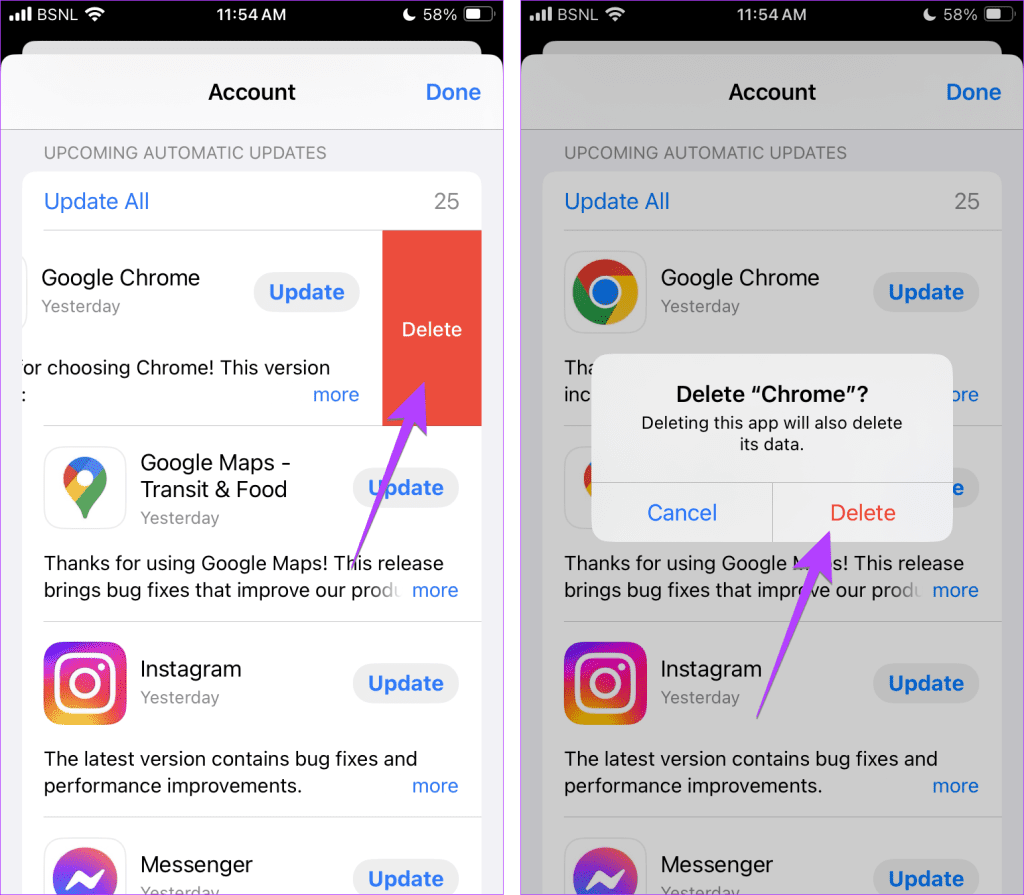
Step 5: Similarly, swipe left on other apps to delete them.
Method 4. Free Up Storage by Offloading Multiple Apps
Offloading an app doesn’t delete it from your iPhone. Instead, offloading preserves important documents and data the app generates but throws away the rest. It’s different from deleting an app, where you remove all of its data.
When you reinstall an offloaded app, the saved data is returned, unlike an actual deletion. So, if you want to free up storage on your iPhone, enable the automatic offloading of iPhone apps as shown below:
Step 1: Open iPhone or iPad Settings → General → iPhone/iPad Storage.
Step 2: Select the app you want to offload.
Step 3: Tap Offload App.


Notably, you can also enable a special setting on your iPhone that allows the device to offload unused apps. To do so, go to Settings → App Store → scroll to Offload Unused Apps and toggle on.
From a storage saver perspective, enabling offload is a must since apps you haven’t used in a long time are automatically removed. If the data is in kilobytes it’s wiser to offload apps. However, apps like music players and photo editors may store large files when offloaded. So, deleting them is more effective.
Note: Don’t worry about losing money when you remove an app that isn’t free. Since your payment data is attached to your Apple ID, you can safely uninstall and reinstall paid apps. However, remember that in-app purchases (payments made inside the app for additional features) may or may not disappear.
Was this helpful?
Last updated on 07 August, 2024
Read Next
 How to Switch Between Multiple Apple IDs on iPhone and iPad
Things to Know Before Switching Apple ID Firstly, it's important to note that you cannot use multiple Apple IDs simultaneously on one phone.
How to Switch Between Multiple Apple IDs on iPhone and iPad
Things to Know Before Switching Apple ID Firstly, it's important to note that you cannot use multiple Apple IDs simultaneously on one phone.
 How to Delete Multiple Emails in Outlook on Mobile and Web
How to Delete Multiple Outlook Emails on Mobile Let's first start with how you can mass delete emails from the Microsoft Outlook app on your mobile.
How to Delete Multiple Emails in Outlook on Mobile and Web
How to Delete Multiple Outlook Emails on Mobile Let's first start with how you can mass delete emails from the Microsoft Outlook app on your mobile.
 How to Delete Multiple or All Text Messages on Android
How to Delete All Messages at Once on Android If you have been wishing to delete all messages in Google Messages at once, you'll be sad to know that Google
How to Delete Multiple or All Text Messages on Android
How to Delete All Messages at Once on Android If you have been wishing to delete all messages in Google Messages at once, you'll be sad to know that Google
 How to Delete Multiple (Or All) Photos on Facebook
Method 1: Remove All Your Pictures From Facebook Facebook allows users to delete up to 50 photos uploaded by them.
How to Delete Multiple (Or All) Photos on Facebook
Method 1: Remove All Your Pictures From Facebook Facebook allows users to delete up to 50 photos uploaded by them.
 How to Delete Multiple or All Chats in WhatsApp
We have covered the following things here: How to delete multiple chats on WhatsApp.
How to Delete Multiple or All Chats in WhatsApp
We have covered the following things here: How to delete multiple chats on WhatsApp.
 How to Use Burst Mode on iPhone to Take Multiple Pictures
Ever clicked your cute little kid running around the house only to end up with a blurred photo?
How to Use Burst Mode on iPhone to Take Multiple Pictures
Ever clicked your cute little kid running around the house only to end up with a blurred photo?
 4 Ways to Send Multiple Photos From iPhone to Android
Method 1: Use Instant Messaging Apps There are several ways to send multiple photos from iPhone and Android.
4 Ways to Send Multiple Photos From iPhone to Android
Method 1: Use Instant Messaging Apps There are several ways to send multiple photos from iPhone and Android.
 5 Ways to Send Multiple Photos From iPhone
1.
5 Ways to Send Multiple Photos From iPhone
1.
The article above may contain affiliate links which help support Guiding Tech. The content remains unbiased and authentic and will never affect our editorial integrity.

