Method 1: Delete Images from Chat
Open the group chat, tap and hold the image(s) you want to delete. Tap on the trash icon.
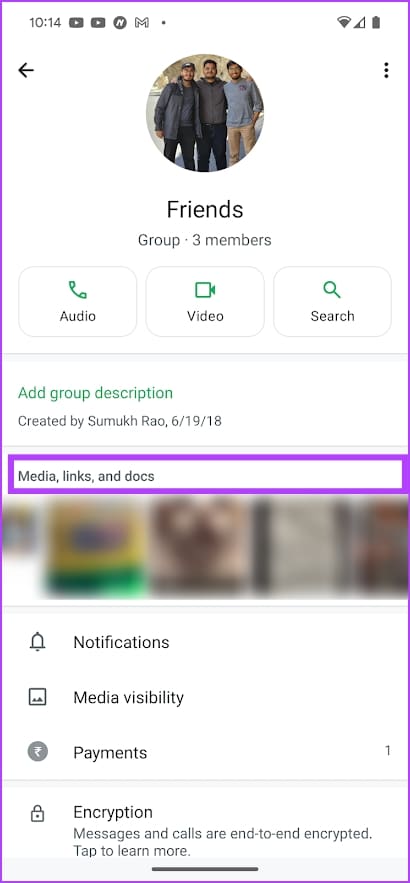
Alternatively, tap on the title of the group chat, go to Media, links, and docs, and select the images you want to delete in the Media tab.
Note: Remember to select the Delete image from the Gallery option while you are deleting the image.


Also Read: 16 WhatsApp Group tips & tricks that all users should know
Method 2: Delete Images from Manage Storage
Here’s how you can delete all the images sent in a group at once.
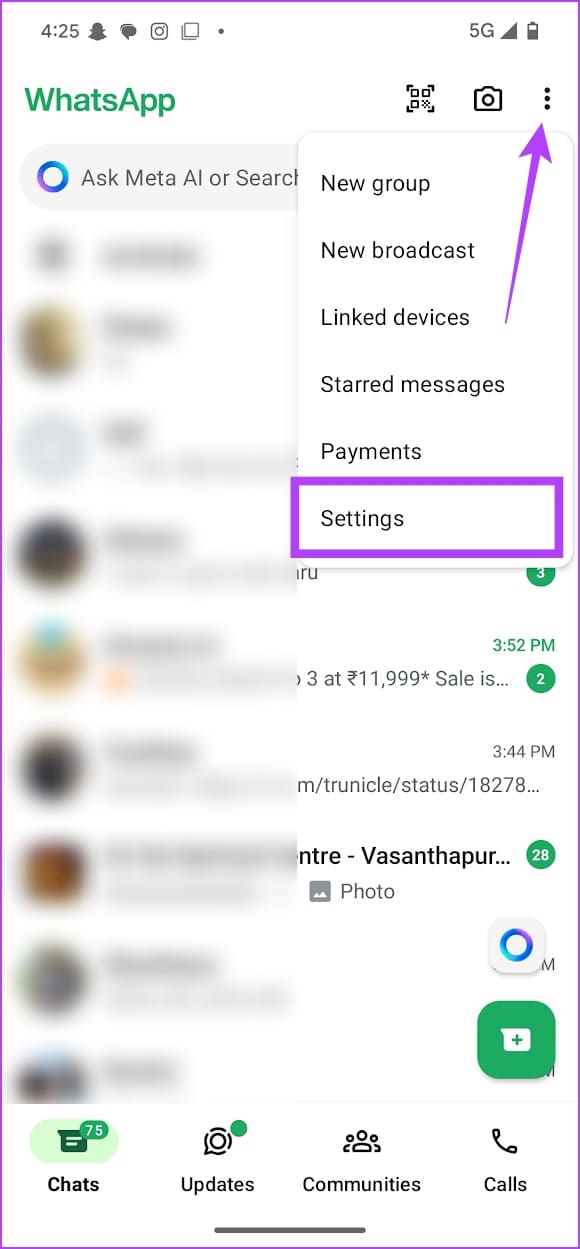
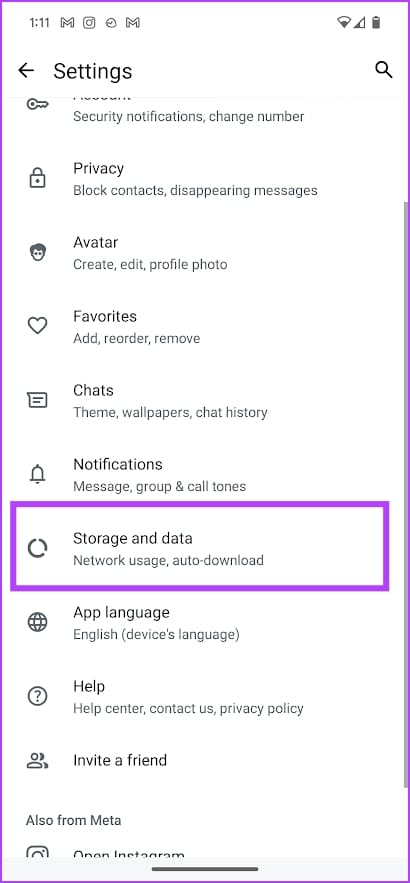
Step 1: On your Android device, tap on the three-dots icon at the top right, and select Settings.
Select Storage and Data > Manage storage.
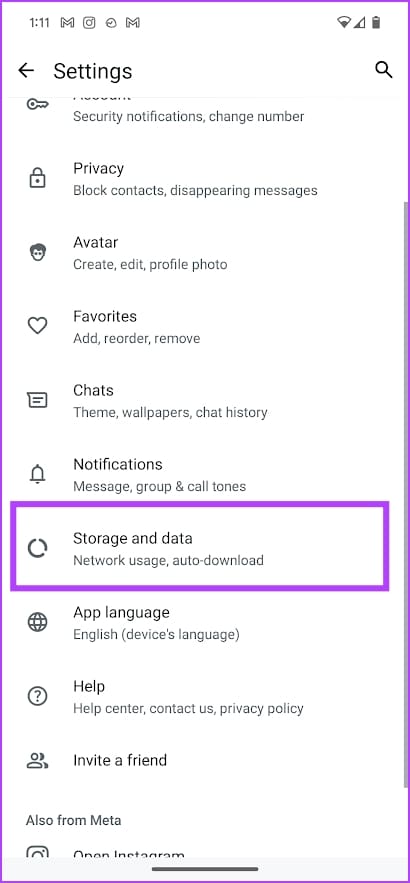

On your iPhone, tap on the Settings tab > Select Storage and Data.
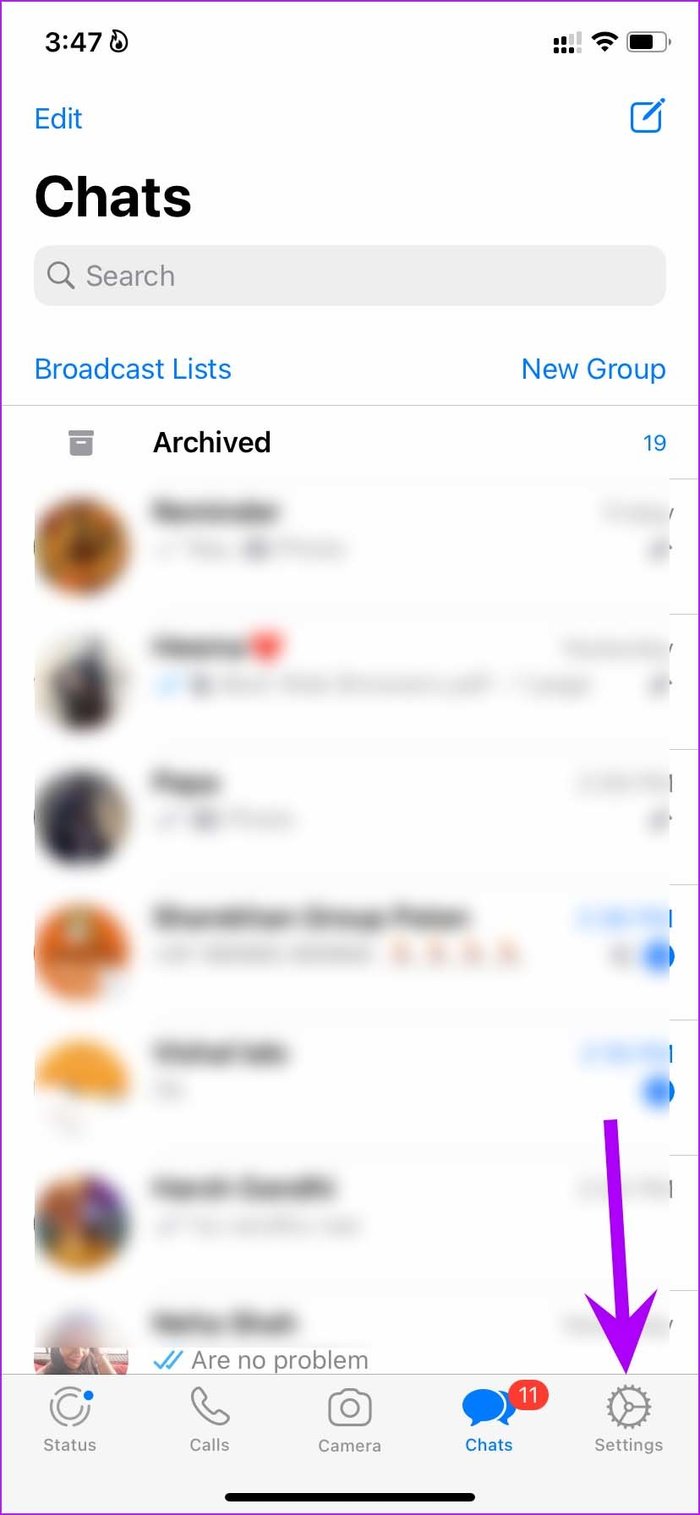
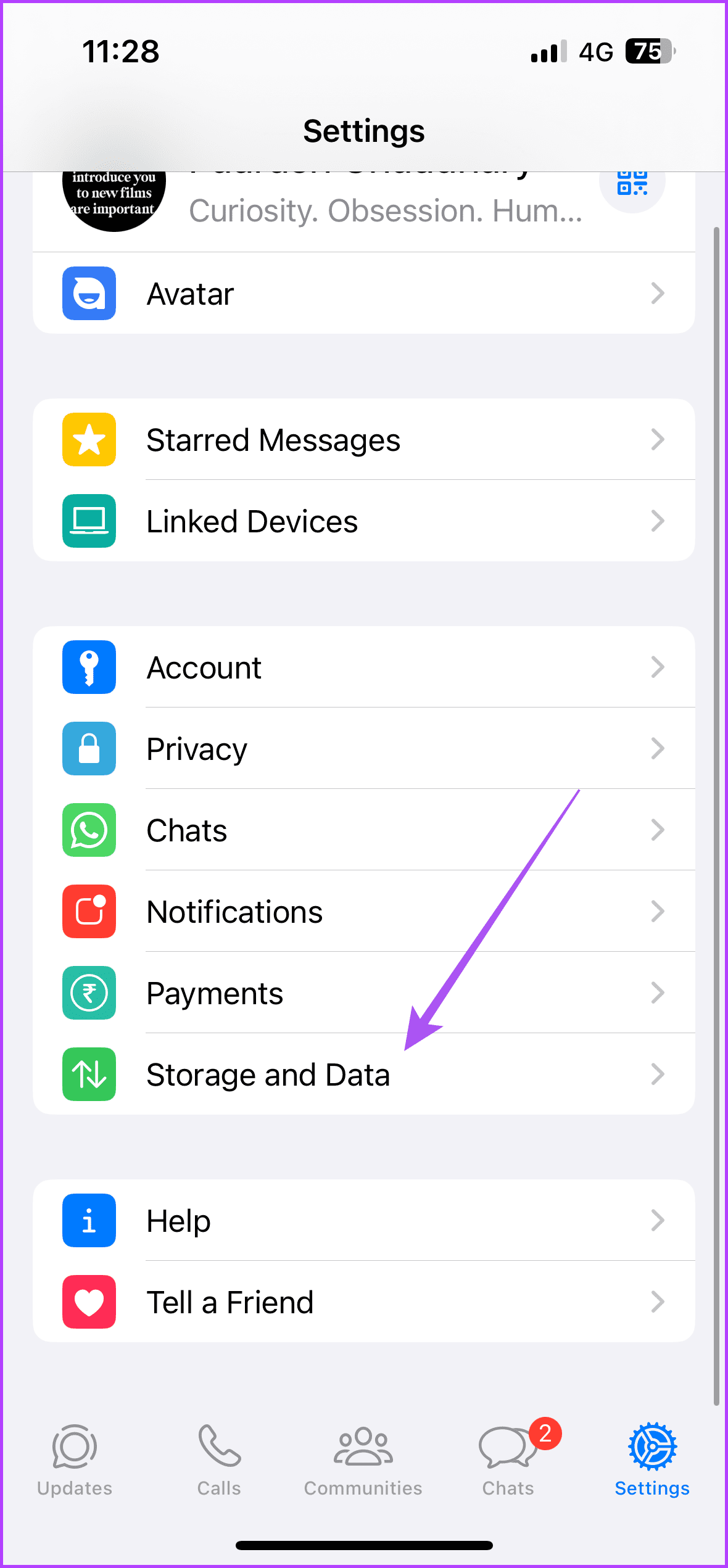
Step 2: You will see a list of chats and the storage they’re consuming. Use the search tool to find the group.
Step 3: Select images individually, or use the Select all option to delete images from the group.


Also Read: 8 rights and powers WhatsApp group admins enjoy
Bonus: Disable Media Auto-Download
If you’re tired of deleting images from a group every time – here’s how you can prevent them from being downloaded in the first place.
Step 1: Open Settings in WhatsApp and select Storage and Data.
Step 2: Ensure you’ve selected No Media for all three options – mobile data, Wi-Fi, and data roaming.

Also Read: How to reduce WhatsApp storage on iPhone
Was this helpful?
Last updated on 27 August, 2024
Read Next
 How to Delete WhatsApp Group Permanently (Desktop and Mobile)
How to Delete WhatsApp Group Permanently as Admin As an admin, you are authorized to delete the group from its existence.
How to Delete WhatsApp Group Permanently (Desktop and Mobile)
How to Delete WhatsApp Group Permanently as Admin As an admin, you are authorized to delete the group from its existence.
 How to Delete WhatsApp Photos from iPhone and Android
Photos take up a lot of storage on our phones.
3 Ways to Create a WhatsApp Group or a Chat With Yourself
Method 1: Create a Group By Removing Another Member You can temporarily create a group with just one member, and remove them later.
How to Delete WhatsApp Photos from iPhone and Android
Photos take up a lot of storage on our phones.
3 Ways to Create a WhatsApp Group or a Chat With Yourself
Method 1: Create a Group By Removing Another Member You can temporarily create a group with just one member, and remove them later.
 How to Delete Photos From Google Photos But Not From Phone
What Happens When You Delete Photos?
How to Delete Photos From Google Photos But Not From Phone
What Happens When You Delete Photos?
 What Happens When You Delete Photos from Google Photos
If you use the gallery app on your phone without the cloud storage service, things are pretty easy.
What Happens When You Delete Photos from Google Photos
If you use the gallery app on your phone without the cloud storage service, things are pretty easy.
 How to Lock Individual and Group Chats in WhatsApp on iPhone
Things to Remember Before proceeding with the steps, we want to highlight some important aspects.
How to Lock Individual and Group Chats in WhatsApp on iPhone
Things to Remember Before proceeding with the steps, we want to highlight some important aspects.
 How to Delete Photos From iPhone But Not From Google Photos
How to Delete Photos from iPhone But Keep Them in Google Photos Open Google Photos, swipe up the photo you want to delete, and select Delete from Device.
How to Delete Photos From iPhone But Not From Google Photos
How to Delete Photos from iPhone But Keep Them in Google Photos Open Google Photos, swipe up the photo you want to delete, and select Delete from Device.
 8 Rights and Powers WhatsApp Group Admins Enjoy
1.
8 Rights and Powers WhatsApp Group Admins Enjoy
1.
The article above may contain affiliate links which help support Guiding Tech. The content remains unbiased and authentic and will never affect our editorial integrity.