How to Enable or Disable Edge Sidebar
While Edge’s sidebar is useful for accessing several browser functions, it might end up taking up additional space on your page or even cause distractions. So depending on your usage, you can either enable or disable the Edge sidebar. Here’s how.
Step 1: Open Edge and in the top right corner, click on the three-dot icon. Click on Settings.
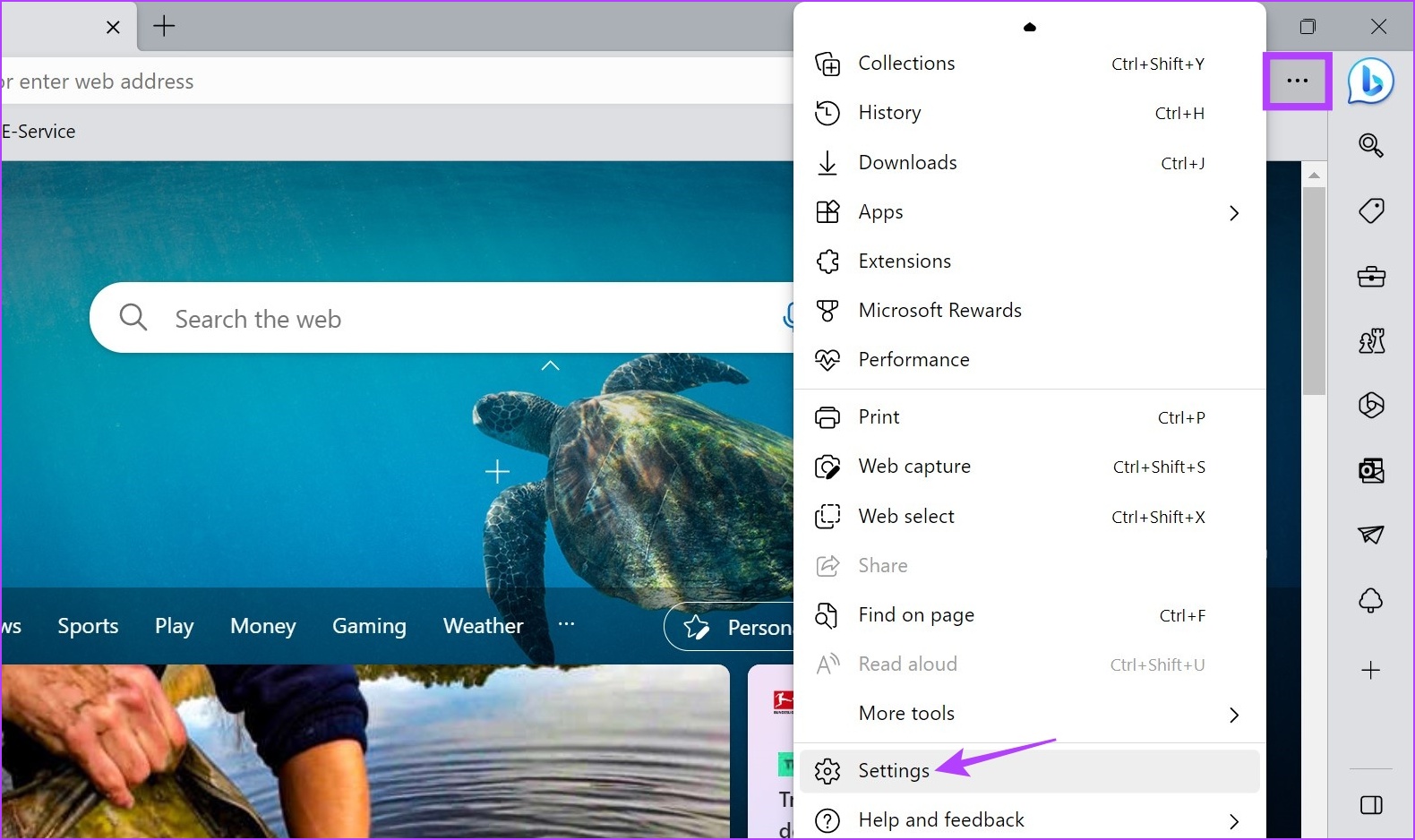
Step 2: From the menu options, click on Sidebar. Turn on the Always show sidebar toggle.

This will enable the sidebar in Microsoft Edge. If you’re looking to turn the sidebar off, follow the above steps and turn the Always show sidebar toggle off.
Also Read: How to use the Edge bar in Microsoft Edge on Windows 11
How to Customize Sidebar Icons in Edge
To make customizing the sidebar in Edge easier, Microsoft allows you to customize the sidebar from the available sidebar options. Using this you can add any frequently used site or app icons to the sidebar menu. Follow the below steps to do it.
Add a Site or App Icon to Edge Sidebar
Adding sites to the Edge sidebar lets you quickly access them with a click. If the site is not available in the menu options, you can also add them using the site URL. Individual pages can also be opened in the Edge sidebar. Here’s how to do it.
Step 1: Open Edge and click on the + icon in the sidebar.

Step 2: Click on any of the currently visible icons to add them to the Edge sidebar. Keep scrolling for more options.
Tip: Use the Discover more section to categorically search for sidebar options.

Step 3: To open the currently open site in the sidebar, click on Open in sidebar. The site will stay open until you close it as you browse other sites in the main window.

Step 4: You can use the Quick access section to add any Microsoft icons to the sidebar.

Step 5: To add a site by URL, click on the Search bar and type the relevant URL. Click on it from the search results.

This will add the site icon to the Edge sidebar. If you feel like the sidebar is getting too crowded, you can also remove the site icons from the Edge sidebar. Here’s how.
Remove a Site or App Icon From Edge Sidebar
Step 1: In the Edge Sidebar, right-click the relevant icon and click on Remove from sidebar.
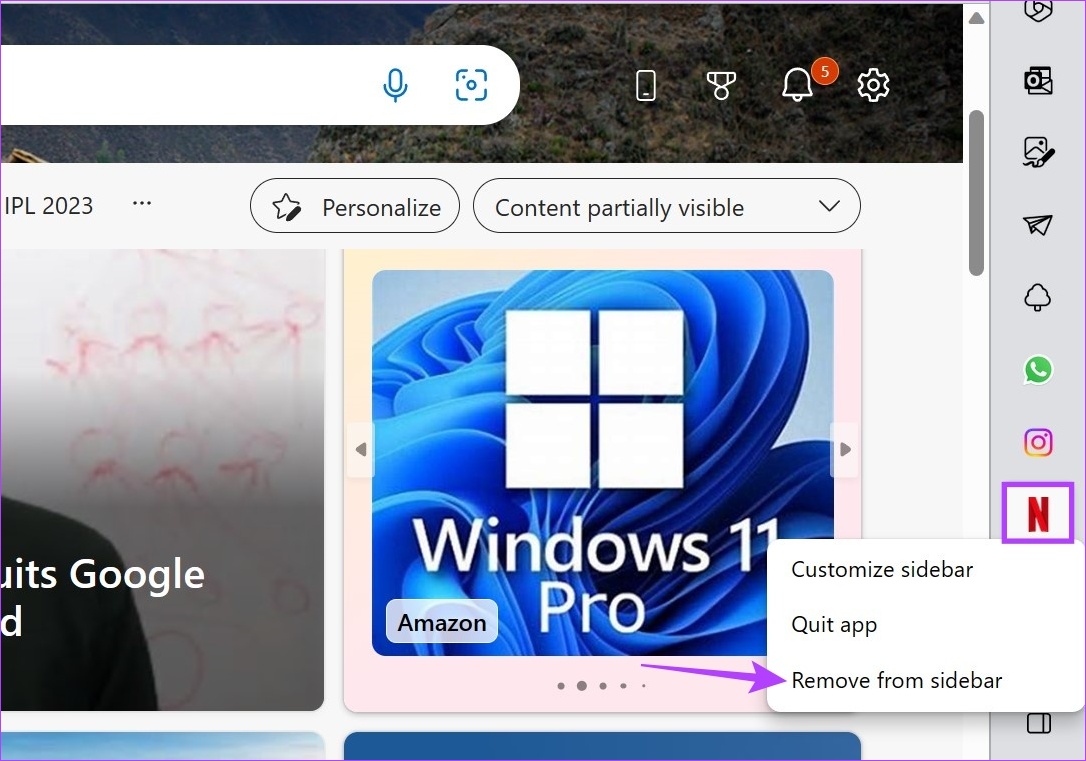
Step 2: To remove a custom site icon, right-click on it, and click on Quit app.

This will instantly remove the site icon from Edge’s sidebar and add it to the Quick access menu for easy access. If you wish to remove other icons, repeat the process.
FAQs
To remove the Bing button from Edge, go to the search bar, type edge://settings/sidebar and press enter. Once the sidebar settings page opens, scroll down and click on Discover. Then, turn off the Show Discover toggle.
Once you disable the Edge sidebar using the abovementioned method, it will remain disabled until you enable it from the settings menu. To permanently disable the Edge sidebar on Windows, however, you might need to access the Group Policy Editor.
Was this helpful?
Last updated on 17 July, 2024
Read Next
 How to Fix Sidebar Missing on Finder
How to Bring Back the Sidebar Step 1: Launch Finder on your Mac.
How to Fix Sidebar Missing on Finder
How to Bring Back the Sidebar Step 1: Launch Finder on your Mac.
 How to Use the Edge Bar in Microsoft Edge on Windows 11
How to Enable Edge Bar in Microsoft Edge Step 1: Launch Microsoft Edge on your PC > click the three-dot menu icon at the top right > select Settings.
How to Use the Edge Bar in Microsoft Edge on Windows 11
How to Enable Edge Bar in Microsoft Edge Step 1: Launch Microsoft Edge on your PC > click the three-dot menu icon at the top right > select Settings.
 How to Add, Customize and Delete a Text Box in Microsoft Word
Like in Microsoft PowerPoint, you can add a text box to a Microsoft Word document.
How to Add, Customize and Delete a Text Box in Microsoft Word
Like in Microsoft PowerPoint, you can add a text box to a Microsoft Word document.
 How to Make Google the Default Search Engine on Microsoft Edge
Microsoft Edge has emerged as a strong contender, offering users many features in the Chromium version.
How to Make Google the Default Search Engine on Microsoft Edge
Microsoft Edge has emerged as a strong contender, offering users many features in the Chromium version.
 How to Install Chrome Extensions in Microsoft Edge
Method 1: Getting Extensions Straight From the Chrome Store You may install extensions straight from the Chrome Store after installing Microsoft Edge on your computer.
How to Install Chrome Extensions in Microsoft Edge
Method 1: Getting Extensions Straight From the Chrome Store You may install extensions straight from the Chrome Store after installing Microsoft Edge on your computer.
 6 Ways to Fix Sync Issues on Microsoft Edge
Fix 1: Ensure Sync Is Enabled Microsoft Edge may fail to sync your browsing data across devices if sync is disabled.
6 Ways to Fix Sync Issues on Microsoft Edge
Fix 1: Ensure Sync Is Enabled Microsoft Edge may fail to sync your browsing data across devices if sync is disabled.
 How to Remove Copilot From Microsoft Edge
Method 1.
How to Remove Copilot From Microsoft Edge
Method 1.
 4 Ways to Take a Full Page Screenshot on Microsoft Edge
Method 1: Use the Inbuilt Option In early 2021, Microsft released an update for Edge that added the feature to take full-page screenshots.
4 Ways to Take a Full Page Screenshot on Microsoft Edge
Method 1: Use the Inbuilt Option In early 2021, Microsft released an update for Edge that added the feature to take full-page screenshots.
The article above may contain affiliate links which help support Guiding Tech. The content remains unbiased and authentic and will never affect our editorial integrity.