Method 1: Create a Group By Removing Another Member
You can temporarily create a group with just one member, and remove them later. You’ll now have a group chat with just you as a member.
Step 1: Open WhatsApp, tap on the Plus icon, select New group, and create a group with a single contact.
Step 2: Now, open the group you created. Tap on its name. Tap on the name of the other member.


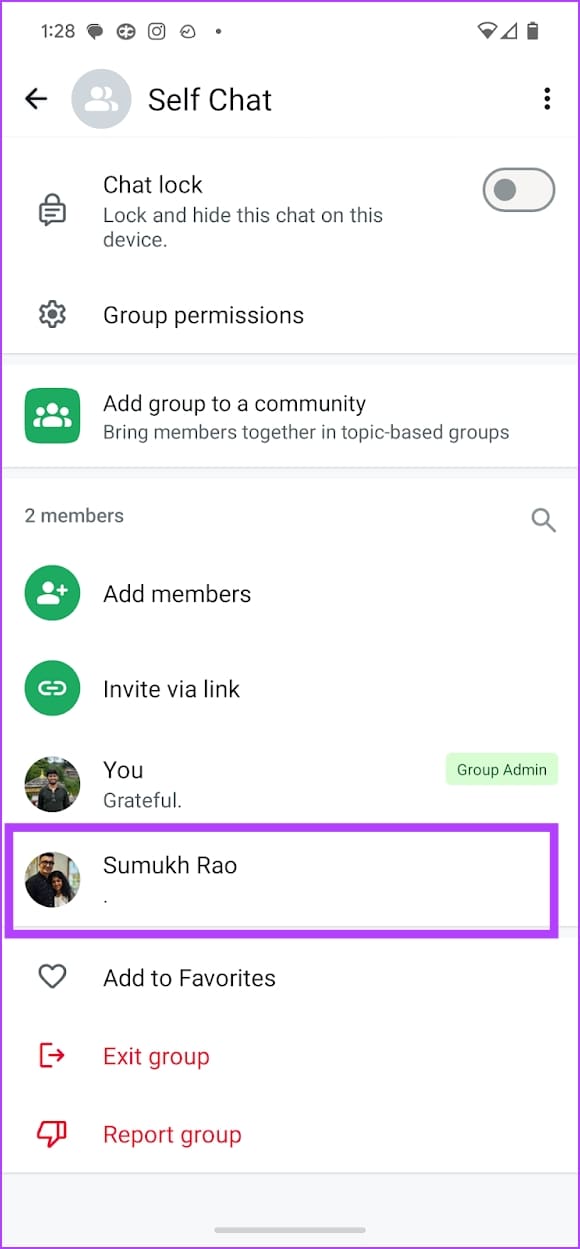
Step 2: Select Remove to remove the member. You’ll now be left with a group chat with just you as a member.


Method 2: Chat With Your Contact
Did you know you can create a contact for yourself, and open a chat with the same on WhatsApp? Here’s how!
Step 1: Use the Contacts app to create a contact for yourself. Enter your phone number.
Step 2: Save the contact, open WhatsApp, and tap on the Plus icon.
Step 3: The first contact that appears should be the one you just created for yourself. Tap on it, and you can now send messages to a chat that can only be viewed by you.


If you have trouble loading your contact, read: How to fix WhatsApp contacts not updating.
Method 3: Quickly Create a Chat for Your Contact
If you don’t want to create a contact for yourself, simply type wa.me/ followed by your phone number with country code on your web browser.
Step 1: For example, if my phone number is 9XX-XXX-XXXX, and my country code is 91 – I’ll type in wa.me/919XX-XXX-XXXX in the URL bar of my web browser.
Step 2: Tap on Continue to Chat, and you will be redirected to the WhatsApp app. You will now see a chat under your contact.
Note: Make sure you enter the correct number while you open the chat – you wouldn’t want to message somebody else.


Tip: Want to access your self-chat quickly? Tap and hold your chat and select the Pin option! This always places the chat on top of the list.
Was this helpful?
Last updated on 27 August, 2024
Read Next
 How to Hide and Unhide Yourself on Google Meet (PC and Mobile)
Note: When you hide your camera feed, you can still see others, depending on their camera privacy setting.
How to Hide and Unhide Yourself on Google Meet (PC and Mobile)
Note: When you hide your camera feed, you can still see others, depending on their camera privacy setting.
 How to Automatically CC or BCC Yourself in Outlook and Gmail
How to Automatically CC or BCC Yourself in Outlook Step 1: Open Outlook and click on the three-dot menu.
How to Automatically CC or BCC Yourself in Outlook and Gmail
How to Automatically CC or BCC Yourself in Outlook Step 1: Open Outlook and click on the three-dot menu.
 Can You Remove Yourself From a Private Story on Snapchat
In order to ensure your snaps remain private, users can create private stories on Snapchat.
Can You Remove Yourself From a Private Story on Snapchat
In order to ensure your snaps remain private, users can create private stories on Snapchat.
 How to Use iMessage Group Chat on iPhone and iPad
Group chats are highly effective when conveying information to several people simultaneously.
How to Use iMessage Group Chat on iPhone and iPad
Group chats are highly effective when conveying information to several people simultaneously.
 3 Ways to Text Yourself on iMessage
Send a Message to Yourself on iMessage If you want to jot down something or remind yourself of something, text yourself on your iPhone or Mac using iMessage.
3 Ways to Text Yourself on iMessage
Send a Message to Yourself on iMessage If you want to jot down something or remind yourself of something, text yourself on your iPhone or Mac using iMessage.
 How to Mute Yourself or Others on FaceTime
Mute Yourself on FaceTime (iPhone and iPad) You can take FaceTime calls using your iPhone or iPad while you are outside and don't have access to your Mac.
How to Mute Yourself or Others on FaceTime
Mute Yourself on FaceTime (iPhone and iPad) You can take FaceTime calls using your iPhone or iPad while you are outside and don't have access to your Mac.
 How to Create and Manage Chat Folders in Telegram
In most messaging apps, managing chats has to be the most complicated task at hand.
How to Create and Manage Chat Folders in Telegram
In most messaging apps, managing chats has to be the most complicated task at hand.
 2 Ways to Delete All Photos from WhatsApp Group on Android and iPhone
Method 1: Delete Images from Chat Open the group chat, tap and hold the image(s) you want to delete.
2 Ways to Delete All Photos from WhatsApp Group on Android and iPhone
Method 1: Delete Images from Chat Open the group chat, tap and hold the image(s) you want to delete.
The article above may contain affiliate links which help support Guiding Tech. The content remains unbiased and authentic and will never affect our editorial integrity.