


OneNote Mac and Windows App
The OneNote app on Mac and Windows are almost similar looking with the same options and menus. The steps to create a template on both are also the same. You can download the app from the Mac App Store or Windows Store, sign in using account credentials, and sync notebooks and pages.
In the example below, we will create a OneNote page, add elements that we can reuse in other OneNote pages, and create a template out of it.
Step 1: Open the OneNote app on Mac or Windows. Go to relevant Notebook > Section. Click on Add Page at the bottom. Give the OneNote page a relevant name and start making changes.

In the steps below, we are making a Physics OneNote page with different colors, page styles, tables, and to-dos.
Step 2: Go to View > Page Color and change the OneNote page color based on your liking. Navigate to Paper Style and Rule lines or Grid lines. One can also change the line color.

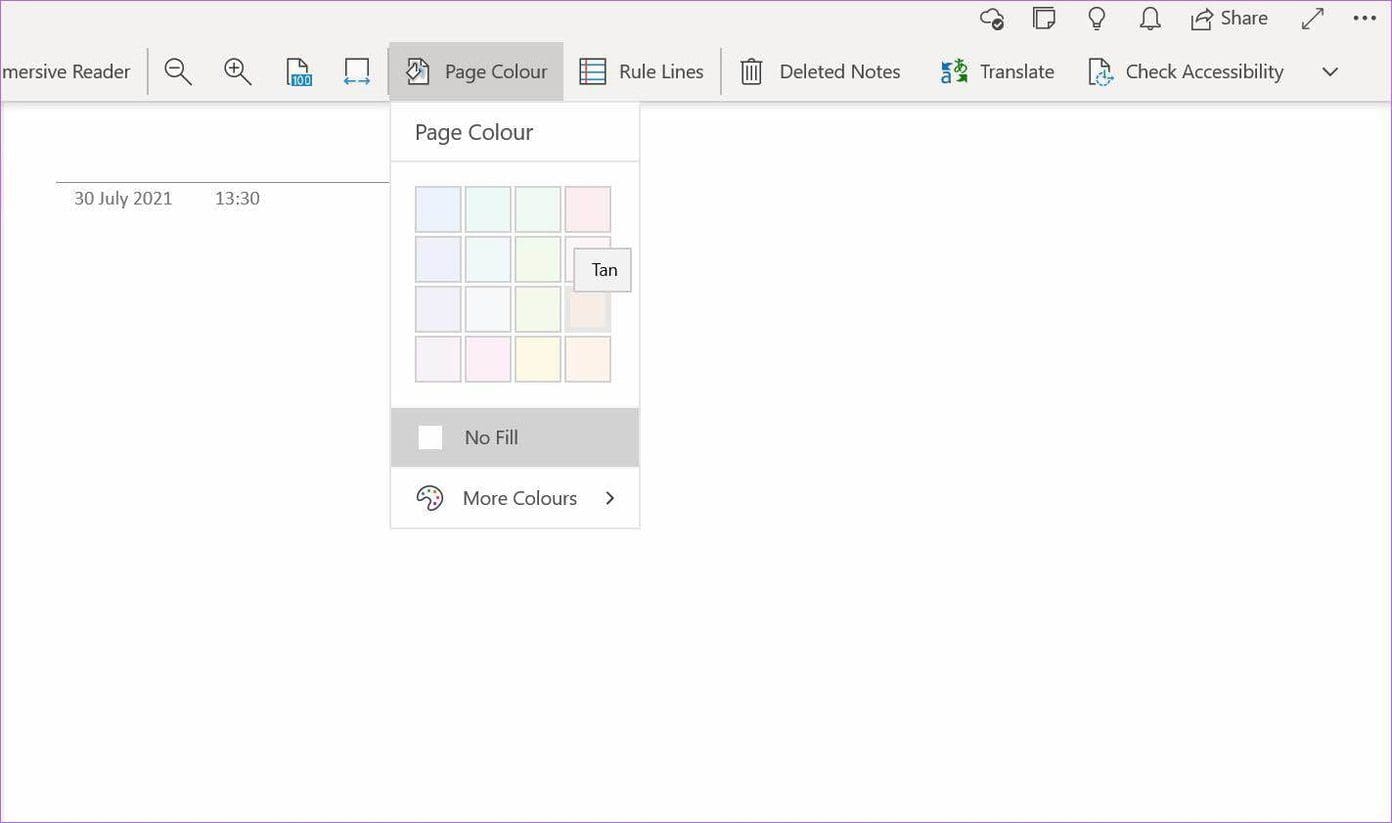
Step 3: Go to Insert and add a 5×5 table. Open Home > To-Do and add tasks to the page.


To reuse this OneNote Page in the future for different uses, we will convert it into a template. Here’s how.
Step 4: Go to Notebook > Section > Page. Right-click on the page and select Set as Default Template.
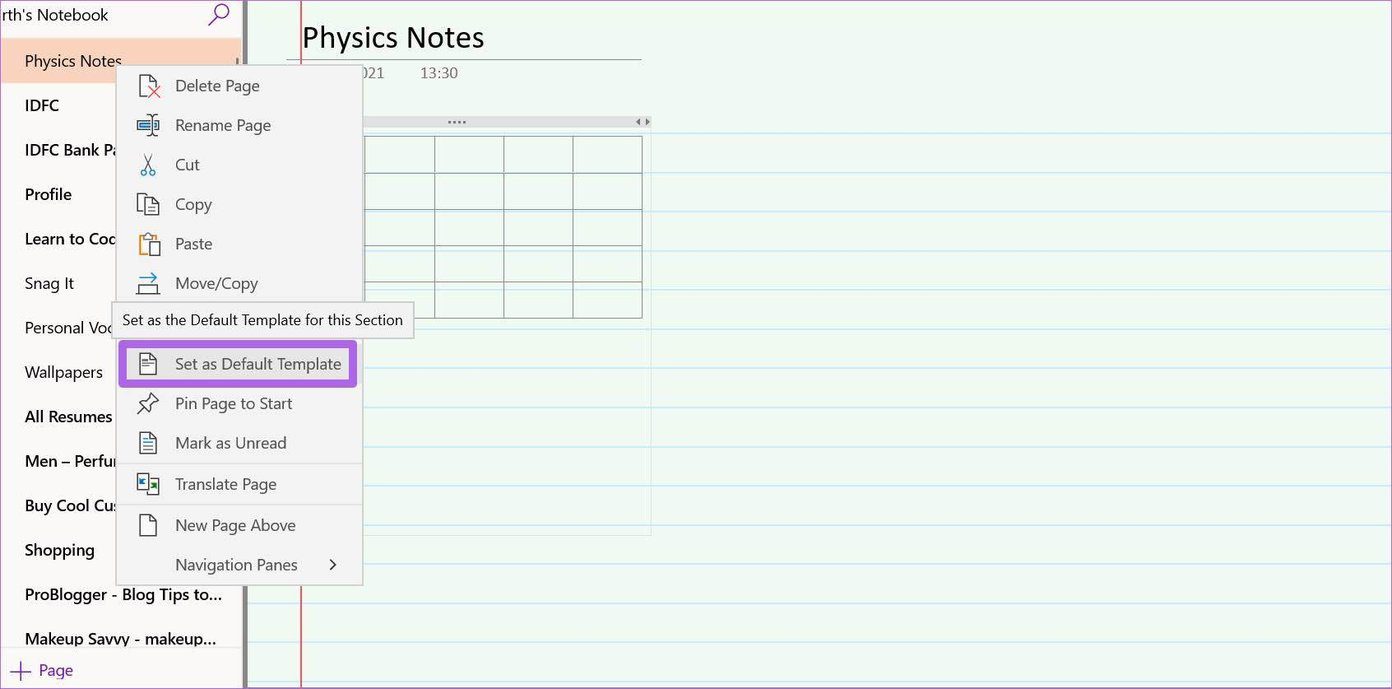
That’s it. OneNote will remember your page as a template and as soon as you try to create a new page in the same section, it will use the template and create an identical OneNote page.
Was this helpful?
Last updated on 23 August, 2024
2 Comments
Leave a Reply
Read Next
 4 Best Free Microsoft OneNote Templates You Must Try
Microsoft OneNote is a robust information-gathering and note-taking app available on Windows, Mac, Android, and iOS.
4 Best Free Microsoft OneNote Templates You Must Try
Microsoft OneNote is a robust information-gathering and note-taking app available on Windows, Mac, Android, and iOS.
 11 Best Microsoft Word Templates to Create Brochure
Microsoft Office 365 is considered as the gold standard of productivity suite among enterprise and business.
11 Best Microsoft Word Templates to Create Brochure
Microsoft Office 365 is considered as the gold standard of productivity suite among enterprise and business.
 How to Create and Use Custom Table Templates in Microsoft Word
How to Create a Custom Table Template in Microsoft Word On Microsoft Word, there is a feature called Quick Tables.
How to Create and Use Custom Table Templates in Microsoft Word
How to Create a Custom Table Template in Microsoft Word On Microsoft Word, there is a feature called Quick Tables.
 Top 9 Google Sheets Budget Templates for Finance Tracking
Managing money can be tricky sometimes.
Top 9 Google Sheets Budget Templates for Finance Tracking
Managing money can be tricky sometimes.
 20 Best Free Notion Templates for Personal Use
Notion – a personal productivity and team collaboration software has taken the market by storm.
20 Best Free Notion Templates for Personal Use
Notion – a personal productivity and team collaboration software has taken the market by storm.
 5 Fixes for Email Templates Missing in Microsoft Outlook
Fix 1: Check the Email Templates Folder An obvious reason why your Outlook email templates may not show up is that you have accidentally deleted them.
5 Fixes for Email Templates Missing in Microsoft Outlook
Fix 1: Check the Email Templates Folder An obvious reason why your Outlook email templates may not show up is that you have accidentally deleted them.
 6 Best Microsoft Excel Templates for Payroll Management
Microsoft Excel continues to excel when it comes to creating spreadsheets and crunching data.
6 Best Microsoft Excel Templates for Payroll Management
Microsoft Excel continues to excel when it comes to creating spreadsheets and crunching data.
 7 Top Ways to Fix OneNote Notebook Disappearing Error on Windows
Microsoft OneNote has gone through a number of iterations.
7 Top Ways to Fix OneNote Notebook Disappearing Error on Windows
Microsoft OneNote has gone through a number of iterations.
The article above may contain affiliate links which help support Guiding Tech. The content remains unbiased and authentic and will never affect our editorial integrity.


Hi there,
Thank you for this post, as I found it incredibly helpful.
I am using the Onenote application on my MacBook, and I was not able to see the “Go to Insert > Page Templates” within the desktop app? Is this feature only available for Windows versions?
I have the same question. Also, where is the list … “If you are looking for some good resources to find free and paid OneNote templates from the web, we have compiled a list of websites for you. Select a OneNote template based on your needs, import it to your Notebook, and save it as the default template using the steps above.”