How to Create Folders From CMD in Windows
Create a Single Folder
Step 1: Press the Windows key on your keyboard, type Command Prompt, and click Open.
Step 2: Now, it is time to select the destination where you want to create a new folder. Type the below command and hit Enter.
Note: In place of YourDirectoryPath below, enter your specified destination path. For example, if you want to create a folder on the Desktop, type cd desktop and press Enter.
cd YourDirectoryPath
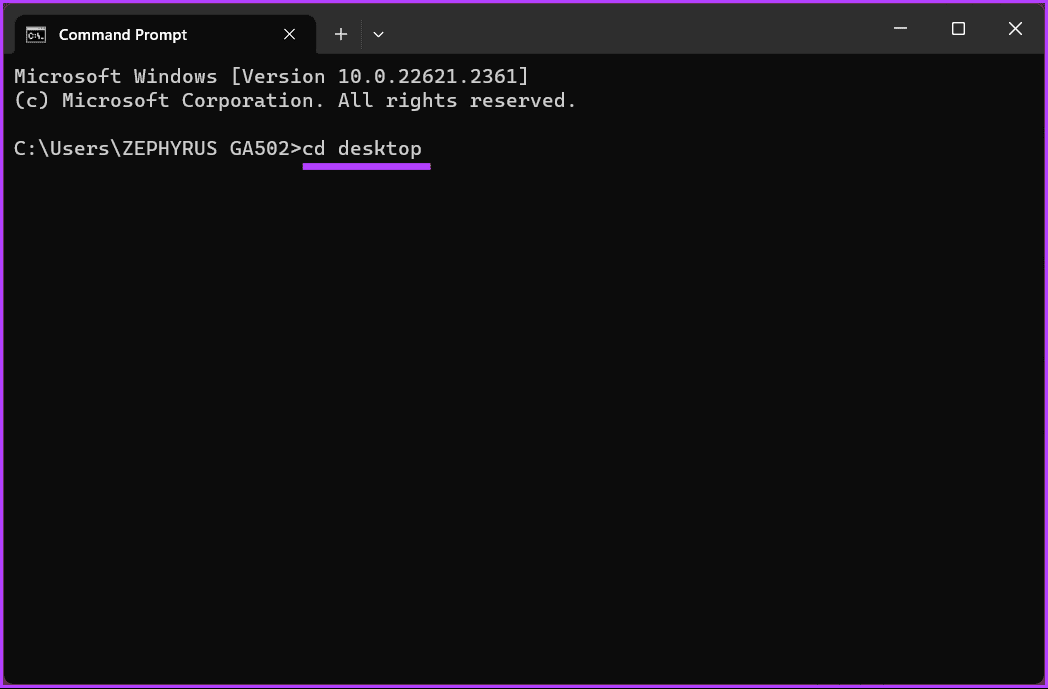
If you change your mind and want the directory to be changed, type the drive name with the colon (:) symbol (example- D:) and hit Enter.
Step 3: Once you have reached the desired destination, type the below command and press Enter.
Note: Replace NameofYourDirectory with the folder’s name (for example- Games or Personal Files or Movies, etc.)
mkdir NameofYourDirectory
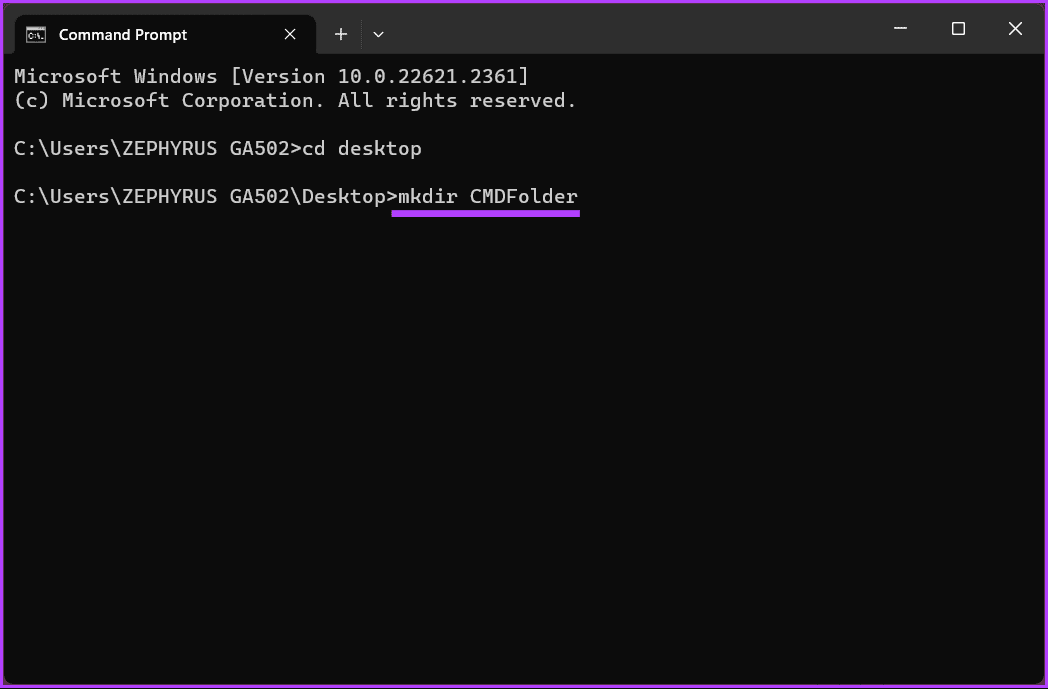
That’s it. You have successfully created a single folder on your Windows computer using Command Prompt. If you are looking to create multiple folders or subfolders, continue reading.
Create Multiple Folders or Subfolders
We will demonstrate how to create three folders at the same time.
Step 1: Press the Windows key on your keyboard, type Command Prompt, and click Open.
Step 2: Now, it is time to select the destination where you want to create a new folder. Type the below command and hit Enter.
Note: In place of YourDirectoryPath below, enter your specified destination path. For example, if you want to create a folder on the Desktop, type cd desktop and press Enter.
cd YourDirectoryPath
If you change your mind and want the directory to be changed, type the drive name with the colon (:) symbol (example- D:) and hit Enter.
Step 3: Once you have reached the desired destination, type the below command and press Enter.
Note: Replace NameofYourDirectory with the name of the folder. For example, it can be Games, Document, and Movies. Ensure you keep a gap between the folder (directory) names.
mkdir NameofYourDirectory1 NameofYourDirectory2 NameofYourDirectory3

There you go. You have successfully created a folder using the Windows Command Prompt. Continue with the steps below to create a subdirectory using CMD.
Step 4: You know the name of the folders you created. First, you must choose the folder you want subfolders in, type the below command, and hit Enter.
cd NameofYourDirectory
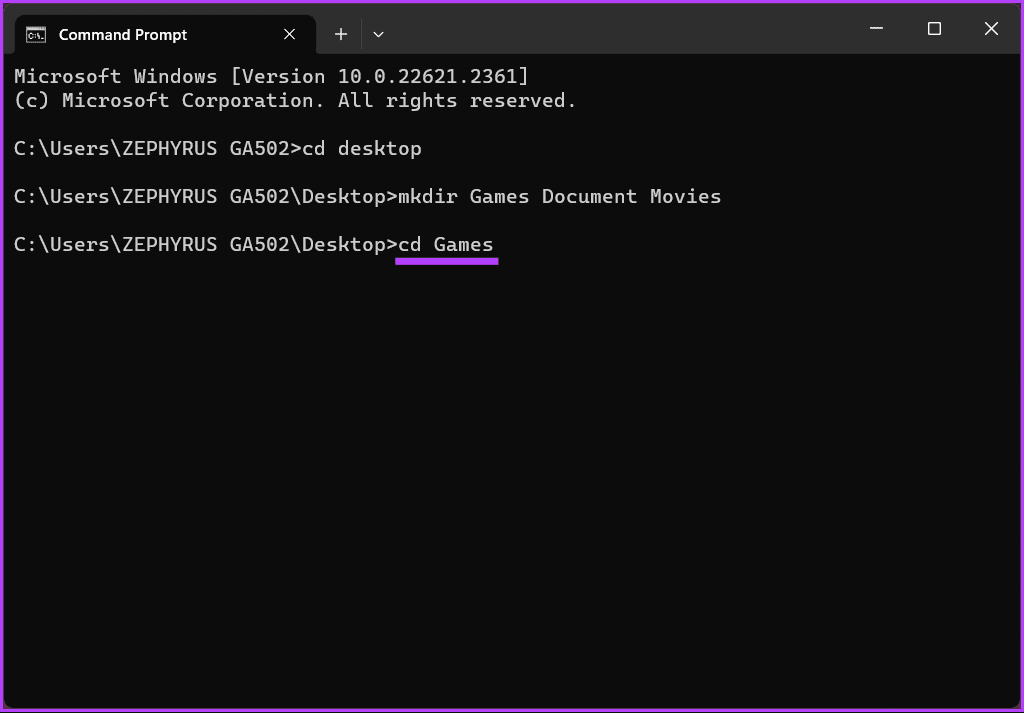
Step 5: In the directory where you want to create subfolders, type the following command and press Enter.
Note: You can have multiple subfolders in a single folder. However, be sure to leave a gap between the folder name (directory).
md NameofSubDirectory1 NameofSubDirectory2 NameofSubDirectory3
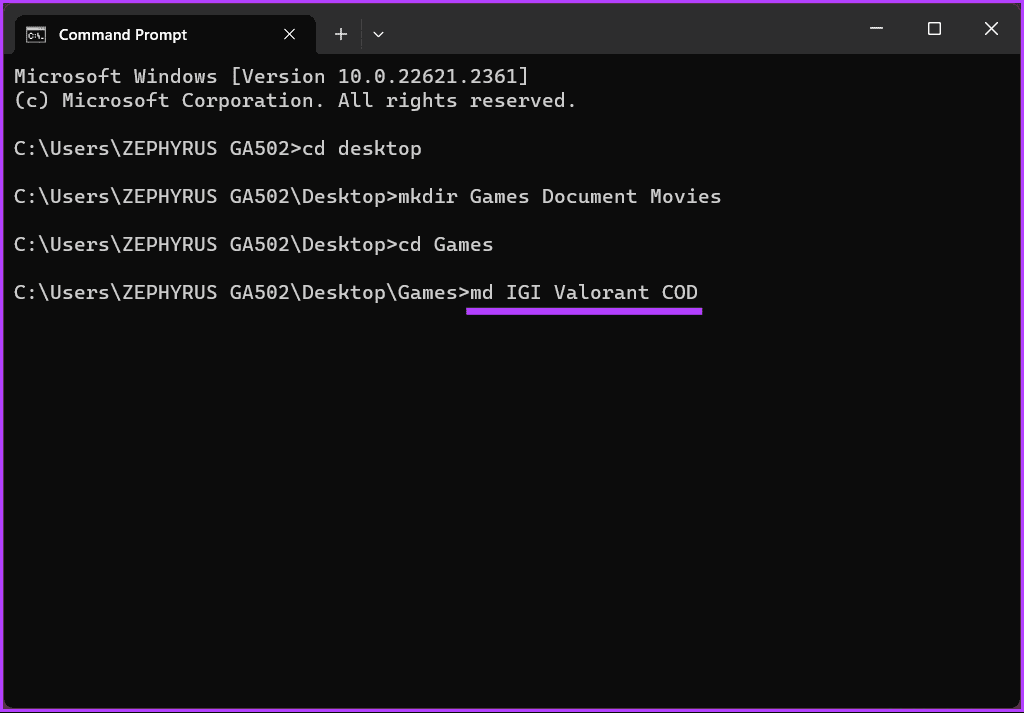
There you have it. The subfolders are created under the folder you want. You can repeat the above steps to create multiple subfolders in multiple folders.
Keep reading if you want to take it further and create a file in cmd.
How to Create a File Using CMD in Windows
Create an Empty File
Step 1: Press the Windows key on your keyboard, type Command Prompt, and click Open.
Step 2: Now, it is time to select the destination where you want to create a new folder. Type the below command and hit Enter.
Note: In place of YourDirectoryPath below, enter your specified destination path. For example, if you want to create a folder on the Desktop, type cd desktop and press Enter.
cd YourDirectoryPath
Step 3: Now that you are in the destination directory, type the below command and press Enter.
Note: Replace the filename with the name you want, and ‘.FileExtensions’ should be set to the file extension, such as .txt, .docx, etc.
type nul > filename.FileExtensions

That’s about it. An empty file will be created with the set extension for you to check and work on later. If you want to make a file containing some text using cmd, continue reading.
Create a File Containing Some Text
Step 1: Press the Windows key on your keyboard, type Command Prompt, and click Open.
Step 2: Now, it is time to select the destination where you want to create a new folder. Type the below command and hit Enter.
Note: In place of YourDirectoryPath below, enter your specified destination path. For example, if you want to create a folder on the Desktop, type cd desktop and press Enter.
cd YourDirectoryPath
Step 3: Now, in the destination directory, type the below command and press Enter.
Note: Replace the filename with the name you want, and ‘.FileExtensions’ should be set to the file extension, such as .txt, .docx, etc.
copy con filename.FileExtensions
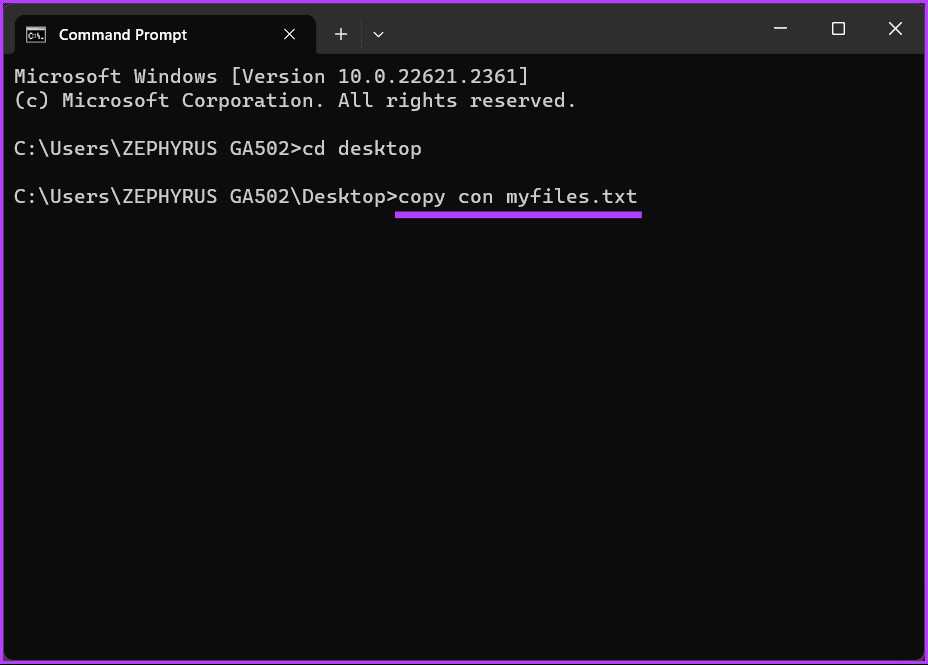
Step 4: Type the text you want to put in the file. If you are entering multiple lines, use the Enter key.
Example: This is a test writeup to test the method and create a file with content using Command Prompt.
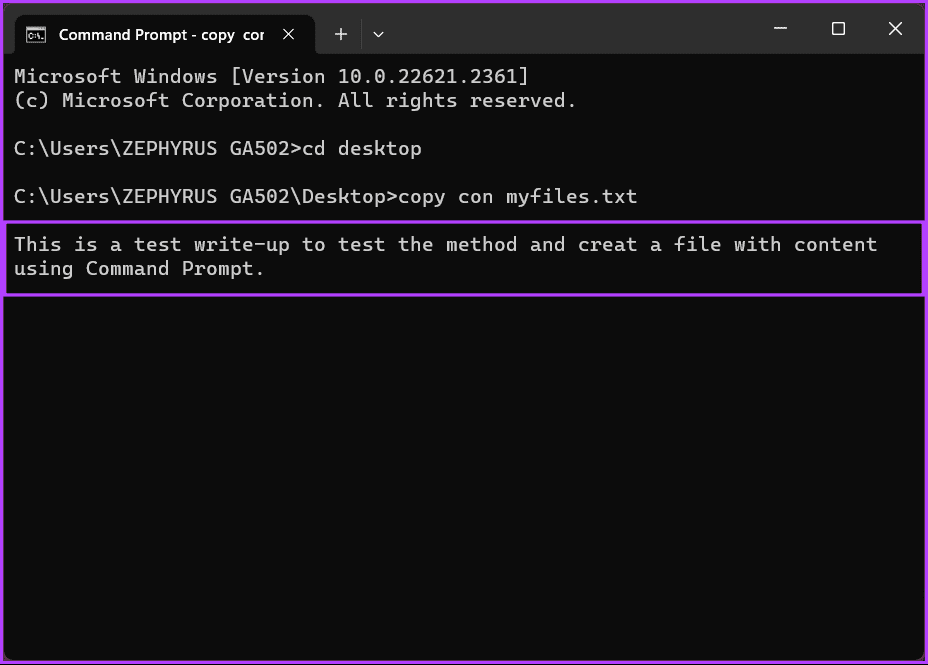
Step 5: Press Ctrl + Z on your keyboard once you add text to the file and hit Enter.

With this, a new file will be created with the entered details, which you can access via File Explorer and edit further if required. If, for some reason, you are unable to execute the command, reach out to Microsoft Support and get the issue resolved.
If there is anything we have missed in the article, please refer to the FAQ section below.
FAQs on Create and Delete a Folder Command Prompt
To delete a folder and its contents, use the “rmdir” (remove directory) command followed by the folder path. For example: rmdir /s /q C:\Users\YourUsername\Desktop\OldFolder
Both “rmdir” and “rd” are used to remove directories. “rmdir” is the full command, while “rd” is a shorthand version of it. You can use either command interchangeably.
Once a folder is deleted using Command Prompt, it typically goes to the Recycle Bin, where you can restore it. If you’ve emptied the Recycle Bin, data recovery software may be necessary to attempt recovery.
Now that you know how to create a folder or file using Windows Command Prompt, you can quickly automate tasks, manage remote systems, create files, or enhance your command-line proficiency.
Was this helpful?
Last updated on 17 August, 2024
Read Next
 5 Ways to Fix Command Prompt Not Working on Windows 11
Fix 1: Run SFC and DISM Scans Corrupted or missing system files can malfunction Command Prompt on Windows.
5 Ways to Fix Command Prompt Not Working on Windows 11
Fix 1: Run SFC and DISM Scans Corrupted or missing system files can malfunction Command Prompt on Windows.
 4 Ways to Fix Command Prompt Keeps Popping Up in Windows 11
Try Basic Fixes Scan for malware: Command Prompt's unusual behavior could be due to a malware or virus infection.
4 Ways to Fix Command Prompt Keeps Popping Up in Windows 11
Try Basic Fixes Scan for malware: Command Prompt's unusual behavior could be due to a malware or virus infection.
 How to View Command Prompt (CMD) History on Windows
Method 1: Use a Keyboard Shortcut There is a keyboard shortcut to view the history on CMD quickly.
How to View Command Prompt (CMD) History on Windows
Method 1: Use a Keyboard Shortcut There is a keyboard shortcut to view the history on CMD quickly.
 15 Brilliant Command Prompt – CMD Tricks You Might Not Know About
Before we get started, here are a few things you need to keep in mind.
15 Brilliant Command Prompt – CMD Tricks You Might Not Know About
Before we get started, here are a few things you need to keep in mind.
 5 Ways to Fix Can’t Create a New Folder on Windows 11
Basic Fixes Run a Windows security scan: Malicious files may prevent you from creating a new folder.
5 Ways to Fix Can’t Create a New Folder on Windows 11
Basic Fixes Run a Windows security scan: Malicious files may prevent you from creating a new folder.
 How to Turn off Windows Hello PIN and Setup Prompt Notification
To simplify the login process on Windows 10 computers, Microsoft came up with the Windows Hello sign-in.
How to Turn off Windows Hello PIN and Setup Prompt Notification
To simplify the login process on Windows 10 computers, Microsoft came up with the Windows Hello sign-in.
 How to Find the IP Address of a Domain Using NSLookup Command In Windows
Method 1: Quick Report Step 1: Open the Run prompt (Win + R), type wt, and press Enter to open Windows Terminal.
How to Find the IP Address of a Domain Using NSLookup Command In Windows
Method 1: Quick Report Step 1: Open the Run prompt (Win + R), type wt, and press Enter to open Windows Terminal.
 3 Ways to Fix ‘Not Recognized as an Internal or External Command’ Error in Windows
Basic Fixes Run CMD in admin mode: Some commands require an elevated Command Prompt window to run properly.
3 Ways to Fix ‘Not Recognized as an Internal or External Command’ Error in Windows
Basic Fixes Run CMD in admin mode: Some commands require an elevated Command Prompt window to run properly.
The article above may contain affiliate links which help support Guiding Tech. The content remains unbiased and authentic and will never affect our editorial integrity.