The Copilot sidebar in Microsoft Edge is a handy way to ask questions, perform tasks, and get assistance in a jiffy. When it’s working, that is. If you’re having trouble with Copilot not working in Edge, then we have 6 fixes for you to try out.
Fixing Copilot Not Working in Edge
Whether Microsoft Edge’s Copilot sidebar isn’t loading properly, or it’s a case of “It’s not you, it’s me – Copilot,” we’ve got some fixes to get the assistant cooperative again. Let’s get started.
Restart Everything
Let’s start with this simple fix – restarting everything. The simplest fix is sometimes the most obvious. Restart your browser and, if that doesn’t work, restart your computer, too.
Update Edge
A frequent cause of Copilot issues is an outdated version of Edge. The browser will automatically update itself if your computer is connected to the internet. If you want to be sure you’re running the latest version, do the following:
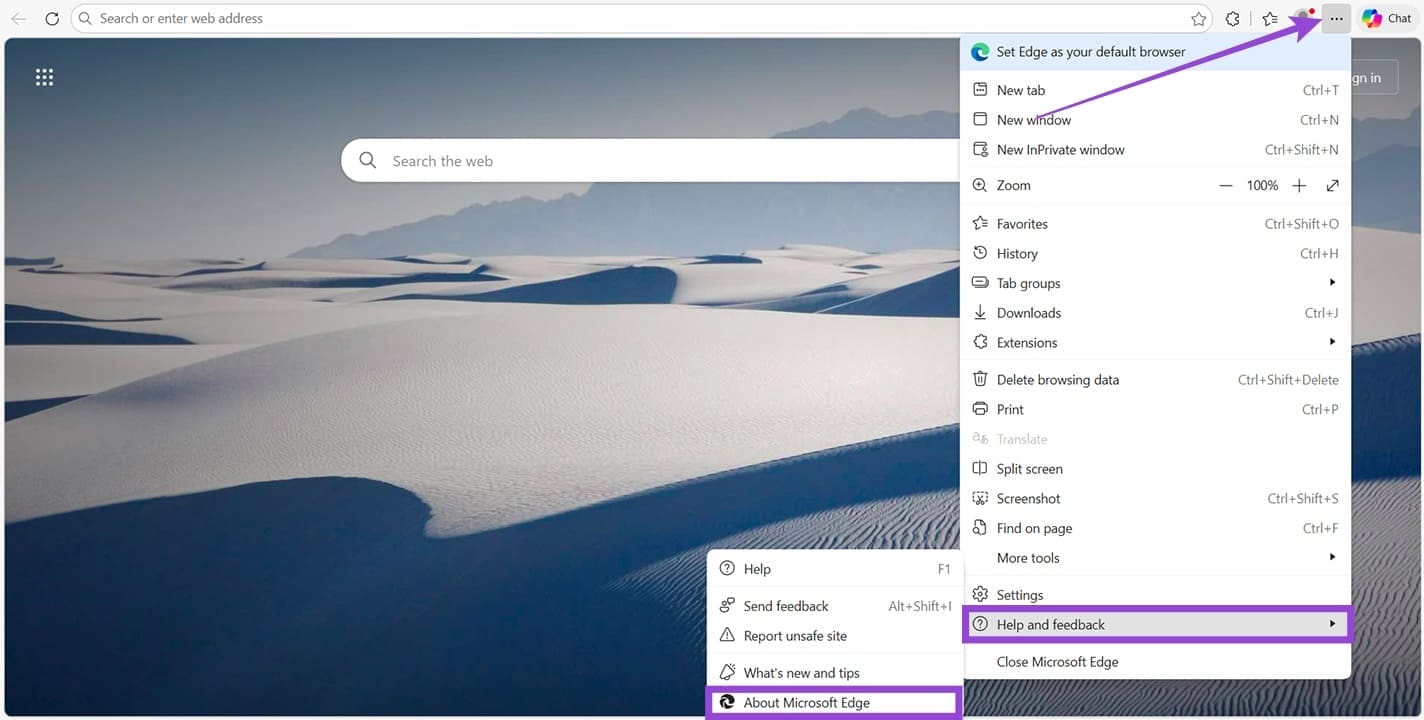
Step 1. Click the three-dots menu (…) in the top bar and select “Help & Feedback” from the dropdown menu.
Step 2. Select “About Microsoft Edge.”
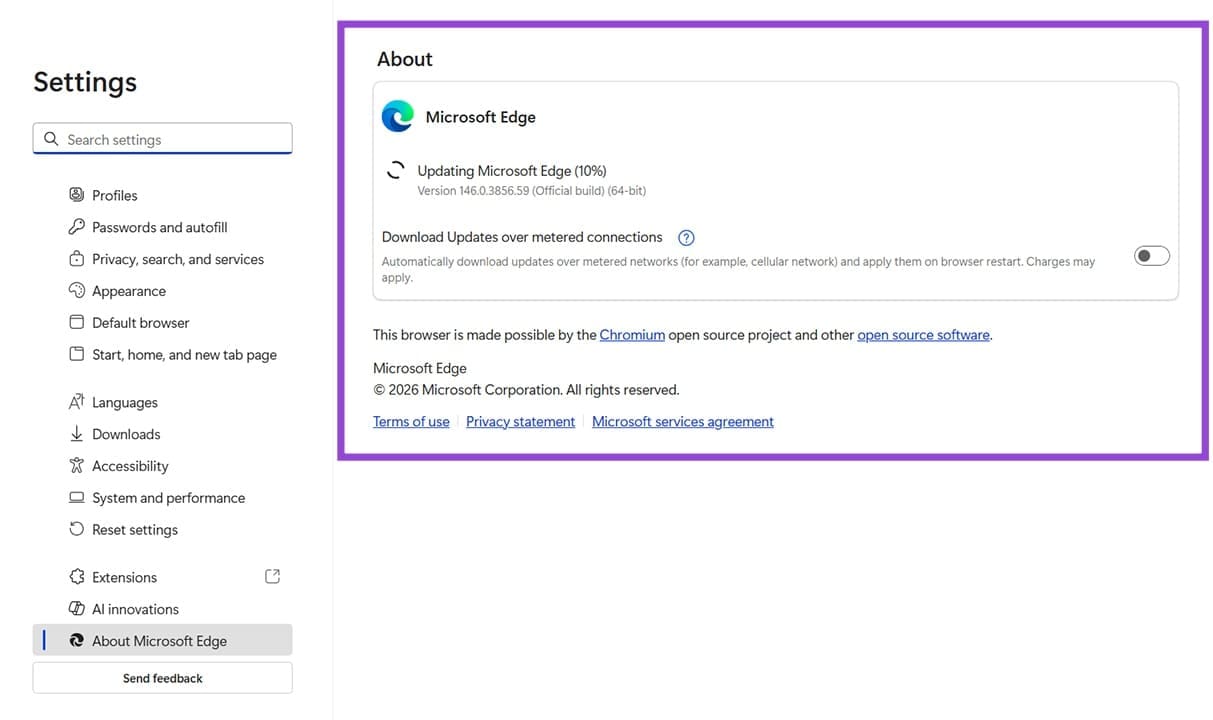
Step 3. In the About menu, you’ll see the browser version. If it isn’t the latest, it’ll begin updating automatically. Once done, restart your browser and reopen Copilot.
Clear Copilot Cookies
Outdated or corrupted Copilot cookies might be preventing things from loading properly. Here’s how to clear them:
Step 1. Open Developer Tools (F12) in Edge. Click “Open DevTools” when prompted.
Step 2. In the Development Tools panel, select the “Applications” tab.
Step 3. Click the “Cookies” option in the sidebar. If there’s a dropdown arrow, you’ll see a list. Look for the Copilot hyperlink and select it.
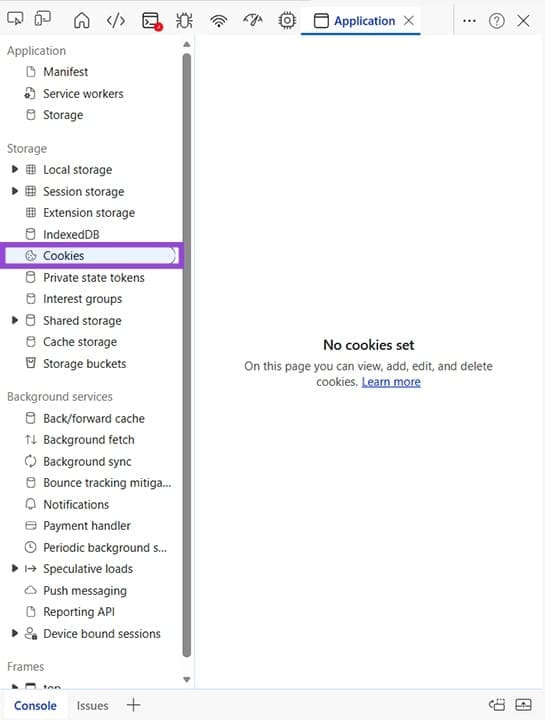
Step 4. Right-click the Copilot Cookies subsection and choose “Clear.”
Step 5. Restart your browser and try Copilot again.
Clear Browser Cache
A corrupted browser cache can cause Edge and all its extensions to function erratically. This extends to Copilot. Here’s how to clear it:
Step 1. Press Ctrl + Shift + Del to bring up the “Delete browsing data” window.
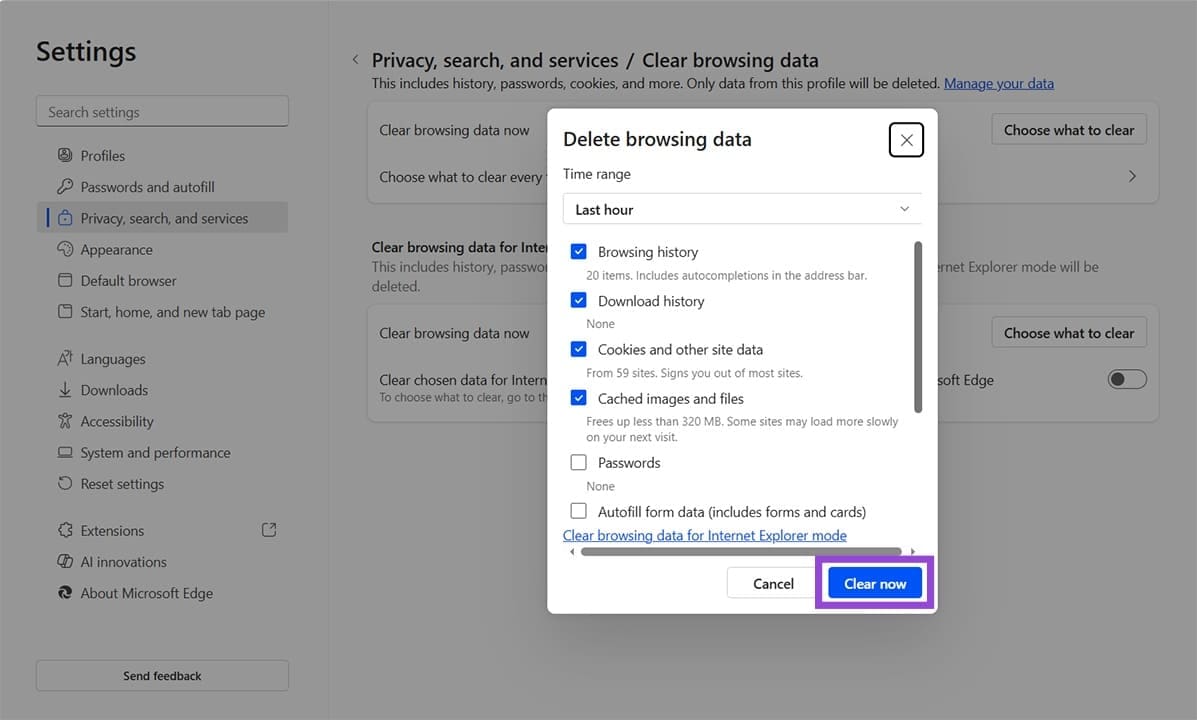
Step 2. Select what you want to delete by checking the boxes, then click “Clear now” to finalize.
Try a Different Profile
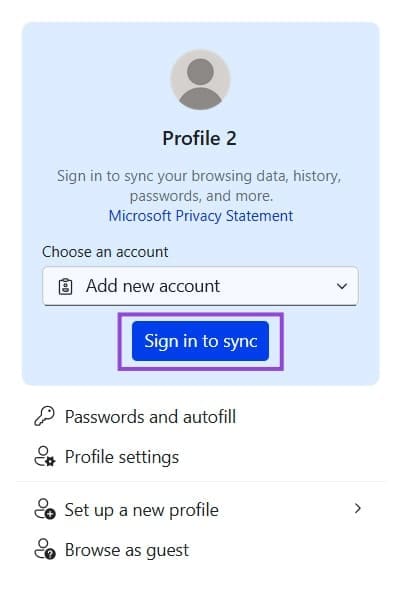
There are two ways to test your profile and Copilot. The first is to sign out and back in:
Step 1. Click your profile and choose the “Sign Out” option.
Step 2. Click the profile again and choose “Sign in to sync.”
The second way is to create another profile:
Step 1. Navigate to Settings in Edge.
Step 2. In the “Profiles” tab, click the plus sign and “Add profile” to create a new profile.

Once you’ve done either, restart the browser and test again.
Repair Edge
It could be that the browser itself is to blame for the Microsoft Edge Copilot not working. You can repair the app via Settings. Here’s how:
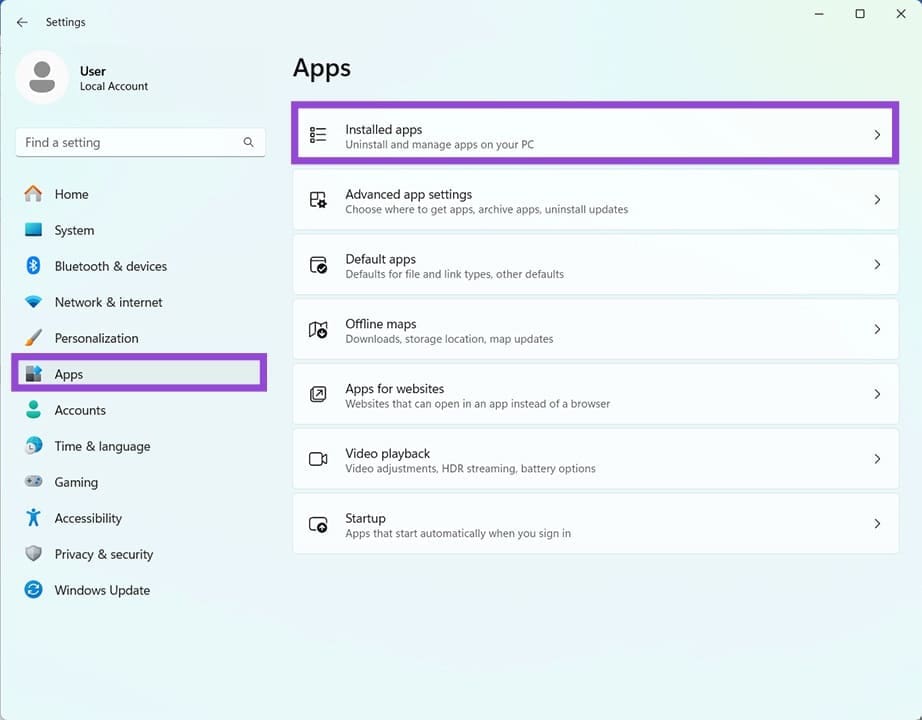
Step 1. Open Settings (Win + I) and choose “Apps” from the sidebar.
Step 2. Click “Installed Apps.”
Step 3. Scroll down to “Microsoft Edge” and click the three dots next to the title.
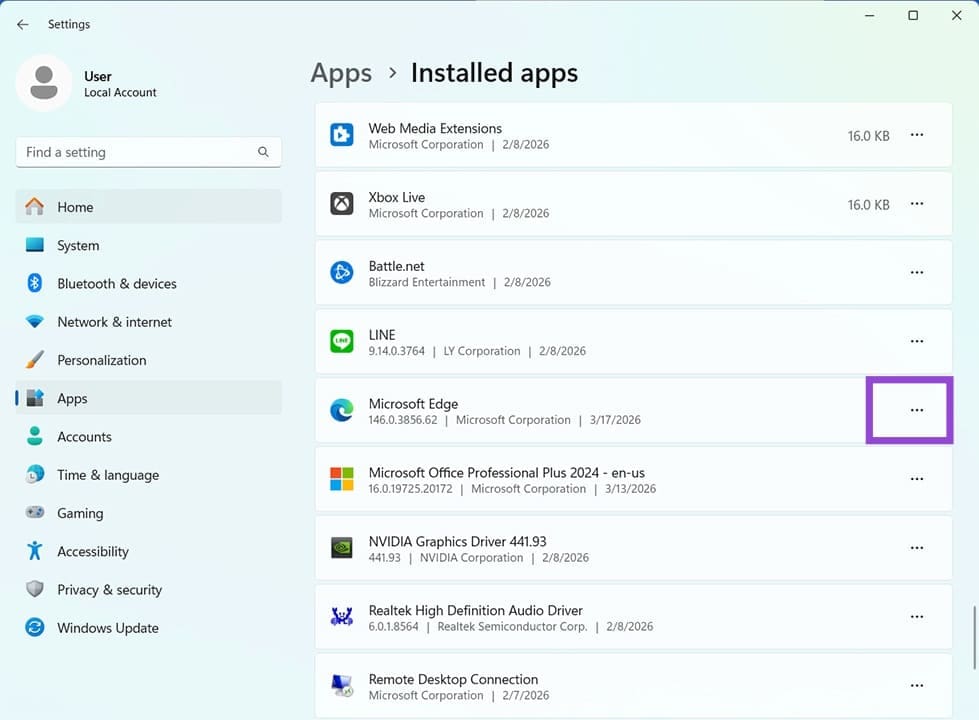
Step 4. Click “Modify.”
Step 5. In the window that pops up, click “Repair” and follow the steps.
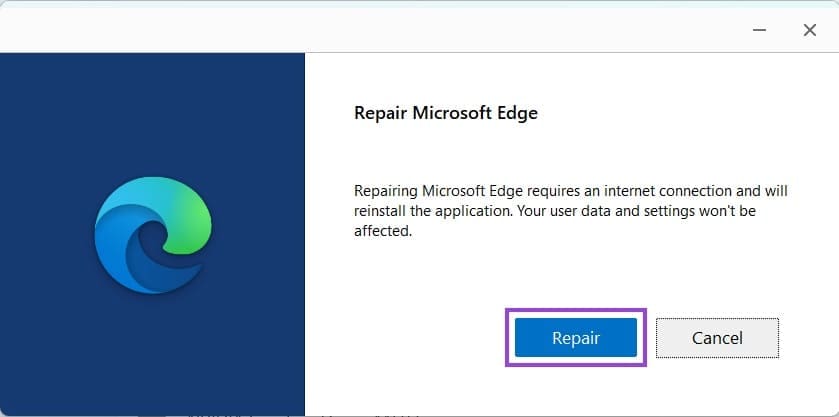
Step 6. Once the repair is done, restart Edge and try Copilot again.
Was this helpful?
Last updated on 24 March, 2026
Read Next
 How to Remove Copilot From Microsoft Edge
Method 1.
How to Remove Copilot From Microsoft Edge
Method 1.
 How to Use Copilot in Edge Browser
There are many great features in Microsoft’s Edge browser, not least of which is the integration of Microsoft’s AI chatbot, Copilot.
How to Use Copilot in Edge Browser
There are many great features in Microsoft’s Edge browser, not least of which is the integration of Microsoft’s AI chatbot, Copilot.
 Copilot Read Aloud Not Working – How to Fix
The Copilot Read Aloud feature is a fantastic accessibility feature and a handy way to consume a lot of information.
Copilot Read Aloud Not Working – How to Fix
The Copilot Read Aloud feature is a fantastic accessibility feature and a handy way to consume a lot of information.
 Insights From Copilot Have Stopped Working
Microsoft’s Copilot can be highly effective when it comes to analyzing data and delivering insights, but it doesn’t always work as intended.
Insights From Copilot Have Stopped Working
Microsoft’s Copilot can be highly effective when it comes to analyzing data and delivering insights, but it doesn’t always work as intended.
 How to Fix Copilot Not Working in Microsoft Office Apps
Microsoft has leaned hard into integrating its AI assistant Copilot into as many of its subscription-based apps as possible, not to mention its operating system.
How to Fix Copilot Not Working in Microsoft Office Apps
Microsoft has leaned hard into integrating its AI assistant Copilot into as many of its subscription-based apps as possible, not to mention its operating system.
 6 Cool Things You Can Do with Telegram’s New Microsoft Copilot AI Bot
Telegram's latest addition is the integration of Microsoft’s Copilot AI bot.
6 Cool Things You Can Do with Telegram’s New Microsoft Copilot AI Bot
Telegram's latest addition is the integration of Microsoft’s Copilot AI bot.
 How to Use Copilot to Summarize a Meeting
Sometimes, you don’t need every detail from a meeting — just the abridged version.
How to Use Copilot to Summarize a Meeting
Sometimes, you don’t need every detail from a meeting — just the abridged version.
 Tired of the AI Assistance? Here’s How to Disable Copilot in Office 365
Copilot is an AI assistant that comes as standard in most Microsoft 365 subscriptions.
Tired of the AI Assistance? Here’s How to Disable Copilot in Office 365
Copilot is an AI assistant that comes as standard in most Microsoft 365 subscriptions.
The article above may contain affiliate links which help support Guiding Tech. The content remains unbiased and authentic and will never affect our editorial integrity.