Method 1. Turn a Word Doc Into PDF Using Files App
Every iPhone and iPad user has the Files app on their device (unless it was deleted), so making this doc-to-PDF converting hack is the most direct way. What’s more?
It will come in handy whether the Word doc is stored locally on your iPhone/iPad, iCloud, or any other cloud storage you’ve added to the Files app.
Step 1: Launch the Files app → tap Browse. Find and open the Word file.
Step 2: Tap the Share icon from the bottom left. Select Print from the Share Sheet.
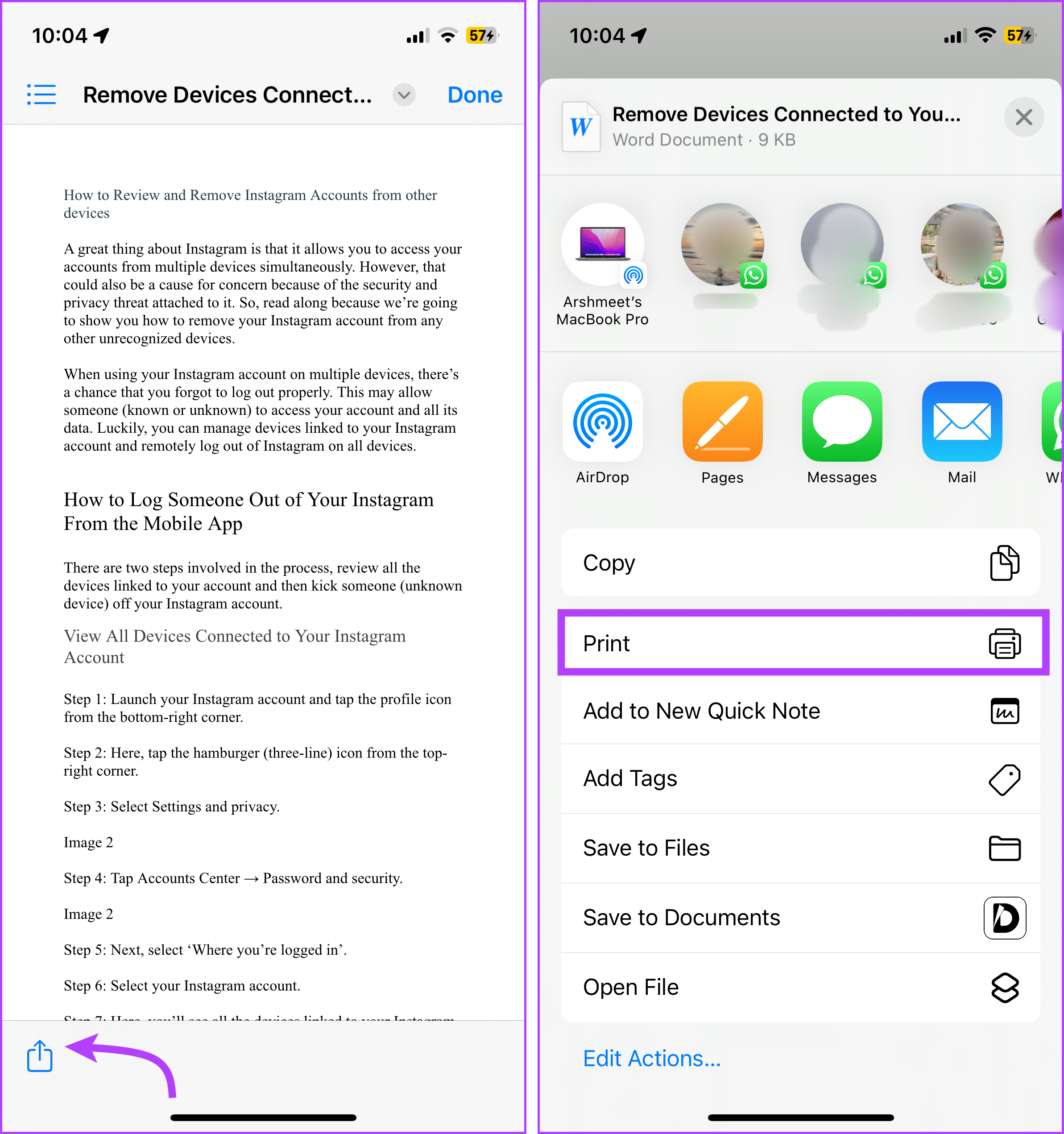
Step 3: Tap the Share icon again.
Step 4: Now select Save to Files. Choose a desired file location, and tap Save.
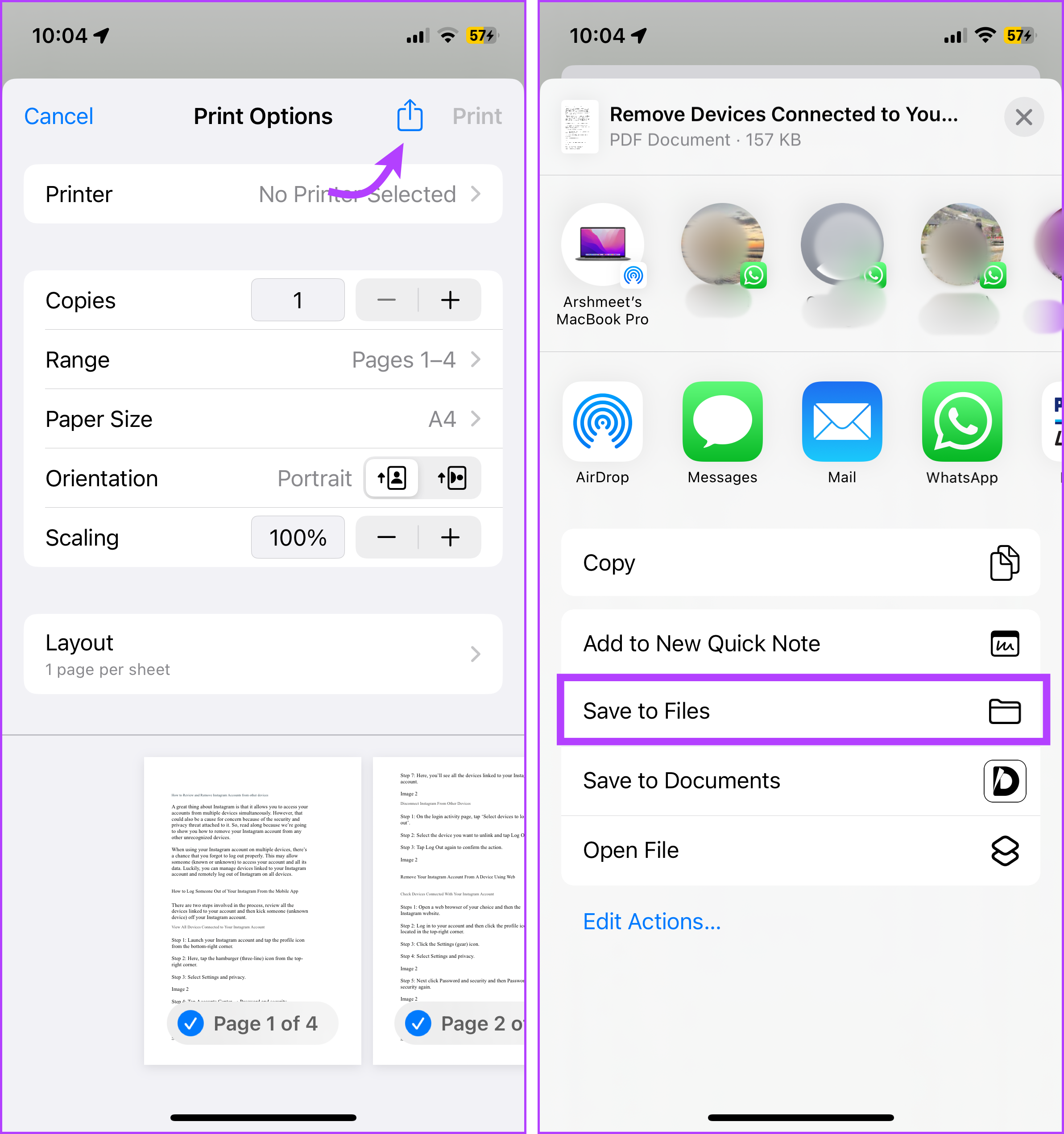
And that’s all, your Word doc is successfully converted into a PDF. You can now share the PDF as per choice and need.
Method 2. Use Shortcuts to Convert Word to PDF
The Shortcuts app sports a handy PDF converter shortcut in its gallery. Once you’ve added the shortcut to your device, you can access it from Share Sheet and convert any Word document, photos, websites, and more into PDF.
Step 1: Go to the Shortcuts app. Tap the Gallery icon from the bottom-right corner.
Step 2: Search for PDF. Here, select the Make PDF shortcut.
Step 3: If prompted, tap + Add Shortcut.
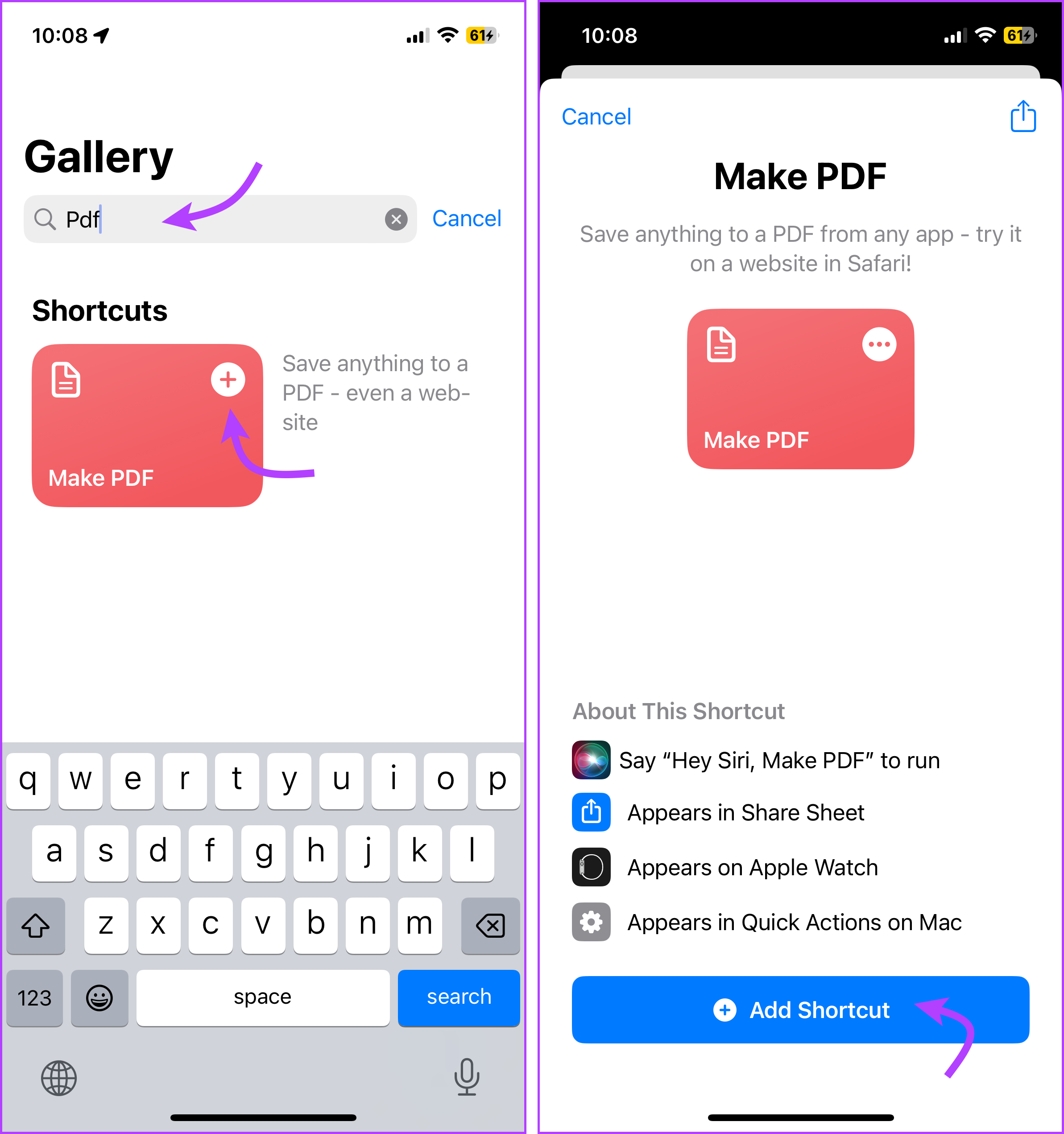
Step 4: Now, open the Files app and open the Word file you want to convert. Tap the Share icon
Step 5: Here, select Make PDF.
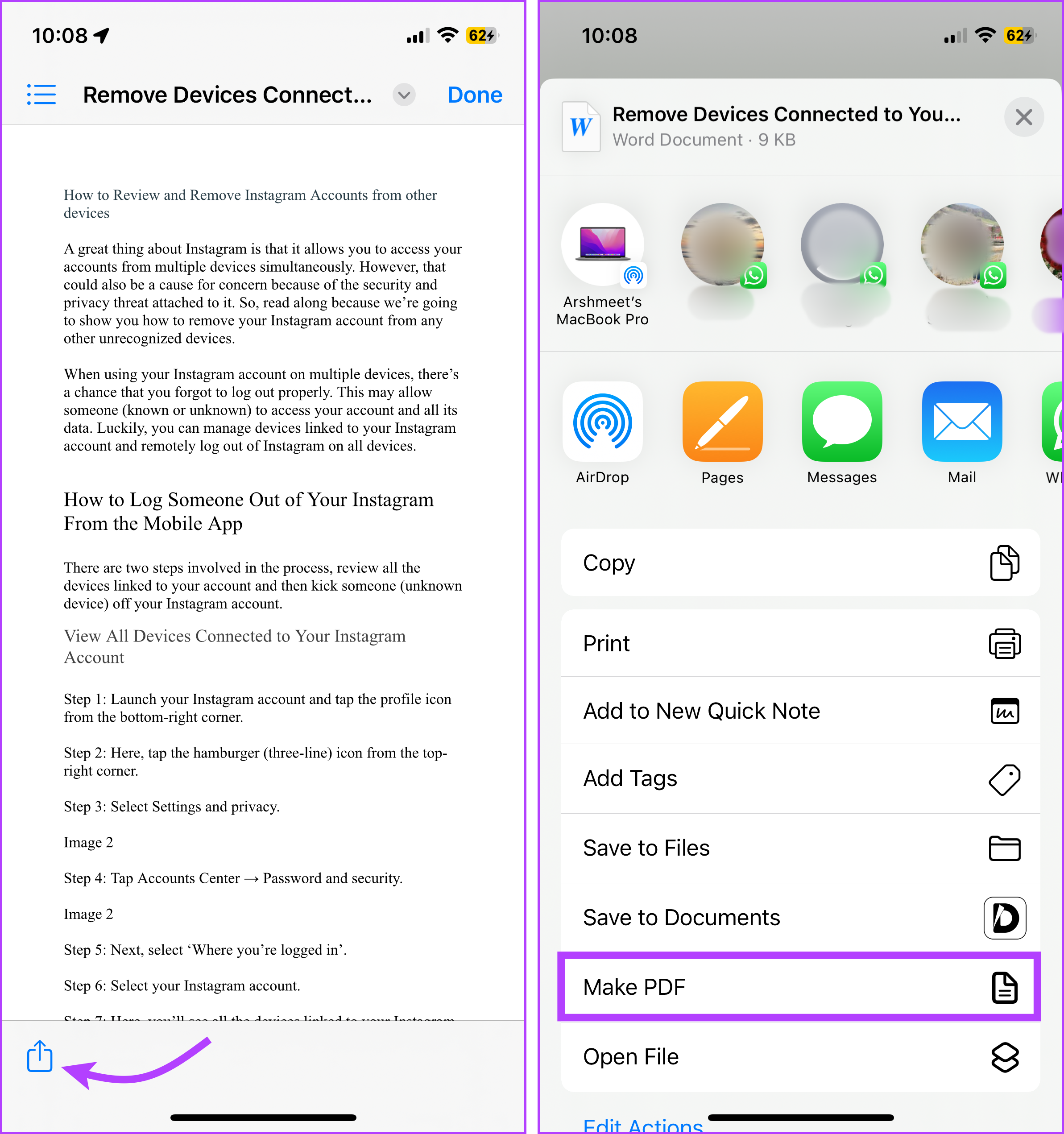
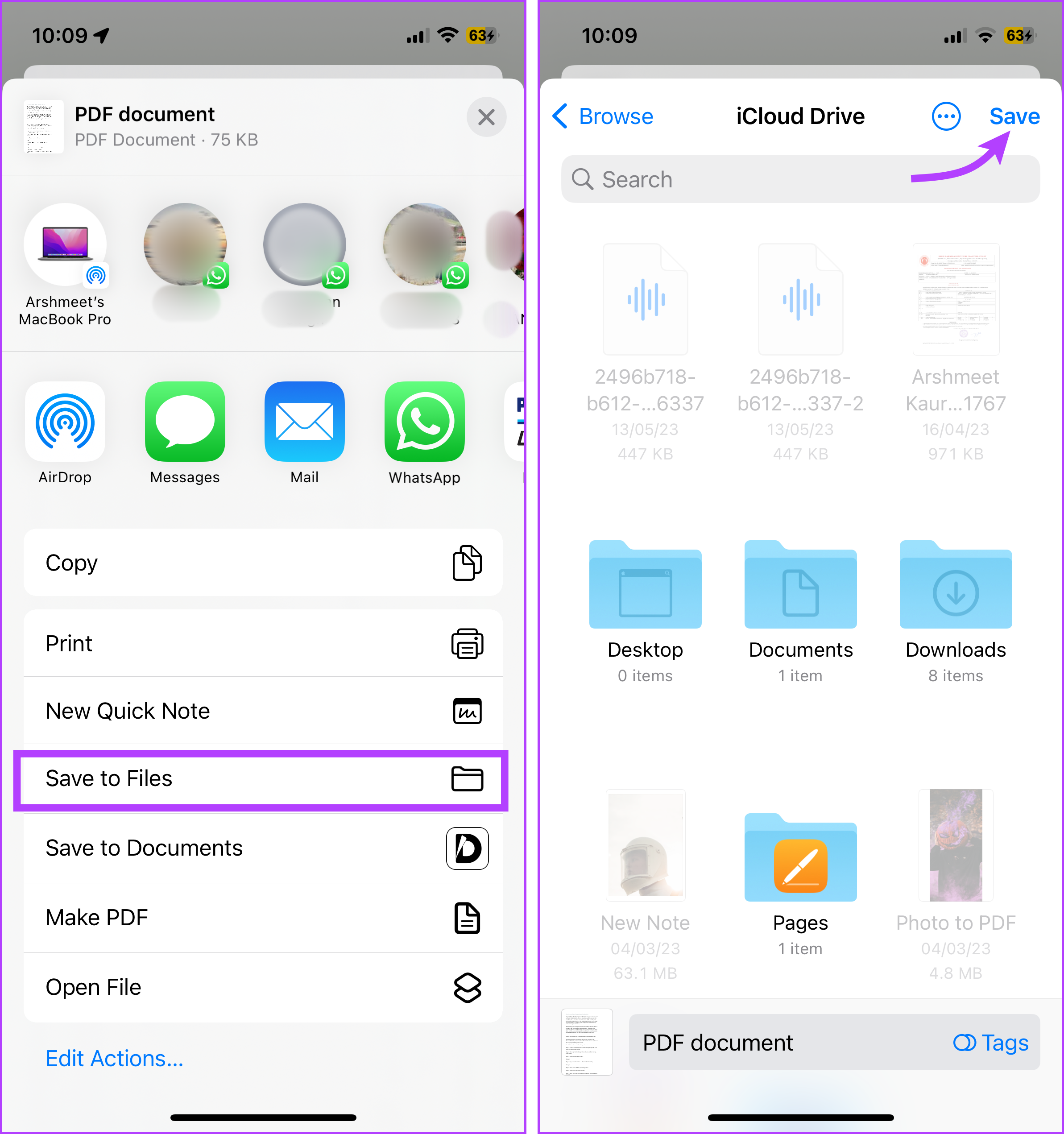
Step 6: Once the PDF is converted, tap the Share icon again. Tap Save to Files, select location, and tap Save.
Method 3. Use Pages as a Word to PDF Converter
If you have the Pages app to manage documents on the go, you can also use it to edit the Word document and convert it into PDFs. If you don’t have it, download Pages from the App Store.
Step 1: Open the Pages app. Browse, and select the Word File.
Step 2: Select the More (three-dot) icon. Tap Export.
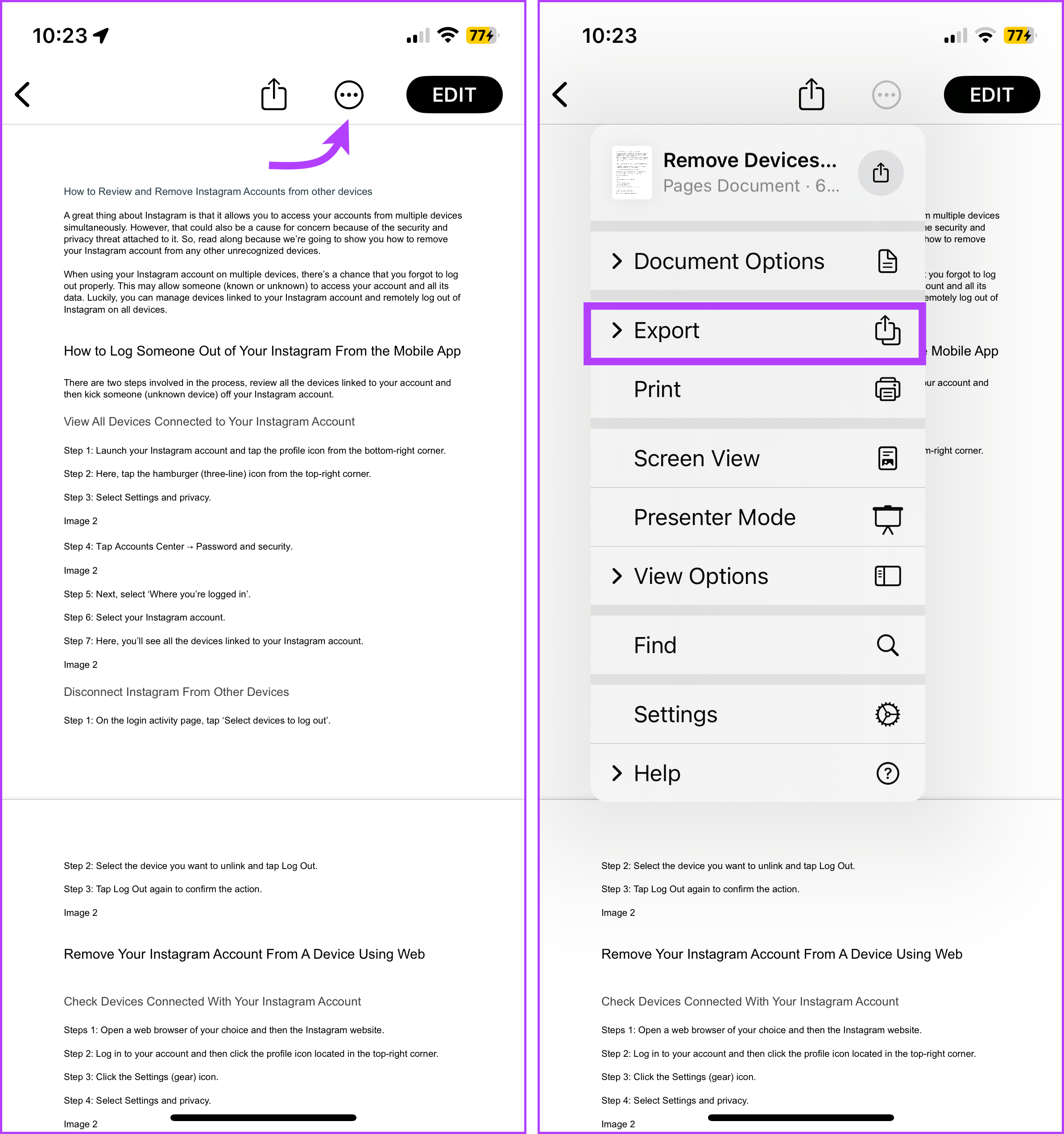
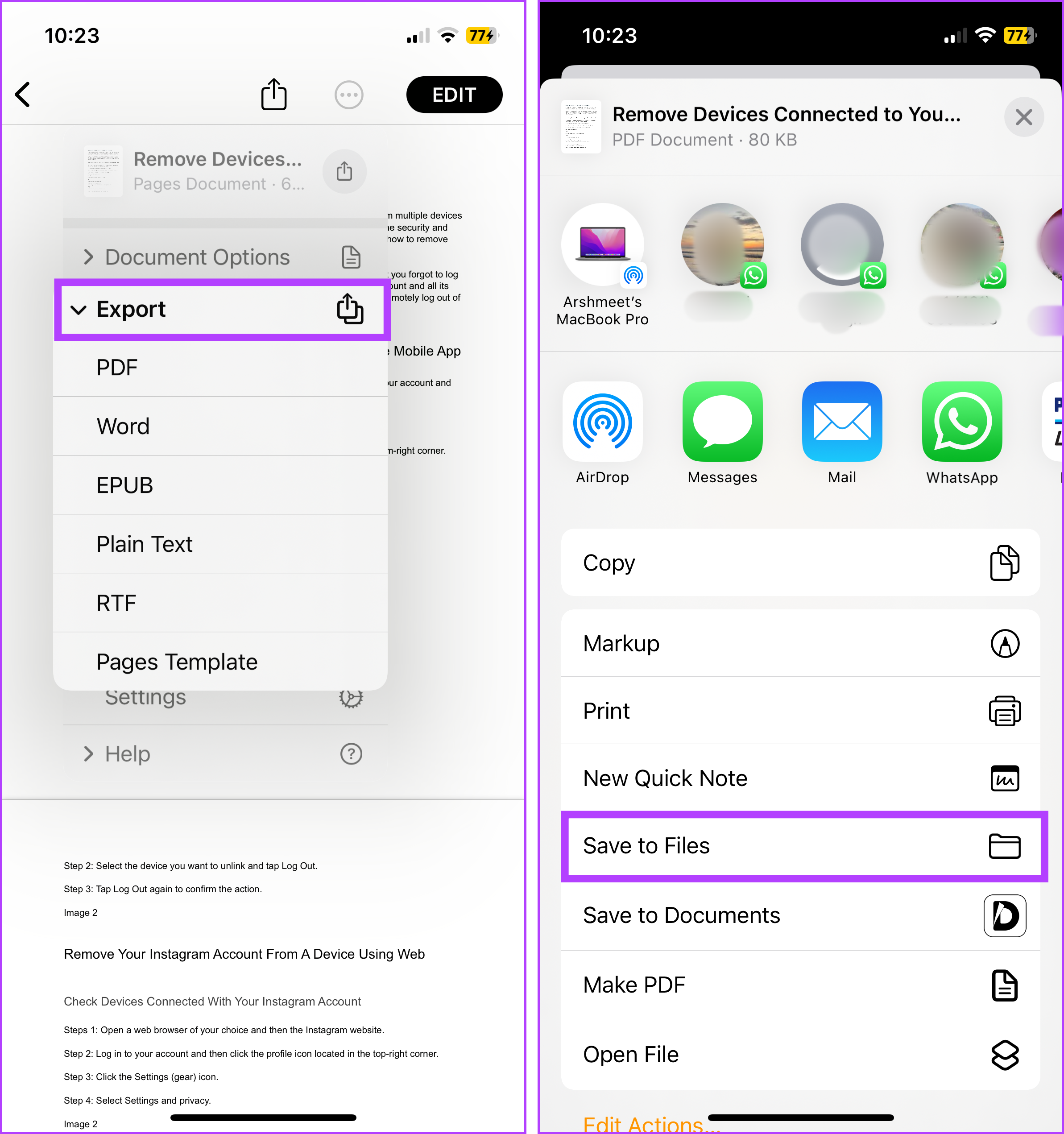
Step 3: Choose PDF from the format options.
Step 4: Next, select Save to Files from the Share Sheet. Choose a location and tap Save. Or you can directly share the PDF with anyone.
Method 4. Use Word App to Convert Word to PDF
Don’t worry, if you prefer Pages over Word app, because you can convert Word documents into PDF from this app as well. If you don’t have it already download the Microsoft Word app, do it from the App Store.
Step 1: Launch the Word app and open the Word file.
Step 2: Tap the Three dot icon from the top-right corner. Select Export.
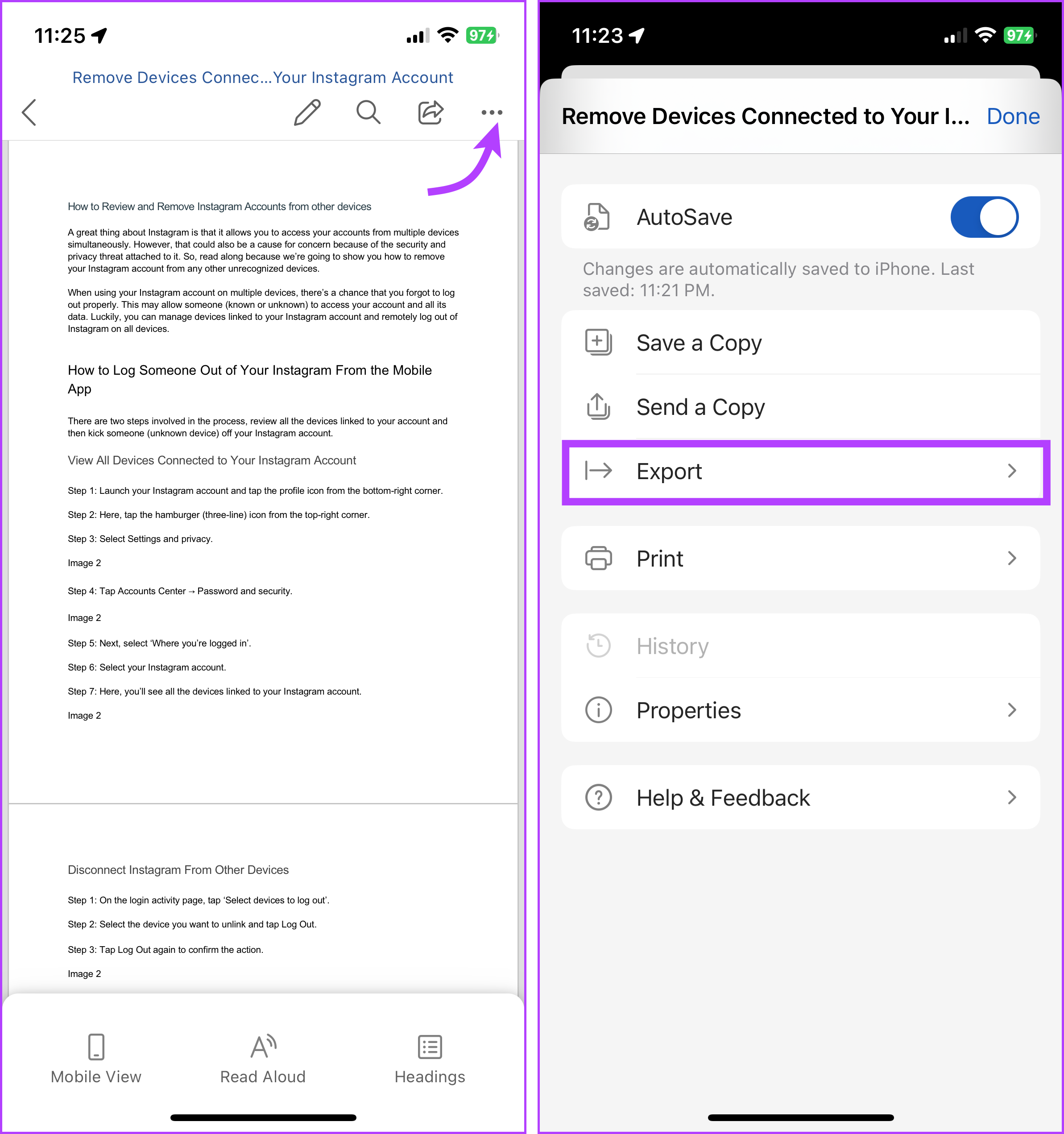
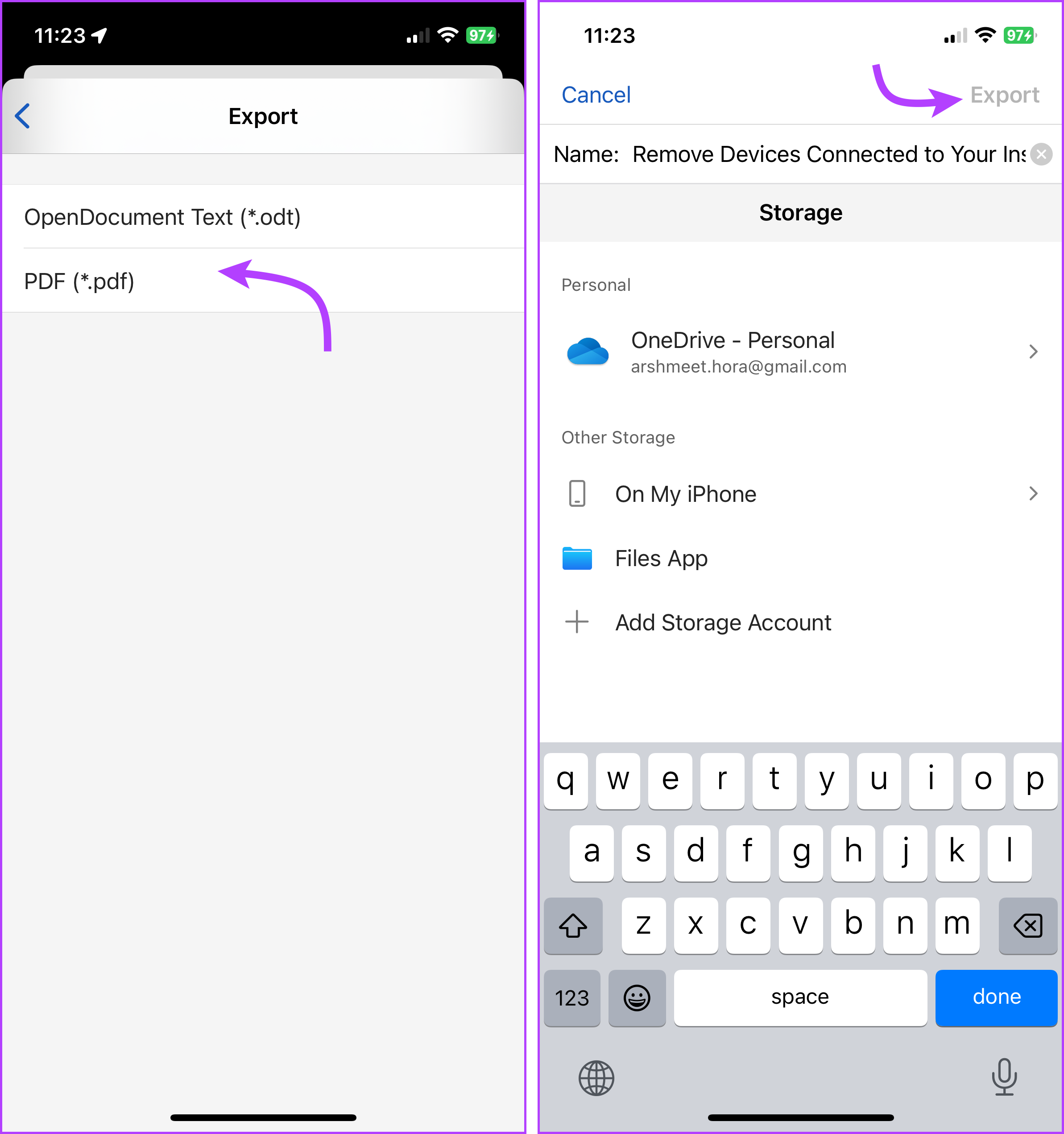
Step 3: Tap PDF format.
Step 4: Select a location and tap Export or Move accordingly.
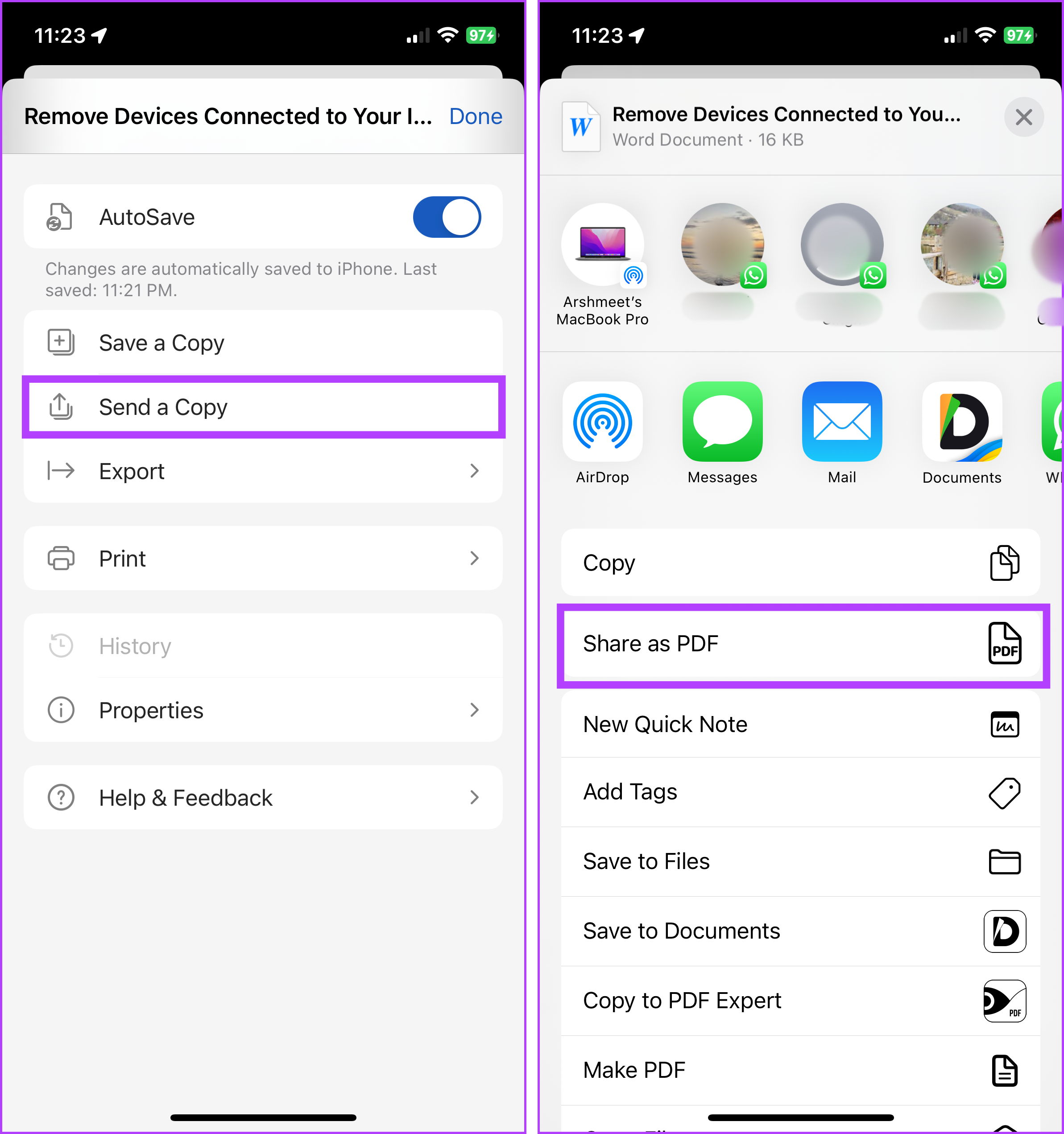
Notably, you can also share the Word document as PDF. To do so, tap the three-dot icon → Send a Copy → Share as PDF → select the sharing method, or if you want to save the PDF, select Save to Files.
And just like that, your word file will be converted into PDF on your iPhone.
Was this helpful?
Last updated on 15 August, 2024
Read Next
 5 Ways to Convert Photo to PDF on iPhone or iPad (Without Third-Party Apps)
iOS offers multiple ways to convert pictures to PDF on iPhone quickly, efficiently, and without an app.
5 Ways to Convert Photo to PDF on iPhone or iPad (Without Third-Party Apps)
iOS offers multiple ways to convert pictures to PDF on iPhone quickly, efficiently, and without an app.
 How to Convert Google Forms to PDF, Google Docs, or Word
How to Convert Google Forms to PDF Google Forms doesn’t have a native option to convert it into PDF.
How to Convert Google Forms to PDF, Google Docs, or Word
How to Convert Google Forms to PDF Google Forms doesn’t have a native option to convert it into PDF.
 2 Ways to Convert a Webpage to a Word Document
Method 1: Convert Web Page to PDF to Word Most browsers allow you to convert any webpage to a PDF file.
2 Ways to Convert a Webpage to a Word Document
Method 1: Convert Web Page to PDF to Word Most browsers allow you to convert any webpage to a PDF file.
 7 Free Online Tools to Convert Black and White Photos to Color
1.
7 Free Online Tools to Convert Black and White Photos to Color
1.
 How to Convert Word Documents to Pages (and Vice Versa) on Mac
How to Convert Word Files to Pages on Mac If you are fully invested in an Apple ecosystem and don’t have Microsoft apps such as OneDrive or Microsoft Word, you
How to Convert Word Documents to Pages (and Vice Versa) on Mac
How to Convert Word Files to Pages on Mac If you are fully invested in an Apple ecosystem and don’t have Microsoft apps such as OneDrive or Microsoft Word, you
 How to Convert WordPad Document to Microsoft Word
Method 1: Using WordPad Step 1: Open the WordPad document you want to convert to Docx.
How to Convert WordPad Document to Microsoft Word
Method 1: Using WordPad Step 1: Open the WordPad document you want to convert to Docx.
 How to Add Password to a PDF File on iPhone and iPad
How to Add Password to PDF on iPhone and iPad The iOS 16 and iPadOS 16 updates brought the option to lock a PDF file using the Files app.
How to Add Password to a PDF File on iPhone and iPad
How to Add Password to PDF on iPhone and iPad The iOS 16 and iPadOS 16 updates brought the option to lock a PDF file using the Files app.
 5 Best Free Graphic Design Apps for iPhone and iPad
A picture is worth a thousand words, sure.
5 Best Free Graphic Design Apps for iPhone and iPad
A picture is worth a thousand words, sure.
The article above may contain affiliate links which help support Guiding Tech. The content remains unbiased and authentic and will never affect our editorial integrity.