Ideally, Fast Startup allows you to continue where you left off when you restart your PC, even after a while. However, common Fast Startup issues can lead to a lack of properly applied updates and seemingly random glitches and lagging. Here’s what you need to know.
How Does Fast Startup Work and When Do You Need It?
In general, you don’t “need” the option at all, as it simply allows your PC to store some drivers and kernel files to bypass a lot of BIOS bootstrapping.
Most commonly, the feature is used to speed up boot time, especially on devices that are still using an HDD for the Windows repository.
Common Fast Startup Issues
Since Fast Startup doesn’t allow your PC to truly turn off everything between sessions, it can lead to a few different issues:
- Some updates may not be applied since they require all background processes to be reset.
- Dual-booting with another system, such as Linux, may prevent the Windows repository from being “seen” by the other system.
- USB and other peripherals might not load properly or show up in Device Manager.
- You might not be able to enter the BIOS by restarting the system, as the input window is too short.
- Third-party storage encryption software might not work, failing to prompt you to enter the password.
Some issues with Fast Startup can also manifest as a host of seemingly unrelated errors, usually with app or program settings, due to the utility preventing Windows from dumping its memory and “refreshing” its state.
Notably, Fast Startup does reduce load times, but in modern PCs, this is measured in a few seconds.
How to Disable Fast Startup
There are two workarounds if you want to disable Fast Startup since it doesn’t show up in traditional settings.
Option 1 – Use the Control Panel
While the Control Panel has been practically hidden in Windows 11, you’ll need it for advanced power options such as Fast Startup.
Step 1. Search for the Control Panel (in the search bar) and open it.
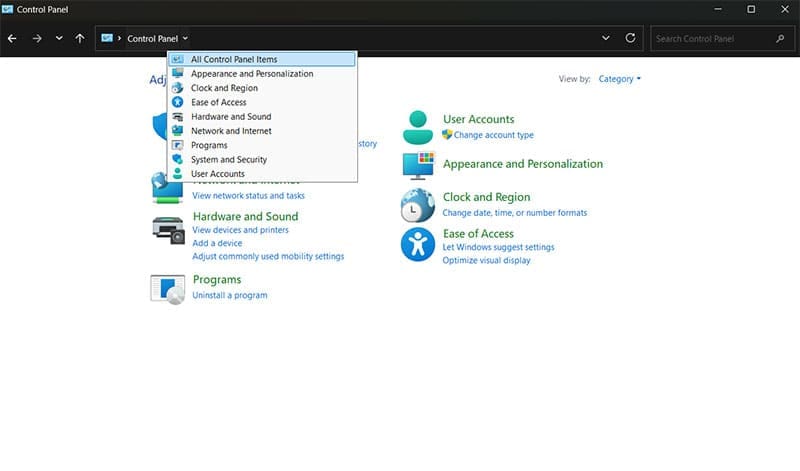
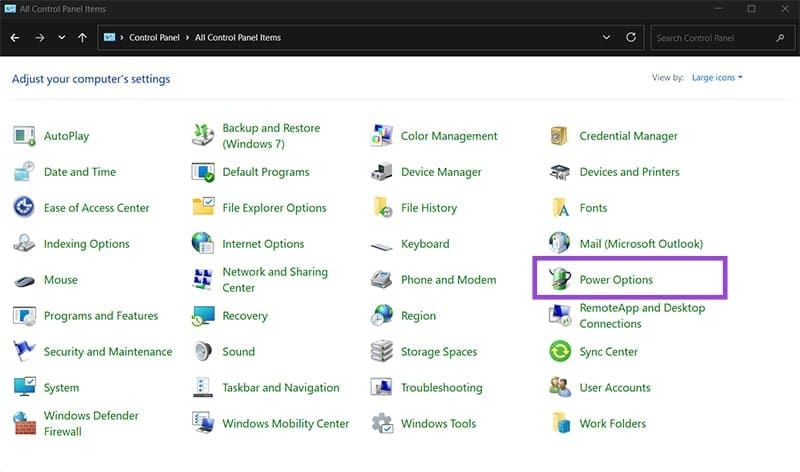
Step 2. Expand to see all Control Panel items, then find “Power Options.”
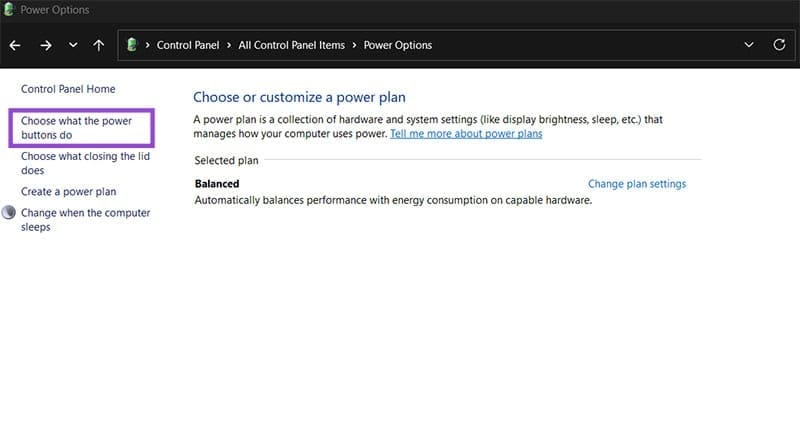
Step 3. Click on “Choose what the power buttons do” from the left-hand panel.
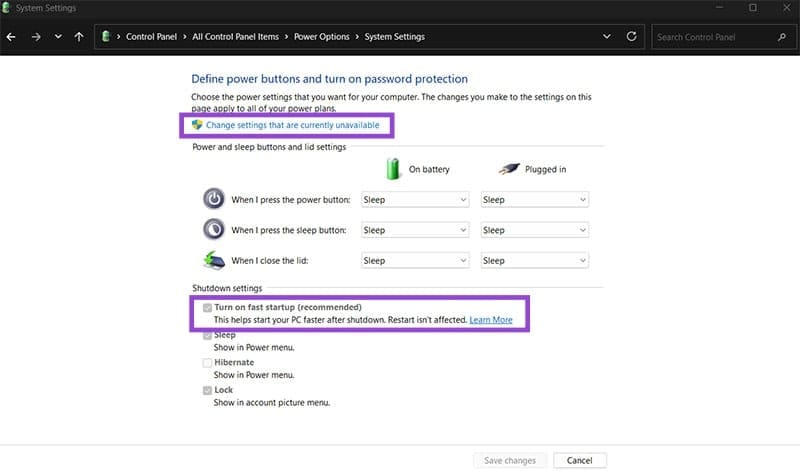
Step 4. Click on “Change settings that are currently unavailable.”
Step 5. Uncheck “Turn on fast startup” and click “Save changes.”
Option 2 – Use the Command Prompt
You can also use a simple command to turn the feature on or off.
Step 1. Open the Command Prompt as an administrator (you can search for it via the search bar and accept the User Account Control).
Step 2. Enter the following command: powercfg /h off
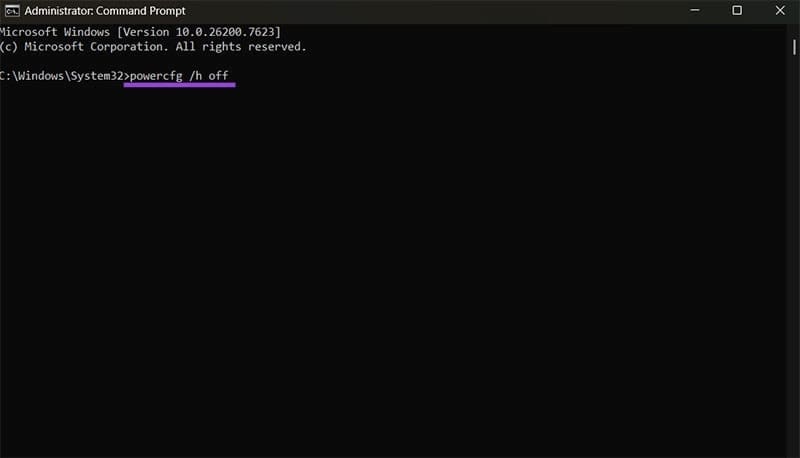
Notably, you might not be able to see Fast Startup as an option in the Control Panel if you use this. To revert the change, use “powercfg /h on.”
Was this helpful?
Last updated on 19 January, 2026
Read Next
 How to Solve Windows 10 Game Bar Not Working and Other Common Issues
With the recent Windows 10 version 1809 update, Microsoft pushed a bunch of improvements to the Xbox Game Bar.
How to Solve Windows 10 Game Bar Not Working and Other Common Issues
With the recent Windows 10 version 1809 update, Microsoft pushed a bunch of improvements to the Xbox Game Bar.
 Common Issues in 25H2 and How to Fix Them
The Windows 11 25H2 update wasn’t nearly as traumatic for most users as its far bigger predecessor 24H2, but there are still a few issues that have popped up, many
Common Issues in 25H2 and How to Fix Them
The Windows 11 25H2 update wasn’t nearly as traumatic for most users as its far bigger predecessor 24H2, but there are still a few issues that have popped up, many
 4 Common Issues With Nothing Ear (1) and How to Fix Them
1.
4 Common Issues With Nothing Ear (1) and How to Fix Them
1.
 4 Ways to Disable Fast Startup on Windows 11
Method 1: Disable Fast Startup Using Control Panel Using the Control Panel is an old-school way of making changes to your Windows computer.
4 Ways to Disable Fast Startup on Windows 11
Method 1: Disable Fast Startup Using Control Panel Using the Control Panel is an old-school way of making changes to your Windows computer.
 Five Common Office API Error Codes and What They Mean
Office Add-ins allow you to extend your standard Microsoft Office solution into something more.
Five Common Office API Error Codes and What They Mean
Office Add-ins allow you to extend your standard Microsoft Office solution into something more.
 Windows 11 25H2 Won’t Install – Common Fixes
Just when it seems you’re over the hurdle of installing Windows 11 24H2, along comes its successor a year later to make your life difficult all over again.
Windows 11 25H2 Won’t Install – Common Fixes
Just when it seems you’re over the hurdle of installing Windows 11 24H2, along comes its successor a year later to make your life difficult all over again.
 Instagram Block vs Mute vs Hide: Common Terms Explained
What Does Blocking on Instagram Mean Similar to other social networks, blocking on Instagram completely restricts your profile from the other person.
Instagram Block vs Mute vs Hide: Common Terms Explained
What Does Blocking on Instagram Mean Similar to other social networks, blocking on Instagram completely restricts your profile from the other person.
 10 Common Facebook Marketplace Scams and How to Avoid Them
Besides being a popular social media platform, Facebook is also a great place to buy and sell things, thanks to Facebook Marketplace.
10 Common Facebook Marketplace Scams and How to Avoid Them
Besides being a popular social media platform, Facebook is also a great place to buy and sell things, thanks to Facebook Marketplace.
The article above may contain affiliate links which help support Guiding Tech. The content remains unbiased and authentic and will never affect our editorial integrity.