1. WhatFont – Easy Font Identification
With over one million downloads on the Chrome Web Store, WhatFont is a must-have. The extension identifies fonts quickly and efficiently.

Just click on the WhatFont extension icon and point the cursor at a word. The name of the font will immediately appear underneath. You can also drag the cursor around a web page to quickly identify as many fonts as you want.
You must click on the letter to learn more about the font. This will bring up a nifty info box filled with details such as the font family, size, weight, and color. It also generates a font preview of the alphabet using uppercase and lowercase characters.
To wrap things up, it will send a download link to the font (if it is freely available) for good measure.
But what makes WhatFont so special is that you can open as many of these info boxes as you want. That works wonders for comparing multiple font types simultaneously.
Pros
- Free and lightweight
- Accurately detects font types
- Offers an easy font identification step
Cons
- Offers limited font information sometimes
- Prone to bugs
Price: Free
2. Fonts Ninja – Font Identifier With Sleek Preview Options
Fonts Ninja is another extension for easily identifying fonts, and it offers a whole lot more value than WhatFont. Click on the Fonts Ninja extension icon to generate a list of all the fonts within a page. This is useful when it comes to knowing all the details at a glance.

You may click on a listed font and preview it by typing in your words, which is just cool. You can then download the font — free and paid links are readily displayed. You can also bookmark any fonts for later reference.
Remember that you can hover over letters to identify fonts similar to WhatFont but with more detailed snippets. However, it’s slightly slower at that, so don’t expect WhatFont-style speed and efficiency.
Fonts Ninja stands out with its ability to identify fonts within images. After clicking on the Fonts Ninja extension icon, click on an image, and the results will be generated after a few seconds.
Even aesthetically, Fonts Ninja is pleasing to look at, with a crisp and clear user interface inspired by Google’s Material Design concept.
Pros
- Identifies both free and paid fonts
- Fast and reliable fond discovery
- Free and easy to use
Cons
- Does not allow font saving
- Primarily for font discovery, offering limited extra functionality
Price: Free
Also Read: Best dictionary extensions for Chrome
3. Font Finder – Font Identifier With Font Replacement Options
Font Finder lets you easily identify any font you come across. After activating the extension, click on any letter or word, and you will be presented with a detailed pop-up box with just about everything you would want to know. But it’s something more suited for power users and web developers.
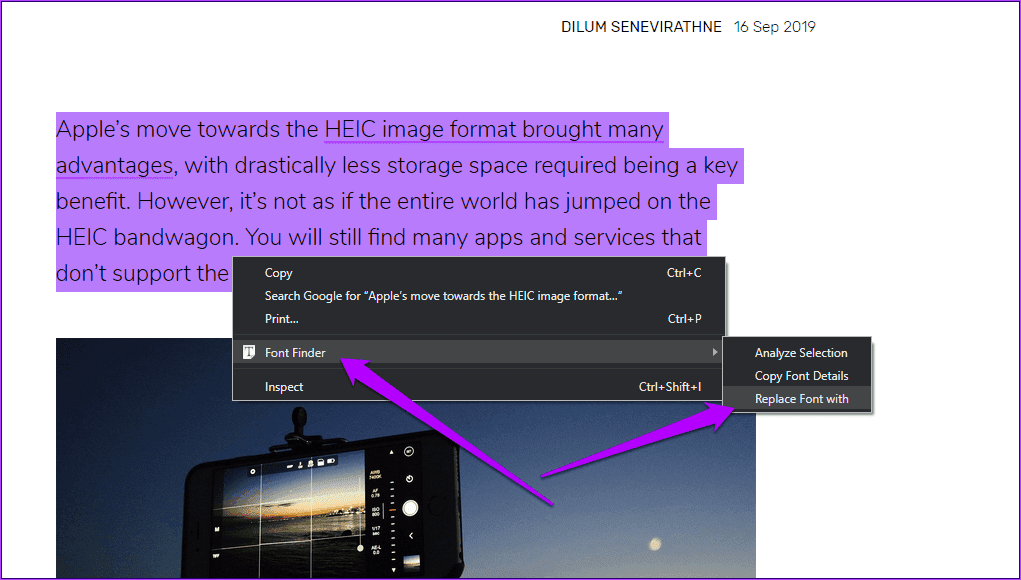
For the regular Chrome user, the amount of information it throws out can be overkill.
Font Finder also has the uncanny ability to replace a font type on a live web page with another. This is perfect for testing out how a certain font would look with the rest of a page without making any modifications in the backend.
To replace a font, select a paragraph, right-click it, point to Font Finder, and then click Replace Font With. Type in the name of a font, and it will render the change in an instant!
Pros
- Great for color, font family, and style of element identification
- Elaborate font replacement options
- Nifty font analysis feature
- Free tool
Cons
- Excessive font information for regular users
- Works best for only power users
Price: Free
4. Fontanello – Quick Font Identifier Options
Fontanello is another interesting font identifier extension. With this extension, you get the font type on any webpage simply by right-clicking.

This extension provides information such as typeface, weight, size, and font color. These appear in the context menu for a font you have right-clicked.
While this is the most basic of all the extensions explored in this guide, it is very effective at what it does.
Pros
- Comprehensive font information display
- Free-to-use tool
- Works seamlessly on almost all web pages
Cons
- It does not do much other than display font info
- It may be an overkill with so much font information compressed together
Price: Free
Also Read: Best extensions to block elements on Google Chrome
Was this helpful?
Last updated on 29 May, 2024
Read Next
 3 Best Ways to Identify Fonts in PDF Files in Windows 10
Fonts can make or break the reading experience for a reader.
3 Best Ways to Identify Fonts in PDF Files in Windows 10
Fonts can make or break the reading experience for a reader.
 How to Save Web Pages as PDF in Chrome (iPhone and Android)
Save Web Pages on Chrome for iOS Chrome for iOS doesn’t have Save as PDF or Print to PDF options anywhere within its Printer Options screen.
How to Save Web Pages as PDF in Chrome (iPhone and Android)
Save Web Pages on Chrome for iOS Chrome for iOS doesn’t have Save as PDF or Print to PDF options anywhere within its Printer Options screen.
 How to Identify (Shazam) Songs Playing in Instagram Reels
Method 1: By Tapping the Song's Name Your first bet is to check if the maker of the Reel has added the name of the song to the Reel.
How to Identify (Shazam) Songs Playing in Instagram Reels
Method 1: By Tapping the Song's Name Your first bet is to check if the maker of the Reel has added the name of the song to the Reel.
 How to Identify Specific Color on an App or Website
Method 1.
How to Identify Specific Color on an App or Website
Method 1.
 How to Add Fonts to Office Online
Note: The Microsoft account used on the PC and the web app must be the same for the downloaded fonts to work.
How to Add Fonts to Office Online
Note: The Microsoft account used on the PC and the web app must be the same for the downloaded fonts to work.
 5 Best Tools to Extract Fonts from PDFs Online
You are reading a PDF file and like the font type.
5 Best Tools to Extract Fonts from PDFs Online
You are reading a PDF file and like the font type.
 2 Easy Ways to Add Fonts to Google Docs
In any document, selecting the right font is an important task.
2 Easy Ways to Add Fonts to Google Docs
In any document, selecting the right font is an important task.
 9 Best Ways to Fix Google Chrome Not Loading Pages in Windows 10
Google Chrome is one of the most used browsers in the world, no doubt.
9 Best Ways to Fix Google Chrome Not Loading Pages in Windows 10
Google Chrome is one of the most used browsers in the world, no doubt.
The article above may contain affiliate links which help support Guiding Tech. The content remains unbiased and authentic and will never affect our editorial integrity.