Method 1: Use the Activity Tab
On Mobile
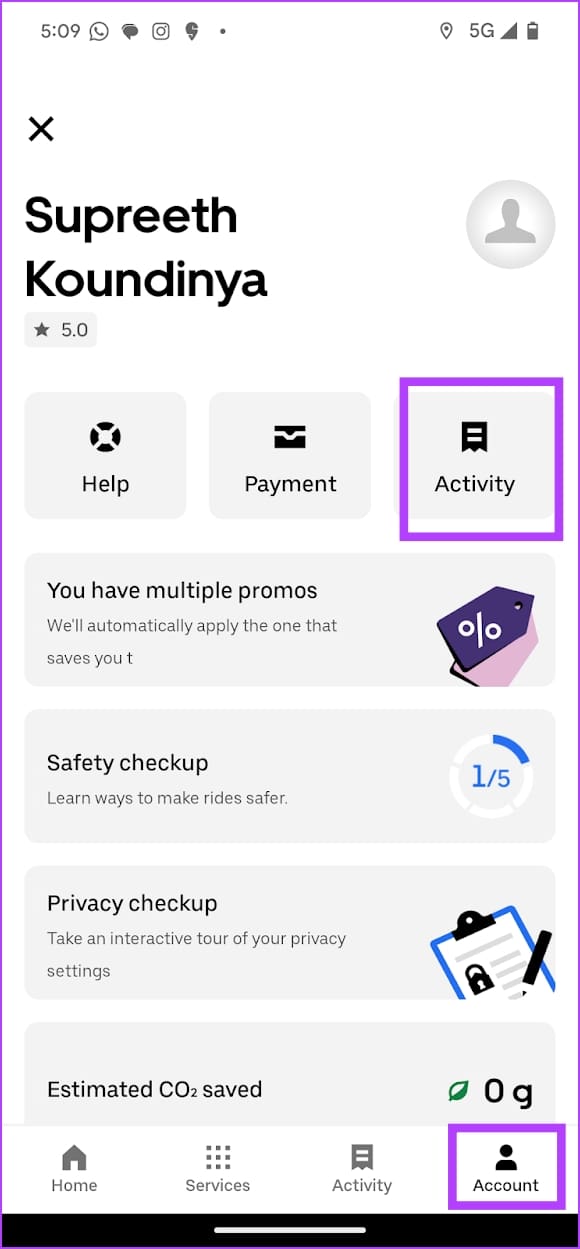
On the Uber app on your iPhone/Android device, open the Activity tab to check your trip history.
Alternatively, open the Account tab, and select Activity.


On Web
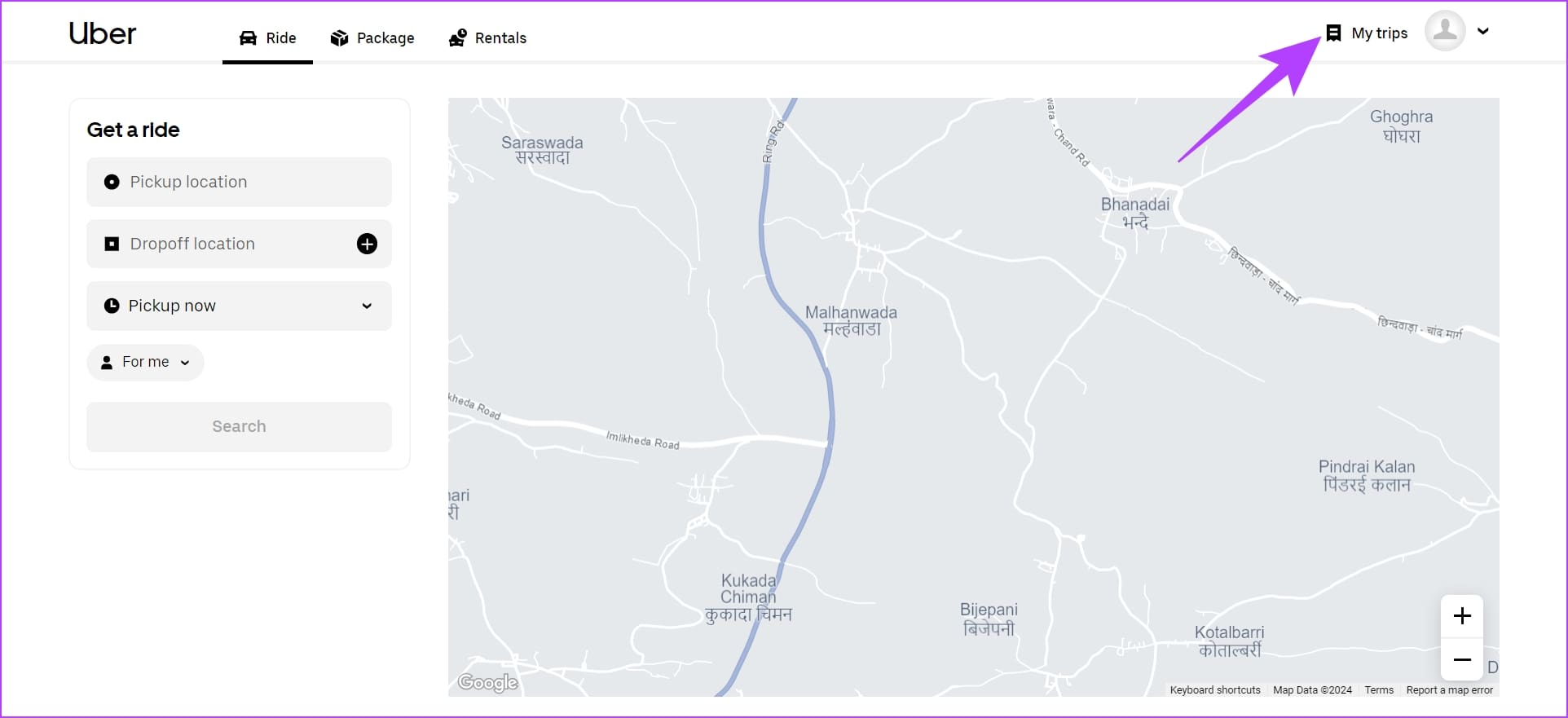
Open Uber on a web browser, and click on My Trips at the top right corner.
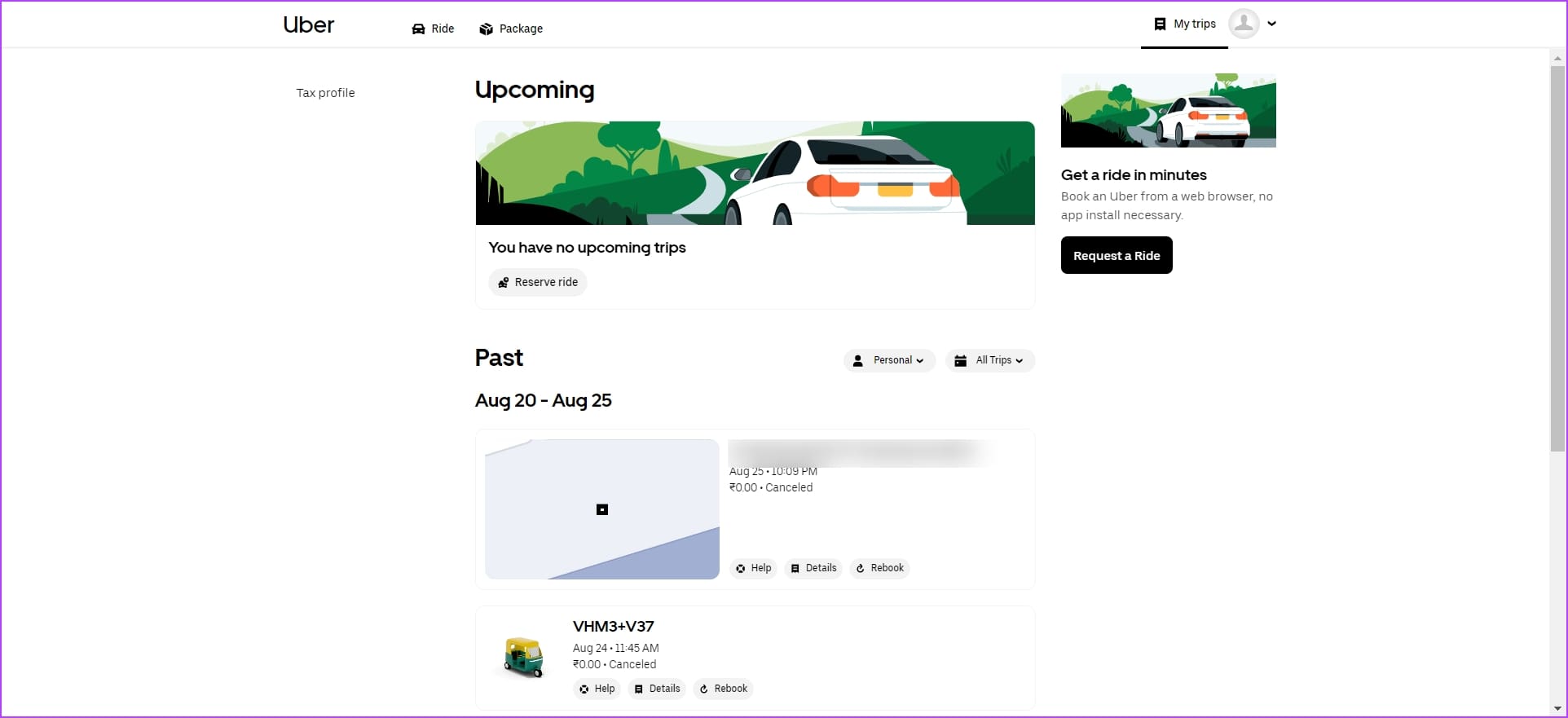
You’ll now be able to view all the trip data on your web browser.
Also Read: 5 best Bose headphones for travel
Method 2: View Detailed Information of Your Trips
Here’s how you can view a detailed, tabulated version of your trip data.
On Mobile
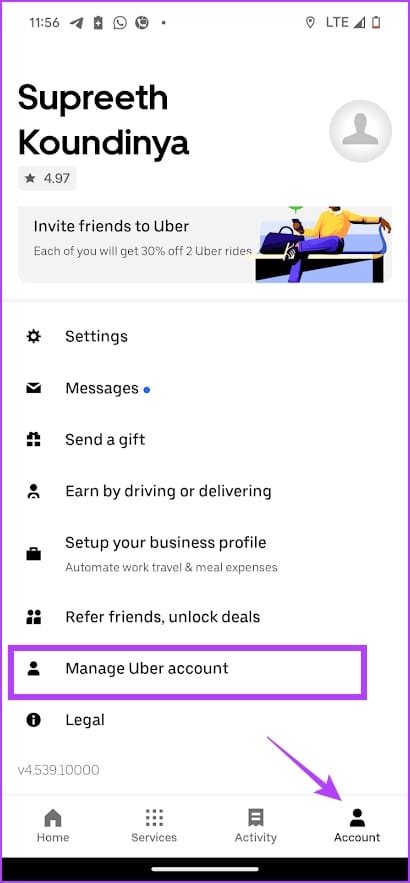
Step 1: Tap on the Account tab, and select Manage Uber account.
Step 2: Select Privacy & Data.
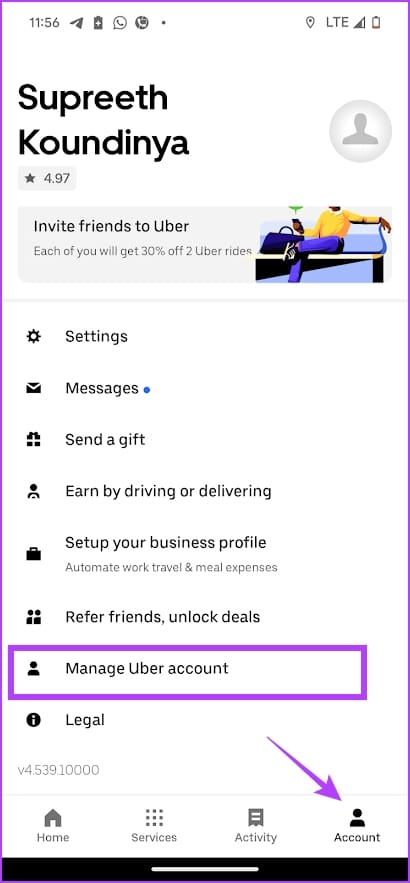

Step 2: Tap on See summary > View my trips. This will open a detailed, tabulated version of your trip data.



On Web
Step 1: Open Uber on your web browser. Click on your profile picture at the top right corner, and select Manage account.

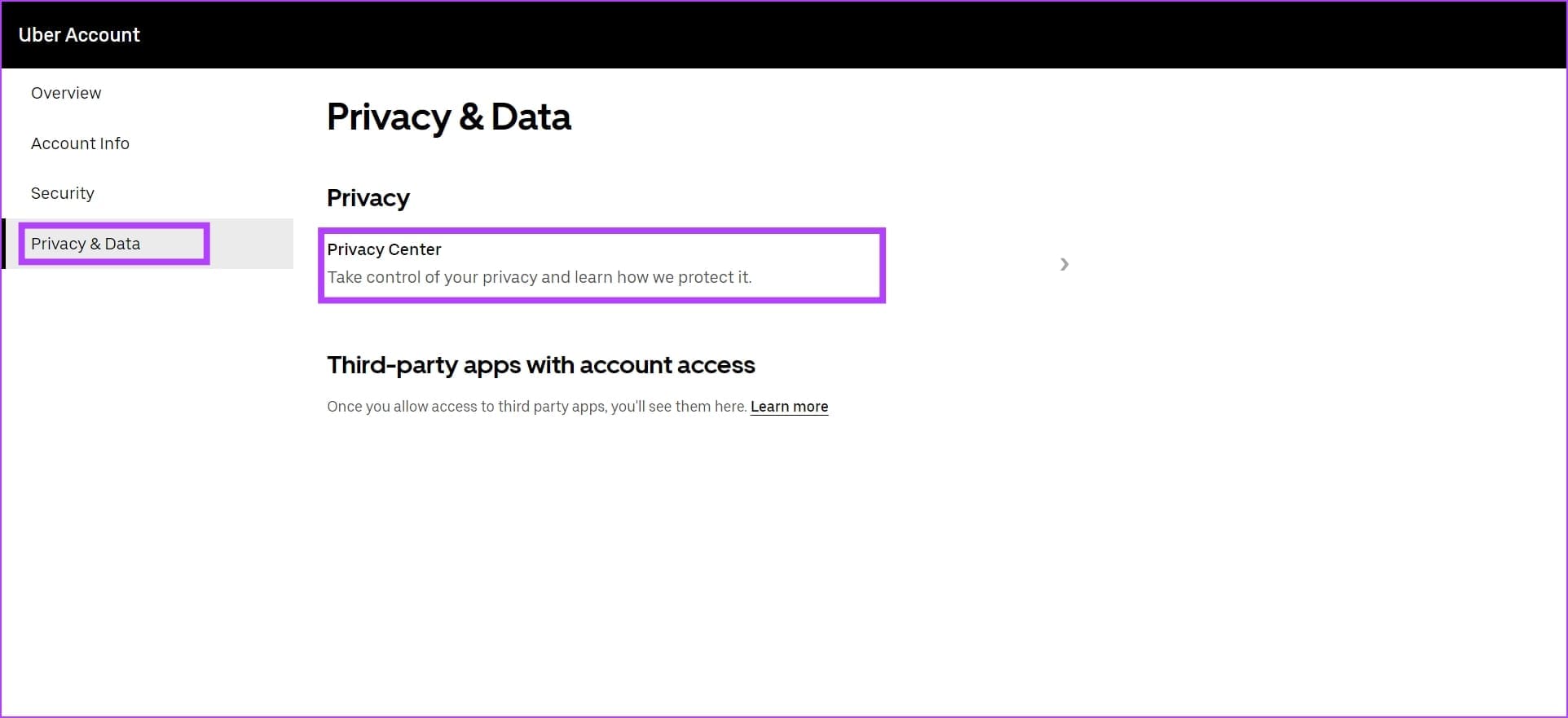
Step 2: Select Privacy & Data and click on Privacy Center.
Step 3: Click on See summary.

Step 4: Click on View My Trips.

Uber will now show you a tabulated version of your trip data.

Method 3: Request a Copy of Data
You can also request Uber a copy of your data on the app. You will receive a copy of your data at your registered email address.
On Mobile
Step 1: Open the Account menu, and select Manage Uber Account.
Step 2: Open the Privacy & Data tab, and select Privacy Center.

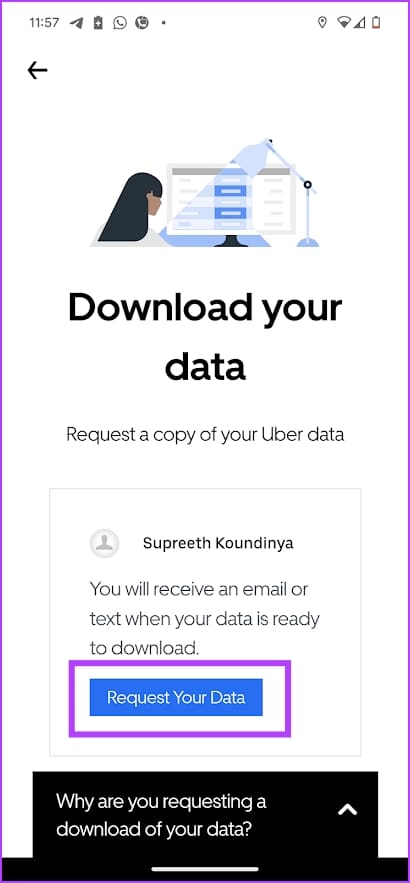
Step 3: Tap on Request, and then tap on Request your data on the next screen.

On Web
Step 1: Open Uber on your web browser. Click on your profile picture at the top right corner, and select Manage account.
Step 2: Select Privacy & Data and click on Privacy Center.
Step 3: Click on Request.

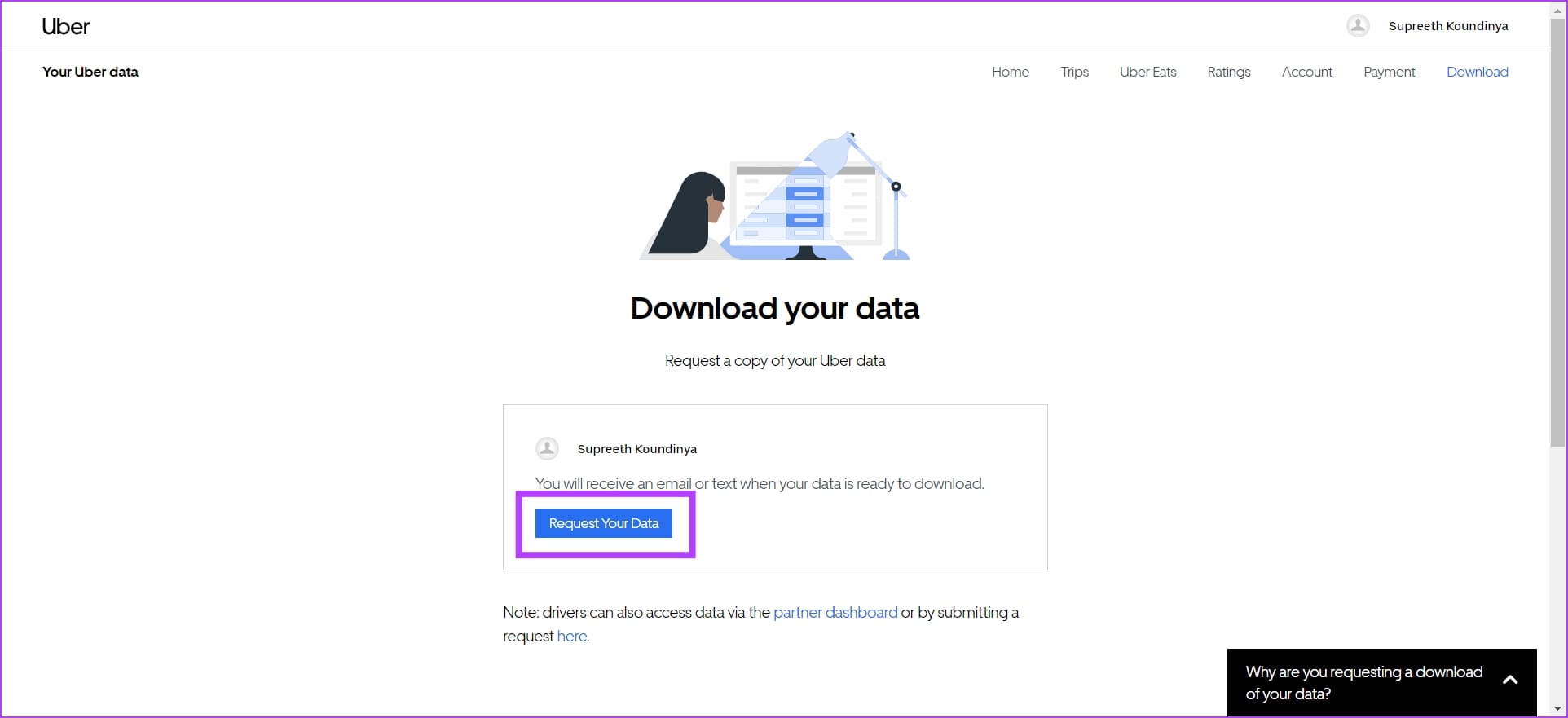
Step 4: Click on Request Your Data.
Was this helpful?
Last updated on 27 August, 2024
Read Next
 How to Delete and Change Saved Places in the Uber App
How to Delete Saved Places in the Uber App Step 1: Open the Uber app and tap on Account.
How to Delete and Change Saved Places in the Uber App
How to Delete Saved Places in the Uber App Step 1: Open the Uber app and tap on Account.
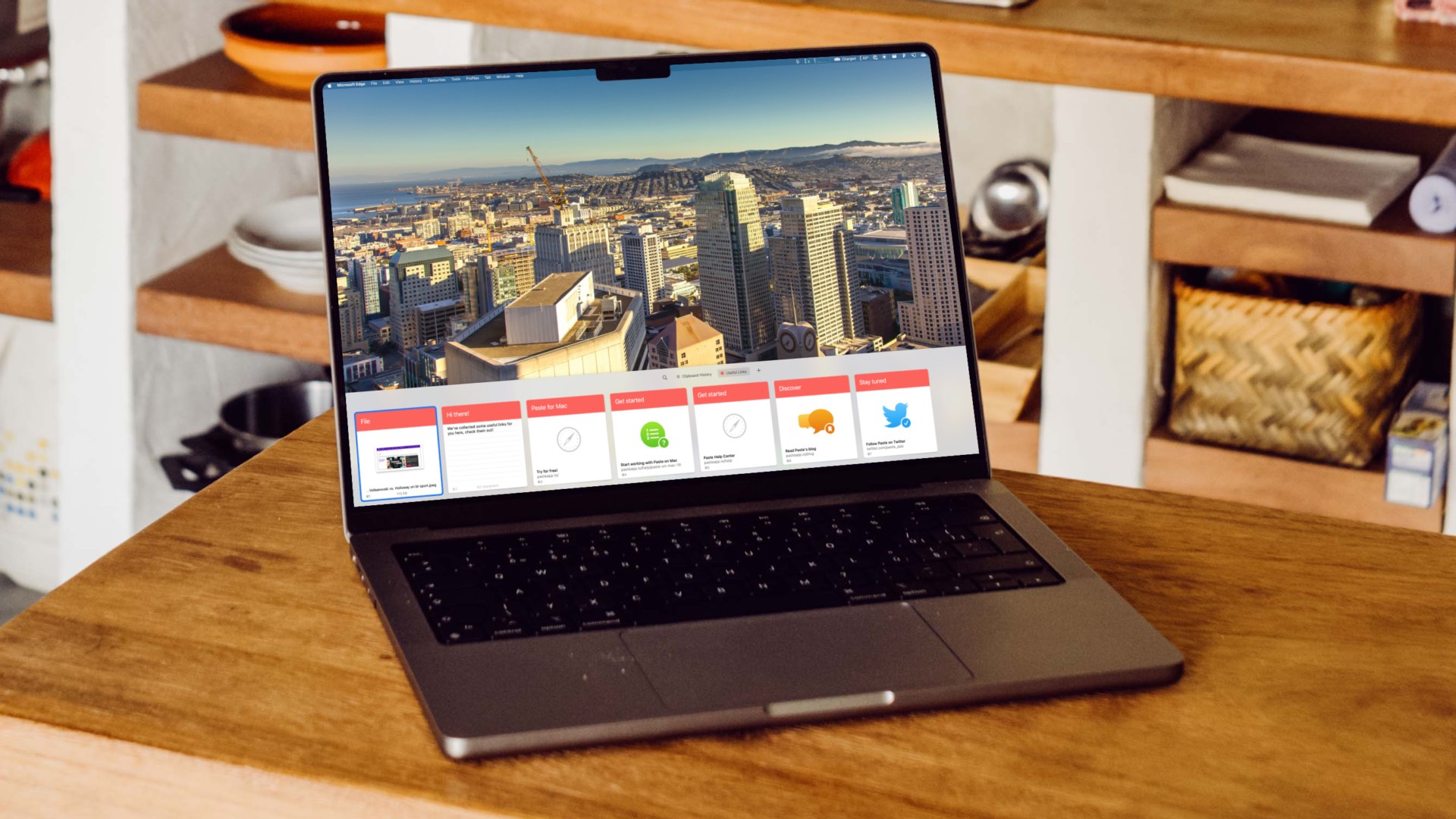 2 Ways to Check Clipboard History on Mac
Method 1: Default Clipboard Step 1: Open Finder on Mac, go to Edit in the menu bar, and choose Show Clipboard.
2 Ways to Check Clipboard History on Mac
Method 1: Default Clipboard Step 1: Open Finder on Mac, go to Edit in the menu bar, and choose Show Clipboard.
 How to Check and Recover Clipboard History on Android
Method 1: Check and Recover Clipboard History Using Gboard One of the easiest ways to view and recover your clipboard history on an Android device is by using Gboard, the
How to Check and Recover Clipboard History on Android
Method 1: Check and Recover Clipboard History Using Gboard One of the easiest ways to view and recover your clipboard history on an Android device is by using Gboard, the
 How to Check Call History of a Number on Android
How to Check Call History and Duration in Google Phone App Most Android phone manufacturers use Google’s Phone app by default.
How to Check Call History of a Number on Android
How to Check Call History and Duration in Google Phone App Most Android phone manufacturers use Google’s Phone app by default.
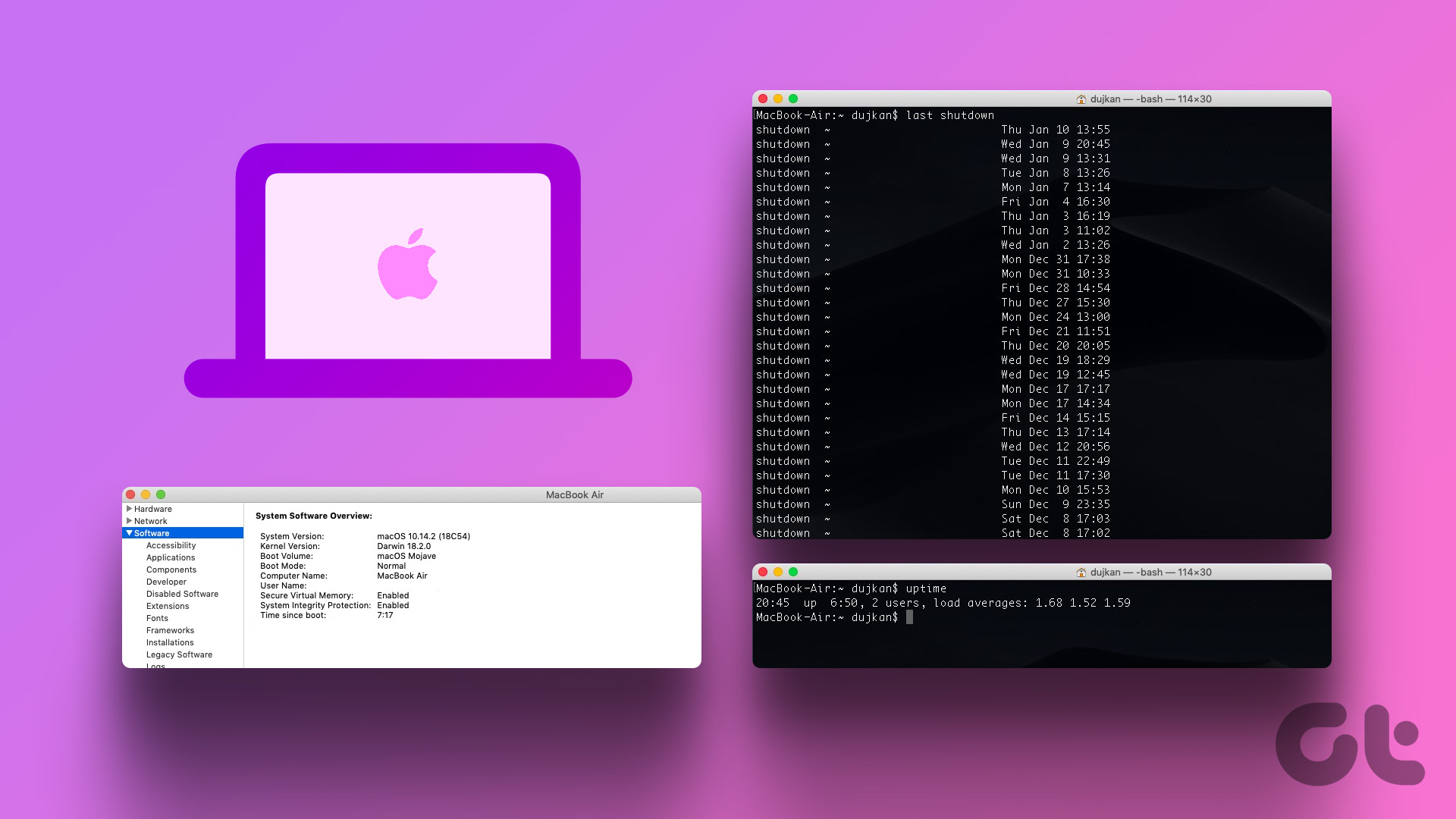 How to Check Your Mac’s Uptime, Reboot and Shutdown History
Are you curious to find out how often your Mac has been rebooted or shut down?
How to Check Your Mac’s Uptime, Reboot and Shutdown History
Are you curious to find out how often your Mac has been rebooted or shut down?
 How to Check Location History on iPhone, iPad, and Mac
How to Check Location History on iPhone and iPad iPhone and iPad are usually the only Apple device that gets carried everywhere we go.
How to Check Location History on iPhone, iPad, and Mac
How to Check Location History on iPhone and iPad iPhone and iPad are usually the only Apple device that gets carried everywhere we go.
 5 Ways to Fix YouTube Watch History Not Working
Fix 1: Turn on Watch History A common reason YouTube might not save or update your watch history is if you have paused it.
5 Ways to Fix YouTube Watch History Not Working
Fix 1: Turn on Watch History A common reason YouTube might not save or update your watch history is if you have paused it.
 6 Ways to Export Microsoft Teams Chat History
Microsoft Teams has become integral to modern workplace communication, facilitating information sharing and collaboration.
6 Ways to Export Microsoft Teams Chat History
Microsoft Teams has become integral to modern workplace communication, facilitating information sharing and collaboration.
The article above may contain affiliate links which help support Guiding Tech. The content remains unbiased and authentic and will never affect our editorial integrity.