Method 1: Check and Recover Clipboard History Using Gboard
One of the easiest ways to view and recover your clipboard history on an Android device is by using Gboard, the default keyboard app on most smartphones. It’s one of those keyboards that comes with a built-in clipboard manager. Here’s what you must do:
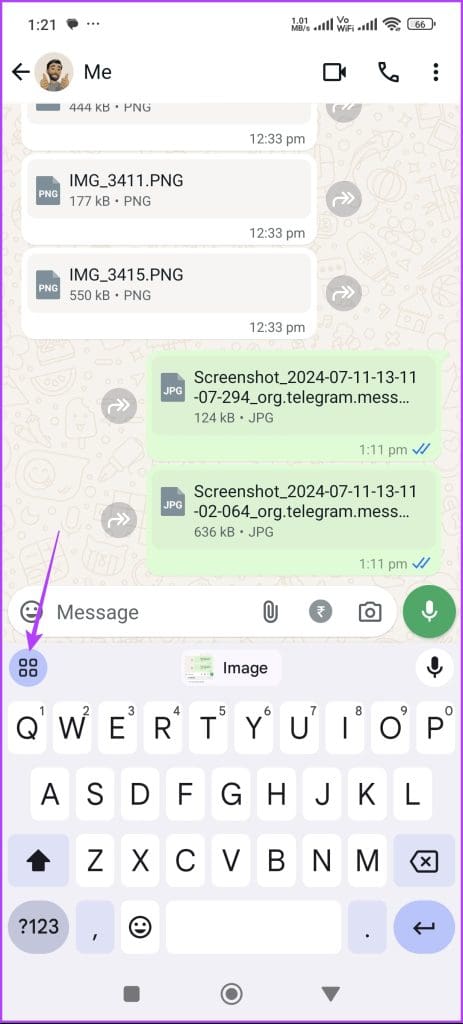
Step 1: While typing with Gboard, tap the clipboard icon at the top row of the keyboard and select Clipboard.

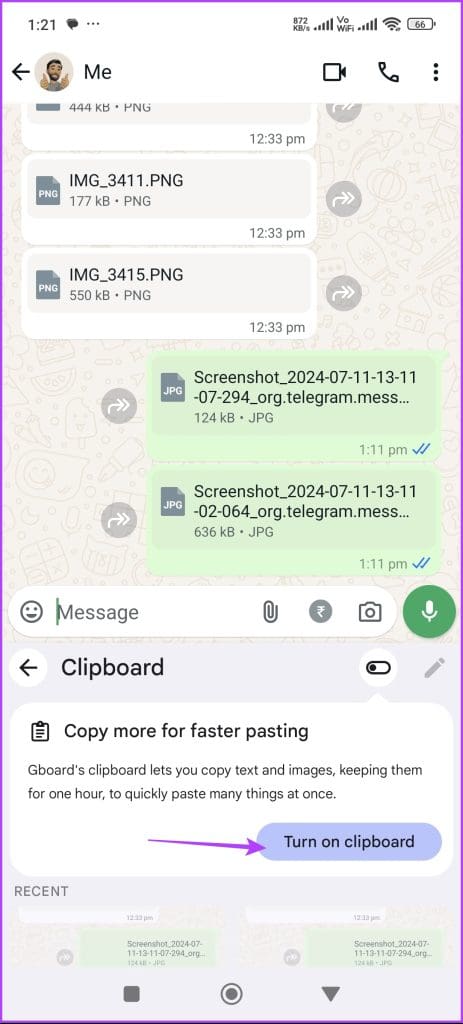
Step 2: Tap Turn on clipboard to enable the clipboard feature. From now on, all the text you copy will be saved in the clipboard. Whenever you want to use a saved text, access the clipboard manager window and tap the text you want to paste.
Step 3: By default, text in the Gboard clipboard manager is deleted after an hour. If you want copied text to stay in the Gboard clipboard manager forever, tap and hold the clip and select the Pin icon.

Method 2: Check and Recover Clipboard History Using a Third-Party App (Clipper)
Another efficient way to check and retrieve clipboard content on your Android device is to use third-party clipboard manager apps. While there are many clipboard manager apps, we recommend using Clipper. Follow these steps to use it:
Step 1: Download Clipper on your smartphone, open it, and grant it all the necessary permissions it requests.
Step 2: Whenever you copy text on your smartphone, it will be saved in Clipper. You can check and access those texts anytime in the Clipboard tab.


Step 3: To clear your clipboard history, tap the clear icon at the top bar and choose Clear all clipboard clippings. The Clear current clipboard item option will clear the last thing you copied from Clipper’s history.
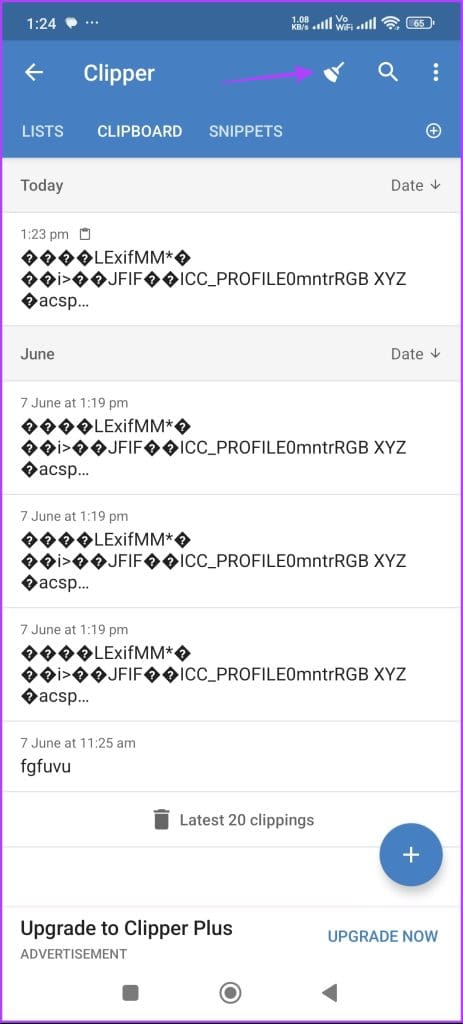
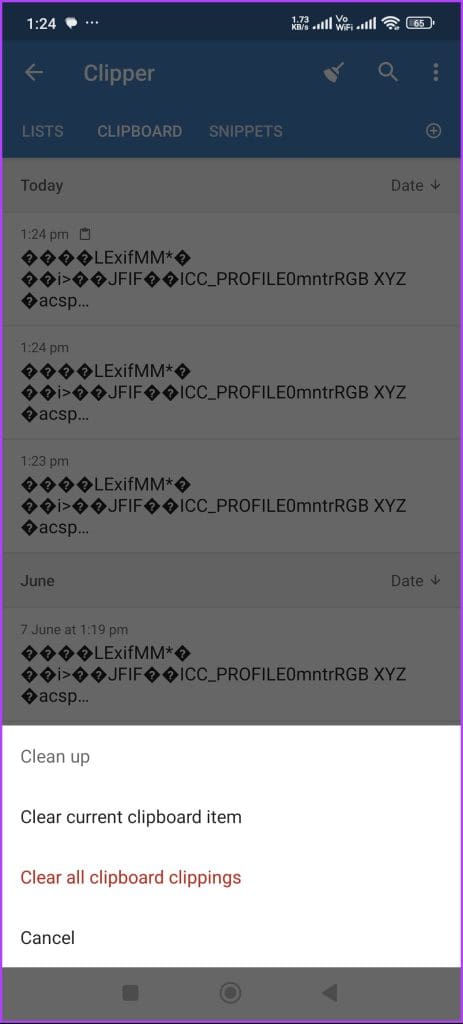
Clipper, by default, only keeps 20 clippings. Once you reach this limit, it will automatically delete the oldest clipping to make room for new ones. If you want the app to save unlimited clippings, purchase the Clipper premium app.
Also Read: How to access the clipboard on your iPhone
Was this helpful?
Last updated on 30 July, 2024
Read Next
 2 Ways to Check Clipboard History on Mac
Method 1: Default Clipboard Step 1: Open Finder on Mac, go to Edit in the menu bar, and choose Show Clipboard.
2 Ways to Check Clipboard History on Mac
Method 1: Default Clipboard Step 1: Open Finder on Mac, go to Edit in the menu bar, and choose Show Clipboard.
 3 Ways to Clear the Clipboard History in Windows 11
Method 1: Using the Clipboard Tab The easiest and quickest way to empty clipboard history in Windows is through the Clipboard tab.
3 Ways to Clear the Clipboard History in Windows 11
Method 1: Using the Clipboard Tab The easiest and quickest way to empty clipboard history in Windows is through the Clipboard tab.
 How to Check Call History of a Number on Android
How to Check Call History and Duration in Google Phone App Most Android phone manufacturers use Google’s Phone app by default.
How to Check Call History of a Number on Android
How to Check Call History and Duration in Google Phone App Most Android phone manufacturers use Google’s Phone app by default.
 5 Android Keyboards With a Clipboard
1.
5 Android Keyboards With a Clipboard
1.
 5 Best Apps to Sync Clipboard Between PC and Android
When Pushbullet moved its amazing universal clipboard feature to the premium version, I was devastated.
5 Best Apps to Sync Clipboard Between PC and Android
When Pushbullet moved its amazing universal clipboard feature to the premium version, I was devastated.
 How to Use Clipboard on Samsung Galaxy Phones
Use Clipboard in Samsung Keyboard You can use One UI's native clipboard if Samsung Keyboard is your default keyboard app.
How to Use Clipboard on Samsung Galaxy Phones
Use Clipboard in Samsung Keyboard You can use One UI's native clipboard if Samsung Keyboard is your default keyboard app.
 How to Recover Deleted Apps and Games on Android
Method 1: Using Play Store Mobile The most common way to see your history of deleted apps is by using your smartphone.
How to Recover Deleted Apps and Games on Android
Method 1: Using Play Store Mobile The most common way to see your history of deleted apps is by using your smartphone.
 3 Ways to Check Your Entire Uber Ride History
Method 1: Use the Activity Tab On Mobile On the Uber app on your iPhone/Android device, open the Activity tab to check your trip history.
3 Ways to Check Your Entire Uber Ride History
Method 1: Use the Activity Tab On Mobile On the Uber app on your iPhone/Android device, open the Activity tab to check your trip history.
The article above may contain affiliate links which help support Guiding Tech. The content remains unbiased and authentic and will never affect our editorial integrity.