


How to Change Netflix Download Location on Windows
Step 1: On your Windows PC, press the Windows + I keys together to open Settings. Next, navigate to Apps > Installed Apps.
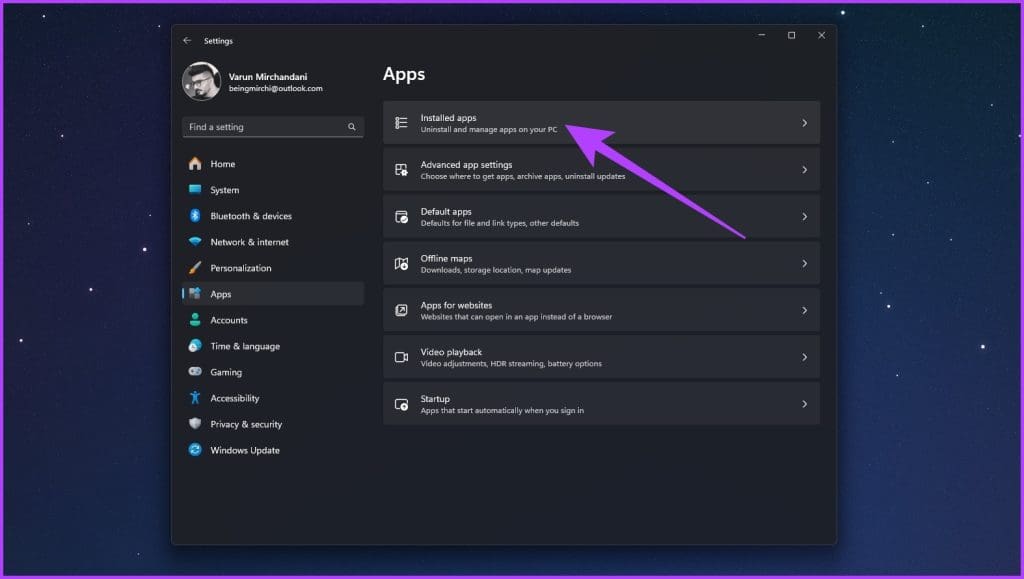
Step 2: Search for Netflix in the list of apps. Then, click on the three-dot icon next to it.

Step 3: In the list of options, select Move.

Step 4: Now, select the location where you want to move the Netflix files. In my case, I chose to go with a removable USB drive. Once you’ve made your selection, click on Move again.
Note: Make sure the new location has enough free space.
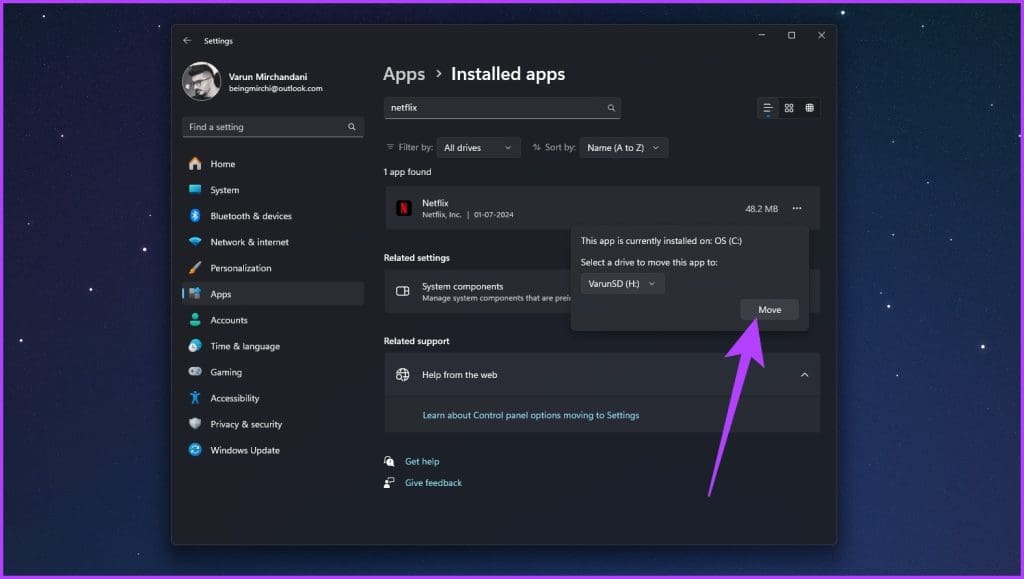
Step 5: And that’s it. Depending on the number of downloads that you already have on your system, this process can take some time, and until then you won’t be able to use Netflix.
FAQs
Unfortunately, no. You can not select a specific sub-folder in the new drive. The folders will be created in the root by default.
If you have picked an external hard drive or USB drive as the new location for the Netflix downloads, you must have the said device with you whenever you want to stream movies or TV shows. Without the device, Netflix will show a “Can’t open” error.
Was this helpful?
Last updated on 09 July, 2024
Read Next
 How to Change Default Download Location on Windows 11
Change Default Download Location for Apps, Documents, and Media By default, Windows 11 stores all downloads—apps, documents, media, and other important files—on the primary drive.
How to Change Default Download Location on Windows 11
Change Default Download Location for Apps, Documents, and Media By default, Windows 11 stores all downloads—apps, documents, media, and other important files—on the primary drive.
 Netflix Standard vs. Premium: Which Netflix Plan Is Best for You
Netflix Subscription Plans At a Glance While Netflix provides three plans in total, the Standard and Premium plans take the cake.
Netflix Standard vs. Premium: Which Netflix Plan Is Best for You
Netflix Subscription Plans At a Glance While Netflix provides three plans in total, the Standard and Premium plans take the cake.
 How to Change the iCloud Drive Folder Location on Windows
Changing the iCloud Drive folder location on your Windows PC can help you manage storage more efficiently, especially if your primary drive is running out of space.
How to Change the iCloud Drive Folder Location on Windows
Changing the iCloud Drive folder location on your Windows PC can help you manage storage more efficiently, especially if your primary drive is running out of space.
 How to Change Screenshot Location in Windows 11
Change Screenshot Location in Windows 11 You might want to change the screenshot storage location to Documents or any other folder.
How to Change Screenshot Location in Windows 11
Change Screenshot Location in Windows 11 You might want to change the screenshot storage location to Documents or any other folder.
 How to Change Epic Games Install Location on Windows
Where Are Epic Games Installed on Your System?
How to Change Epic Games Install Location on Windows
Where Are Epic Games Installed on Your System?
 6 Ways to Fix Download Issues on Netflix
1.
6 Ways to Fix Download Issues on Netflix
1.
 How to Download and Install Netflix on MacBook
How to Install Netflix on macOS Step 1: Download the PlayCover installer file from the official website.
How to Download and Install Netflix on MacBook
How to Install Netflix on macOS Step 1: Download the PlayCover installer file from the official website.
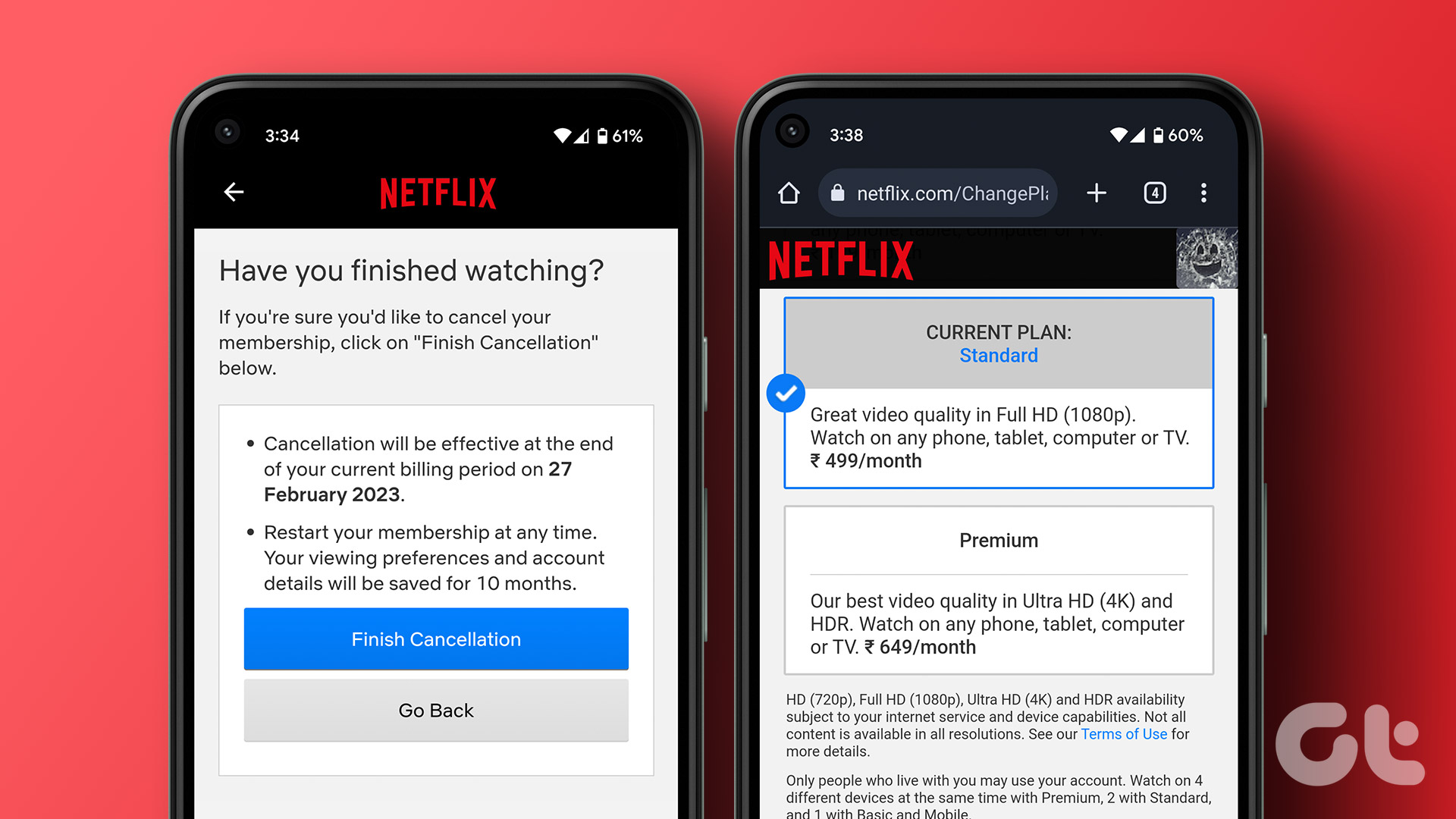 How to Change or Cancel Netflix Plan on Any Device
How to Change Your Plan on Netflix If you've made your decision and wish to change your Netflix plan, here's how to do it.
How to Change or Cancel Netflix Plan on Any Device
How to Change Your Plan on Netflix If you've made your decision and wish to change your Netflix plan, here's how to do it.
The article above may contain affiliate links which help support Guiding Tech. The content remains unbiased and authentic and will never affect our editorial integrity.

