Where Are Epic Games Installed on Your System?
Epic Games stores data on the C drive by default. However, you can choose the download location while installing a game.
Step 1: Open Epic Games Launcher and choose Library.
Step 2: Click the three dots next to the game name and choose Manage.

Step 3: Choose the folder icon next to Uninstall.
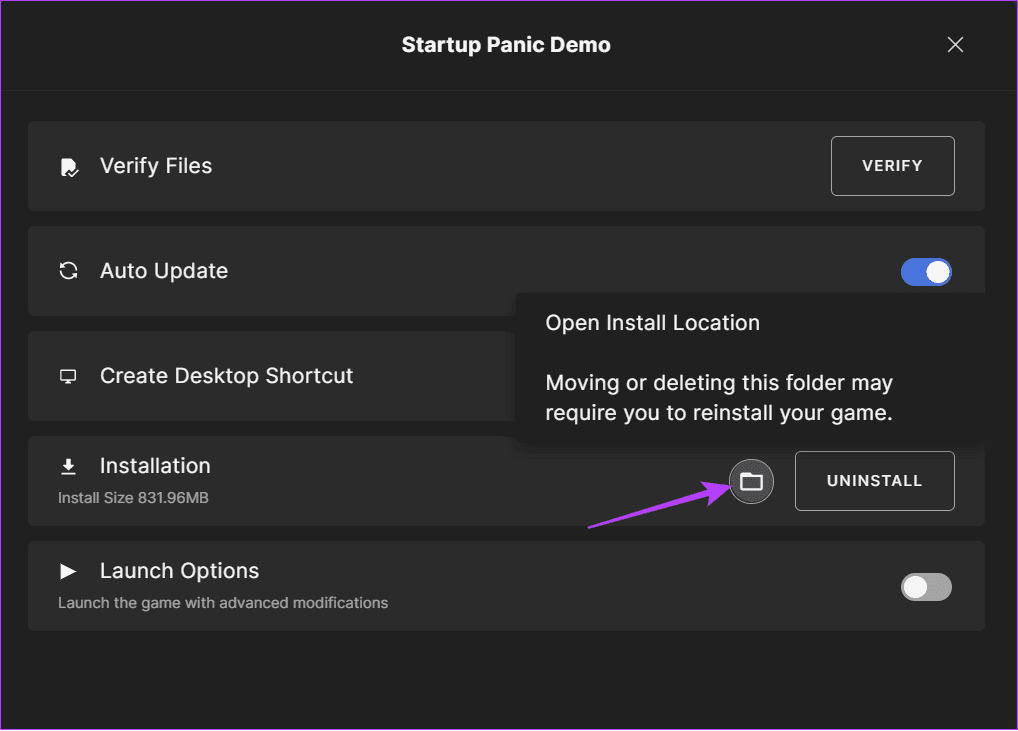
Step 4: You will be navigated inside the game folder.
You can go to the folder to access the entire game folder.
Also read: Fix Epic Games not showing games in Library
Change Location for Downloaded Epic Games Files
1. Change the Location While Installing a Game
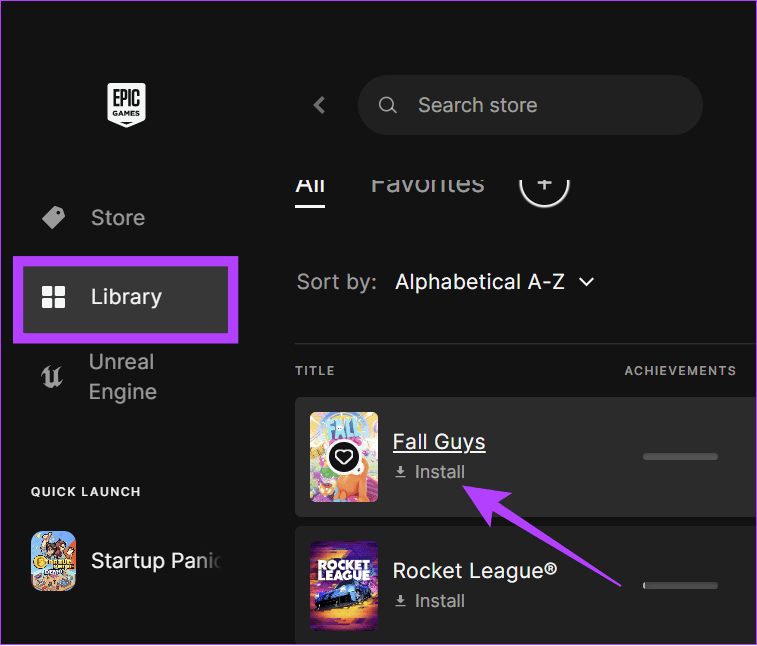
Step 1: Open Epic Games Launcher and choose Library from the sidebar.
Step 2: Click Install below the respective game.
Step 3: Choose Browse > Navigate to the location and choose Select folder.
Step 4: Click Install to confirm.

Also Read: How to fix slow download speed in Epic Games Launcher on Windows
2. Change Epic Games Install Location Using File Manager
Step 1: Navigate to the game folder you want to move and copy it.

Step 2: Paste the game folder to another location on your system.
Tip: Keep the files in a different folder from where you want to shift the game to.
Step 3: Open the Epic Games Launcher and click Library.
Step 4: Click on the three dots next to the game you want to move and click Uninstall > choose Uninstall to confirm.

Step 5: Once uninstalled, click Install next to the game you uninstalled.
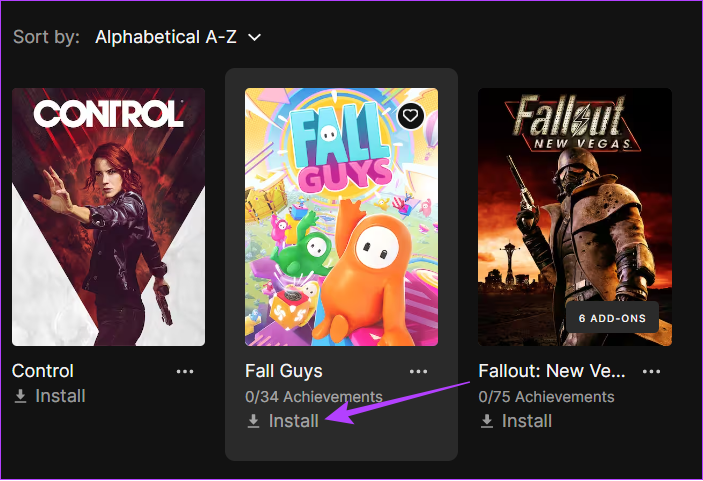
Step 6: Click Browse > choose the new location, and click Install.
Step 7: Let the download progress until 2-3%. Afterward, click the three dots next to the game name and choose Cancel Install.

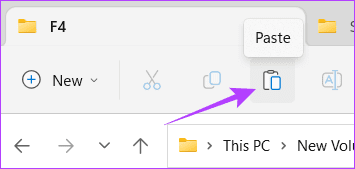
Step 8: Now, navigate to where you saved the backup file. Move the file to where you wish to save the game and hit paste.
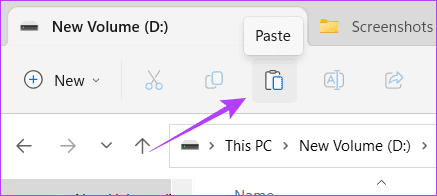
Step 9: Click Replace the files in the destination.
Step 10: Once the files are moved, open Epic Games Launcher > navigate to Library.
Step 11: Resume the installation process.

Once the files are verified, You can play the game from this new location.
Change Epic Games Launcher Installation Directory
Apart from the games, if you are planning to change the Epic Games Launcher location, these are the steps to follow:
Note: You’ll have to uninstall the Epic Games Launcher for this. Hence, the game installed through the Launcher will also be uninstalled. However, you can follow the previous method to back up the game files and save the download time.
Step 1: Close Epic Games Launcher. Then, use the Ctrl + Shift + Esc key combo to open Task Manager.
Step 2: Find and select Epic Games Launcher from the page and hit End task at the top.

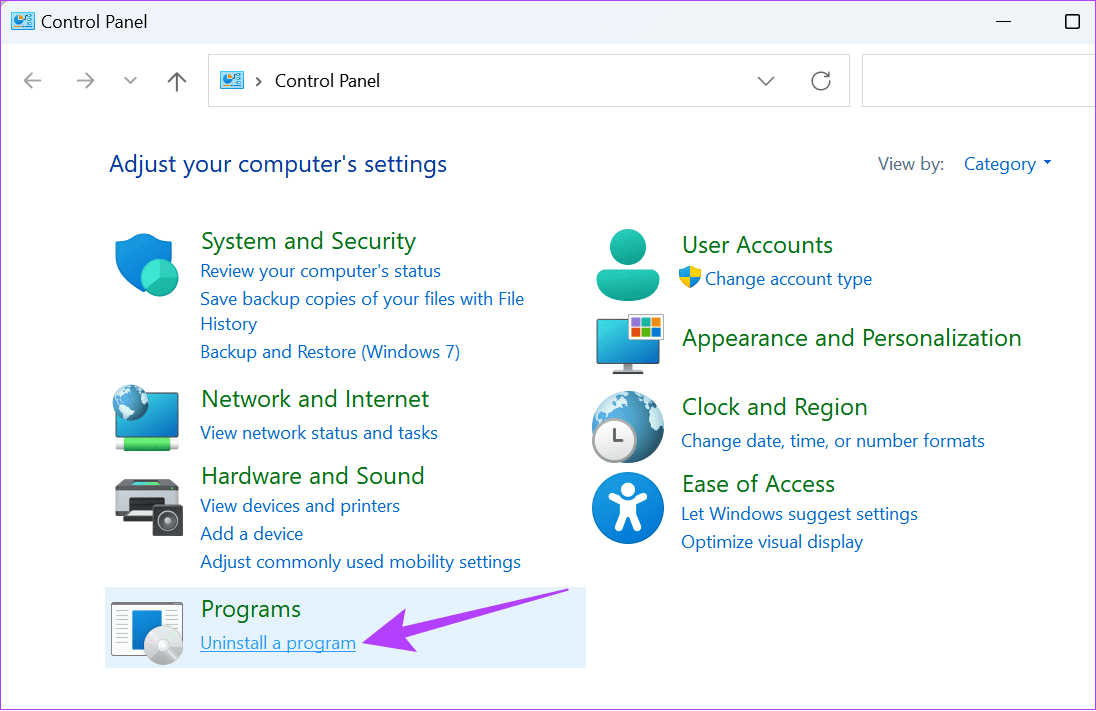
Step 3: Then, search and open the Control Panel.
Step 4: Click Uninstall a program.
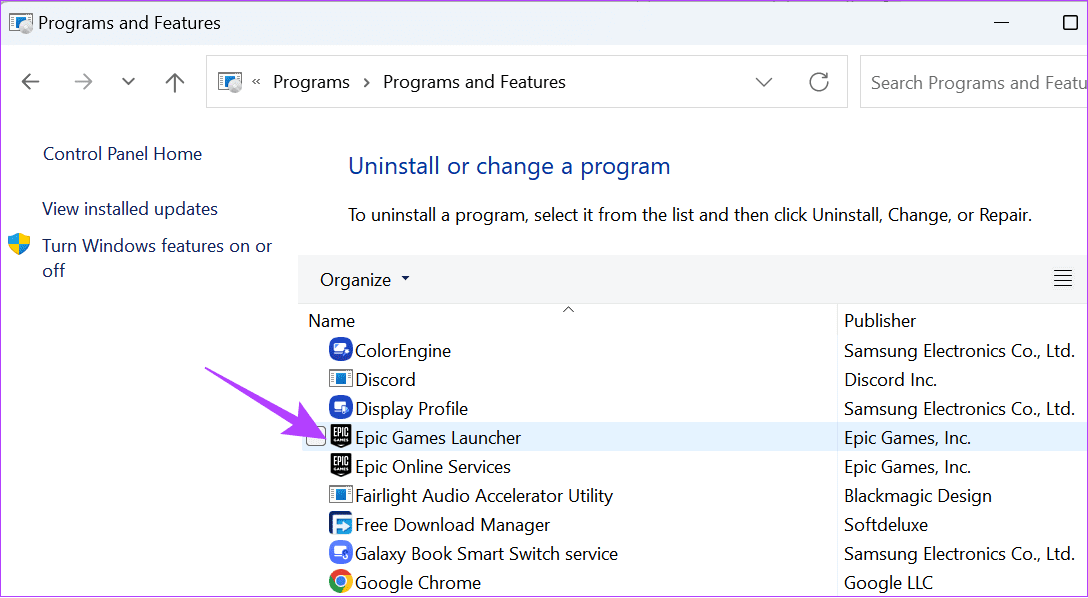
Step 5: Double-click Epic Games Launcher.
Step 6: Click Yes to confirm.
Step 7: After uninstalling, download Epic Games Launcher from the official site.
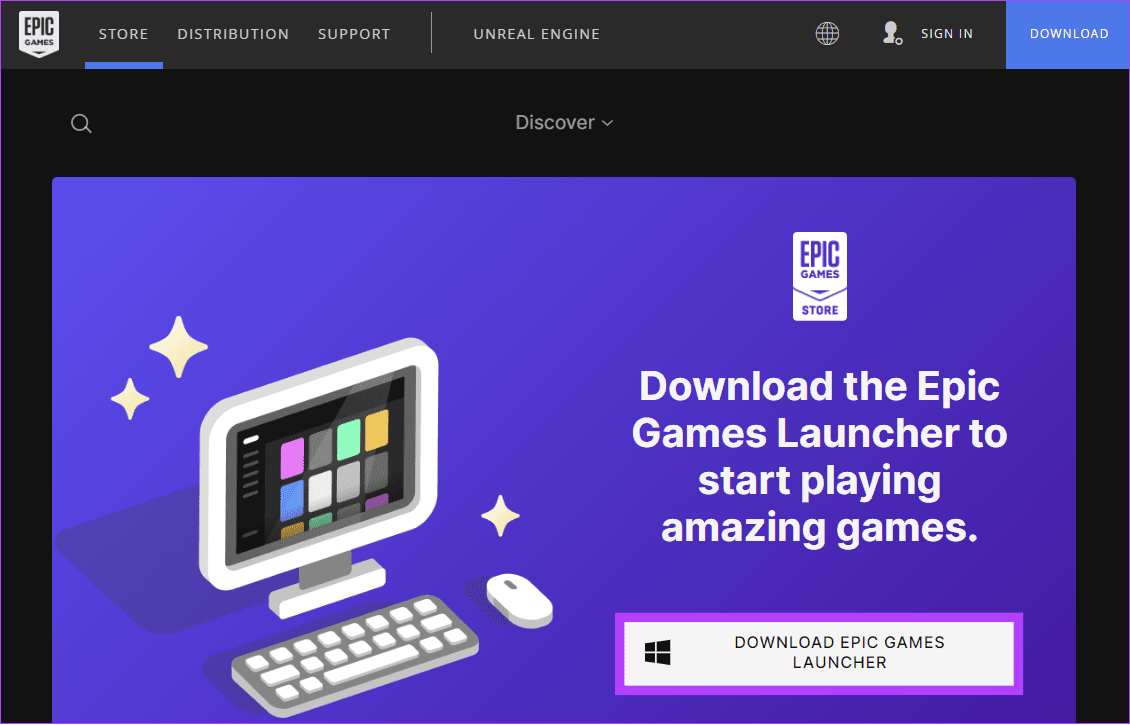
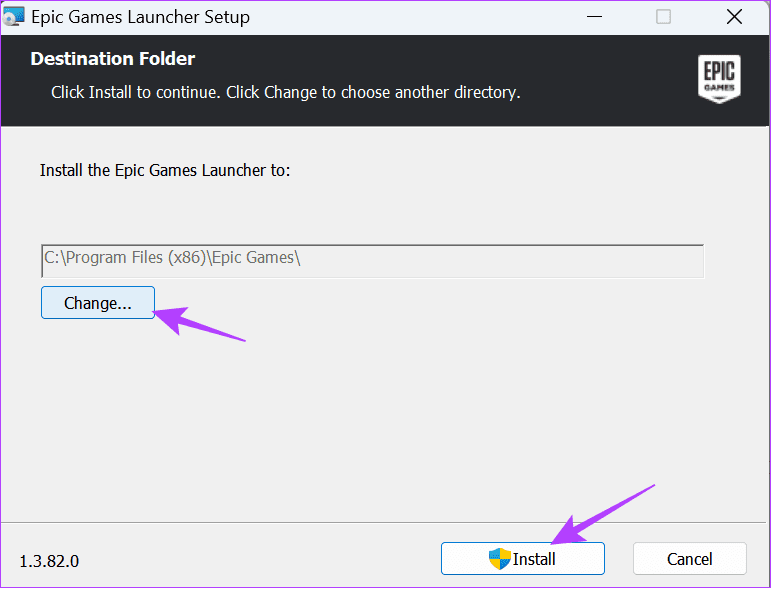
Step 8: Open the installer and click Change.
Step 9: Choose where to save the Epic Game Launcher and then click Install.
FAQs on Changing Epic Games Install Location on Windows
Yes. It is possible to install Epic Games on an external hard drive. Once you connect the hard drive, follow the above steps to move Epic games to an external hard drive.
Yes! It is possible to use VPNs with Epic Games, as it doesn’t violate any Epic Games Terms of Service.
Games have larger file sizes, so it’s always best to know how to change the Epic Games install location. With this guide, you can control where the games are saved.
Was this helpful?
Last updated on 03 August, 2024
Read Next
 How to Update Epic Games Launcher and Its Games on Windows
How to Check and Update Epic Games Launcher Epic Games Launcher auto-updates along with its games.
How to Update Epic Games Launcher and Its Games on Windows
How to Check and Update Epic Games Launcher Epic Games Launcher auto-updates along with its games.
 How to Fix Epic Games Library Not Showing Games
Basic Fixes: Refresh Epic Games launcher library: A quick refresh can help fix any glitches keeping you from accessing your Epic Games Library.
How to Fix Epic Games Library Not Showing Games
Basic Fixes: Refresh Epic Games launcher library: A quick refresh can help fix any glitches keeping you from accessing your Epic Games Library.
 How to Uninstall Epic Games Launcher and Its Games
Things to Consider Before Uninstalling Games or Epic Games Launcher Before uninstalling Epic Games Launcher or the games in it, consider the following things: Backup game files: If you have
How to Uninstall Epic Games Launcher and Its Games
Things to Consider Before Uninstalling Games or Epic Games Launcher Before uninstalling Epic Games Launcher or the games in it, consider the following things: Backup game files: If you have
 4 Ways to Fix Slow Download Speed in Epic Games Launcher on Windows 11
https://youtu.be/w8E4d-rCMUQ Basic Fixes: Check the Epic Server Status: Epic Games Launcher also relies on multiple servers to operate, and It’s possible that a server might be out of order or
4 Ways to Fix Slow Download Speed in Epic Games Launcher on Windows 11
https://youtu.be/w8E4d-rCMUQ Basic Fixes: Check the Epic Server Status: Epic Games Launcher also relies on multiple servers to operate, and It’s possible that a server might be out of order or
 5 Ways to Fix Can’t Uninstall Epic Games Launcher From Windows
https://youtu.be/FlTQNprjfwQ Fix 1: Close the Epic Games Launcher Using Task Manager Windows may have trouble uninstalling a program if it is actively running in the background.
5 Ways to Fix Can’t Uninstall Epic Games Launcher From Windows
https://youtu.be/FlTQNprjfwQ Fix 1: Close the Epic Games Launcher Using Task Manager Windows may have trouble uninstalling a program if it is actively running in the background.
 2 Ways to Fix Epic Games Not Sending a Security Code
Basic Fixes: Check network connection: If your phone has a spotty network connection, you may not receive a security code from Epic Games via email or SMS.
2 Ways to Fix Epic Games Not Sending a Security Code
Basic Fixes: Check network connection: If your phone has a spotty network connection, you may not receive a security code from Epic Games via email or SMS.
 How to Link Epic Games to Steam: Everything You Need to Know
Things to Remember Before you go ahead with linking your Steam and Epic Games accounts to one another, there are a handful of things to keep in mind.
How to Link Epic Games to Steam: Everything You Need to Know
Things to Remember Before you go ahead with linking your Steam and Epic Games accounts to one another, there are a handful of things to keep in mind.
 6 Ways to Fix Epic Games Error Code II-E1003
Basic Fixes: Ensure Stable Network: This is one of the biggest reasons you see the Install Failed Error Code II-E1003 in Epic Games.
6 Ways to Fix Epic Games Error Code II-E1003
Basic Fixes: Ensure Stable Network: This is one of the biggest reasons you see the Install Failed Error Code II-E1003 in Epic Games.
The article above may contain affiliate links which help support Guiding Tech. The content remains unbiased and authentic and will never affect our editorial integrity.