


Things to Note Before Changing the Country in the Google Play Store
An app you recently downloaded is may be unavailable in your country. But before you change country, here are a few things to note.
- Frequency of country change: You can change your Play Store country once a year. After the change, you can’t switch back to your old region for another year.
- Payment method: Your old payment method won’t work with your new account. You need to use a payment option from the new country for transactions.
- Content availability: Be aware that some books, movies, TV shows, games, and apps may not be available in your new country, potentially leading to losing access.
- Google Play balance: Your Google Play balance from your old country can’t be used in your new region. However, if you return to your old country, you’ll regain access to your balance.
- Google Play points: When you switch countries, you’ll lose access to your Google Play Points, and your game’s progress level may not carry over to your new region.
- Google Play Pass subscription: If you have a Google Play Pass subscription, it will only transfer to your new country if the service is available there. You can’t install more Google Play Pass games and apps if not.
- Available payment options: Ensure the new country provides suitable payment options. Some countries have limitations on the types of payment methods available.
- Country-specific regulations: Be aware of any country-specific regulations or restrictions that may affect your use of certain apps or content in your new region.
- Data loss: Changing your country might cause data loss or progress in some apps and games. So, we suggest you back up your Windows data and files before switching.
- Family Library: If you’re part of a Family Library, switching countries may affect availability or features. Check if your new country supports Family Library.
Prerequisites
Before we move forward and check the steps to change the country or region in the Google Play Store, let’s first check the requirements to do so:
- Your Google Play account must be at least one year old.
- You must have a valid IP address from the country you want to switch to.
- You must have a valid payment method from the country you want to switch to.
Change Google Play Country
Mobile
Step 1: Open the Play Store on your phone and tap your picture in the top-right corner.


Step 2: Go to Settings and select General.


Step 3: Tap Account and device preferences and locate the Country and profiles section.

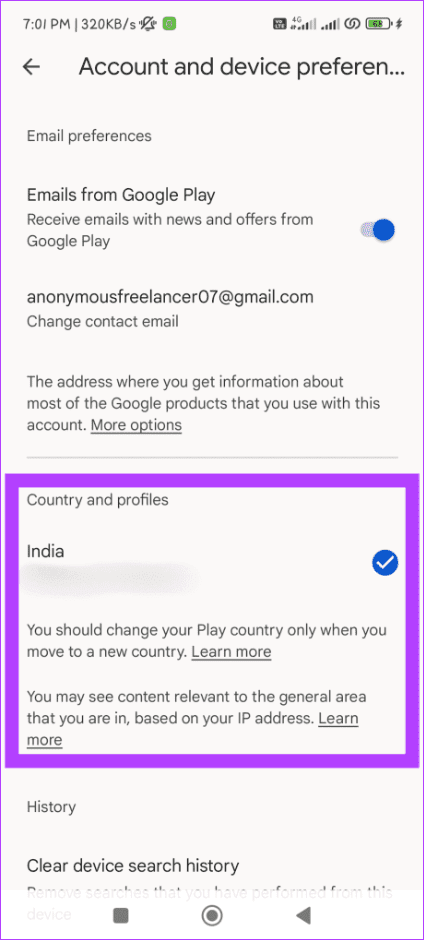
Step 4: Now, you’ll see an option to switch to the [region] Play Store if you’re in a different country than you were initially registered to.
Step 5: Finally, add a new Payment method to your account. After that, you can check out the Play Store for that region.
Note: This change might take up to 48 hours to work.
Desktop
To use this method, you must visit the Payment Settings page of Google Play.
Step 1: Open a web browser on your computer.
Step 2: Go to the Payment Settings page of Google Play and click Country/Region.

Step 3: Choose the Create new profile option.

Step 4: Press the Continue button in the confirmation box to create a new profile.

Step 5: Select a country from the dropdown menu for Country/Region and click Continue.

Step 6: Enter your payment address and click Submit.

Congratulations! You’ve successfully created a new payment profile. The Google Play Store will automatically change to your new country or region within 48 hours.
Change Google Play Country Without Adding a Payment Method
If your Google account is less than a year old or you don’t have a payment method for the country you want to switch to on the Google Play Store, you can follow these steps on your Android device:
Step 1: Open the Settings app.
Step 2: Go to Accounts & Sync and choose your Google account.


Step 3: Tap Remove Account and then select OK.
Note: Your data will remain unaffected as this will only remove your account from this device.


Step 4: Press the back button (< ) and go back to the Settings main menu. Find and tap More Settings.


Step 5: Select App manager and go to Google Play Store.


Step 6: Press Force Stop and choose OK.
Step 7: Tap Storage and select Clear data. If prompted, confirm by tapping Clear data again.
Note: This will log you out of all your Google accounts on Google Play Services.


Step 8: Now, open your VPN app. Choose the country you want access to and connect to the VPN.
Step 9: Launch the Play Store app and sign in.
Step 10: Wait a few minutes until Play Store finishes Checking info. Now, tap Create account and complete the process.


Congratulations! You’ve successfully created an account to access the Play Store for that region. Remember to stay connected to the VPN while trying to access the Play Store for the country.
FAQs
1. Why can’t I change my Google Play country?
One of the most prominent reasons you might not be able to change your Google Play country is if your account is not one year old or if you must have recently changed your country, and it hasn’t been a year since then.
2. Why are Google Play items unavailable in my country?
There are several possible explanations for why some Google Play websites aren’t available in your nation. Technical limits, government restrictions, and licensing are a few of them.
Was this helpful?
Last updated on 20 August, 2024
Read Next
 Top 5 Fixes for Cannot Change Country in Google Play Store
Setting the right country in the Play Store is very important since it determines the content you see in the Store.
Top 5 Fixes for Cannot Change Country in Google Play Store
Setting the right country in the Play Store is very important since it determines the content you see in the Store.
 5 Ways to Fix Google Play Store White Screen Problem
Basic Fixes Restart Play Store: Tap and hold the Play Store app, select App Info, and tap on Force Stop.
5 Ways to Fix Google Play Store White Screen Problem
Basic Fixes Restart Play Store: Tap and hold the Play Store app, select App Info, and tap on Force Stop.
 3 Ways to Update Google Play Store
Method 1: Update Google Play Store From the Settings Menu Step 1: Open the Play Store app on your phone.
3 Ways to Update Google Play Store
Method 1: Update Google Play Store From the Settings Menu Step 1: Open the Play Store app on your phone.
 6 Ways to Fix Google Play Store Not Opening on Android
Basic Fixes Check the Google Play server: Access the Google Play Status Dashboard to verify the Play Store service availability.
6 Ways to Fix Google Play Store Not Opening on Android
Basic Fixes Check the Google Play server: Access the Google Play Status Dashboard to verify the Play Store service availability.
 5 Ways to Fix Error Checking for Updates in the Google Play Store
Basic Fixes Check the app update preference: If you can't update apps manually, check the app update preference to automate it.
5 Ways to Fix Error Checking for Updates in the Google Play Store
Basic Fixes Check the app update preference: If you can't update apps manually, check the app update preference to automate it.
 7 Ways to Fix Google Play Store Not Showing Installed Apps
Fix 1: Turn Off Parental Controls on Play Store Parental control on Play Store allows you to prevent unauthorized transactions and hide inappropriate apps on Play Store.
7 Ways to Fix Google Play Store Not Showing Installed Apps
Fix 1: Turn Off Parental Controls on Play Store Parental control on Play Store allows you to prevent unauthorized transactions and hide inappropriate apps on Play Store.
 4 Ways to Fix Google Play Store Won’t Connect to the Internet
Try Basic Fixes Toggle airplane mode: Turning airplane mode on and off is an easy way to refresh all the network connections on your Android.
4 Ways to Fix Google Play Store Won’t Connect to the Internet
Try Basic Fixes Toggle airplane mode: Turning airplane mode on and off is an easy way to refresh all the network connections on your Android.
 5 Ways to Fix Google Play Store ‘No Connection’ Error
Basic Ways: Restart your phone: Restarting your Android phone will help restart all device services, eliminating any temporary glitches that might be erroring out the Google Play Store app.
5 Ways to Fix Google Play Store ‘No Connection’ Error
Basic Ways: Restart your phone: Restarting your Android phone will help restart all device services, eliminating any temporary glitches that might be erroring out the Google Play Store app.
The article above may contain affiliate links which help support Guiding Tech. The content remains unbiased and authentic and will never affect our editorial integrity.

