Method 1: Enable Age Rating Restrictions
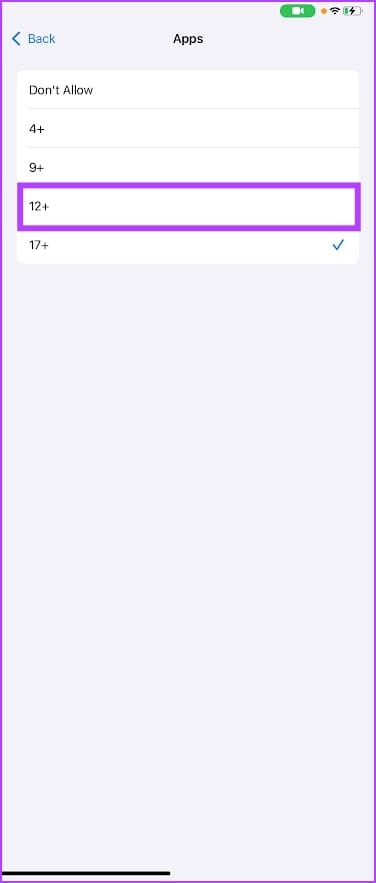
YouTube is rated for 17 years and older on the App Store. In the content restrictions menu, you can allow only apps that are rated 12+. This restricts the usage of YouTube on your iOS device.
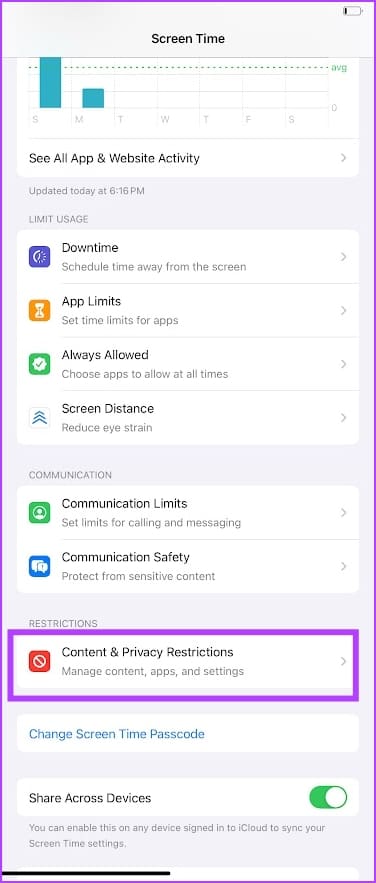
Step 1: Open Settings > Screen Time. Select Content & Privacy Restrictions.
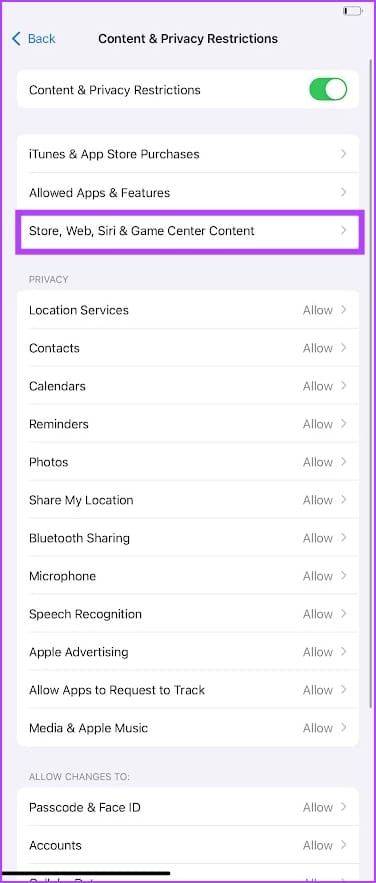
Step 2: Select Store, Web, Siri & Game Center Content.
Step 3: Select Apps, and select 12+ on the next screen.

Method 2: Add App Limit to YouTube
If you add a time limit to an app on your iOS device, it cannot be opened after a certain period of usage.
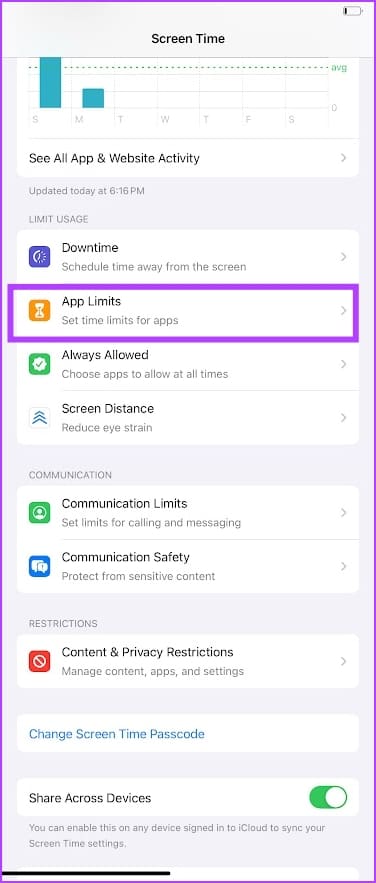
Step 1: Open Settings > Screen Time > App Limits.
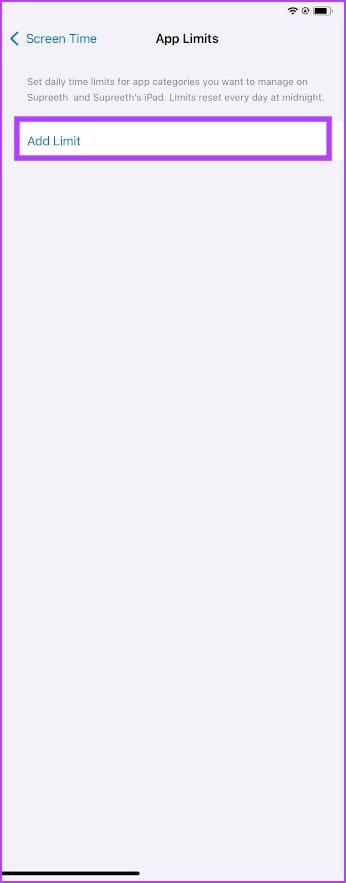
Step 2: Select Add Limit, select YouTube from the list of apps, and add a time limit.
Method 3: Prevent Installing Apps
If you’ve uninstalled YouTube on your iOS device, how do you stop your child from installing it again? Here’s how you can prevent the installation of new apps on your iOS device.
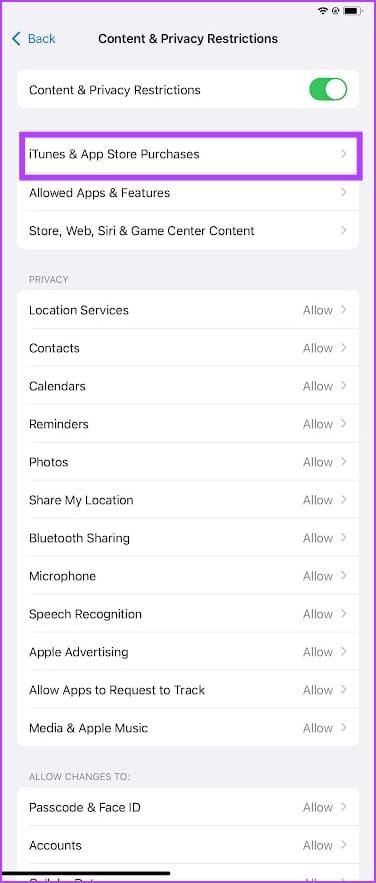
Step 1: Open Settings > Screen Time > Content & Privacy Restrictions > iTunes & App Store Purchases.
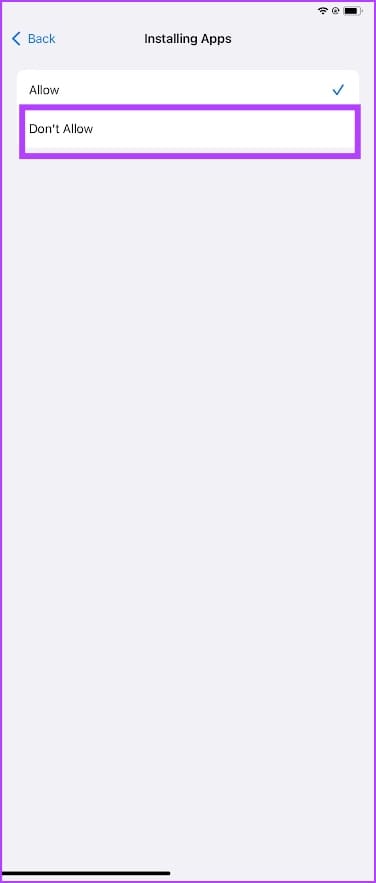
Step 2: Select Installing Apps, and select Don’t Allow.

Method 4: Block YouTube in Safari
Here’s how you can prevent someone from opening YouTube on Safari.
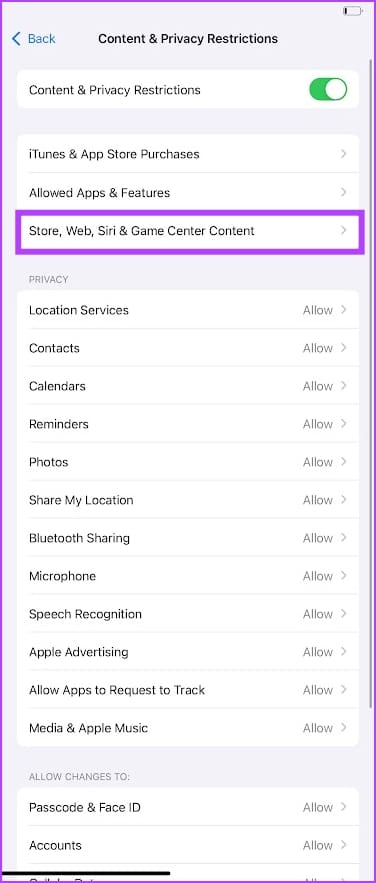
Step 1: Open Settings > Screen Time > Content & Privacy Restrictions >Store, Web, Siri & Game Center Content.
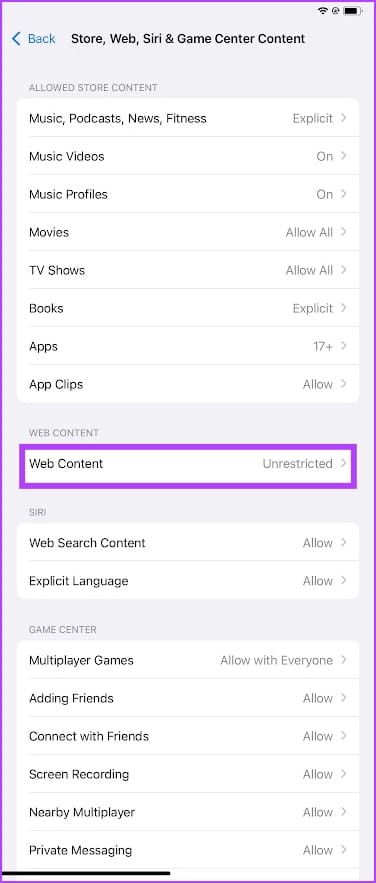
Step 2: Select Web Content, and check Limit Adult Websites. Under the NEVER ALLOW: section, tap on Add Website and add the URL for YouTube.

If you’re worried about someone changing the above settings – you can protect them by adding the screen time passcode.
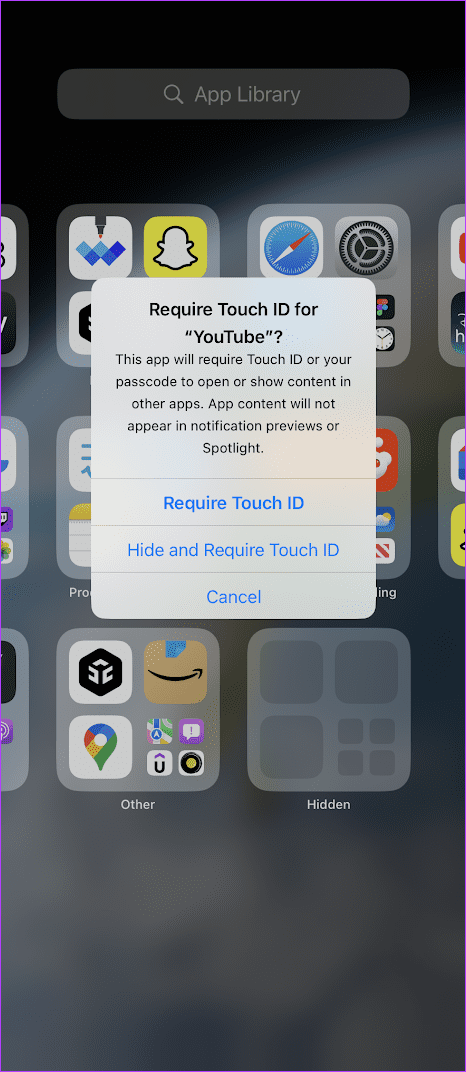
Method 5: Lock YouTube With TouchID (iOS 18)
iOS 18 brings in the much-awaited app lock feature. This lets you open an app only after you use TouchID.
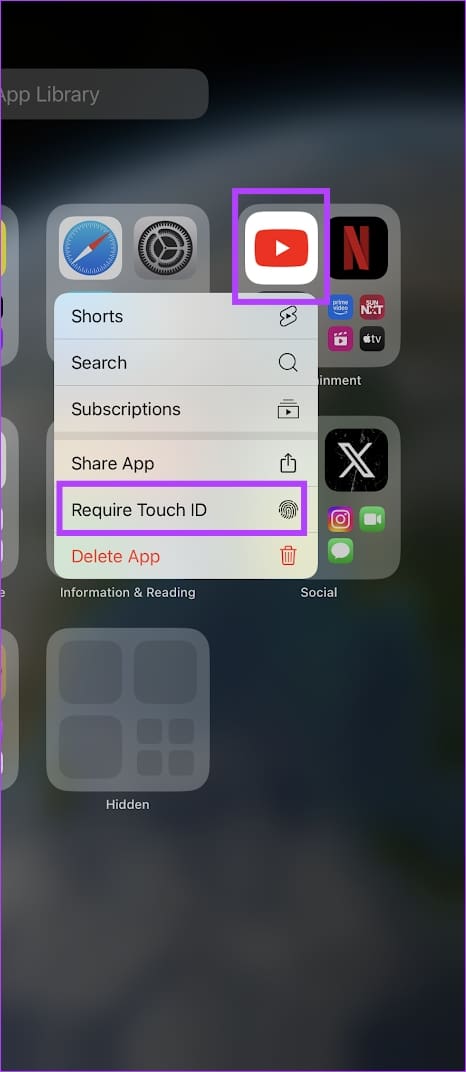
Tap and hold an app, and select Require Touch ID. You can opt for just Require Touch ID, or Hide and Require TouchID. If you opt for the latter, you can find the app in the Hidden Section of the App Library.
Also Read: How to remove or reset a forgotten Screen Time Passcode on iPhone and Mac.
Was this helpful?
Last updated on 28 August, 2024
Read Next
 2 Ways to Block YouTube Channels on Desktop and Mobile
Method 1: Block a YouTube Channel From Appearing on Your Feed If you want to stop a YouTube channel from appearing in your feed without fully blocking it, you can
2 Ways to Block YouTube Channels on Desktop and Mobile
Method 1: Block a YouTube Channel From Appearing on Your Feed If you want to stop a YouTube channel from appearing in your feed without fully blocking it, you can
 YouTube and Jasmine: iPhone YouTube Apps Compared
As you surely know, YouTube is by far the most popular video sharing website out there, with its popularity only increasing even more with the arrival of mobile devices like
YouTube and Jasmine: iPhone YouTube Apps Compared
As you surely know, YouTube is by far the most popular video sharing website out there, with its popularity only increasing even more with the arrival of mobile devices like
 Top 4 Ways to Fix YouTube Not Working on iPad
Basic Fixes: Check Wi-Fi Connection: While using the Wi-Fi-only iPad, make sure it is connected to a working Wi-Fi connection.
Top 4 Ways to Fix YouTube Not Working on iPad
Basic Fixes: Check Wi-Fi Connection: While using the Wi-Fi-only iPad, make sure it is connected to a working Wi-Fi connection.
 How to Enable, Disable, or Block Your Caller ID on an iPhone
In the era where contact posters boldly show who’s calling, some people like to hide their phone numbers for privacy reasons.
How to Enable, Disable, or Block Your Caller ID on an iPhone
In the era where contact posters boldly show who’s calling, some people like to hide their phone numbers for privacy reasons.
 What Happens When You Block Someone on iPhone
What Happens When You Block a Number on an iPhone As a general rule when you block a number or a contact, the iPhone blocks all communication channels incorporated into
What Happens When You Block Someone on iPhone
What Happens When You Block a Number on an iPhone As a general rule when you block a number or a contact, the iPhone blocks all communication channels incorporated into
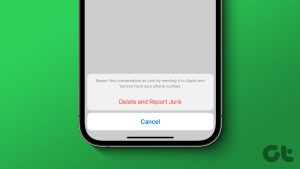 How to Block and Delete Messages on iPhone
If you have an iPhone and constantly receive spam messages from unknown numbers, you can report the messages as spam or junk.
How to Block and Delete Messages on iPhone
If you have an iPhone and constantly receive spam messages from unknown numbers, you can report the messages as spam or junk.
 7 Ways to Unsync iPhone from iPad or Another iPhone
Method 1.
7 Ways to Unsync iPhone from iPad or Another iPhone
Method 1.
 3 Ways to Block All Calls Except Contacts on Android and iPhone
Method 1: Block Unknown Numbers From Calling You You can block calls from unidentified callers on Android.
3 Ways to Block All Calls Except Contacts on Android and iPhone
Method 1: Block Unknown Numbers From Calling You You can block calls from unidentified callers on Android.
The article above may contain affiliate links which help support Guiding Tech. The content remains unbiased and authentic and will never affect our editorial integrity.