

How to Block Pop-Ups on Microsoft Edge
Method 1: Block Pop Ups in Settings
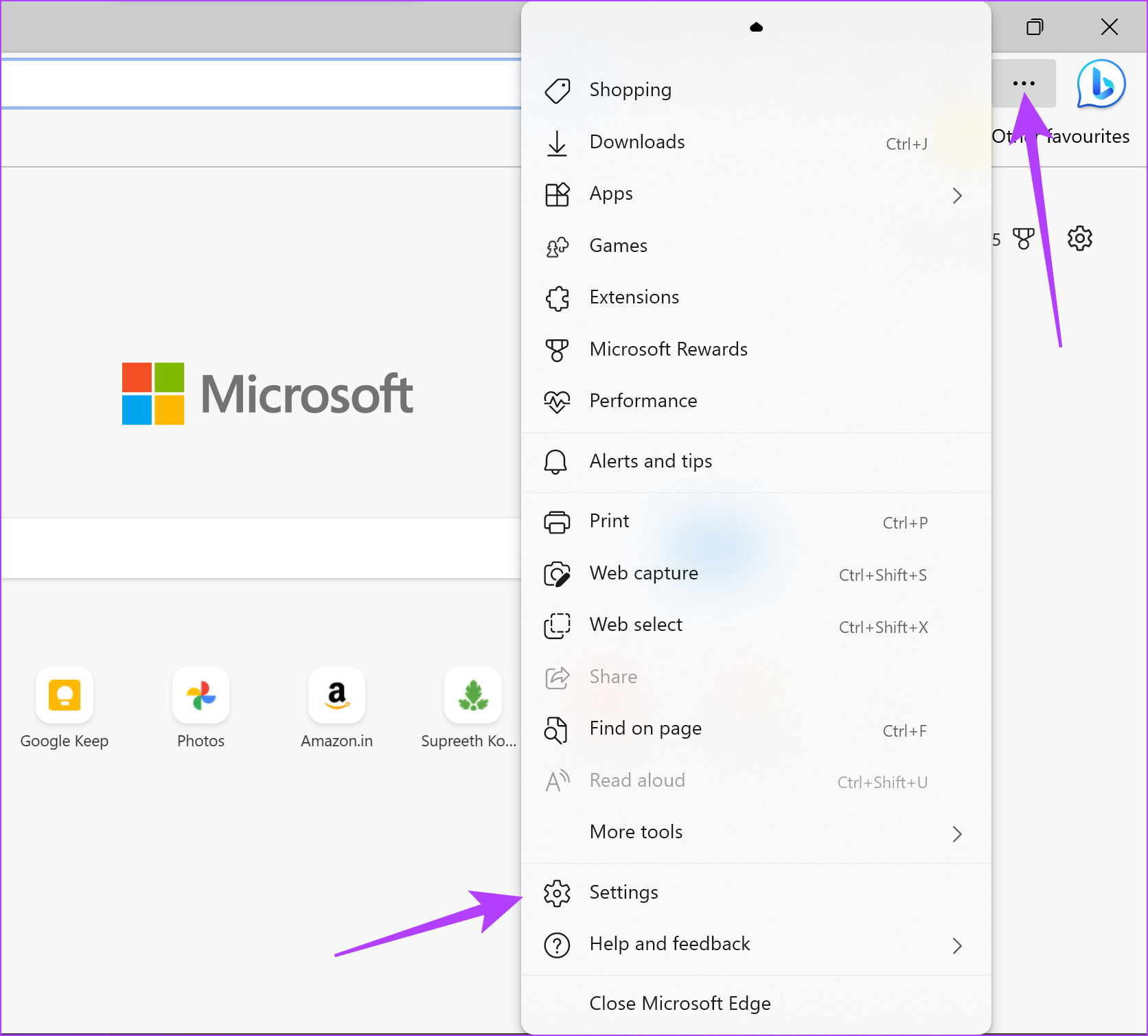
Step 1: Click on the three dots icon on the toolbar > select Settings.
Step 2: In the sidebar, click on Cookies and site permissions.

Step 3: Click on Pop-ups and redirects.

Step 4: Now, turn on the toggle for Block.

However, you can also block pop-ups for specific sites only:
Step 1: Turn off the toggle for Block. This is needed to enable pop-ups on all sites first before adding specific sites to the pop-up blocklist.
Step 2: Next, click on Add next to the Block option.
Step 3: Enter the website’s URL and click on Add. Pop-ups will be blocked for the added website. You can add more websites to the list.

Also Read: How to take a full page screenshot on Microsoft Edge
Method 2: Use a Microsoft Edge Pop-Up Blocker Extension
If you can’t block pop-ups using the built-in settings of Microsoft Edge, you can use a third-party extension.
Step 1: Open Microsoft Edge and install the Pop-Up Blocker extension from the Chrome web store.
(Yes, Chrome’s web store is also supported for Microsoft Edge since it is built on the same engine called Chromium)
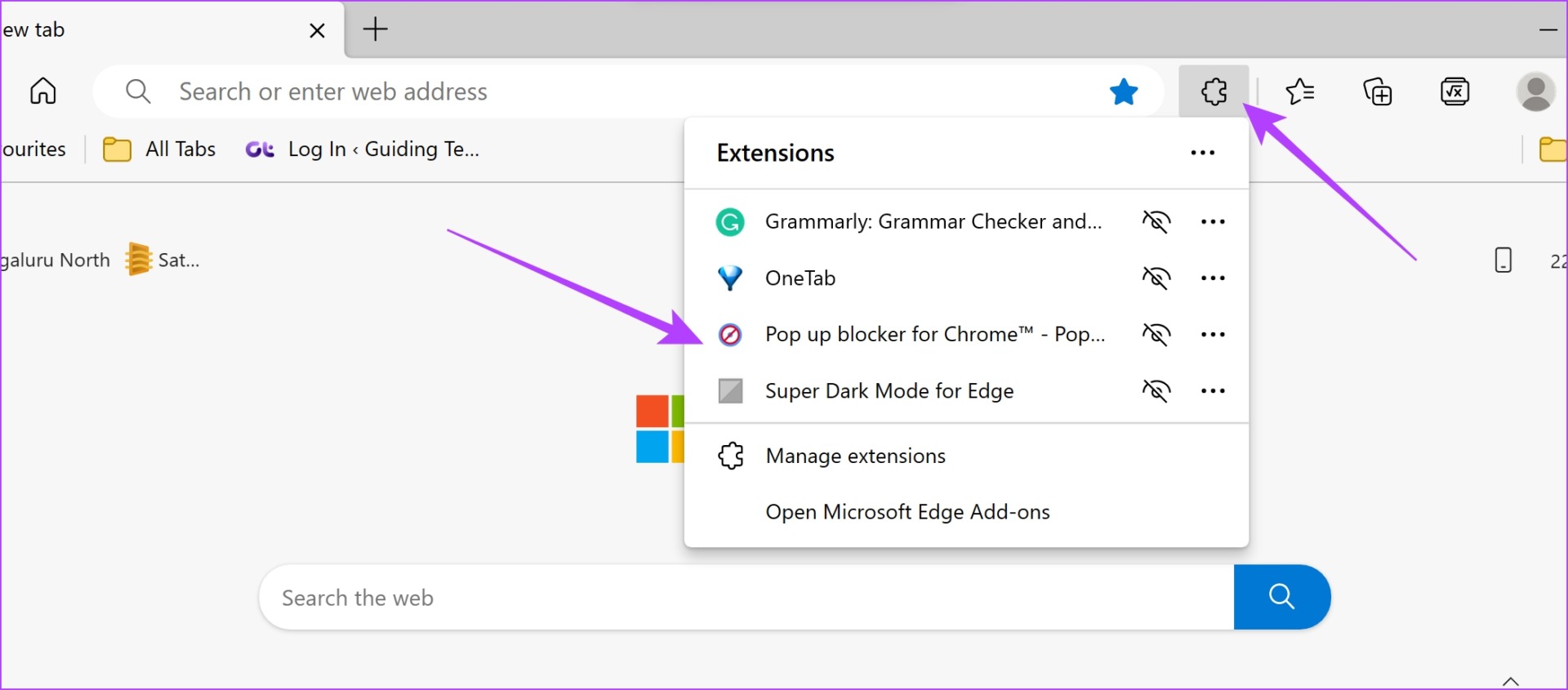
Step 2: Once you install the extension, click on the extensions icon and select Pop up blocker for Chrome.
Step 3: Turn on the toggle for Block basic popups and Block advanced popups (overlays).

Also Read: How to fix Microsoft Edge not updating on Windows
How to Allow Pop-Ups on Microsoft Edge
If you are confident that a website doesn’t push spam or malicious content via pop-ups and deem them necessary, you can enable pop-ups on Microsoft Edge.
Step 1: Click on the three dots icon on the toolbar > select Settings.
Step 2: In the sidebar, click on Cookies and site permissions.
Step 3: Click on Pop-ups and redirects.
Step 4: Turn off the toggle for Block. This unblocks and allows pop-ups for all websites.
You can also enable pop-ups for specific sites only.
Step 1: Turn on the toggle for Block. We’ll first block pop-ups for all websites and then add specific sites to allow pop-ups.
Step 2: Click on Add next to allow.

Step 3: Enter the website’s URL and click on Add. This will allow pop-ups for the specific website. You can add more websites to this list.

Also Read: How to clear cache and cookies on Microsoft Edge
Was this helpful?
Last updated on 10 July, 2024
1 Comment
Leave a Reply
Read Next
 How to Allow or Block Pop-ups in Chrome (Desktop and Mobile)
Enable or Disable Pop-up Blocker in Chrome for Desktop Enabling the pop-up blocker on Chrome ensures that Google screens every website you visit for pop-ups by default.
How to Allow or Block Pop-ups in Chrome (Desktop and Mobile)
Enable or Disable Pop-up Blocker in Chrome for Desktop Enabling the pop-up blocker on Chrome ensures that Google screens every website you visit for pop-ups by default.
 How to Allow or Block Pop-ups and Redirects on Opera
How to Allow or Block Pop-Ups and Redirects on Opera By default, Opera does not require you to block ads and pop-ups as it protects you from these annoying contents.
How to Allow or Block Pop-ups and Redirects on Opera
How to Allow or Block Pop-Ups and Redirects on Opera By default, Opera does not require you to block ads and pop-ups as it protects you from these annoying contents.
 How to Use the Edge Bar in Microsoft Edge on Windows 11
How to Enable Edge Bar in Microsoft Edge Step 1: Launch Microsoft Edge on your PC > click the three-dot menu icon at the top right > select Settings.
How to Use the Edge Bar in Microsoft Edge on Windows 11
How to Enable Edge Bar in Microsoft Edge Step 1: Launch Microsoft Edge on your PC > click the three-dot menu icon at the top right > select Settings.
 6 Best UPS for Wi-Fi Routers and Modems
A dedicated UPS can prevent internet downtime if your home experiences short power cuts or voltage surges.
6 Best UPS for Wi-Fi Routers and Modems
A dedicated UPS can prevent internet downtime if your home experiences short power cuts or voltage surges.
 6 Best UPS for PS5 Under $150
The Sony PlayStation 5 is an excellent gaming console, although it is sensitive to power outages.
6 Best UPS for PS5 Under $150
The Sony PlayStation 5 is an excellent gaming console, although it is sensitive to power outages.
 6 Best UPS for Gaming PCs for Uninterrupted Gaming
A reliable UPS acts as your gaming PC's guardian angel, shielding it from power fluctuations, surges, and unexpected outages.
6 Best UPS for Gaming PCs for Uninterrupted Gaming
A reliable UPS acts as your gaming PC's guardian angel, shielding it from power fluctuations, surges, and unexpected outages.
 5 Best UPS for Synology NAS
Synology NAS (Network Attached Storage) is an excellent way to create a centralized location on the same network.
5 Best UPS for Synology NAS
Synology NAS (Network Attached Storage) is an excellent way to create a centralized location on the same network.
 How to Enable or Disable Safari Pop-up Blocker on Mac
Block or Unblock Pop-Ups in Safari for One Website Step 1: Open Safari on your Mac and navigate to a website.
How to Enable or Disable Safari Pop-up Blocker on Mac
Block or Unblock Pop-Ups in Safari for One Website Step 1: Open Safari on your Mac and navigate to a website.
The article above may contain affiliate links which help support Guiding Tech. The content remains unbiased and authentic and will never affect our editorial integrity.

I am adding sites to the Allow Pop-ups and permissions but they don’t get saved when i leave Edge.
MSNB and Daily Mail keep telling me i have an Ad Blocker on and i don’t.