Method 1: Launch Windows Terminal Using the Run Dialog
The Run dialog lets you execute any program or command within the same network on your computer. You can use it to open Windows Terminal on your Windows 11 PC.
Press the Windows + R shortcut to open Run > type wt.exe > press Enter to open the Windows Terminal. To open it with administrator privileges, press the Ctrl + Shift + Enter keys instead and approve the UAC prompt.

Method 2: Use the Task Manager App
Besides monitoring and managing system resources, you can use the Task Manager app to open the Windows Terminal.
Step 1: Press the Ctrl + Shift + Esc shortcut to open the Task Manager app > select the Processes tab > click on Run new task.
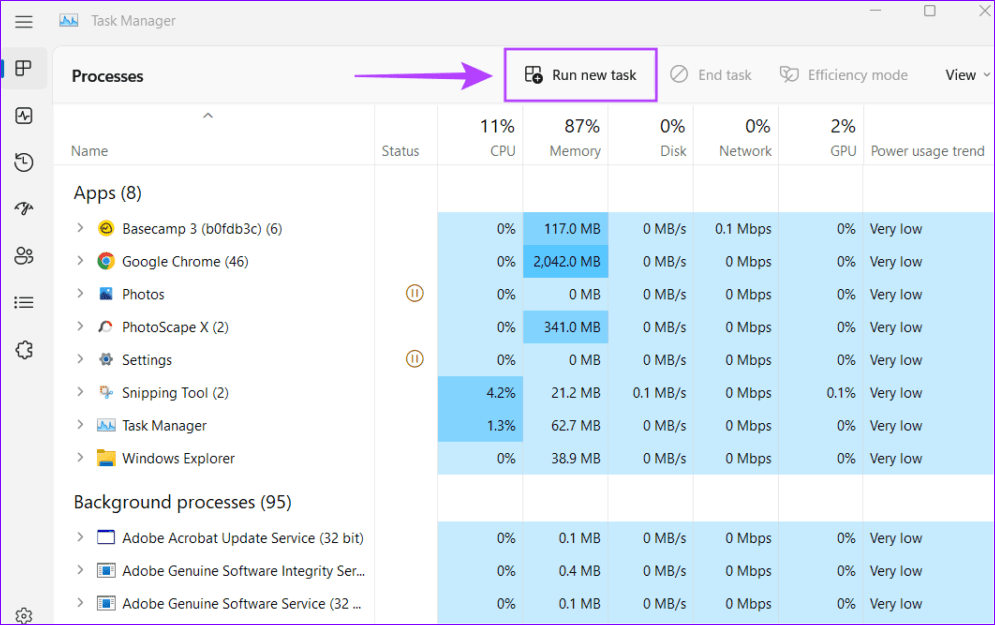
Step 2: Type wt.exe in the text field and press Enter. To run it as an administrator, check the box for Create this task with administrative privileges and hit Enter.

Method 3: Create a Shortcut to Open the Windows Terminal
If you frequently use Windows Terminal, I recommend creating its shortcut on your desktop and assigning a hotkey.
Step 1: Right-click anywhere on your desktop and select New > Shortcut.

Step 2: Copy-paste the following path in the text field and click Next.
%LocalAppData%\Microsoft\WindowsApps\wt.exe

Step 3: Name the shortcut as Windows Terminal and click Finish.

Step 4: Right-click the created shortcut and select Properties.

Step 5: Open the Shortcut tab > select the Shortcut key > press your desired key combination (e.g., Ctrl + Alt + T) to assign it. Click on Apply to save changes.

Was this helpful?
Last updated on 11 July, 2024
Read Next
 4 Ways to Fix Windows Terminal Not Opening on Windows 11
Fix 1: Ensure Windows Terminal Is Not Disabled If you cannot launch Windows Terminal via the Start menu or Run dialog box, ensure the app is not disabled on your
4 Ways to Fix Windows Terminal Not Opening on Windows 11
Fix 1: Ensure Windows Terminal Is Not Disabled If you cannot launch Windows Terminal via the Start menu or Run dialog box, ensure the app is not disabled on your
 Apex Legends Won’t Launch on PC: Here Are 8 Ways to Fix It
Apex Legends is the latest battle royal game that is challenging the dominance of Fortnite and PUBG.
Apex Legends Won’t Launch on PC: Here Are 8 Ways to Fix It
Apex Legends is the latest battle royal game that is challenging the dominance of Fortnite and PUBG.
 Top 7 Ways to Fix Windows Key Not Working on Windows 10
Windows 10 operating system is full of keyboard shortcuts.
Top 7 Ways to Fix Windows Key Not Working on Windows 10
Windows 10 operating system is full of keyboard shortcuts.
 2 Ways to Fix Discord Not Opening on Windows 10 and Windows 11
Try Basic Fixes End Discord processes: Press Ctrl + Shift + Esc to launch the Task Manager.
2 Ways to Fix Discord Not Opening on Windows 10 and Windows 11
Try Basic Fixes End Discord processes: Press Ctrl + Shift + Esc to launch the Task Manager.
 9 Ways to Open Task Manager on Windows 10 and Windows 11
Task Manager is one of the most commonly used programs on Windows, regardless of its version.
9 Ways to Open Task Manager on Windows 10 and Windows 11
Task Manager is one of the most commonly used programs on Windows, regardless of its version.
 5 Best Ways To View Windows Update History In Windows 11
By constantly updating your Windows 11 operating system, you get access to new or improved features to deliver a better user experience.
5 Best Ways To View Windows Update History In Windows 11
By constantly updating your Windows 11 operating system, you get access to new or improved features to deliver a better user experience.
 3 Quick Ways to Find Product Key on Windows 10 or Windows 11
1.
3 Quick Ways to Find Product Key on Windows 10 or Windows 11
1.
 3 Best Ways to Fix Keyboard Backlight Not Working on Windows 10 and Windows 11
Try Basic Fixes Toggle the keyboard backlight using the hotkey: You can use a key combination to quickly enable or disable the keyboard backlight on your Windows 11 PC.
3 Best Ways to Fix Keyboard Backlight Not Working on Windows 10 and Windows 11
Try Basic Fixes Toggle the keyboard backlight using the hotkey: You can use a key combination to quickly enable or disable the keyboard backlight on your Windows 11 PC.
The article above may contain affiliate links which help support Guiding Tech. The content remains unbiased and authentic and will never affect our editorial integrity.