Fix 1: Change the Default Browser
Outlook may be unable to open links due to a browser-related issue. To fix this, the first thing to do is change the default browser on your Windows PC.
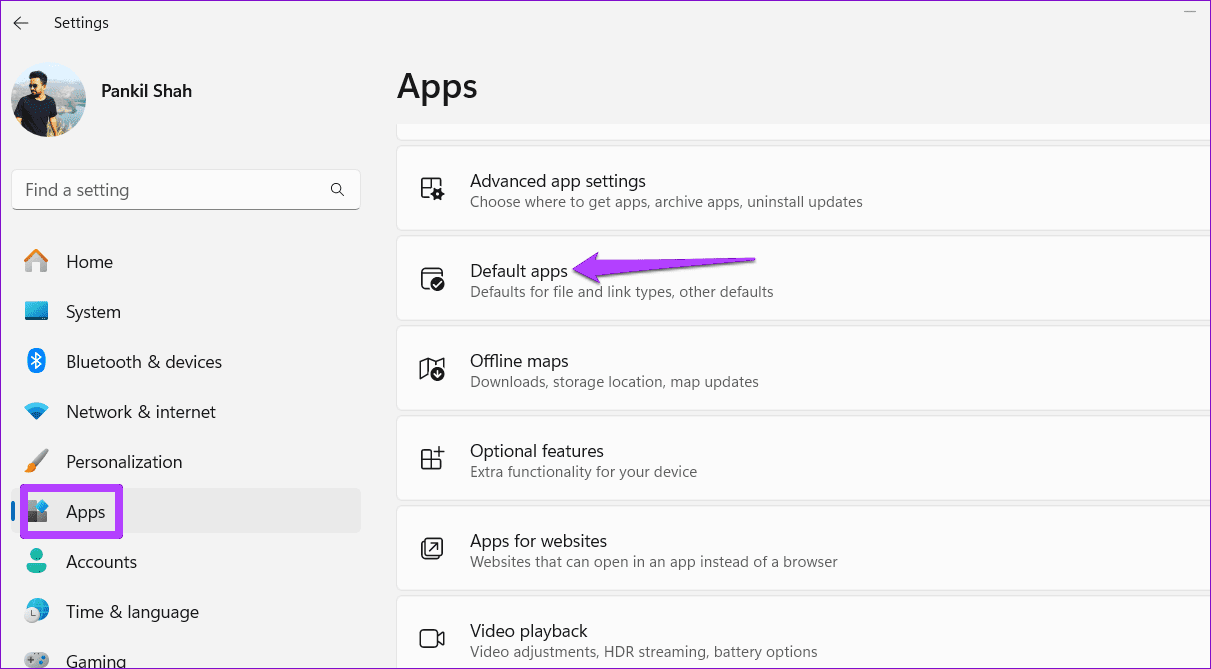
Step 1: Press the Windows key + I to open the Settings app and head to Apps > Default apps.
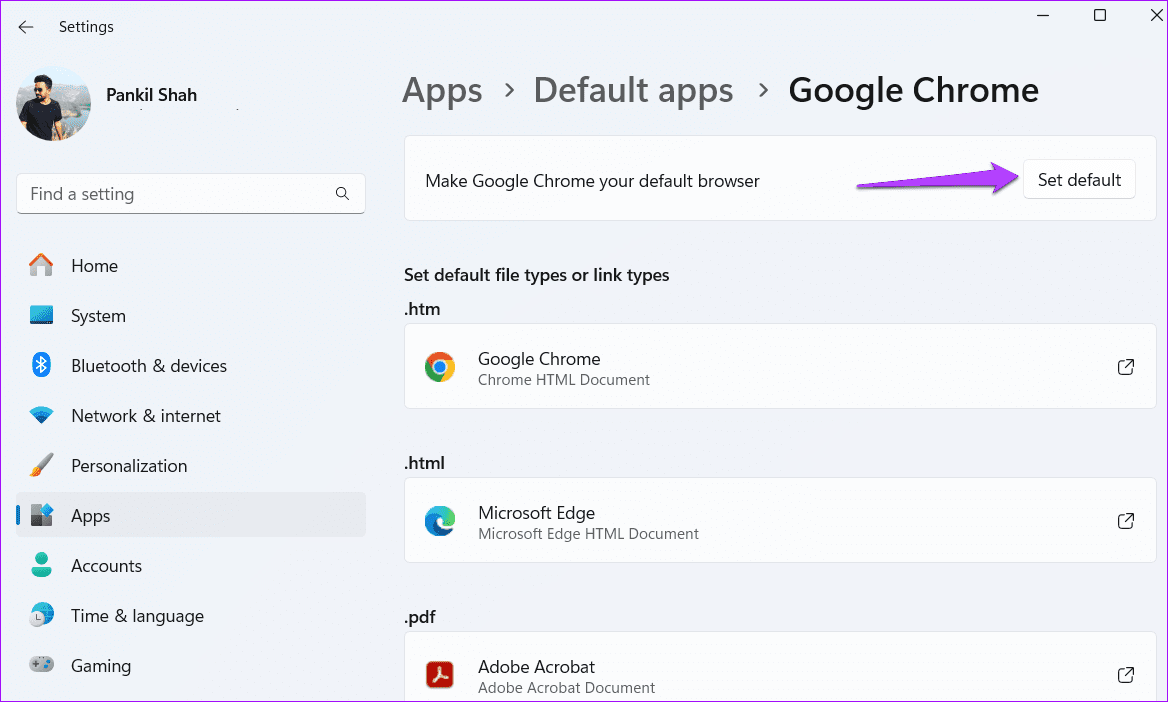
Step 2: Select the browser you want to set as default.
Step 3: Click the Set default button.
Fix 2: Repair Microsoft Office
Like any other app, Office apps like Outlook are bound to encounter problems occasionally. Thankfully, Microsoft offers a dedicated repair tool that can easily fix such issues. Here’s how to run it.
Step 1: Press the Windows key + R to open the Run dialog box. Type appwiz.cpl in the box and hit Enter.
Step 2: Locate and select Microsoft Office suite on the list. Click on Change at the top.

Step 3: Select Online Repair and hit Repair. Follow the on-screen instructions to complete the process.

Fix 3: Fix HTML File Associations
If Outlook still cannot open links, try altering the HTML file association on Windows by modifying registry files. Here’s how to do it.
Step 1: Right-click the Start icon and select Terminal (Admin) from the list.

Step 2: In the console, copy and paste the commands one by one, also press Enter after each command.
REG ADD HKEY_CURRENT_USER\Software\Classes\.htm /ve /d htmlfile /f
REG ADD HKEY_CURRENT_USER\Software\Classes\.html /ve /d htmlfile /f
REG ADD HKEY_CURRENT_USER\Software\Classes\.shtml /ve /d htmlfile /f
REG ADD HKEY_CURRENT_USER\Software\Classes\.xht /ve /d htmlfile /f
REG ADD HKEY_CURRENT_USER\Software\Classes\.xhtml /ve /d htmlfile /f
Restart your PC after running the above commands and check if the issue persists.
Was this helpful?
Last updated on 08 May, 2024
Read Next
 5 Fixes for Unable to Open Attachments in Microsoft Outlook on Windows
Fix 1: Check Attachment Handling Settings If Outlook is unable to open your email attachments, it may be because the file previewer option is disabled.
5 Fixes for Unable to Open Attachments in Microsoft Outlook on Windows
Fix 1: Check Attachment Handling Settings If Outlook is unable to open your email attachments, it may be because the file previewer option is disabled.
 Top 4 Ways to Open All Links in New Tabs in Chrome
Method 1: Scroll Wheel/Middle Mouse Button If you do not like the idea of having a Chrome extension, you can trust the mouse to handle this job for you.
Top 4 Ways to Open All Links in New Tabs in Chrome
Method 1: Scroll Wheel/Middle Mouse Button If you do not like the idea of having a Chrome extension, you can trust the mouse to handle this job for you.
 5 Ways to Fix Unable to Remove Bluetooth Device on Windows 11
Fix 1: Try Removing Device in Airplane Mode To start, enable Airplane mode and remove the Bluetooth device again.
5 Ways to Fix Unable to Remove Bluetooth Device on Windows 11
Fix 1: Try Removing Device in Airplane Mode To start, enable Airplane mode and remove the Bluetooth device again.
 4 Ways to Fix Unable to Install Programs or Software on Windows 11
Try Basic Fixes Check program compatibility: Programs and games that worked perfectly on Windows 10 may not necessarily be compatible with Windows 11.
4 Ways to Fix Unable to Install Programs or Software on Windows 11
Try Basic Fixes Check program compatibility: Programs and games that worked perfectly on Windows 10 may not necessarily be compatible with Windows 11.
 5 Ways to Fix Unable to Print From Microsoft Excel on Windows 11
Fix 1: Save Your Excel File in XPS Format and Try Again If Excel can't respond to print requests, save your file in the XPS format and try again.
5 Ways to Fix Unable to Print From Microsoft Excel on Windows 11
Fix 1: Save Your Excel File in XPS Format and Try Again If Excel can't respond to print requests, save your file in the XPS format and try again.
 4 Ways to Fix Unable to Rename Folders on Windows 11
Try Basic Fixes Make sure the folder is not in use: You may have difficulty renaming a folder on your PC if it is already open in another program.
4 Ways to Fix Unable to Rename Folders on Windows 11
Try Basic Fixes Make sure the folder is not in use: You may have difficulty renaming a folder on your PC if it is already open in another program.
 4 Ways to Fix Unable to Install Drivers on Windows 11
Try Basic Fixes Install Windows updates: The driver installation issue may be limited to your Windows build.
4 Ways to Fix Unable to Install Drivers on Windows 11
Try Basic Fixes Install Windows updates: The driver installation issue may be limited to your Windows build.
 3 Ways to Fix Unable to Sign in to Microsoft OneNote on Windows
Fix 1: Remove OneNote Credentials From Credential Manager The Credential Manager in Windows stores login details for all your apps.
3 Ways to Fix Unable to Sign in to Microsoft OneNote on Windows
Fix 1: Remove OneNote Credentials From Credential Manager The Credential Manager in Windows stores login details for all your apps.
The article above may contain affiliate links which help support Guiding Tech. The content remains unbiased and authentic and will never affect our editorial integrity.